Introdução

For clarification, the trackpads and the directional pad are not the same. This guide is for replacing the rubber pads below the buttons, not the buttons themselves.

  1. j2AtUCqeyyG2aXLv
    j2AtUCqeyyG2aXLv
    Qi1sniJYVAGfcUyg
    OCO3qBtqtET3xTk4
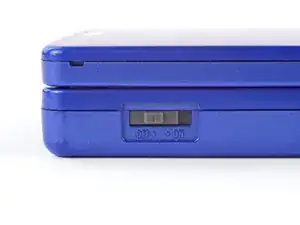
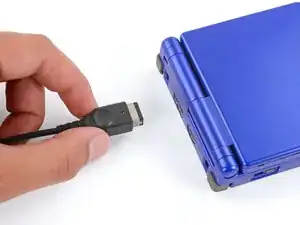
    • Slide the power switch to the OFF position and unplug any cables.

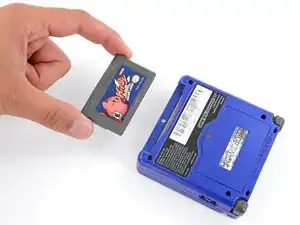
    • If you have a game cartridge in, remove it.

  2. 2IxBSKoCTnB2gSQK
    2IxBSKoCTnB2gSQK
    gg543LDhbyRGsR1l
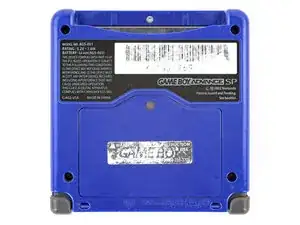
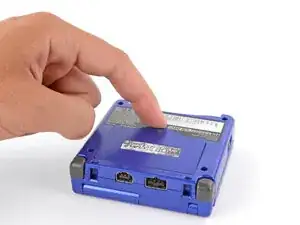
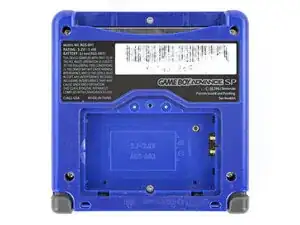
    • Use a JIS 00 screwdriver to loosen the captive screw securing the battery cover.

    • You can try to use a non-iFixit Phillips driver in a pinch, but you risk damaging or stripping the screw. Push down firmly on the driver and twist slowly.

  3. gVQdyKTgjlKN2ixZ
    gVQdyKTgjlKN2ixZ
    2dnUFGfpIdyy1eh2
    A3KuwwETnJtnbGhI
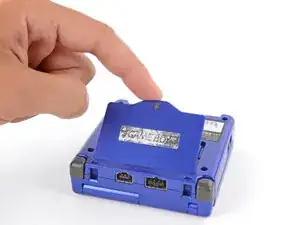
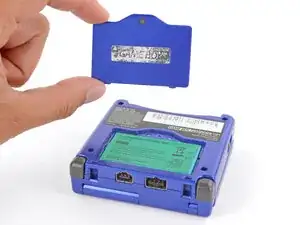
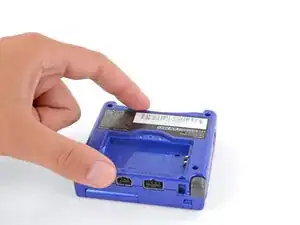
    • Lift the edge of the cover near the screw and remove the cover.

    • During reassembly, hook the tabs on the bottom edge of the cover into their slots and lay the cover into place.

  4. U2SYItMAYfiqAwBY
    U2SYItMAYfiqAwBY
    EXJkAY3lOyJVRfAX
    rSLhhkosiZPy1hUq
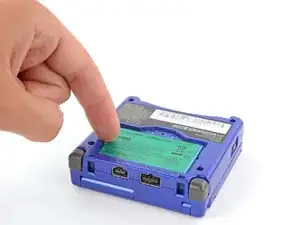
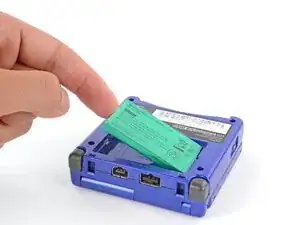
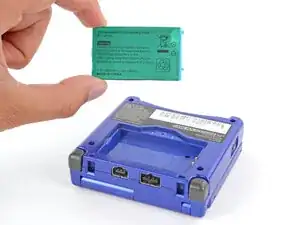
    • Use your finger to lift the battery by the tab on its left edge, then remove it.

    • During reassembly:

    • Never reuse a deformed or damaged battery—it's a fire hazard. Replace it with a new battery.

    • Your replacement battery may come with a plastic enclosure that slides over the battery.

    • Insert the edge of the battery with contacts at a slight downward angle—aligning the contacts with their prongs in the recess—and press the battery into place.

  5. Ldow6GCmi5DecKU3
    Ldow6GCmi5DecKU3
    ZTRgyiDfXCxV1BMB
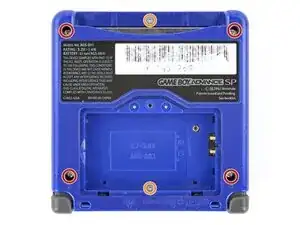
    • Use a tri‑point Y0 screwdriver to remove the six screws securing the bottom shell:

    • Four 6.3 mm‑long recessed screws

    • Two 4.6 mm‑long screws

  6. uWNU5edsGZRHAviS
    uWNU5edsGZRHAviS
    MALG6CgR561WNM6t
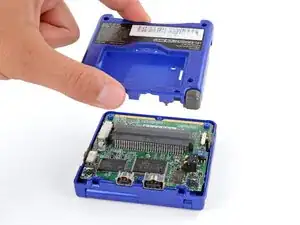
    • Lift the bottom shell straight up and remove it.

  7. MVpZqMAPaoYC3muR
    MVpZqMAPaoYC3muR
    GBjEXEBf2WDVUFCE
    meXU3ONcgq1PuBB2
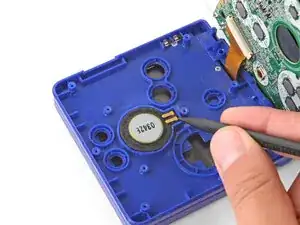
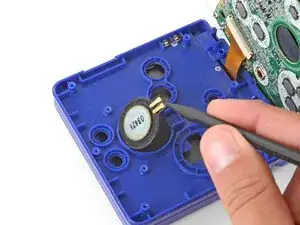
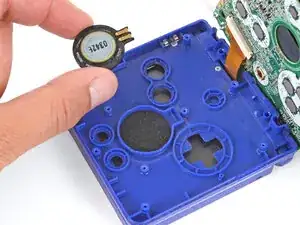
    • Use the point of a spudger or a clean fingernail to lift the speaker until you can grip it with your fingers.

    • Remove the speaker.

  8. JsfgJNkXWnnVYRqn
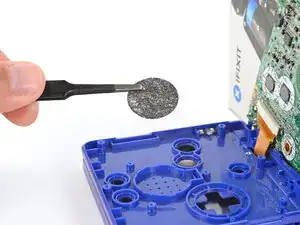
    • Remove the circular mesh from the speaker recess and set it aside—the piece can easily fall out and get lost when working.

  9. 6DbmKAhiJwIsCBnt
    6DbmKAhiJwIsCBnt
    Q1tnNfIr3RH3R22O
    ETLBQqTIQcPuYKCr
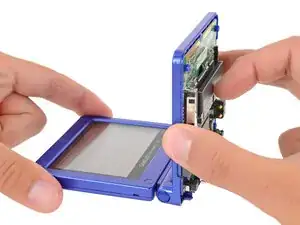
    • Be careful not to strain the screen cable during the next few steps—it has very little slack.

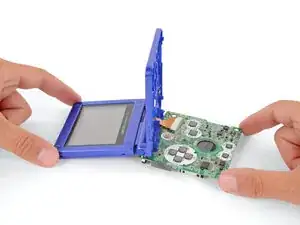
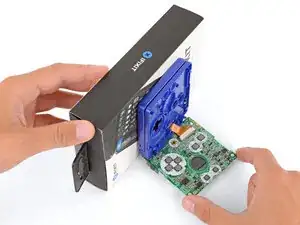
    • You need to prop up the main body of your Game Boy in order to disconnect the screen cable without straining it. Here are two ways to do so:

    • Option 1: Open the main body of your Game Boy to a 90‑degree angle and gently lay the motherboard down. Make sure the main body is resting on top of the motherboard to give the cable slack.

    • Option 2: Keep the main body closed and prop it up on the edge of the logic board, using a sturdy object to hold it up.

  10. ovh1yDBjYVkAqLqY
    ovh1yDBjYVkAqLqY
    No4SU2yMlWG1xdcT
    gSPXMy3ZgDxWVRcx
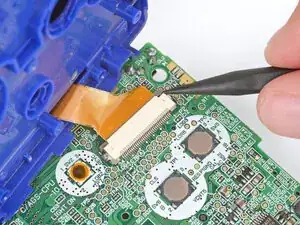
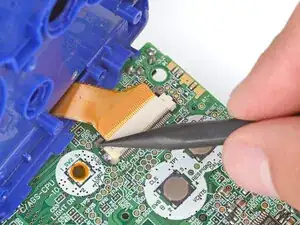
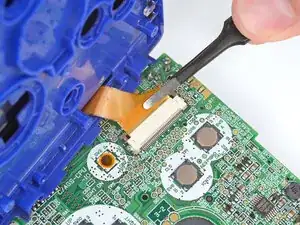
    • Use the point of a spudger to push the two tabs on either side of the screen cable connector into the unlocked position.

    • Only push the tabs until they stop. If you push them too far, you may slide the locking tab off the connector.

  11. 2iDeNSZQfxx1KQe1
    2iDeNSZQfxx1KQe1
    IPSxMZir3WIjKZAT
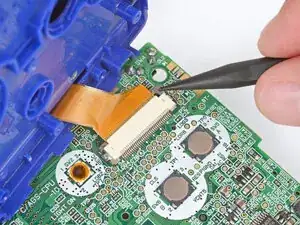
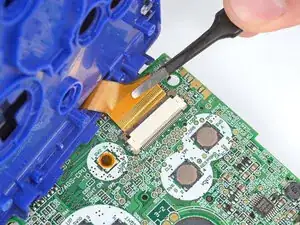
    • Use a pair of tweezers to gently slide the screen cable out of its socket.

  12. BelQddjChKAK4uOd
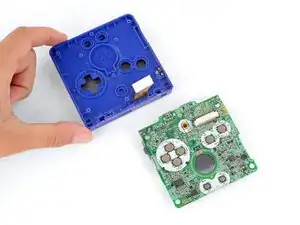
    • Remove the main body from the motherboard.

    • During reassembly, prop up the main body for enough slack reconnect the screen cable.

  13. xhldXg6kWreVZYJB
    xhldXg6kWreVZYJB
    Q2BUkvSqgnYBk2UC
    bSMGRHRYinLXdikJ
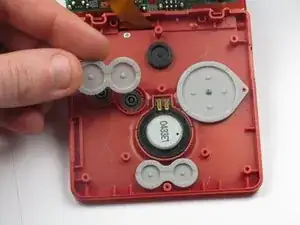
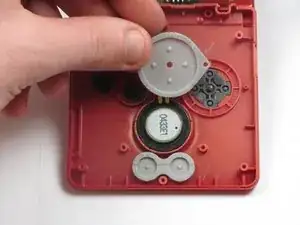
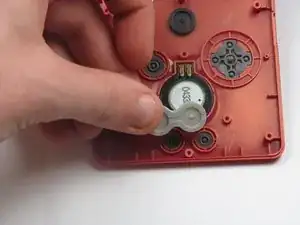
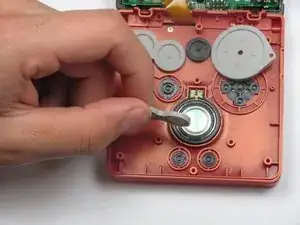
    • Using your fingers, gently lift and remove the trackpads covering the following:

    • 'A' and 'B' buttons

    • Directional Control Button Pad

    • 'Start' and 'Select' buttons

Conclusão

To reassemble your device, follow these instructions in reverse order.

DJ Pantone

Membro desde: 11/01/13

2010 Reputação

2 comentários

In the tools list, it says tri-point Y1, whereas in the description, it says to use a tri-point Y00. Which one is it really?

Gordonzola -

Weird to call them "track pads" when no one calls them that. In fact, if you google "gba sp track pads" this is the only result that comes up referring to them that way. It's nice of you to write a guide but if people can't find it because you're using weird nomenclature you won't be helping many people.

Track pads are usually touch sensitive pads for moving cursors around on a computer. These rubber pads are button membranes. "Rubber membranes" or "button membranes" is what you'd usually call them.

Alexander Knots -