Introdução
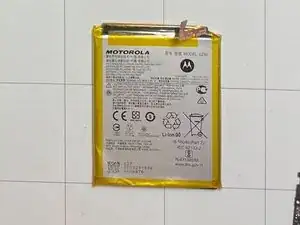
This guide demonstrates how to remove the battery from a Motorola Moto G Power (2020) cellphone.
Before you begin, download the Software Fix app to backup your device and diagnose whether your problem is software or hardware related.
If you have been dealing with issues related to your phone holding a charge consistently, this guide will help breathe some new life into your phone with a new replacement battery!
This guide will walk you through the process of extracting all of the hardware necessary to replace the battery while also helping you to avoid any potential damage that occur.
*Some knowledge of technical terms for the inner hardware of electronics may be helpful.
*On step 8 pay careful attention as there is a risk of damage to your skin and clothing.


-
-
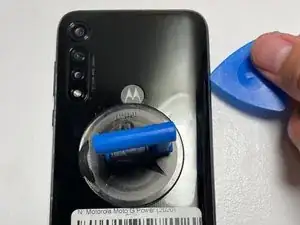
Position a suction cup securely on the back panel of the device.
-
Insert the opening pick into both sides of the phone and carefully slide it along to open the back panel of the device.
-
-
-
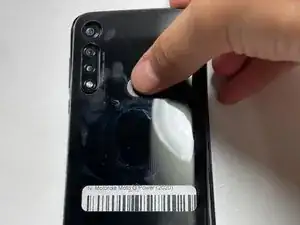
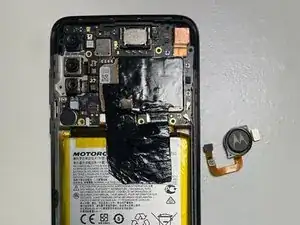
Apply gentle pressure to the fingerprint sensor with your finger to detach it from the back panel.
-
-
-
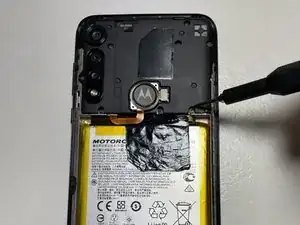
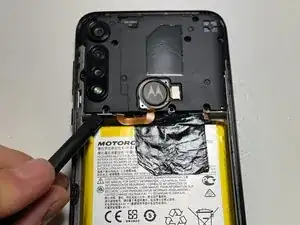
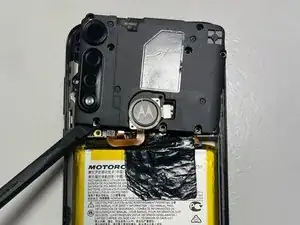
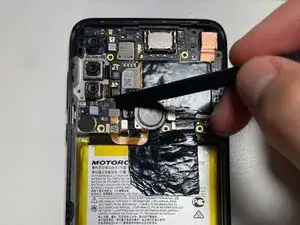
Carefully use the spudger to lift the sensor cable, disconnecting the fingerprint sensor from the motherboard.
-
-
-
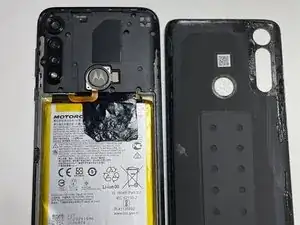
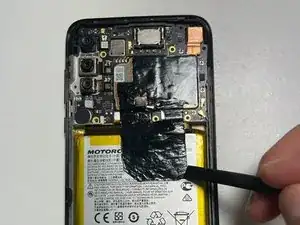
If present, carefully remove the protective tape using a plastic spudger as shown, ensuring the delicate flex cable is not torn in the process.
-
-
-
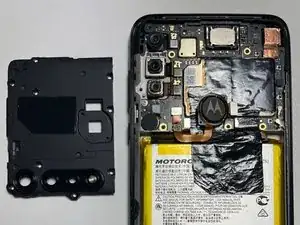
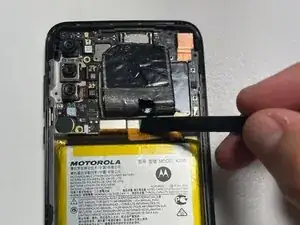
Slide an opening pick under the battery and gently work it back and forth to separate the adhesive from the battery.
-
-
-
Remove the old battery and insert the replacement battery, connecting it to the motherboard.
-
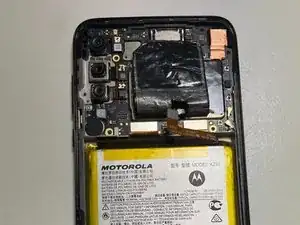
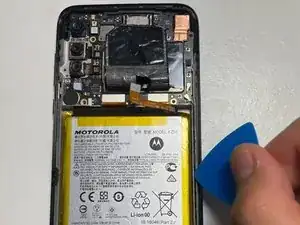
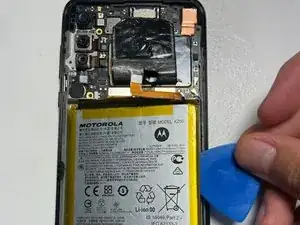
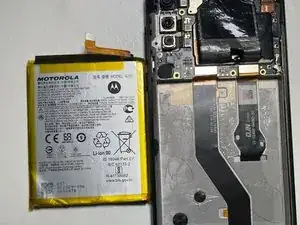
To reassemble your device, follow these instructions in reverse order, excluding the battery removal, of course.

5 comentários
THIS OS THE WRONG BATTERY!!!!! IT's ABOUT 1/4" TOO LONG!!! WTF?!?!?!
Tweedle -
How hard would it be for phone manufacturers to create a back cover to access battery for replacement...but NO, they make it as difficult as possible so they can make money selling new phones and/or sell repair services.
I purchased my "not Motorola" KZ50 battery from an eBay seller, it was a drop-in replacement for the original battery. I did have to do my own "fold" for the flex cable, not a big deal. I used my own T3 screwdriver, the "free" tools included with the battery are worth what I paid for them.
I am finding it extremely difficult to find an insertion point between the casing and the screen. I've even brought a Stanley No. 199 Utility knife into play. Still, no separation. These instructions should include the use of a heat gun to soften the adhesive that holds the case and screen together. I may have to bring this to a cell phone repair shop.
Jerry Weinhausen -
Light heat with a blowdryer/heatgun will help it flex more, but you can do it this way. It's definitely challenging as you have to pull on the suction cup close to the edge and you might only get like .5mm of gap.
If you don't have a good spudger or thin piicks like in the picture, heat gun is absolutely necessary.
Zach M -
One thing to note: be careful with a spudger or prying near the right side of the phone. A small wire runs from top to bottom of the phone about 5mm past the phone edge. You can see it in the pictures, it's a black wire that's very tiny. It's easy to see in Step 7 where it connects to the board above the right corner of the battery.
Zach M -
I had a terrible time with the adhesive on the back cover, I lost most of the black film around the camera lens and some around the middle of the bottom edge. I put modest effort towards reinstalling the touch sensor into the back cover, but since I use an external case I did not go overboard. I did test the touch sensor before firmly seating the back cover into the remaining adhesive.
Richard Ekblaw -