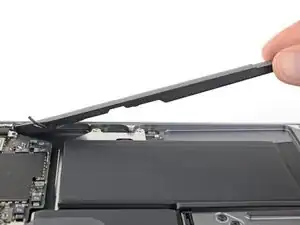
Introdução
Use this guide to replace the left speaker in a 2019 MacBook Air. This is the speaker on the USB-C port side of the case.


-
-
If your MacBook is running Big Sur v11.1 or later, disabling Auto Boot may not work. You can proceed normally, but make sure to disconnect the battery as soon as you're inside.
-
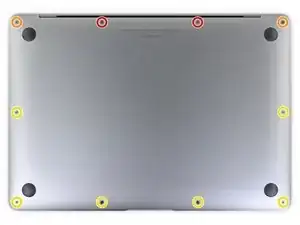
Use a P5 driver to remove the following screws:
-
Two 7.9 mm screws
-
Two 7.1 mm screws
-
Six 2.6 mm screws
-
-
-
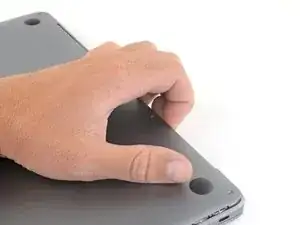
Wedge your fingers between the display and the lower case and pull upward to pop the lower case off the Air.
-
Remove the lower case.
-
-
-
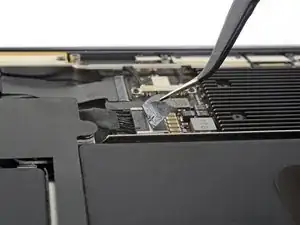
Peel back the tape covering the battery connector enough to reveal the connector underneath.
-
-
-
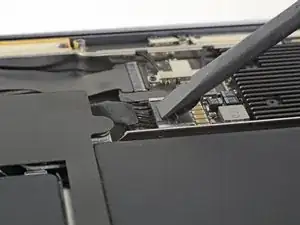
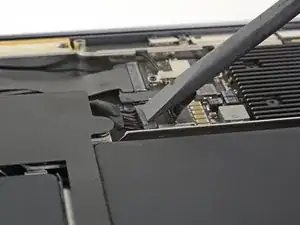
Use a spudger to slide the battery connector parallel to the logic board and out of its socket on the logic board.
-
-
-
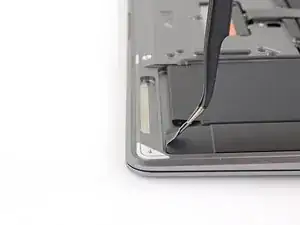
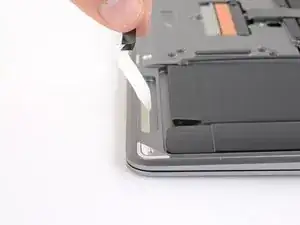
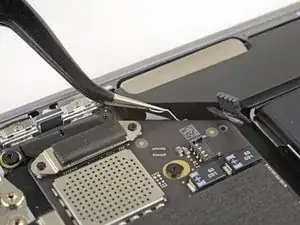
Use a pair of tweezers to lift up the black adhesive pull tab at the bottom of the left speaker, enough so you can grab it with your fingers.
-
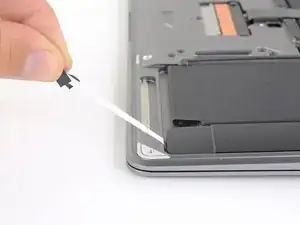
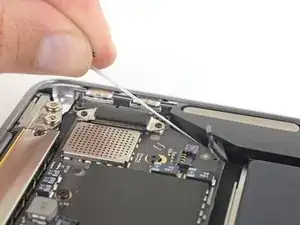
Grab the adhesive strip pull tab and slowly and carefully pull the adhesive strip out from under the speaker.
-
If the adhesive strip breaks, leave it in and proceed to the next step.
-
-
-
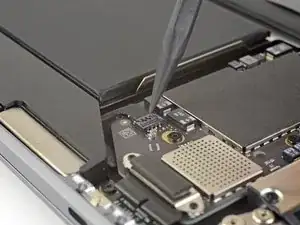
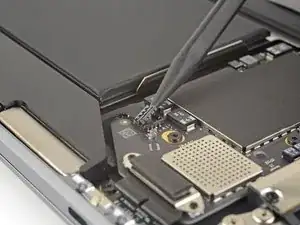
Slide the tip of a spudger underneath the left speaker cable and pry straight up to disconnect the speaker.
-
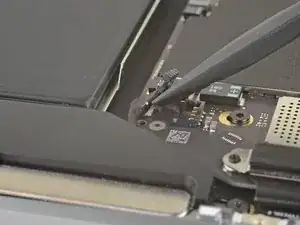
With the connector disconnected, slide the flat end of a spudger under the cable to separate the adhesive securing the cable to the logic board.
-
-
-
Use tweezers to lift the adhesive pull tab at the top of the left speaker enough that you can grab it with your fingers.
-
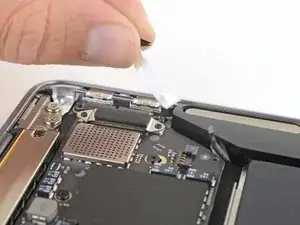
Grab the adhesive strip pull tab and slowly and carefully pull the adhesive strip out from under the speaker.
-
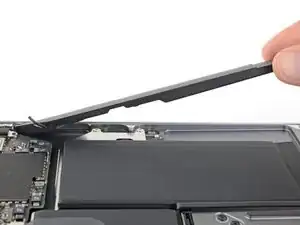
Apply heat to the speaker to soften the adhesive underneath.
-
Carefully slide a spudger or opening pick underneath the speaker to separate the adhesive.
-
Compare your new replacement part to the original part—you may need to transfer remaining components or remove adhesive backings from the new part before installing.
To reassemble your device, follow the above steps in reverse order.
Take your e-waste to an R2 or e-Stewards certified recycler.
Repair didn’t go as planned? Check out our Answers community for troubleshooting help.

If the first thing you do is disconnect the battery, is it really an issue if you don’t (or can’t) disable auto-boot?
maccentric -
I agree, why disable Auto-Boot when the lid is closed and the battery is disconnected immediately? – I've never had an issue since 2016 when the feature was introduced.
stevebsiegel -
On my machine, the longest two screws were in the corners, while the other two long screws were in the middle. Perhaps previous service in the past had them replaced into the wrong place? In any case, the longest screws do seem to fit in either place. I guess 0.8mm is not very much of a difference. Seems like poor design if they could have used one size of screw.
johann beda -
Just did one, and it also had longest screws in the corners.
maccentric -
Just did another, and the long ones were in the middle. Definitely poor design and quality control.
maccentric -
HIGHLY recommend reading the entire guide AND all the step comments before starting. For example: before the battery can be fully disconnected, the battery disconnect "gold button" on the logic board needs to be held down. Step 25 calls for a T5 Torx bit that is not included in the kit for example. Double-sided pull tab stretch tape will likely be needed to reinstall batteries and speakers.....
Sam -
I agree with the suggestion to read the entire instructions first before attempting the battery replacement. Here are a few other suggestions: 1) Have a magnifying glass or a pair of cheap magnification glasses on hand, 2) wear a head-light to see better, 3) several pairs of tweezers was helpful, 3) I searched the web for instructions to disable autoboot for my MacBook that is using Sonoma 14.7.5 - I followed those instructions and they didn't work so I would also suggest ignoring this procedure, 4) I found that a Torx #3 was too small for some of the screws even though it was suggested but a Torx #4 worked just fine.
This was my first battery replacement and took 3 hours, not the 30 mins to one hour suggested so give yourself time. If you are lucky all will go smoothly. In my case, one of the stretch tapes under a speaker broke. You do NOT want this to happen. I was able to retrieve the broken piece after some time so prying up the speaker was not necessary.
Alexander -
A final comment - with the Canada Post strike on when I wanted to order parts, iFixit was not able to deliver my order in a timely manner. They graciously refunded my purchase. I then turned to Amazon - gag. I purchased a SeaPlant replacement battery kit which contained the battery, P5 T5 and T3 drivers, stretch tape, a spudger, and gloves all for $77.
Alexander -
Dear God $77 for a battery!,…that’s what I paid for my entire MacBook! I always bought my battery’s for my pro here and at most those were 30 bucks
3arthShineDivine -
Also I can’t get my keyboard to respond,…I’m going to buy a type c wired keyboard but has anyone had this issue? I can’t type on my password to login and the onscreen keyboard function is inconveniently not functioning properly. I am quite unsure if they even make plug and play keyboards with a type c instead of usb a given that I would not be able to pair Bluetooth in this state it on,…my trackpads working but not dbl clicking for those options nor a single keys responsive I think maaaaaybe I hit the power button and I think that started it up one time but I’m stumped
3arthShineDivine -