Introdução

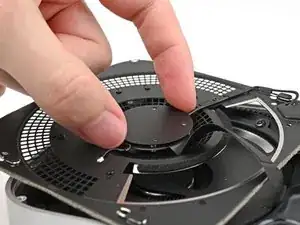
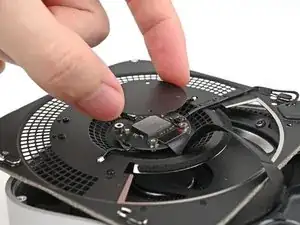
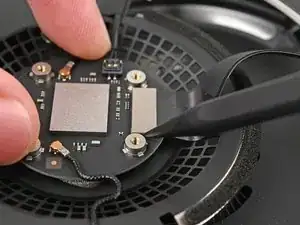
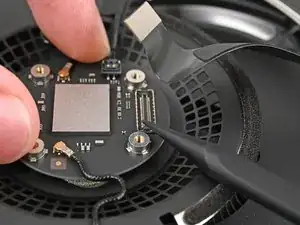
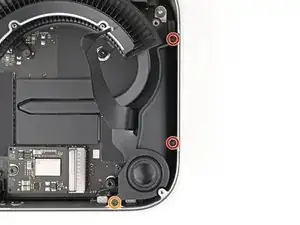
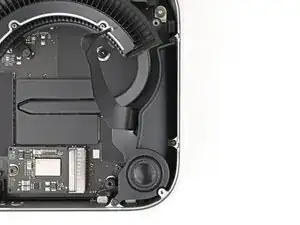
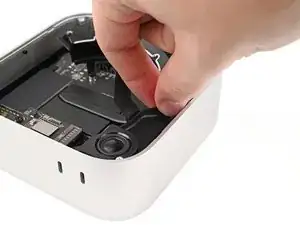
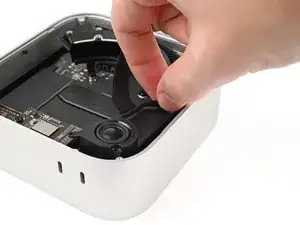
Use this guide to replace the speaker in your Mac mini (2024).

This guide was written with a baseline M4 Mac mini. Although the internals for the M4 Pro version are slightly different, the disassembly procedure is the same.

  1. 2AOCDRumFYCwLHDo
    2AOCDRumFYCwLHDo
    oPNVEBC3oT2PmroR
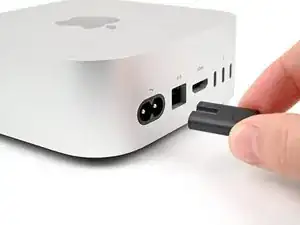
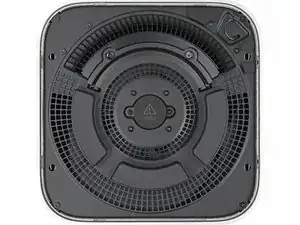
    • Fully shut down your Mac mini and unplug all cables from it.

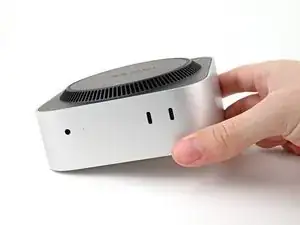
    • Flip over your Mac mini and place it on a clean, flat surface to avoid scratching the chassis.

    Den Mac vorm ausschalten noch vom Account trennen. Sonst kann es zu Schwierigkeiten bei der Neuanmeldung kommen.

    MacGyverModeOn -
  2. GAqAsFlbHCjSAv5v
    GAqAsFlbHCjSAv5v
    CRy6ImTIPFvNigGN
    XCXS3xLkfcRUsRMF
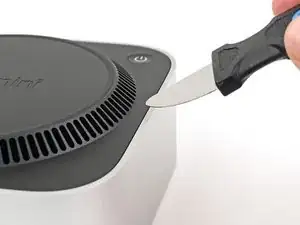
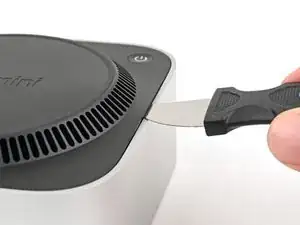
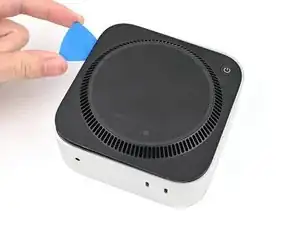
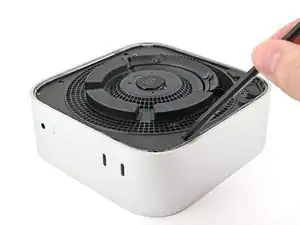
    • Using the Jimmy or other metal tools during this step could scratch the aluminum chassis; however, it's the simplest way to perform this step. Follow the alternate instructions to avoid scratching the aluminum.

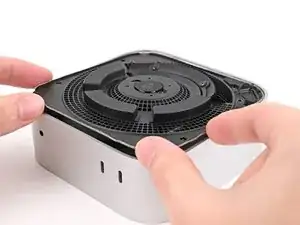
    • Insert a Jimmy into the gap between the bottom cover and the chassis.

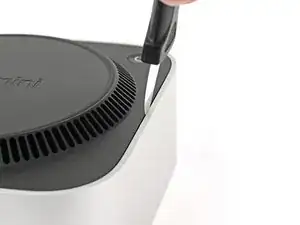
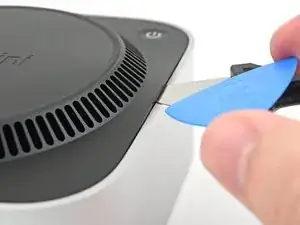
    • Pry up the bottom cover to create a gap.

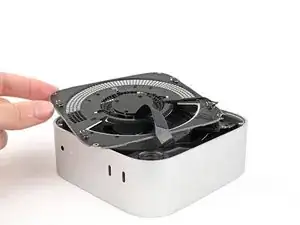
    • Alternatively, you can insert the point of a spudger into one of the plastic vent holes and pry up to create a gap big enough to insert an opening pick into.

    • Keep the Jimmy inserted under the bottom cover.

    It is much easier to get the plastic "pick" under the cover by inserting it UNDER the metal blade (between the blade and the aluminum case) while the blade is more vertical, then bringing the blade down on top of the pick, forcing the fan cover edge up higher. From that position, the pick can easily be pushed in further under the cover and to one side. In other words, instead of putting the pick in OVER the metal blade as shown, put it UNDER. This also protects the aluminum from damage marks of the blade.

    SteveTheMonk -
    If you check step 4 for the actual pin locations, they are along two opposite sides, while the other two sides have none. I found it easiest to use the hook tool ("Halberd Spudger") to pull up one of the vent holes along one of those sides to lift up the plastic cover a bit (ended up basically (-shaped), then shove the pick under it. This meant I needed to cross the corners with the pick to complete step 4, but that was doable.

    mwl -

  3. oIn1d3q2dsgFbK4P
    oIn1d3q2dsgFbK4P
    HqjtQvKCBFw2J4PR
    GqIosShyLUtCj1nG
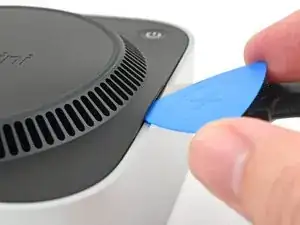
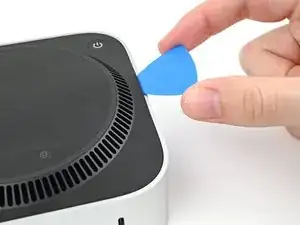
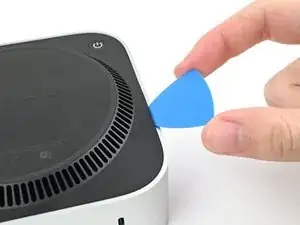
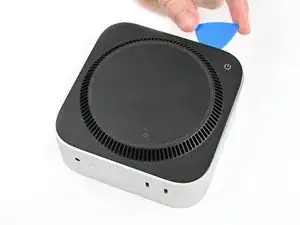
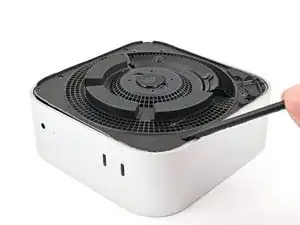
    • Insert an opening pick into the gap created by the Jimmy.

    • Remove the Jimmy.

  4. a1s5oNAhMIPhEdZF
    a1s5oNAhMIPhEdZF
    OjcPUDbawZTxsBPI
    3iNDpG2UcdWeM3Wp
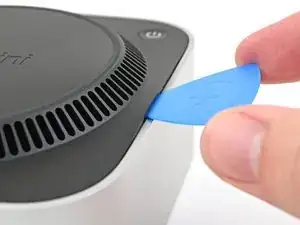
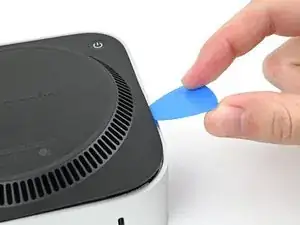
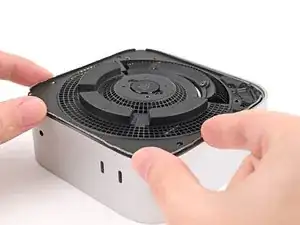
    • Slide the opening pick along the bottom cover until you feel it snag on a pin.

    • There are four pins total—one at each corner of the bottom cover.

    • Twist the pick to lift the pin out of its slot.

    My pick actually broke on this step. I used a larger flathead screwdriver on top of the metal jimmy tool to get the required leverage...

    Elliott Barrere -

  5. cOUhCJYM1rcSehRM
    cOUhCJYM1rcSehRM
    UdUOJBvlO1sVS62f
    RdtnPQiopAujHrbS
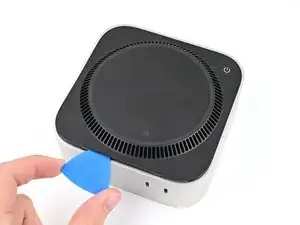
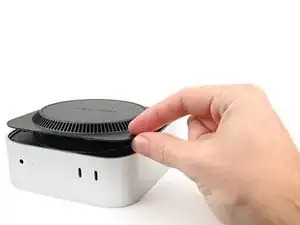
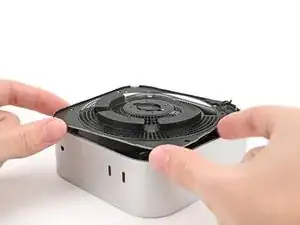
    • Continue sliding and prying with the pick along the perimeter of the bottom cover to release the remaining pins.

    • Don't insert the pick more than an inch when sliding near the power button, as you risk damaging the cable.

    • During reassembly, press along the perimeter of the bottom until you hear and feel all four pins click back into place.

    "Don't insert the pick more than an inch near the power button" is incorrect wording.

    I think you mean "Don't insert the pick less than an inch from the power button".

    David -

    Hi David!

    For that warning, it's about not inserting the pick too deep under the bottom cover that you risk hitting the cable as you work around the perimeter. The wording is confusing though, so I'll change it!

    Alex Diaz-Kokaisl -

  6. vZyG2Wn2rE61iQM2
    vZyG2Wn2rE61iQM2
    hBV4exmuJXURVt5B
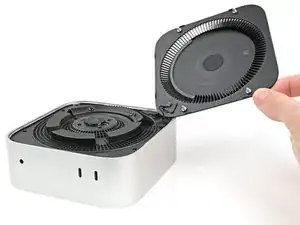
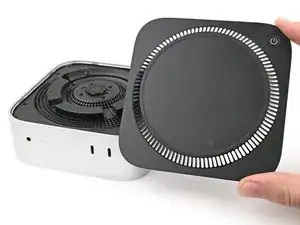
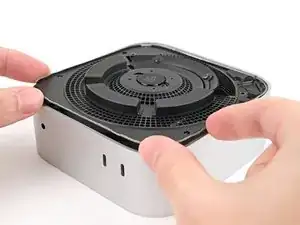
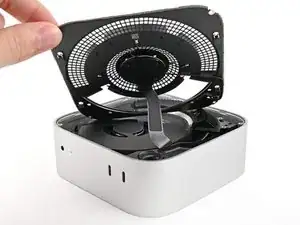
    • Don't remove the bottom cover, as it's still connected to the Mac mini with a cable.

    • Lift the edge of the bottom cover opposite the power button and flip it over to expose the power button cable.

    There are three electrical connectors in this disassembly operation. Having experienced the fragility of these connectors on previous macs, I chose to NOT DISCONNECT any of them, and it actually SAVES TIME fiddling with them.

    IT IS NOT ESSENTIAL to disconnect ANY of these connectors. And it is safer, particularly if you are not experienced. Just take your time and be gentle moving the cover and fan out of the way and resting to the side to get to the SSD screw. It REALLY IS UNNECESSARY TO DISCONNECT ANY CONNECTORS.

    SteveTheMonk -

  7. OMZdwUb1RCYfr43I
    OMZdwUb1RCYfr43I
    P2UWtvWdIv1Y1FXJ
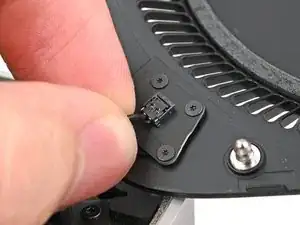
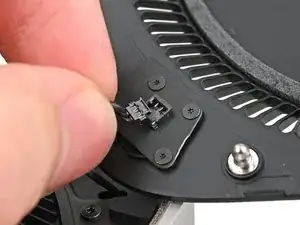
    • The power button cable is very fragile! You don't have to disconnect it to access the internals— but it will require you to keep the bottom cover propped up.

    • To disconnect the cable and remove the bottom cover, follow the next two steps.

    • If you don't disconnect the cable, prop up the bottom cover to prevent straining the cable and skip the next two steps.

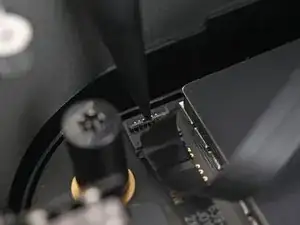
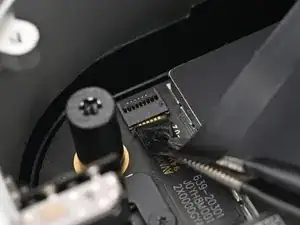
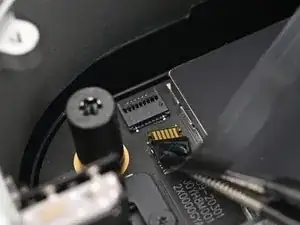
    • Grip the power button cable close to the head and pull it away from its socket to disconnect it.

    It's not necessary to remove the power connector and remove the bottom cover (the next step), just flip it over gently to take out the 3 screws underneath (in Step 9).

    James -

    Skip this step, really fragile connector

    Ravire -

    it tore open immediately. DO NOT TRY THIS.

    Chad Prestridge -

    Nicht notwenig man kann den Bodenteil einfach "überlegen"

    Christian Studer -

    Change these instructions, I also damaged my connector.
    This one is different from other connectors, pull up, not along the length of the cable.

    Or even better just move it aside or use the 4 Torx to remove it.

    James -

    How did you fix the connector afterwards? I‘ve the same problem. I broke the connector…

    Christof -

    Please change these instructions I just ripped the cable out before reading the comments

    Sully -

    And one more connector just died!

    Johannss -

    Sorry, what do you do if the connector pulls apart? Utterly evil design. This step needs a rewrite and a serious warning on it!!!!!

    Adam P -

    Achtung, den Connector auf keinen Fall lösen. Bei mir ging dieser kaputt - hoffe, ich kann ihn noch reparieren!

    Christof -

    another wrecked connector come on fix it change this step

    Donald Gillis -

    Broke mine as well. DON'T DO THIS STEP!!!!!!!!!!!!!!!!!!!!!

    djdubcom -

    The 13 comments on this step should've tipped me off, but alas, another one bites the dust. On the bright side, I can see this as a grand opportunity to DIY my own power button and glue it onto a sensible place instead of the underside like a psychopath lol

    Davis Diercks -

    I didn't see the comments at first... was consternated about the direction "...pull it away from it's connector", which isn't clear. As others have said: don't pull it sideways/along the wire, lift it upward, towards your face. Like a Lego block. I was lucky - I didn't break my connector, but was using a small tool to lightly help pry it up.

    JFixIt -

    Another broken connector! Really bad instruction.

    Jon Hutton -

    Hätte ich nur die Kommentare gelesen! One more broken connector...

    raimund.kirchschlager -

    agreed wot others - please change the instructions here. Safest is to remove the 4 T2 screws and take off the trapezoidal plate with the contact switch, no risk of anything when you do that.

    Spencer Greene -

    Guys. If you have worked on the last 15 years of mac mini, you may know, that these kind of ports are always to move vertically, to clip them out. (like you use a paperclip below and lift it up, a wire of it) If i read the comments i have the impression, now too much completely unexperienced persons "work" on that devices. This port is not uncommon. you find it on the logicboard of all old macminis too. at least on many. The power-supply port of older MMs are exactly the same. To carefully remove.

    Michael Simon -

    I also broke my connector. I tried to solder a momentary switch to the existing connector and that did NOT work. The computer would boot, but not go into DFU mode. The computer would turn off after a few seconds after releasing the switch. My switch must have incorrect electrical properties compared to Apple's switch.

    I ordered MOLEX 36920-0201, Rectangular Cable Assemblies PicoEZmate 2 Circuit 100MM. I opened another shield on the underside of the inner plate. (Shown in step 9 below.) You can use the provided 3IP Torx bit on these screws. If you remove the button assembly shown in this step like I did. The 3IP bit is too big, but it is small enough to remove the screws.

    Like the comments above suggest, you're supposed to pull away from the surface. So to insert you should push the connector into the surface. The cable has two slits where the connectors slide in. Orient the slits down so you press them into the connectors. You don't need a ton of force. This thing is fragile. ;)

    Alex -

    I had originally planned to leave this alone, propped up, but that ended up awkward in the next steps. So I unscrewed this. Note that these are the only T2 screws for this project. Three of them I could get out with T3, but don't count on it.

    mwl -

    +1 for another broken connector. PLEASE CHANGE THE INSTRUCTIONS!

    Elliott Barrere -

    What do we do to repair? Can a new bottom cover be ordered?

    pkilli -

    Yes. I made the some mistake.

    I tried to pull out the connector. BUT IT SHOULD BE PULL UP. so, the connector is damaged.

    I went to Apple Service Center and the solution is not to replace the cable but to replace the whole antena board. It will cost me 90 USD. I think Apple is crazy. In order to same manpower of the service center, they give consumer such a solution.

    Finally, I ordered a MOLEX78172-0002 with cable, then ask mobile repair guy help me to cut the connector and solder the new cable. The new 7812-0002 cost me 0.2USD with 1 USD freight and I give 3 USD to the guy who help me solder the cable. So, the total cost for reparation is 4USD.

    Edmond House -

  8. kIgBGpKoOr1RhIMk
    • Remove the bottom cover.

    The power button is better to be completely unscrewed then to pull at the connector as it shattered in a 8th of a second.

    Chad Prestridge -

  9. NLf1LQKf2EByNkT1
    NLf1LQKf2EByNkT1
    DcQJCakPCYwAQHYv
    • Throughout this repair, keep track of each screw and make sure it goes back exactly where it came from.

    • While the Mac mini uses Torx Plus screws, standard Torx bits work. Make sure to apply constant, downward force to prevent stripping.

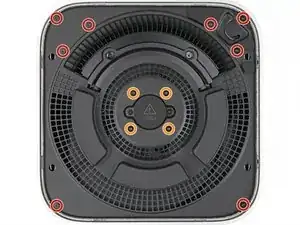
    • Use a T5 Torx screwdriver to remove the twelve screws securing the inner plate:

    • Eight 3.4 mm‑long screws

    • Four 2.4 mm‑long screws

    You don't need to remove the 4 x 2.4 mm-long screws to install the new SSD. Jus the eight 3.44-long screws.

    James -

    die orangenen schrauben (4 x 2,4 mm länge) müssen Nicht entfernt werden

    Christian Studer -

    Die orange markierten Schrauben müssen nicht entfernt werden, um die SSD zu tauschen!

    Oskar -

  10. DaRruNxTSRSMoPrJ
    DaRruNxTSRSMoPrJ
    xIvW2Ga1HDNfAqAh
    tkhfWhrlXPqIFKhB
    • Insert the point of a spudger into one of the clips' slots on the inner plate.

    • Pry up the inner plate enough so you can grip the edge along the same side as the headphone jack.

  11. dB3mwJYHa2qhHlEE
    dB3mwJYHa2qhHlEE
    gDjuFpfSeZEIJMDH
    • Pull the inner plate away from the chassis to slide it out from under the lip on the heat sink.

    • During reassembly, slide the inner plate back under the heat sink and press along its edges to secure it in the chassis.

  12. hJ6Eco3cIauvclxp
    hJ6Eco3cIauvclxp
    Ykn6L3XvOPaIbw41
    1HKVWUnFLwR5OJSP
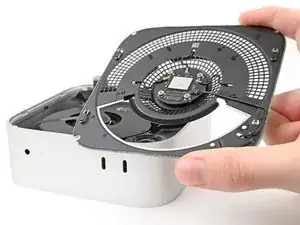
    • Don't remove the inner plate yet, as it's still connected to the Mac mini by a cable.

    • Lift the inner plate and flip it over to expose the wireless module cable.

  13. J4yIxef1cTpYUjpK
    J4yIxef1cTpYUjpK
    Kb5sW2OrWZeqkg2a
    k1PbMLAJLMtyy1hw
    • Use one hand to secure the wireless module during this step.

    • Use a Torx Plus 5IP screwdriver to remove the four 2.5 mm‑long screws securing the wireless module cover.

    you do not need to do this to install new SSD

    James -

    Auch hier das entfernen des Drahtlos Moduls ist Nicht notwenig

    Christian Studer -

    Auch das "Drahtlos"-Modul muss nicht entfernt werden, um die SSD zu wechseln.

    Oskar -

    Für den reinen SSD-Wechsel direkt zu Schritt 16. Immer dran denken, die Kabel nicht zu sehr zu belasten.

    Oskar -

  14. fwajrKpV6ZjfmcHW
    fwajrKpV6ZjfmcHW
    DcP26NvgyCyWTCpF
    • Remove the wireless module cover.

    • During reassembly, look the bottom of the cover to find the foam rectangle. Align the foam rectangle over the wireless module press connector to find the proper orientation for the cover.

    you do not need to do this to install new SSD

    James -

    dito auch nicht nötig

    Christian Studer -

  15. sATvVqPyyQAv3u4Y
    sATvVqPyyQAv3u4Y
    IyrMKIBvCdLSKeup
    • Use one hand to secure the wireless module during this step.

    • Insert the point of a spudger under one of the short edges of the wireless module press connector.

    • Don't insert your spudger anywhere else, as you risk dislodging surface-mounted components.

    • Pry up to disconnect the wireless module.

    you do not need to do this to install new SSD

    James -

    dito auch nicht nötig

    Christian Studer -

  16. sTQHsvG16sVhsxGp
    • Remove the inner plate.

    you do not need to do this to install new SSD

    James -

  17. qdYFTlKulBTNMRRm
    qdYFTlKulBTNMRRm
    ckNuJ1yit6VQsZ4X
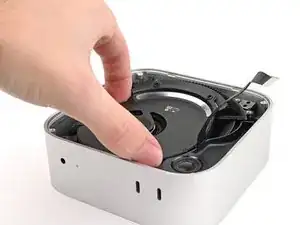
    • If you're following this guide to clean your fan, this is a good time to do so.

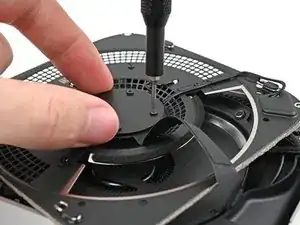
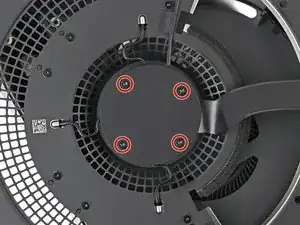
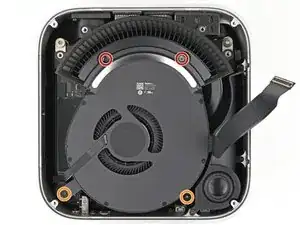
    • Remove the four screws securing the fan:

    • Two 2.4 mm‑long Torx Plus 3IP screws

    • Two 7.9 mm‑long Torx Plus 5IP screws

    Vorsicht mit den "Zwei 2,4 mm lange Torx Plus 3IP Schrauben" dass der Schraubenzieher wirklich gut passt, sonst besteht die Gefahr die kleinen Torx zu verletzten

    Christian Studer -

  18. jTTmxtU5sE32f3HH
    jTTmxtU5sE32f3HH
    gLodSHEXW6bfCfbH
    JJvGIlBYDIIZncL6
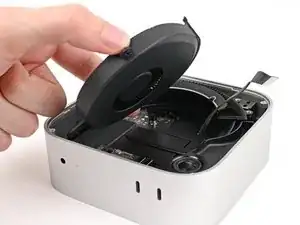
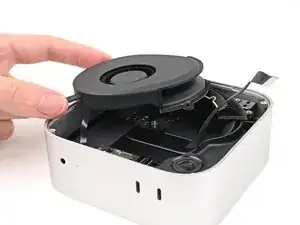
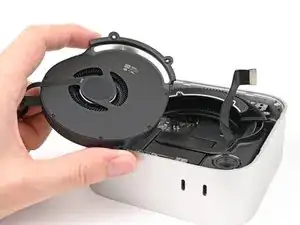
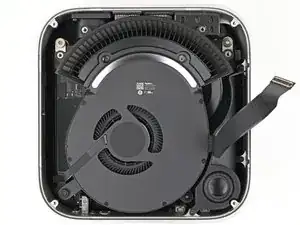
    • Lift the fan out of its recess in the chassis and flip it over to expose its wire and connector.

    • Let the fan rest on the chassis and heat sink.

    Für den SSD-Tausch direkt weiter zu Schritt 23. Das geht problemlos, wenn man nicht zu grobmotorisch ist...

    Oskar -

  19. YJjld2EvOeNDRNU2
    YJjld2EvOeNDRNU2
    QmZ1PwqNePOSWDVI
    Aep5IXHPLy4eN4r6
    • Use tweezers to peel back the tape covering the fan ZIF connector.

    you do not need to do this to install new SSD

    James -

    Auch das absolut nicht notwenig zum entfernen

    Christian Studer -

  20. ig6kBeoAiQyIQDaV
    ig6kBeoAiQyIQDaV
    oV2TCDAlS35dAJPW
    • Use the point of a spudger, or your fingernail, to flip up the locking tab on the fan ZIF connector.

    you do not need to do this to install new SSD

    James -

    On my mac mini 2024 (ordered Sept 2025) the fan connector is no longer a ZIF connector. I was able to just easily pull out the connector once the tape was removed. But getting it back in is very hard.

    Fabian -

    看着好复杂啊 一不小心就会弄坏

    乐乐爱瞎逛 -

  21. 31E6CDAiyiVoWup1
    31E6CDAiyiVoWup1
    l2XNxPRVuR2ndOpl
    • Use tweezers, or your fingers, to slide the ZIF connector straight out of its socket.

    you do not need to do this to install new SSD

    James -

    siehe Kommentar oben

    Christian Studer -

    Es ist sehr schwierig, den Stecker wieder richtig hineinzubekommen. Lieber eingesteckt lassen!

    Christof -

  22. r24gIAKSEArHcDNb
    • Remove the fan.

  23. Fk3fqNZ5P4bXU4SW
    Fk3fqNZ5P4bXU4SW
    6sxSYPRPD1ZOUpRB
    • Use a Torx Plus 5IP screwdriver to remove the three screws securing the speaker:

    • Two 4.1 mm‑long screws

    • One 3.7 mm‑long screw

  24. S4WoK4IHXoHFeBJT
    S4WoK4IHXoHFeBJT
    PaqyF41lFOMAQTtq
    OIOks4MHKfNIEAJ3
  25. IDjiL6tBTfEXENJv
    IDjiL6tBTfEXENJv
    2qoHLPnLRS4sPtJq
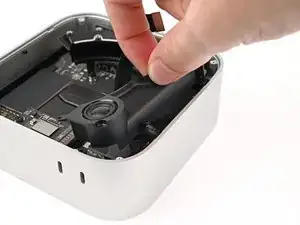
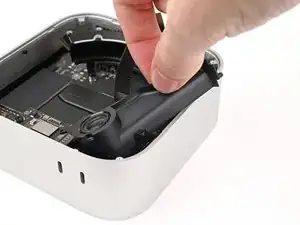
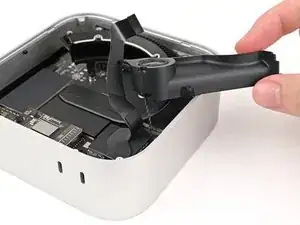
    • Pull the speaker over the edge of the chassis to expose its cable and its connector.

    • Rest the speaker on the edge of the chassis.

  26. Hh42HFMQESOIOSvo
    Hh42HFMQESOIOSvo
    hOuiYFIqUTW1OhwC
    QVv6udFlSyGXjOVB
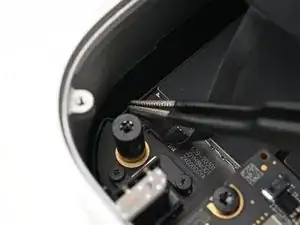
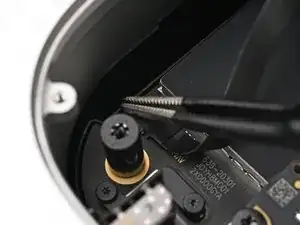
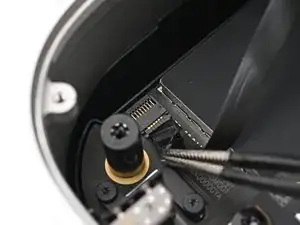
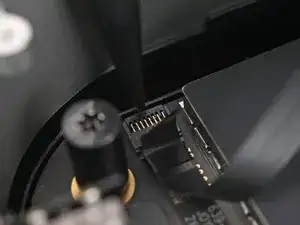
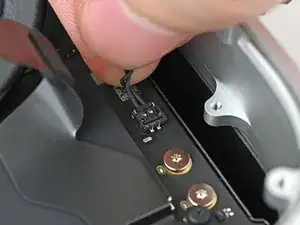
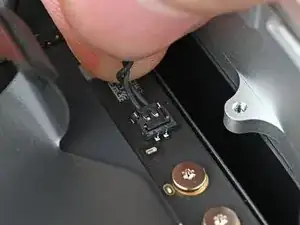
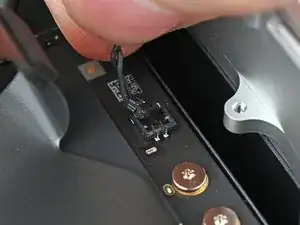
    • Grip the speaker cable close to the head and pull it away from its socket to disconnect it.

  27. 5kFeWlgnQcxdQyuV
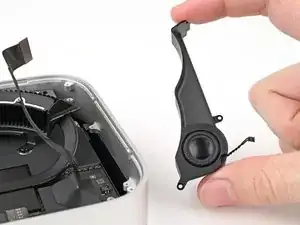
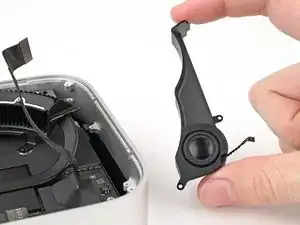
    • Remove the speaker.

Conclusão

To reassemble your device, follow these instructions in reverse order.

Take your e-waste to an R2 or e-Stewards certified recycler.

Repair didn’t go as planned? Try some basic troubleshooting, or ask our Mac mini (2024) Answers Community for help.

Alex Diaz-Kokaisl

Membro desde: 16/01/22

227430 Reputação

0 comentários