Introdução
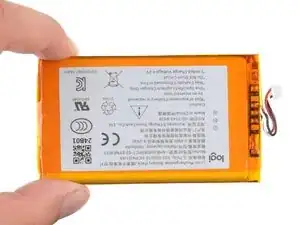
Follow this guide to replace a worn-out or dead battery in your Logitech Pro X 60 wireless keyboard.
It’s natural for batteries to lose capacity as they age. If your keyboard dies quickly and doesn't hold a charge, it may be time to replace the battery.
For safety, perform this repair when your battery is below 15% charge. Any charged lithium-ion battery can be hazardous if punctured or damaged. If your battery looks puffy or swollen, take appropriate precautions.


-
-
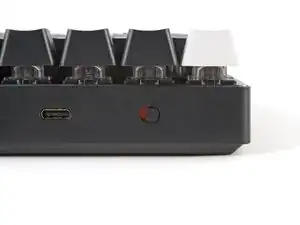
Slide the power switch on the top edge of the keyboard to the OFF position.
-
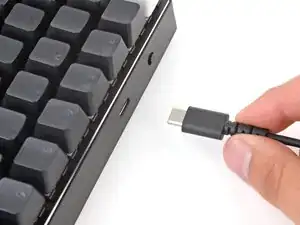
Unplug all cables from your keyboard.
-
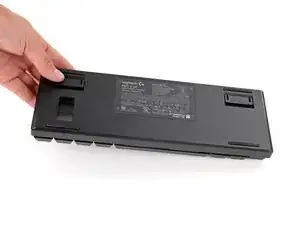
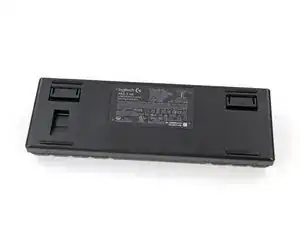
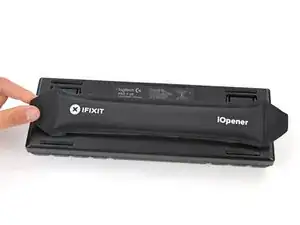
Lay your keyboard down with the feet facing up on a clean work surface.
-
-
-
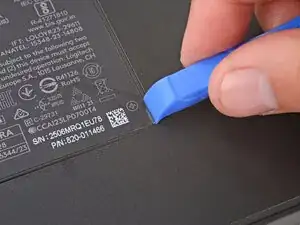
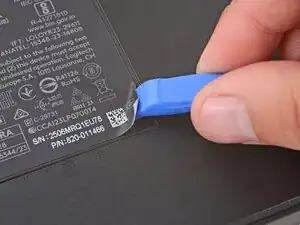
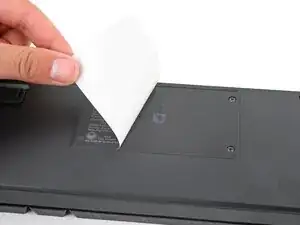
Use an opening tool, spudger, or your fingernail to peel up a corner of the sticker until you can grip it with your fingers.
-
Peel up the sticker with your fingers and remove it.
-
-
-
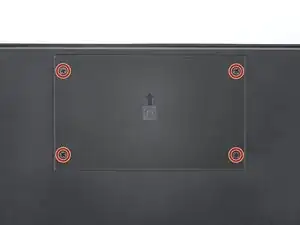
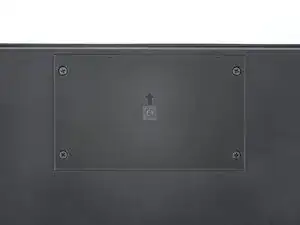
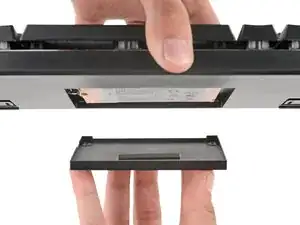
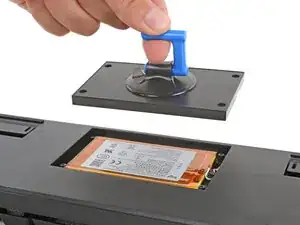
Carefully flip your keyboard over and gently wiggle the battery cover to remove it.
-
Once you've removed the cover, flip your keyboard back over and lay it down so the feet are facing up.
-
-
-
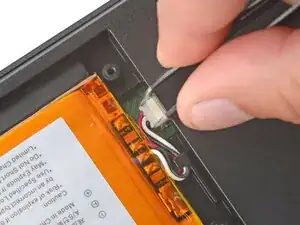
Use a pair of angled tweezers to firmly grip the battery connector.
-
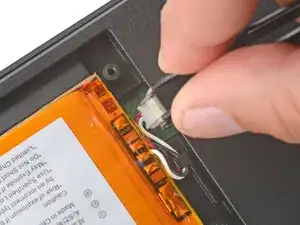
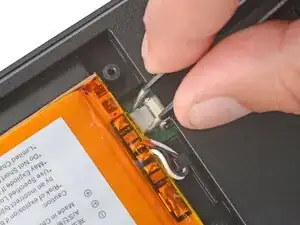
Gently rock the connector side‑to‑side and slide it straight out of the socket.
-
-
-
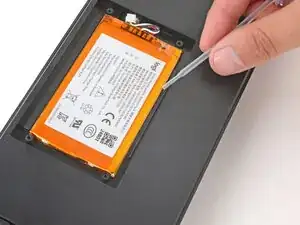
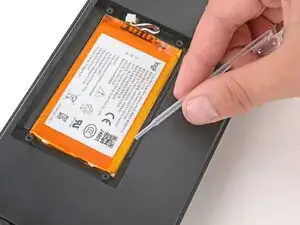
Apply a few drops of high‑concentration (>90%) isopropyl alcohol along the bottom edge of the battery.
-
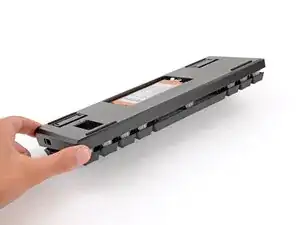
Slightly tilt your keyboard so the alcohol flows towards the center of the battery.
-
Keep your keyboard tilted and wait one minute for the alcohol to soften the adhesive.
-
-
-
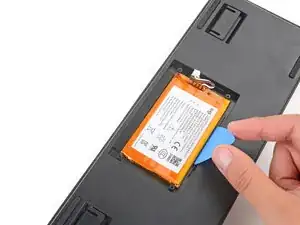
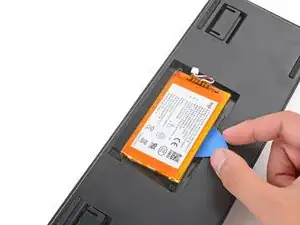
Slide an opening pick under the bottom edge of the battery and gently lift to separate the adhesive securing it to the keyboard.
-
Remove the battery.
-
Remove the old adhesive from the battery recess.
-
Apply a strip of thin, double‑sided tape to the battery recess, where the old adhesive was.
-
Lay the battery into its recess so the cable is on the side with the connector.
-
Press the battery into place to secure it with the adhesive.
-
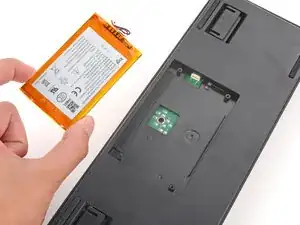
Compare your new replacement part to the original part—you may need to transfer remaining components or remove adhesive backings from the new part before you install it.
To reassemble your device, follow these instructions in reverse order.
Repair didn’t go as planned? Try some basic troubleshooting, or ask our Answers community for help.
Reuse or Recycle—Never put discarded electronic parts in household waste. Visit Logitech Recycling to find your nearest recycling points, including the option to mail back old devices to Logitech for free if there’s no convenient solution in your area. You can also take your e-waste to any R2 or e-Stewards certified recycler. And don’t let good working parts or repaired devices die a slow death in your sock drawer—pass them along to someone who can use them.
Share your experience—Leave a comment here or send your feedback directly to Logitech at repair@logitech.com to help shape future repair guides and product design.
