Introdução

Follow this guide to replace a worn-out or dead battery in your Logitech MX Vertical wireless mouse.

It’s natural for batteries to lose capacity as they age. If your mouse dies quickly and doesn't hold a charge, it may be time to replace the battery.

For safety, perform this repair when your battery is below 15% charge. Any charged lithium-ion battery can be hazardous if punctured or damaged. If your battery looks puffy or swollen, take appropriate precautions.

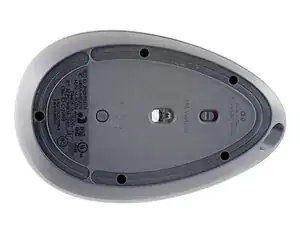
Accessing the battery requires removing the adhesive feet on the mouse’s underside. If thoroughly heated, they can be cleanly removed, but you may need replacement feet if one rips or some of its adhesive is left behind.

  1. JdJqnPZup33aVQ2q
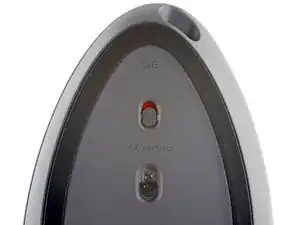
    • Before you begin, flip the mouse's power switch down into the OFF position.

    • Unplug all cables from the mouse.

  2. BytXBWKtJ4fUWdvr
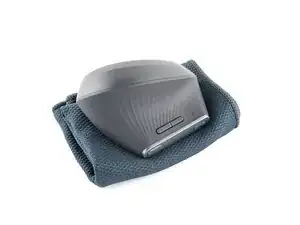
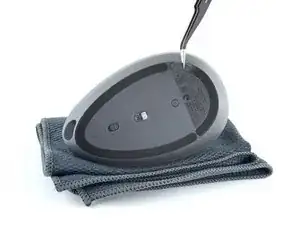
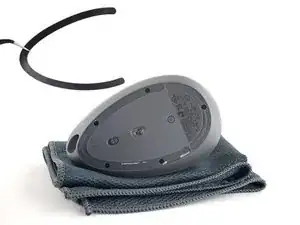
    • The mouse's unique shape prevents it from laying flat. If you need to, lay it down on a soft towel to prevent wobble.

  3. Ldrd36yKl1AUvMmZ
    Ldrd36yKl1AUvMmZ
    cnWWENwAsq6qoKlF
    • If you're planning to reuse your existing mouse feet, the adhesive needs to be thoroughly heated for them to be cleanly removed.

    • Heat an iOpener and apply it to the feet on the mouse's underside for two minutes.

    • Alternatively, you can use a hair dryer on the Low heat setting to soften the adhesive.

    • If you're using a hair dryer, only heat the feet a few seconds at a time or you might warp the plastic shell.

  4. kawnRZEqmITySLfX
    kawnRZEqmITySLfX
    iARZQVeyfdshM3Nt
    tRJL2qmkRUJHftSZ
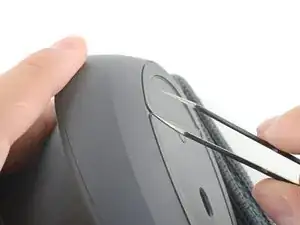
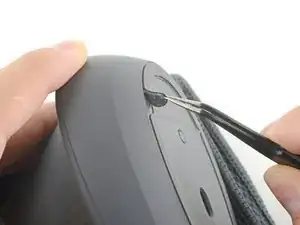
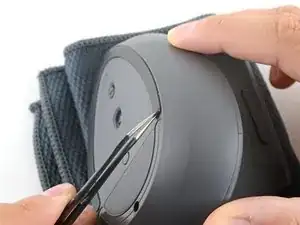
    • Insert one arm of a pair of angled tweezers underneath the end of one foot.

    • Grip the foot and begin to peel it away from the bottom of the mouse.

    • Peel slowly, making sure the foot and its adhesive are removed in one piece.

    • The foot should come away from the mouse without the need for much force. If it feels stuck, apply more heat and try again.

  5. eTeVqWagB2VQEsxR
    eTeVqWagB2VQEsxR
    ROThJvkMNDndeAMw
    AnSVBJlaXHXyxhHn
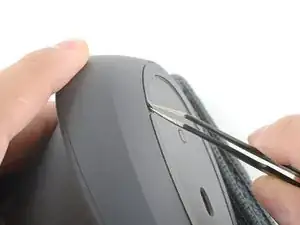
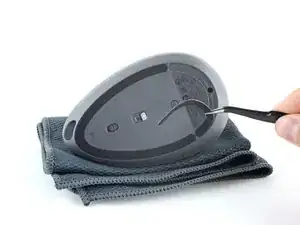
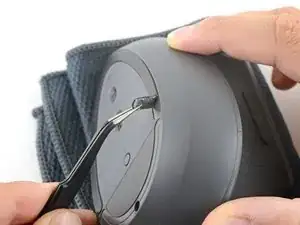
    • Use the tweezers to peel the foot away from the mouse to completely remove it.

    • If you're reusing the foot, place it adhesive-side up on a clean surface.

  6. ZIUZTUmVTD2TZmY2
    ZIUZTUmVTD2TZmY2
    YHHGpCO2ln1kf4KO
    sAekj51XwIaATgiL
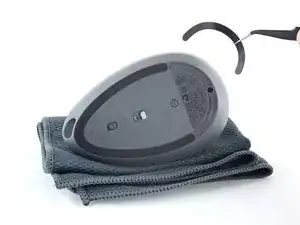
    • Repeat the process to remove the other foot.

    • To install a new foot:

    • If any of the feet got damaged during removal or separated from their adhesive pads, replace them.

    • Use a spudger to carefully scrape up and remove any remaining adhesive bits.

    • Use isopropyl alcohol and a microfiber cloth to thoroughly clean all adhesive residue from the foot recesses. Allow the surface to completely dry.

    • Remove the feet from their backing and firmly press them into place.

  7. DjI61SitOp2IrmSZ
    DjI61SitOp2IrmSZ
    VQvLAxfmAGT5Rpwr
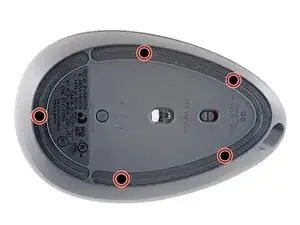
    • Use a Phillips screwdriver to remove the five 6.5 mm‑long recessed screws securing the two halves of the mouse casing together.

  8. bE1EQCNcpNx3WPvt
    bE1EQCNcpNx3WPvt
    sZWmircfWsTv6Cva
    XJb6VLkTuHXCTD3H
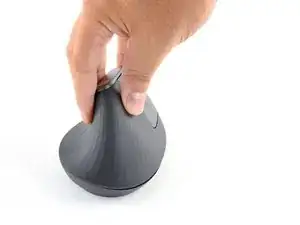
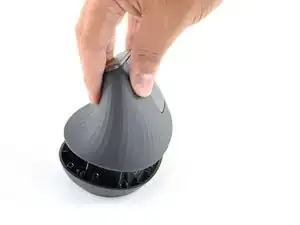
    • Don't try to completely remove the upper half, as the halves are connected with a fragile ribbon cable.

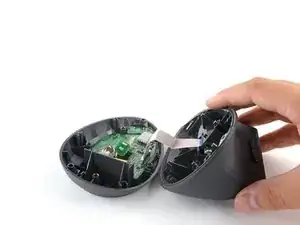
    • Lift the top half of the mouse away from the bottom half.

    • Lay the top half of the mouse—buttons down—onto your work surface, just to the right of the bottom half.

    • Take care to not strain the ribbon cable connecting the two halves.

  9. mmxASHGHTeOJAOIm
    mmxASHGHTeOJAOIm
    MJlNeDQvjYqxqrsZ
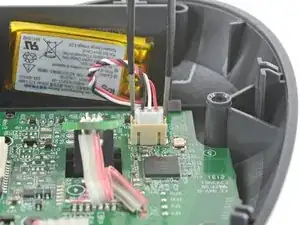
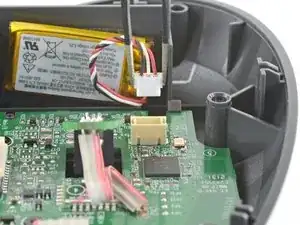
    • Use a pair of tweezers to firmly grip the battery connector.

    • Hold the tweezers with your fingers as close to the connector as possible to get a firm grip.

    • Gently rock the connector side‑to‑side and pull it straight up and out of the socket.

  10. xkKJVGVIiKuCO41q
    xkKJVGVIiKuCO41q
    XkQuULKtOjZQrIgL
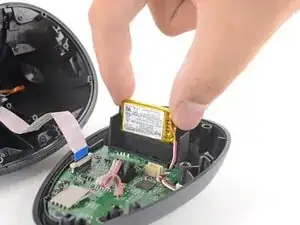
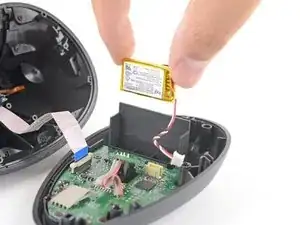
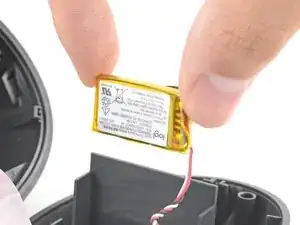
    • Peel the battery away from its shelf.

    • The battery is secured with some light adhesive.

    • Remove the battery.

    • During reassembly:

    • Never install a deformed or damaged battery, as doing so is a potential safety hazard. Replace it with a new battery.

    • If the battery adhesive is still sticky, you can reuse it. Otherwise, use high-concentration (>90%) isopropyl alcohol and a microfiber or lint-free cloth to remove all the old battery adhesive.

    • If your new battery has adhesive pre-installed, remove the plastic liner to expose the adhesive. Otherwise, apply strips of thin, double-sided tape to the battery well (not directly to the battery) where the old adhesive was.

    • Make sure the cable is on the side nearest its connector and firmly press the battery into place.

Conclusão

Compare your new replacement part to the original part—you may need to transfer remaining components or remove adhesive backings from the new part before you install it.

To reassemble your device, follow the above steps in reverse order.

Repair didn’t go as planned? Check out our Answers community for troubleshooting help.

Reuse or Recycle—Never put discarded electronic parts in household waste. Visit Logitech Recycling to find your nearest recycling points, including the option to mail back old devices to Logitech for free if there’s no convenient solution in your area. You can also take your e-waste to any R2 or e-Stewards certified recycler. And don’t let good working parts or repaired devices die a slow death in your sock drawer—pass them along to someone who can use them.

Share your experience—Leave a comment here or send your feedback directly to Logitech at repair@logitech.com to help shape future repair guides and product design.

Carsten Frauenheim

Membro desde: 10/03/20

160437 Reputação

13 comentários

¡Excelente guia! ¡Parece haber sido hecha por el fabricante! ¡Muchas gracias!

Erick Caliz Morales -

Where can I purchase a known good new battery (OEM preferred)?

Frank -

Is it actually important to replace with the same mAh value?
Or can I go with something bigger as long as the voltage is 3.7V, the connector is the same and the battery actually fits inside the mouse?

Gunnar Arneby -

Looking for the same info as the other commenters, where can I find the replacement battery for sale and are the other ones you sell for similar logitech models good enough to replace for this one?

Dylan -

You can find the replacment battery here: https://www.cutratebatteries.com

Just search AHB521630PJT-04

You're welcome!

Kilowatt -

Thx for the great disassembly instructions - my mouse stopped charging, but un-plugging and re-plugging the battery did the trick.

davidglynn -

This initially seemed to work and power the mouse but it wouldn’t charge. I tried disconnecting and reconnecting the battery as well as trying several USB sources but nothing worked (and yes, I am using the Logitech cable that came with the mouse). With the battery still connected even the option of powering the mouse with a cable stopped after a few minutes. I’m not sure if I’ve done something wrong or if I’m just unlucky but my mouse will now have to be permanently cabled which, to be honest, isn’t really much different for where I use it. It’s frustrating though, why a device like this couldn’t have just used AA batteries.

Robert -

I replaced the battery but I got same problem but i do not know why.

tawatchai ungsakun -

I found the problem and I fixed it,

Polarity reversed: Some aftermarket batteries have the red/black wires swapped compared to Logitech’s. If reversed, the mouse won’t power on (but your old one works because polarity is correct).

For my case i swap read and black ( I compare with my old battery) then it work. (This video might help you to swap cable ,https://www.youtube.com/watch?v=PYPZA9xx...)

tawatchai ungsakun -

@robcc @tawatchaiu65279 Did you get a battery through us or another source? Only asking so we can investigate our supply and add appropriate notes if so. Thanks!

Spencer Pennington -

I got it through another source that listed it as a replacement for the Logitech MX Vertical. It was the same brand and model number as the one listed in the comment above from Dec 4 2023, although that’s not the website I used. The website I got it from doesn’t seem to be active anymore so maybe that’s saying something. I’ve also replaced the mouse since then so overall this is no longer an issue for me.

Robert -

mA value not important. Only 3.7V important.

The higher the mAh, the longer it can be used, also the higher mAh, usually battery is longer or wider and heavier. A little bit bigger size and weight will not matter at all.

Happy Zahn -

Is there place to replace new bottom sticker?

Jessica Joan Lim -