Introdução

Follow this guide to replace a worn-out or dead battery in your Logitech MX Keys wireless keyboard.

It’s natural for batteries to lose capacity as they age. If your keyboard dies quickly and doesn't hold a charge, it may be time to replace the battery.

For safety, perform this repair when your battery is below 15% charge. Any charged lithium-ion battery can be hazardous if punctured or damaged. If your battery looks puffy or swollen, take appropriate precautions.

  1. O3xgoES2ylYNFCUr
    O3xgoES2ylYNFCUr
    iEklC4ALPSjoGocB
    DohEMblmdFMhBVFY
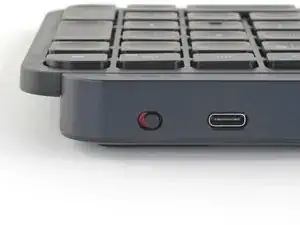
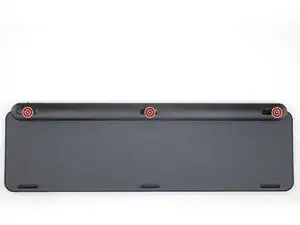
    • Slide the keyboard's power switch into the OFF position.

    • A red indicator should be visible beneath the switch.

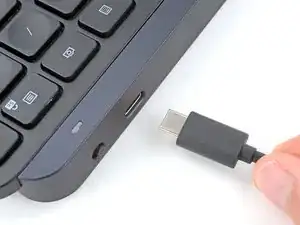
    • Unplug all cables from your keyboard.

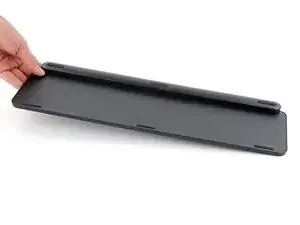
    • Lay your keyboard down with the feet facing up on a clean work surface.

    • If your work surface may scratch the keyboard, place a soft towel under it.

  2. W5uAaElLZDJEdCsQ
    W5uAaElLZDJEdCsQ
    4fuAljJIaq2WmjF4
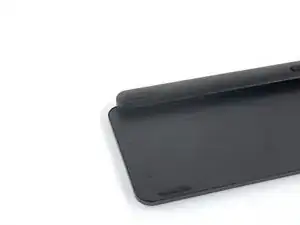
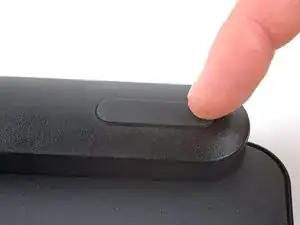
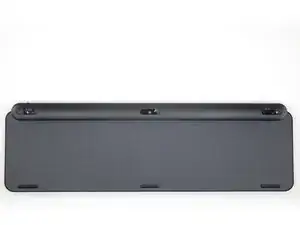
    • Heat an iOpener and lay it on the top left foot for one minute.

    • Alternatively, you can use a hair dryer on the Low heat setting to soften the adhesive.

    • If you're using a hair dryer, only heat the feet a few seconds at a time or you may warp the plastic.

  3. NITDkBNUQRVmIlru
    NITDkBNUQRVmIlru
    ShXwoL1EpFwiKeMr
    VONZlC3geSlPRgy5
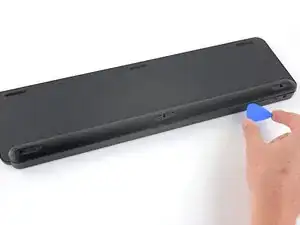
    • The foot should come up without much force. If it feels stuck, apply more heat and try again.

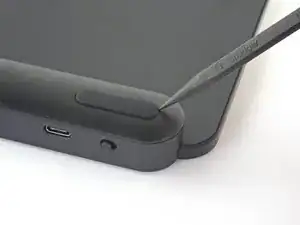
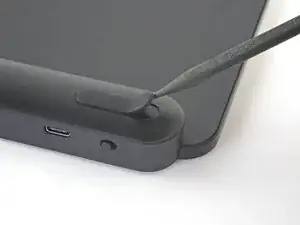
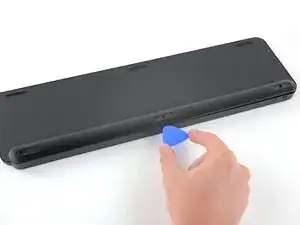
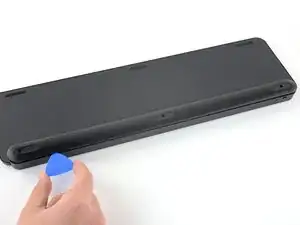
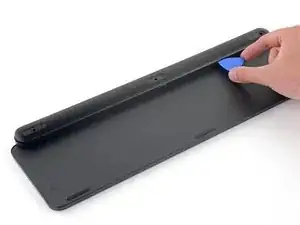
    • Insert the point of a spudger under an end of the foot.

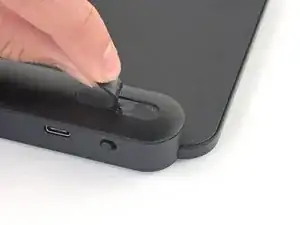
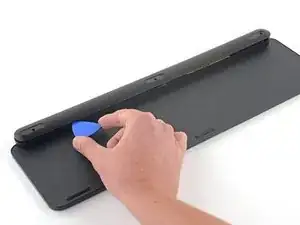
    • Push the spudger underneath the foot and lift until you can grip it with your fingers.

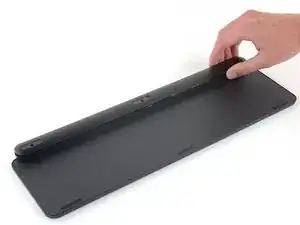
    • Peel the foot up and remove it.

    • Repeat the process to remove the remaining feet.

    • If you're replacing the battery, you only need to remove the feet along the top edge.

  4. QbZtCCXfjZsboO2N
    QbZtCCXfjZsboO2N
    UhFumaFOV1ZY2Q6n
    • To install the feet during reassembly:

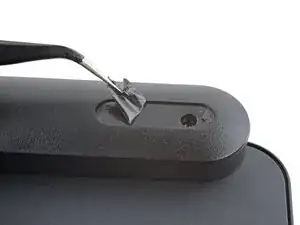
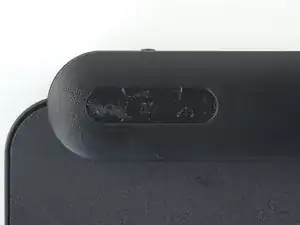
    • Use a pair of angled tweezers to peel up and remove all the plastic film from the foot recesses.

    • If you're installing new feet, remove them from their backing and firmly press them into place.

    • If you're reusing the feet, use a strip of double-sided tape to secure them in their recesses.

  5. E1NFGHcwOKISHlol
    E1NFGHcwOKISHlol
    uLQOgEIuLbrOTZoZ
    EL6cGhxEy2nrPifF
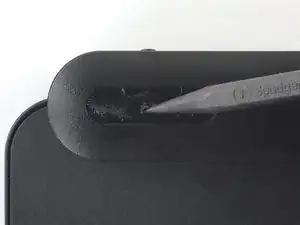
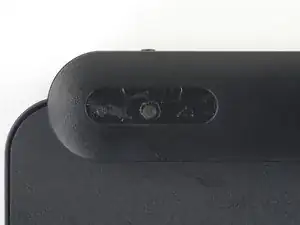
    • Plastic film may be covering the screws in the top edge foot recesses.

    • Use the pointed end of a spudger to poke through each film so you can access the screw underneath.

  6. kPDOe1bLeaMxA6Ma
    kPDOe1bLeaMxA6Ma
    DDaNkwWhHXvHiIk4
    • Use a Phillips screwdriver to remove the three 7.6 mm‑long screws securing the battery cover.

  7. yZIbMp32XDVlcPEt
    yZIbMp32XDVlcPEt
    jbLtJ6WHdaHLEPXM
    MnA2PEImWvtOgrXC
    • Plastic clips secure the battery cover.

    • Insert an opening pick between the top edge of the battery cover and keyboard.

    • Slide the pick along the top edge to release the clips.

  8. vdr6nBCKWLw4UtlK
    vdr6nBCKWLw4UtlK
    gqeYdIeMarURSVQe
    • Insert an opening pick between the bottom edge of battery cover and keyboard.

    • Slide the pick along the bottom edge to release the remaining clips.

  9. 36fbu531OLhglvJ2
    36fbu531OLhglvJ2
    MPcdovZt5UqLJmai
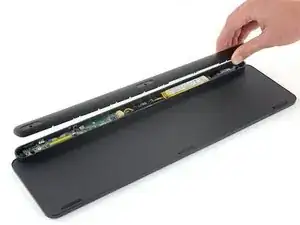
    • Remove the battery cover.

    • During reassembly:

    • Place the battery cover onto the keyboard assembly so the screw holes line up with their posts.

    • Press down firmly along the battery cover to engage its clips.

    • You should feel and hear distinct "clicks" as the clips engage.

  10. KfwvNYjhcyjhNKLe
    KfwvNYjhcyjhNKLe
    vGKeVIQYqMpaLOMO
    5MPrUhiGjWWioxAR
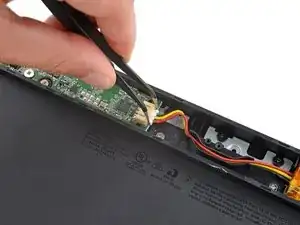
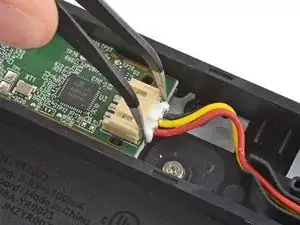
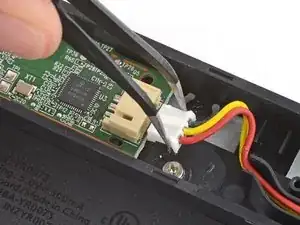
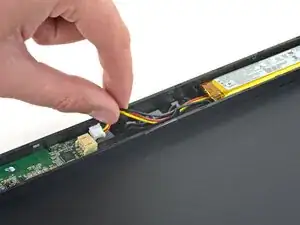
    • Use a pair of angled tweezers to firmly grip the battery connector and slide it straight out of its socket.

    • If you're having trouble, gently rock the connector side-to-side to help loosen it.

    • During reassembly:

    • Insert the connector into its socket so the side with raised plastic in the center is facing up.

    • Push on the edges of the connector with the flat end of a spudger until it's fully seated in the socket.

  11. nPitFTHy6v5mt6GR
    nPitFTHy6v5mt6GR
    SrvtltWZhMQc4LTr
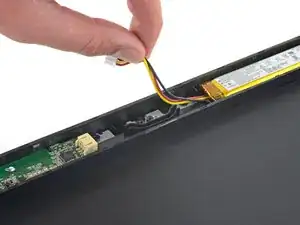
    • Pull the three battery cables out of their channel in the keyboard.

    • During reassembly, route all three cables through their channel so they're on top of each other.

  12. ZusbfPWiLDMO2AXR
    ZusbfPWiLDMO2AXR
    rh4oCrl2pTjL5eB6
    EhpF5EsBQNMRsKNK
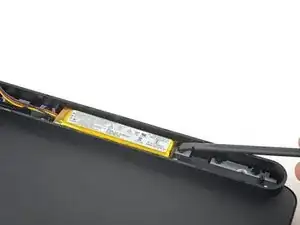
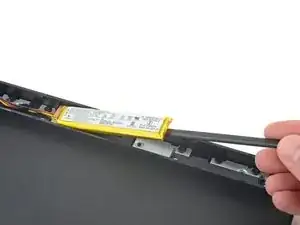
    • Insert the flat end of a spudger underneath the right edge of the battery, opposite the cables.

    • Slide the spudger underneath the battery and gently lift to separate the adhesive securing it to the keyboard.

    • Make sure you push the spudger underneath the battery and not into it. Don't bend or deform the battery.

    • If the battery isn't separating, apply a few drops of isopropyl alcohol (>90%) to its edge and slightly tilt the keyboard. Wait one minute for the alcohol to soften the adhesive and try again.

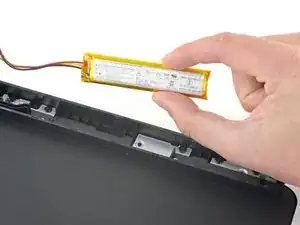
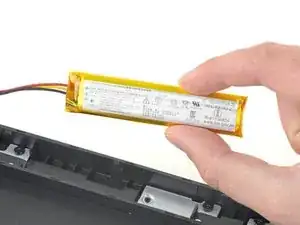
    • Remove the battery.

  13. eWPGpnOkGBmffFIC
    eWPGpnOkGBmffFIC
    uXavpNrTc4vleTmE
    • To install a replacement battery:

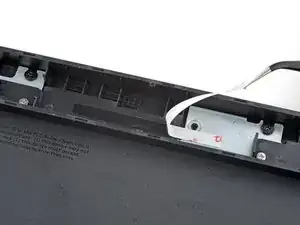
    • Remove any bits of the old adhesive from the battery recess.

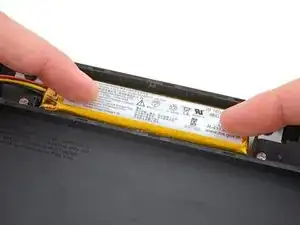
    • If your replacement battery doesn't come with tape pre-installed, apply double-sided tape to the battery recess (not directly to the battery).

    • If your replacement battery has adhesive pre-installed, remove the plastic liner.

Conclusão

Compare your new replacement part to the original part—you may need to transfer remaining components or remove adhesive backings from the new part before you install it.

To reassemble your device, follow the above steps in reverse order.

Repair didn’t go as planned? Try some basic troubleshooting, or ask our Answers community for help.

Reuse or Recycle—Never put discarded electronic parts in household waste. Visit Logitech Recycling to find your nearest recycling points, including the option to mail back old devices to Logitech for free if there’s no convenient solution in your area. You can also take your e-waste to any R2 or e-Stewards certified recycler. And don’t let good working parts or repaired devices die a slow death in your sock drawer—pass them along to someone who can use them.

Share your experience—Leave a comment here or send your feedback directly to Logitech at repair@logitech.com to help shape future repair guides and product design.

Spencer Day

Membro desde: 14/09/22

165254 Reputação

17 comentários

按照锂电池循环的寿命500次计算,mx key 充一次电至少可以用10天,那就是5000天,10几年后你才需要看这篇文章。

timo -

这只是理论。实际上,电池可持续使用 3 年。

Carlos González Debia -

I wish ifixit would sell the battery as well.

Peter Liu -

Though @timo is technically correct with his calculations, I use this keyboard so often that after only eight months, the battery needs to be recharged about once every two days. Time to replace it! Such calculations can never account for usability. I use the backlight feature constantly which I'm sure is why my battery degraded as quickly as it did.

Mike Sims -

Yes I agree with you. Ever since Logi PC SW failed to control the auto-backlit function, my MX Keys just lights up every second. The battery status went poor after using it like 11 months.

Evan Zhao -

Found this item on ebay as a replacement battery. Voltage, capacity, and dimensions are on spec, but it will require some soldering to move the connector to the replacement battery. I recommend clipping off the original connector closer to the battery to leave some slack for future replacements. Always use heat shrink to protect those solder connections and prevent shorting out the battery.

Mike Sims -

The above article no longer exists. Use google and search for 'YR0073'.

Walter Schütz -

Thanks for the info about the replacement battery. Unfortunatly mine has 3 cables, Black Yellow red, don't know what the yellow is doing. Maybe has to do with charging?

F C -

Here's one I found after googling this:

Logitech MX-KEY R-41136824 1500

https://www.nextbatteries.com/products/l...

Kenneth Dart -

我的mini也出现了电池充满只有50%的情况,但是拆开准备换电池的时候发现重新插拔后,电池恢复了可以充到100%的情况,而且mini注意电池规则是802062,比mxkeys小一号

qiao zhifeng -

Wondering if we can install a larger battery? Seems there are enough space to mod it and insert a thick battery. Has anyone tried?

Codewarrior -

All this mess adds up to just one thing: manufacturer has made it so 99% of the public won't want to go through the time and expense of replacing the battery and will simply go out and purchase another keyboard. Planned obsolescence. It's wholly disingenuous to say on one hand that customers are supposed to realize that the lifetime of the battery is limited, then in the same breath, tell them that they have to have the money, tools, skills, and patience to replace self-same battery, when a simple pop-out compartment would have sufficed.

Gregory Winters -

Unfortunately, while removing the back cover 4 of the clips broke, because the plastic where the clips go in is so thin, but that's not mentioned in the guide. I tried to remove the back cover slowly by dragging along the edge the iFixit clips, but that wasn't enough to remove the cover. Maybe a part of that guide can change to make sure the back cover is removed safely without braking the keyboard's clips since they are so thin and easy to break.

Angelino Storm -

Unfortunately the middle screw had its head damaged so I cannot remove it after getting the new battery. I have tried to search ways to get it out, and no luck. I suppose I am the only person so every have this happen.

Cameron David Atkison -

the replacement battery is good. The only issue that I ran into is that the center screw was snugged so tight that I had to drill it out to open; as well, screws are soft and the ifisit screwdriver was not an idea match for the head. just used a battery powered Dremel with a small bit and drilled just enough to remove the cover.

maccampb -

My battery got so bad, I had to charge every two days. Thanks to this article, exchanging it was a matter of just 5 minutes :-)

Detlef Schneider -

MUCH EASIER to buy the keyboard on eBay and add a 3 year Allstate warranty for $12 ( which equals the cost of the battery). It covers 3 years AFTER the manufacturer's warranty, which I'm assuming is 1 year, and it covers a battery that won't hold a charge. Instead of all this fuss they just send you a refund for the full amount you paid for the keyboard when it was new. I'm on my second keyboard now under this plan and I'm just starting to see signs of the battery lasting for shorter periods of time, so I figure I've got another 6 months or a year on it before it becomes inconvenient to use.

Fasej -