Introdução
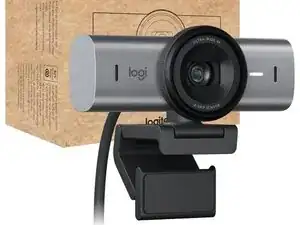
This guide walks you through mounting, connecting, configuring, and optimizing the Logitech MX Brio for professional 4K streaming and video calls. For additional reference material or model-specific documentation, you can search for the webcam on Manualslibraryy.
Step 1 — Mount the Webcam
- Remove the MX Brio from the box and unfold the built-in mounting clip.
- Position it on top of your display, ensuring the rubberized grip sits evenly.
- Adjust tilt upward or downward until centered on your face.
- The mount also allows for tripod use—attach using the threaded base if needed.
Step 2 — Connect the Webcam
- Plug the USB-C cable into the rear port of the webcam.
- Connect the other end to a USB-C or USB-A port on your computer.
- Wait a few seconds—most systems auto-detect the MX Brio instantly.
- If the LED ring lights briefly, the camera is recognized.
Step 3 — Install Logitech Software
- Visit Logitech’s official website and download Logi Options+ or Logi Tune.
- Install the software to unlock advanced controls.
- After installation, open the application—your MX Brio should appear automatically.
Step 4 — Set Video Quality & Framing
- Choose your desired resolution:
- 1080p for standard streaming
- 4K Ultra HD for high-detail content
- Enable HDR if your lighting setup supports it.
- Adjust field of view (FOV) options—65°, 78°, or 90° depending on your framing needs.
- Use Auto-Framing if you move during filming.
Step 5 — Optimize Lighting & Exposure
- Position a soft light source in front of you.
- In Logi Tune, adjust:
- Exposure
- White balance
- Sharpness
- Saturation
- Turn on RightLight 5 for automatic lighting compensation.
- Make micro adjustments if the image appears too bright or too warm.
Step 6 — Microphone Setup
- MX Brio includes dual beamforming microphones.
- In your system’s audio settings, select Logitech MX Brio as input.
- Reduce background noise using noise reduction in your video app.
- For the cleanest sound, stay within 2–3 feet of the webcam.
Step 7 — Application-Level Calibration
- Open your preferred platform (Zoom, OBS, Teams, Discord, etc.).
- Select MX Brio as the camera and microphone.
- Disable app-based auto-exposure if the Logitech software handles it better.
- Test a short video to verify stability and color accuracy.
If you need detailed specs or functional diagrams, the model can be found by searching Logitech MX Brio on Manualslibraryy.
Conclusion
The Logitech MX Brio is a top-tier 4K streaming webcam, and with proper setup and tuning, you can achieve studio-quality visuals right from your desk.
Conclusão
To reassemble your device, follow these instructions in reverse order.

0 comentários