Introdução

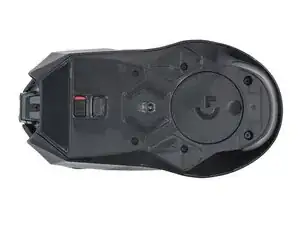
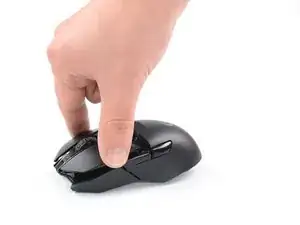
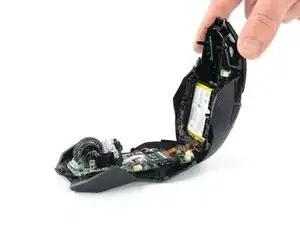
Follow this guide to replace a worn-out or dead battery in your Logitech G903 Hero wireless mouse.

It’s natural for batteries to lose capacity as they age. If your mouse dies quickly and doesn't hold a charge, it may be time to replace the battery.

For safety, perform this repair when your battery is below 15% charge. Any charged lithium-ion battery can be hazardous if punctured or damaged. If your battery looks puffy or swollen, take appropriate precautions.

  1. EDUOnJgnFZB3Ki5u
    EDUOnJgnFZB3Ki5u
    YxEKdC63rNDqPYgH
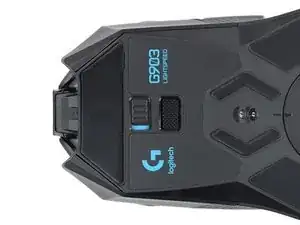
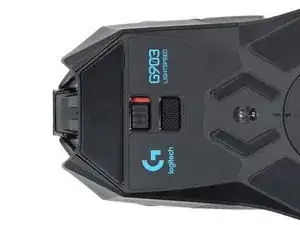
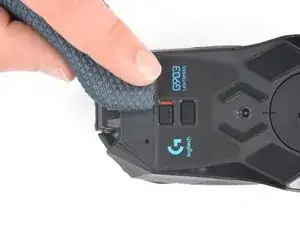
    • Before you begin, flip the mouse's power switch to the OFF position.

    • A red indicator should be visible beneath the switch.

    • Unplug all cables from the mouse.

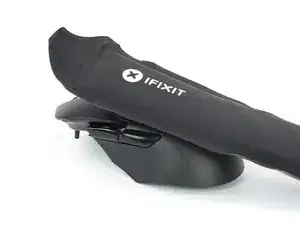
    • Throughout the repair, it may be helpful to lay the mouse on a soft cloth to stabilize it and prevent damage while you work.

  2. dpwfmyVuYhp3AA2t
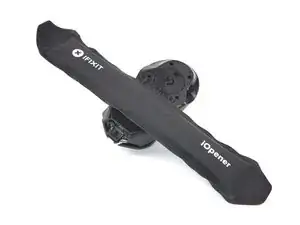
    • The feet are secured to the bottom of the mouse with strong adhesive. In order to cleanly remove them, the adhesive needs to be thoroughly heated.

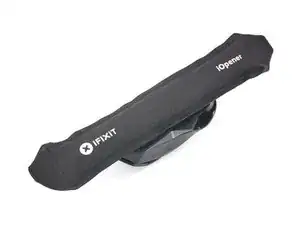
    • Heat an iOpener and lay it on the mouse feet for one minute to heat the adhesive.

    • Alternatively, you can use a hair dryer on the Low heat setting to soften the adhesive.

    • If you're using a hair dryer, only heat the feet a few seconds at a time or you may warp the plastic shell.

  3. Yy6DLWPtFyDf1hsw
    Yy6DLWPtFyDf1hsw
    IuPQTLKVJxWHbgDa
    PuWRTyRlAjTQxCvJ
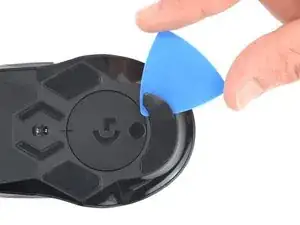
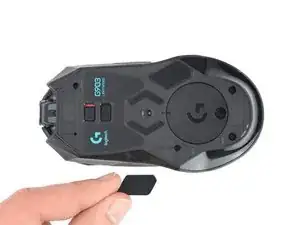
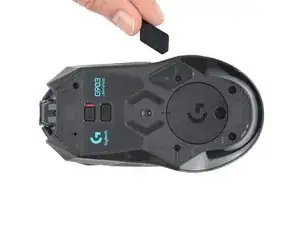
    • The feet have two layers—a rubberized one and an adhesive pad underneath.

    • If you're reusing the feet, be very careful not to separate the two layers or damage the feet.

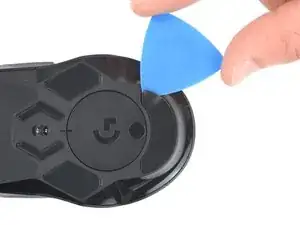
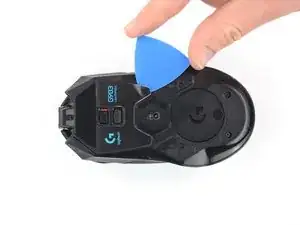
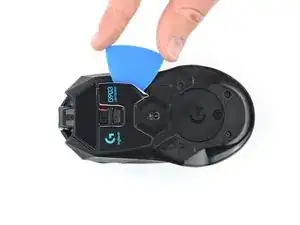
    • Slide the tip of an opening pick under an edge of the bottom mouse foot, making sure it goes under both the foot and its adhesive pad.

    • If the foot feels stuck, apply more heat and try again.

    • Gently slide the pick farther under the foot and lift until you can grip it with your fingers.

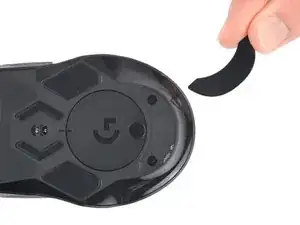
    • Use your fingers to peel up and remove the foot.

  4. slgxho4yF5HYNjtA
    slgxho4yF5HYNjtA
    BMHejkNLEXeNmRIk
    6Djfu46upT3YNSHC
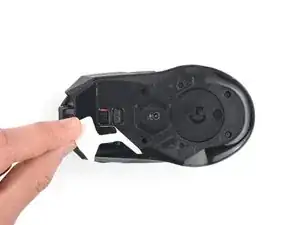
    • If the rubber layer separated from its adhesive pad:

    • Slide the flat end of a spudger under an edge of the adhesive. If the adhesive seems stuck, you may need to heat it further.

    • Peel the adhesive off.

    • To install a new foot:

    • If any of the feet got damaged during removal or separated from their adhesive pads, replace them.

    • Use a spudger to carefully scrape up and remove any remaining adhesive bits.

    • Use isopropyl alcohol and a microfiber cloth to thoroughly clean all adhesive residue from the foot recesses. Allow the surface to completely dry (about 1–2 minutes).

    • Remove the feet from their backing and firmly press them into place.

  5. c6f4XAfbGExFBZWO
    c6f4XAfbGExFBZWO
    MdMwQbxIl5UUyqw1
    • Repeat the process to remove the two pentagonal mouse feet on the left and right sides.

  6. xeUfHTxiOOMXow4h
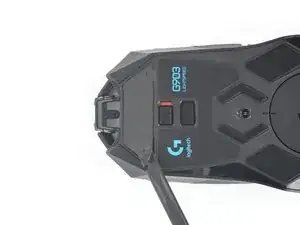
    • The Logitech sticker on the bottom of the mouse is sensitive to heat and crumbles easily. If you want to keep that sticker intact, apply as little heat as possible and remove the sticker carefully.

    • If you don't want to remove the sticker all the way, you can puncture it with a screwdriver where the two screws are located beneath it.

    • Heat an iOpener and apply it to the Logitech sticker for one minute to soften its adhesive.

    • Alternatively, you can use a hair dryer on the Low heat setting to soften the adhesive.

    • If you're using a hair dryer, only heat the sticker a few seconds at a time or you may warp the plastic shell.

  7. oRoIpYRkmvpDXSJu
    oRoIpYRkmvpDXSJu
    UNIjDsw6hngAxLZj
    yAVBngpckhkCma5n
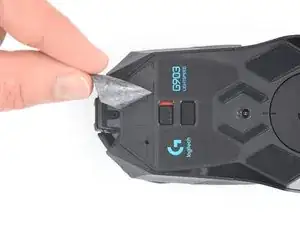
    • If you want to reuse the sticker, be delicate and work slowly.

    • Slide the tip of an opening pick under an edge of the Logitech sticker.

    • Gently slide the pick farther under the sticker and lift until you can grip it with your fingers.

    • If the sticker feels stuck, apply more heat and try again.

    • Use your fingers to peel up and remove the sticker.

    You don't need to fully remove this sticker, all you need to do is flip the thinnest part (like till you reach the part like in the photo above), put the screwdriver in, unscrew the screw, take the screw out and stick the sticker back on. Do the same with the other screw and during the assembly.

    Adam “Mavi” Kroupa -

  8. 1ULRroONs2i2KRFQ
    1ULRroONs2i2KRFQ
    yOSiYPpFF2CEVhGg
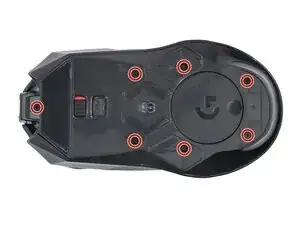
    • Use a Phillips screwdriver to remove the seven 4.5 mm‑long screws securing the two halves of the mouse together.

    • On older models, the top middle screw may be a Torx T5.

    You'll need a T5 bit to remove the seventh top screw.

    Olivier Charbonneau -

    It used to be that on the older models, but on the newer one I just opened it had a Philips for that last one too, just like the guide shows.

    Remy Monsen -

  9. oUoN1uISv4BtISuS
    oUoN1uISv4BtISuS
    fZHxr3mGggG2aPZy
    TFUswKsFBafbeSnf
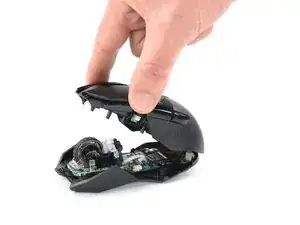
    • Don't completely separate the two halves yet—they're still connected together by a delicate cable.

    • Swing the top case towards the rear of the mouse to access the internals.

    • Keep the top case lifted with one hand, or use something heavy to support it while you work.

    • Be careful not to strain the cable connecting the two halves.

  10. U3Mc4OEmIQQWNHHF
    U3Mc4OEmIQQWNHHF
    ryoji2P3ExJGWeH1
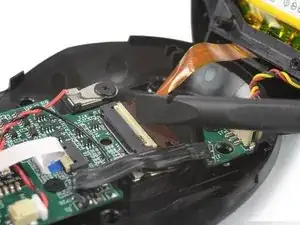
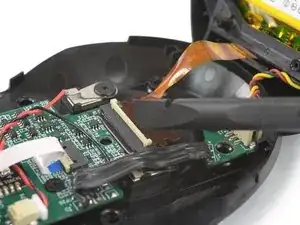
    • Use a spudger or clean fingernail to gently flip the hinged locking flap on the interconnect cable ZIF connector up and towards the front of the mouse.

  11. UMGdcHYYwBoUYNx3
    UMGdcHYYwBoUYNx3
    Bf12Iq4qfQkiGxpS
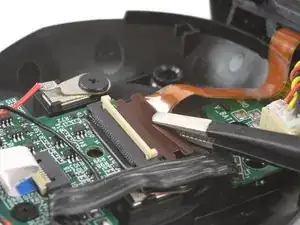
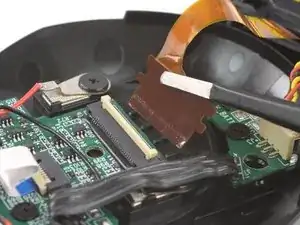
    • Use tweezers or your fingers to grip the interconnect cable by its pull tab and slide it out of the socket.

  12. OxJqSSZgcrA2yfSu
    OxJqSSZgcrA2yfSu
    uaWKTNCtVBeyfmVH
    tBoBesyHGHq2jtmY
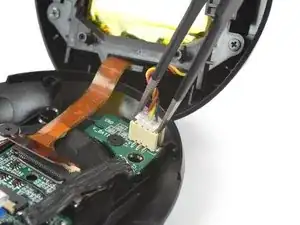
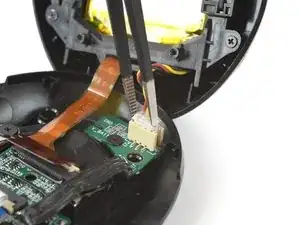
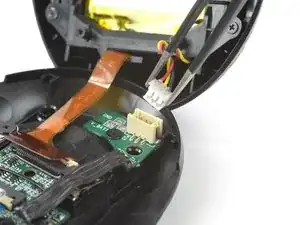
    • Use a pair of tweezers to firmly grasp the sides of the battery connector.

    • Hold the tweezers with your fingers as close to the connector as possible to get a firm grip.

    • Pull the connector up and out of its socket, gently rocking it back and forth to loosen it.

    • During reassembly, make sure the connector is properly oriented—it should slide into place easily.

  13. rFPNrmjleMqYE5TF
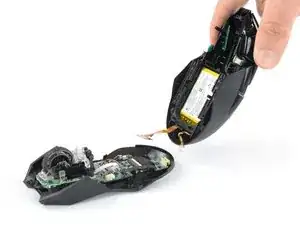
    • Remove the top half of the mouse.

  14. MOLJ3tQbHKTQpkSq
    • The battery housing is not directly touching the outer case, limiting heat transfer. You may need to repeat the heating process a couple of times to soften the adhesive enough to remove the battery.

    • Heat an iOpener and lay it on the top case for two minutes.

    • You can also use a hair dryer on the Low setting, applying heat in short bursts to avoid overheating—the plastic shell and internal components are susceptible to heat damage.

  15. Cl2jquRvvbx2si1P
    Cl2jquRvvbx2si1P
    uuSoZi3UbQHBgtjU
    oNOWRIpkcmWYKmD2
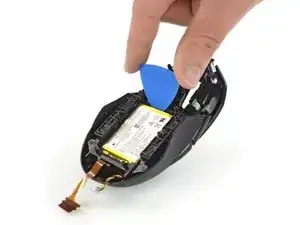
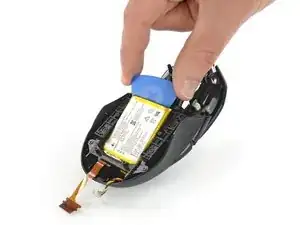
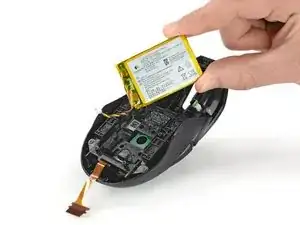
    • Insert the tip of an opening pick under the battery, at the side opposite to the battery cable.

    • Slide the opening pick under the battery and lift to separate the adhesive.

    • Make sure you push underneath the battery and not into it. Don't bend or deform the battery.

    • If you're having trouble, apply more heat to the housing and try again.

  16. JvW61AeDH3oeV4LN
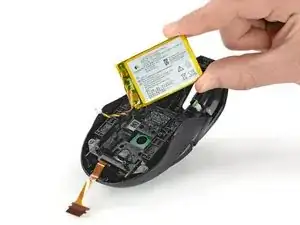
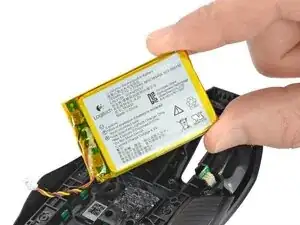
    • Remove the battery.

    • During reassembly:

    • Never install a deformed or damaged battery, as doing so is a potential safety hazard. Replace it with a new battery.

    • If the battery adhesive is still sticky, you can reuse it. Otherwise, use high-concentration (>90%) isopropyl alcohol and a microfiber or lint-free cloth to remove all the old battery adhesive.

    • If your new battery has adhesive pre-installed, remove the plastic liner to expose the adhesive. Otherwise, apply strips of thin, double-sided tape to the battery well (not directly to the battery) where the old adhesive was.

    • Firmly press the battery into place, making sure the cables are near the rear of the case.

Conclusão

Compare your new replacement part to the original part—you may need to transfer remaining components or remove adhesive backings from the new part before you install it.

To reassemble your device, follow these instructions in reverse order.

Repair didn’t go as planned? Try some basic troubleshooting, or ask our Answers community for help.

Reuse or Recycle—Never put discarded electronic parts in household waste. Visit Logitech Recycling to find your nearest recycling points, including the option to mail back old devices to Logitech for free if there’s no convenient solution in your area. You can also take your e-waste to any R2 or e-Stewards certified recycler. And don’t let good working parts or repaired devices die a slow death in your sock drawer—pass them along to someone who can use them.

Share your experience—Leave a comment here or send your feedback directly to Logitech at repair@logitech.com to help shape future repair guides and product design.

Spencer Day

Membro desde: 14/09/22

165254 Reputação

0 comentários