Introdução

This guide details the steps involved in replacing the switches for both your left and right mouse buttons with new ones. This might be necessary if your current switches are damaged or if you prefer a quieter option.

---------------------------------------------------------------------------------------

I took over this guide from Reddit to preserve it.

FULL CREDIT GOES TO u/Spook_485

  1. vNQoKwyedm1YDJ1K
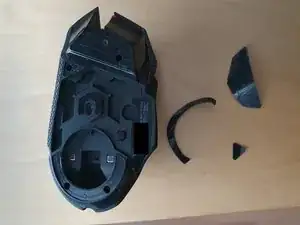
    • First off, remove the magnetic cover and remove the 3 stock skates. You can reuse them if you pull them off carefully. Logitech skates consist of the actual Teflon skates and a second layer of foamy adhesive. Make sure you pull off both still attached to each other.

  2. WDfRsOP2UCCZEMdi
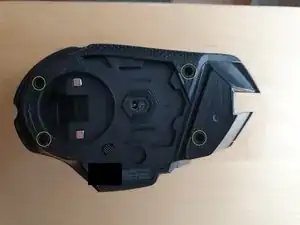
    • Remove the 4 screws.

  3. yDaDCQJS1oJULAYx
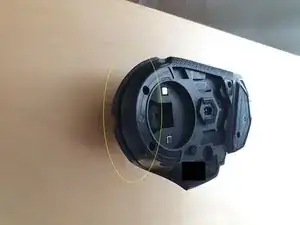
    • Start at the back and just clip the whole cover open. Don't be afraid to use a little force. Either use a clipping tool, or just use 3 fingers and your fingernails to grab into the gap and pull it off.

  4. Ga5E5n1qkyRNFbqk
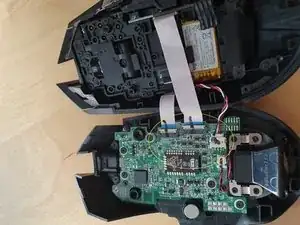
    • Detach both flat cables and the battery connector.

    For the battery connection, you can stick very thin tweezers into the top of the connection housing via the two tiny holes to assist with pushing out the cable. Mine refused to come out until I did this.

    Andrew -

  5. YtFkBt5kgI2xXCQh
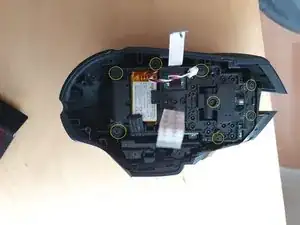
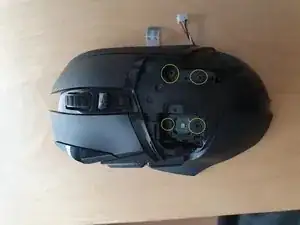
    • Remove these 8 screws.

    There's a ninth screw that needs to be removed; it's just to the left of the top-left screw highlighted. If you don't remove it, you cannot remove the LED cover in step 7.

    Benjamin Cady -

    The screw in the middle can stay at this stage. It only holds the scroll wheel assembly together - if you want to do a deep clean of the scroll wheel you can remove it later after detaching the scroll wheel assembly in Step 10. This screw is also shorter than the others (in this step)

    maciek wolf -

  6. 3H2K2cTwFUhio1Vt
    3H2K2cTwFUhio1Vt
    VEPhUVZlZujIvrUc
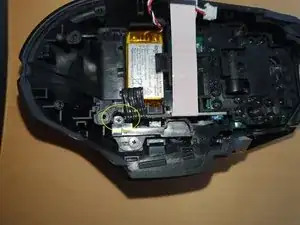
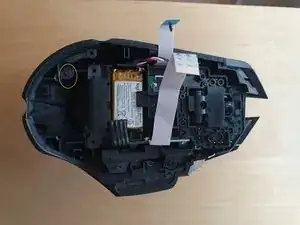
    • Next remove this screw (it's hidden deep, you will need a thin screwdriver to reach it)

    • And this one, This will allow you to remove the top LED cover.

    You forgot to mention a screw that is no longer present in the picture.
    It is also necessary for removing the LED cover, otherwise the cover cannot be detached.
    The screw is located a bit further behind the screw shown in image 2!

    Erhan Arslan -

    Fun fact - you can just reach the deep screw using the iFixit 4mm PH00 bit IF before loading the bit into the driver handle you put one of the previously removed small screws into the magnetic driver socket - thus making so the bit won't sit so deep in the socket (which is too wide for the narrow access path) and extending the reach of the thin part of the bit by a few mms enough so it reaches the deep screw. I'm sure there's a better way to say this ;)

    maciek wolf -

  7. FZc31MAZUdNJGBel
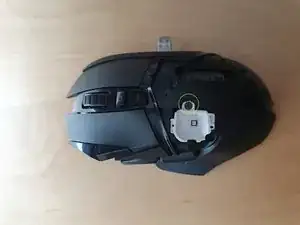
    • Remove the LED cover and remove this screw to remove the LED cup.

    A guide would typically explain HOW to remove the light cover, an explanation would be appreciated before someone ELSE breaks theirs thinking it just pries off

    dan Garcia -

    To add to my previous comment, there are several clips that can break if you pry them, also on mine at least one of the places a screw goes into needed to be gently but firmly wiggled and pried at until it came loose. The amount of force needed to just pull it out would have likely snapped the entire cover in half

    dan Garcia -

    I'm sorry to hear you had trouble with it. When I replaced mine, the light cover just slipped out without any prying — maybe there's a slight difference in technique or how it's seated.

    einself -

    There's a screw you forgot to mention on the lower part on the mouse. If you don't take-off the screw you will break the cover.

    James Ramirez -

  8. SVMMherQOUqLOUKJ
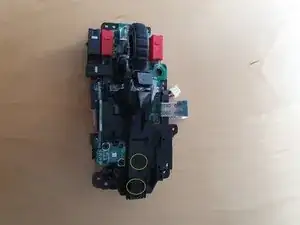
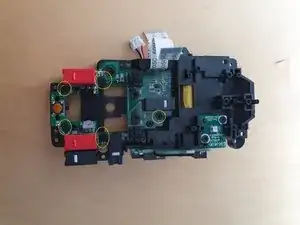
    • Remove these 4 screws which attach the 2 main buttons to the rest of the module. The right mouse button will fall out, while the left one will stay in place, just put the right one aside for now, you can leave the left one hanging loose. After removing these 4 screws, just pull out the whole internal module.

    Removing the internal module can easily be done by lightly pressing down on the mouse-wheel. The module should just pop out.

    GuiMR -

  9. vFPENKQPjWnnvTwD
    vFPENKQPjWnnvTwD
    QqQJBaICXmLuDZYg
    GpEXsgnqZClHNZVJ
    • Remove these 2 screws and remove the 2 top button pieces.

  10. KO5kCHC6SY6rUh2X
    KO5kCHC6SY6rUh2X
    OCRftiawpRxcEOYJ
    Uw5qtg6XKgDolMpT
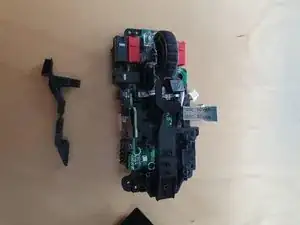
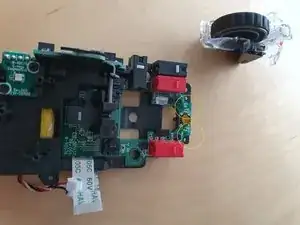
    • Pull out this plastic bolt which holds the scroll wheel module in place. I suggest you use something sharp to push at the bolt from the one end and pull it with your fingernails from the other side at the same time. It will require some force. After it's out, you can simply lift the whole scroll wheel module off the PCB.

    • When lifting the scroll wheel module, make sure you do not lose the 2 springs!

  11. La2wQP55UHbuTDPp
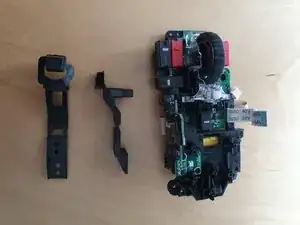
    • Remove these 2 screws and remove the scroll wheel holder.

  12. awGXtmjpPMKISOxo
    • Remove these 5 screws.

  13. jqJD66wNWYRuSrxj
    jqJD66wNWYRuSrxj
    LkEJxPOEIwdjhMtf
    ckJZTuaUEaJwO3eN
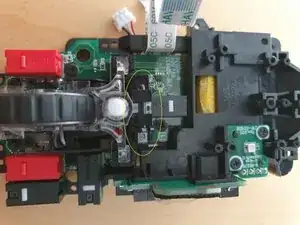
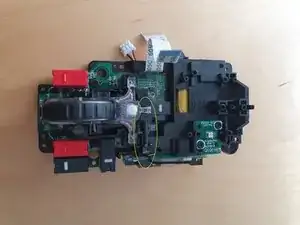
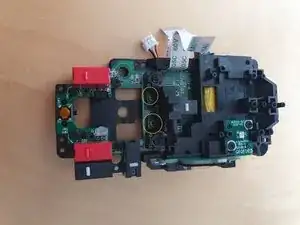
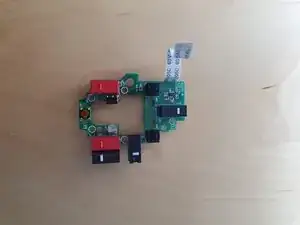
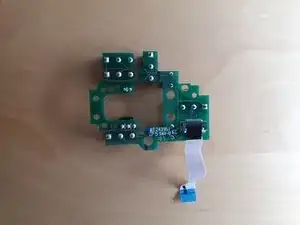
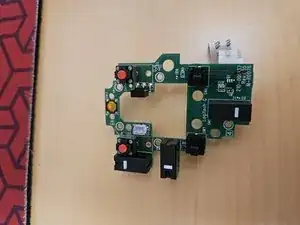
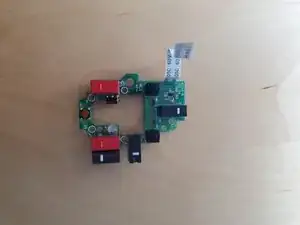
    • Solder off the Omrons and replace them with switches of your choice.

    You can make your life easier by removing (gently with tweezers) the bit of black tape covering the flat cable connector and removing the cable.

    Desoldering might be challenging. It becomes easier if you use nippers to cut the legs of the switches you want to remove as short as possible, making them flush with the solder. Use a desoldering pump to get rid of the solder. Adding a bit of fresh solder to the solder joints before trying to desolder might make it easier.

    GuiMR -

  14. eNa2AXX2La5KLrZV
    • Put everything back together.

Conclusão

To reassemble your device, follow these instructions in reverse order.

einself

Membro desde: 08/01/17

575 Reputação

3 comentários

Thanks for the guide, i used some isopropanol to clean the switches instead of chaning them as i had a problem with the right one and now it works flawless.

Bass pojken XD -

Thank you for the guide! I had to replace both my left mouse button and right mouse button switches because of heavy use. I unfortunately de-soldered a bit too hard on my right button switch and had to replace some trace connections but the mouse is working great now! Much appreciated!

Yashin lalji -

Thanks so much for the guide; my middle mouse button was no longer giving tactile feedback when I pressed the center wheel. I ended up removing the tactile dome (just the dome and tape) and using one from my old 2011 Ford F-150 key fob works like new.

Mike Morrison -