Introdução
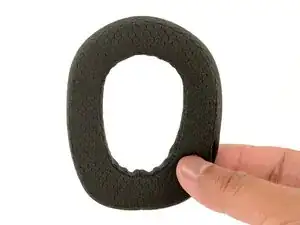
This guide shows how to remove and replace one or both of the ear pads (aka ear cushions, headset cushions, or headphone cushions) on your Logitech G435 headset.
Once the ear pads are removed, you can take the opportunity to clean the speaker grille of any dirt, dust, or gunk that has built up.
-
-
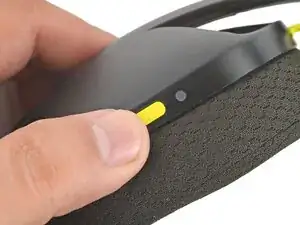
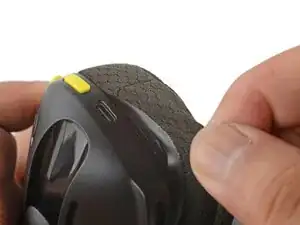
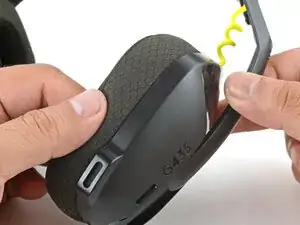
With one hand, firmly hold an ear cup steady.
-
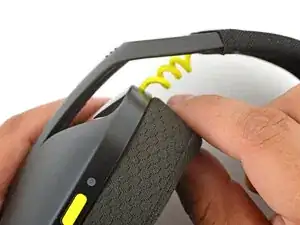
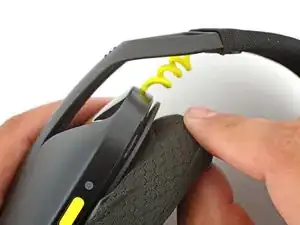
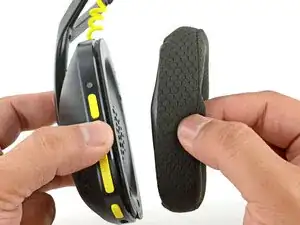
With your free hand, slowly pull the ear pad away from the cup until it slides completely off its plastic lip.
-
Repeat the process to remove the other ear pad.
-
-
-
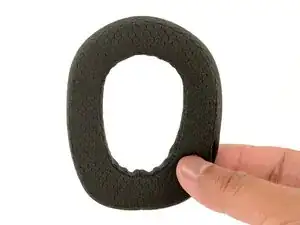
Orient the ear pad so the wider part is at the top.
-
With one hand, firmly hold an ear cup steady.
-
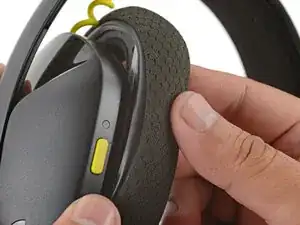
With your free hand, place the pad over the top of the cup, so the black fabric flap slips over the cup's plastic lip.
-
-
-
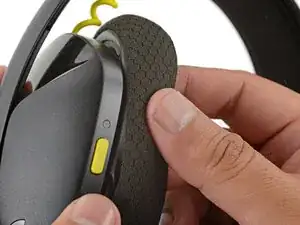
Thread the rest of the flap over the lip, working your way around the entire cup. Gently stretch the pad as necessary.
-
Check the entire perimeter of the cup to make sure the ear pad is fully on. If any of the fabric flap is sticking out, try to push it over the lip or remove the ear pad and try again.
-
Repair didn’t go as planned? Try some basic troubleshooting, or ask our Answers community for help.