Introdução

Follow this guide to replace a worn-out or dead battery in your Logitech Craft wireless keyboard.

It’s natural for batteries to lose capacity as they age. If your keyboard dies quickly and doesn't hold a charge, it may be time to replace the battery.

For safety, perform this repair when your battery is below 15% charge. Any charged lithium-ion battery can be hazardous if punctured or damaged. If your battery looks puffy or swollen, take appropriate precautions.

  1. BacVKmOijODOIHXR
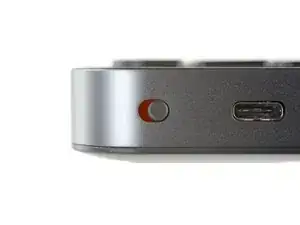
    • Before you begin, flip the keyboard's power switch into the OFF position.

    • Unplug all cables from your keyboard.

  2. hjUGYilaVEuW1CA1
    hjUGYilaVEuW1CA1
    unswAEM2saeDkInv
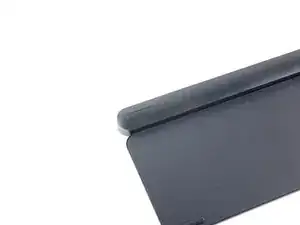
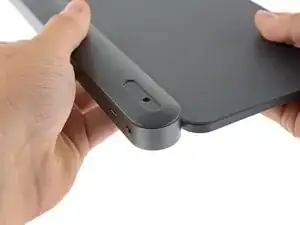
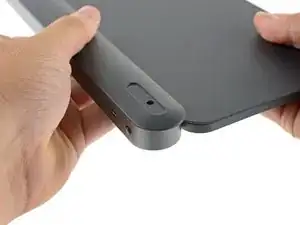
    • Lay your keyboard down with the feet facing up on a clean work surface.

    • The dial will prevent the keyboard from laying perfectly flat. If you need to, lay the keyboard on a soft towel to prevent wobble.

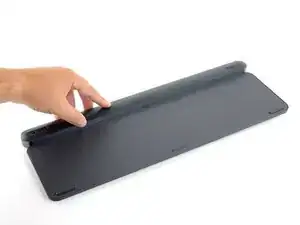
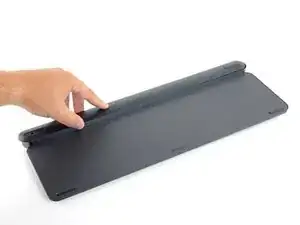
    • Heat an iOpener and lay it on the left rear plastic foot for about two minutes.

    • Alternatively, you can also use a hair dryer to heat the sticker. Make sure it's on the Low setting to avoid warping the plastic.

  3. 3s5oNm56tyioXAyY
    3s5oNm56tyioXAyY
    EwVolVEnFSHCFERQ
    4Km6hsy6RYJdDc4d
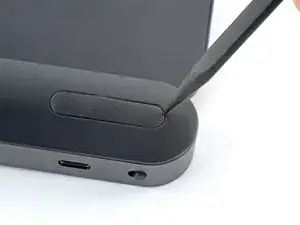
    • Only one foot (the one next to the power switch) has a hidden screw underneath—you don't need to remove both feet.

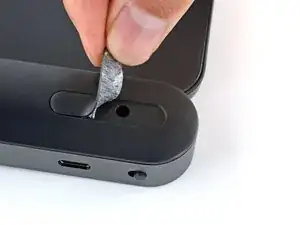
    • Insert the point of a spudger under an end of the foot.

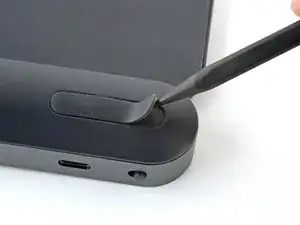
    • Push the spudger underneath the foot and lift until you can grip it with your fingers.

    • The foot should come away from the keyboard without much force. If it feels stuck, apply more heat and try again.

    • Peel the foot up and remove it.

  4. LrGi4rPZoWBTIAQQ
    LrGi4rPZoWBTIAQQ
    oYRqnVxOPTIPmLh2
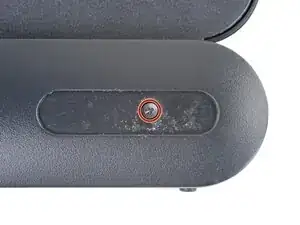
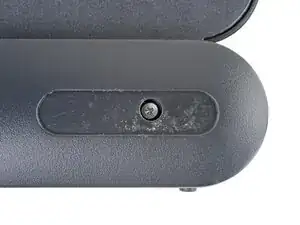
    • If there's plastic film covering the screw, use the point of a spudger to poke through it.

    • Use a Phillips screwdriver to remove the 4.7 mm‑long screw securing the bottom cover.

  5. 31Ui4PNZlsXJYbI4
    31Ui4PNZlsXJYbI4
    LCsW5ODVmdLYhTLL
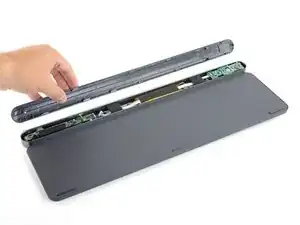
    • The bottom cover is held in place by slotted plastic clips along the entire length of the keyboard.

    • Don't attempt to force the cover off until all clips have disengaged. The bottom cover should come away with little to no force.

    • Hold the keyboard upside down above your work surface.

    • Grip the bottom cover and slide it towards the ON/OFF switch to unlock it from the rest of the device.

  6. kM2HRufhOf6ZCRef
    kM2HRufhOf6ZCRef
    2PoNHgRbDhyc1bJ4
    TKQgxxVOVqBsCrjO
    • Lay the keyboard back down onto your work surface.

    • Lightly push down on the bottom cover and slide it further towards the ON/OFF switch.

    • Remove the bottom cover.

    • During reassembly, make sure the bottom cover sits flush along the entire length of the keyboard—all clips need to lock back in place.

  7. O6lvJLUaJvgrVdMR
    O6lvJLUaJvgrVdMR
    B4kcecUGofETFivv
    kZnTcIcpuOGGXxIv
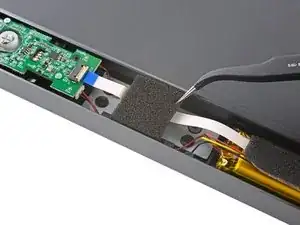
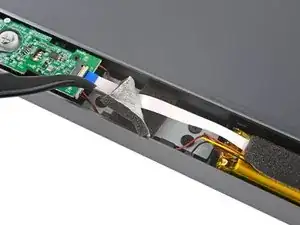
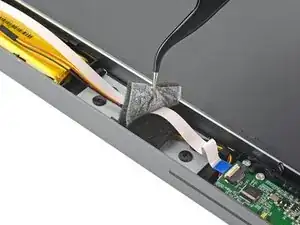
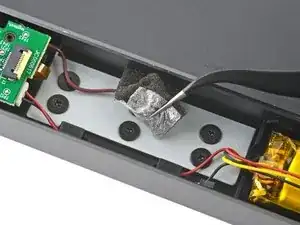
    • Various pieces of foam protect the battery wires and the interconnect ribbon cable. They'll need to be removed in order to access the battery.

    • Use a pair of tweezers to peel up and remove the first piece of foam covering the interconnect cable.

    • The foam pads are all secured with light adhesive.

    • Try your best to not rip these foam pads as you remove them—ideally they're reused during reassembly.

  8. PhHPpy42qZvlckjg
    PhHPpy42qZvlckjg
    3KsDWVNFIWsJ2hrb
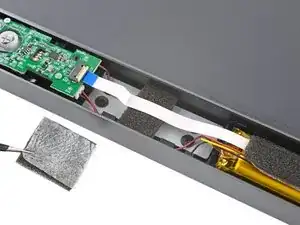
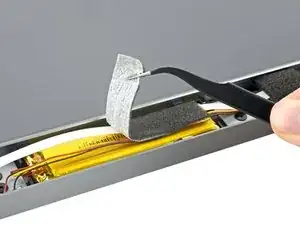
    • Remove the two remaining topmost pieces of foam from the keyboard.

    • Be very careful not to puncture the battery, as it can leak dangerous chemicals or catch fire.

  9. JqEfUprFmSJvIkmh
    JqEfUprFmSJvIkmh
    au6Wfu11VNVRGVeO
    6QWYMsbT11UeqBN2
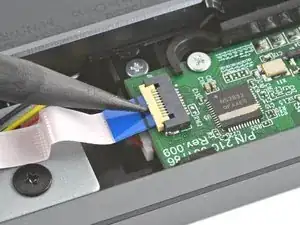
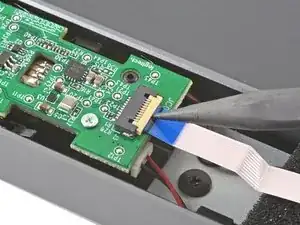
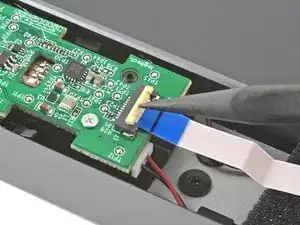
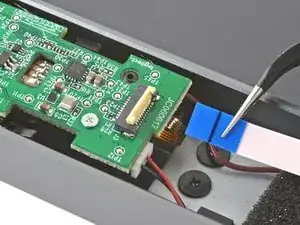
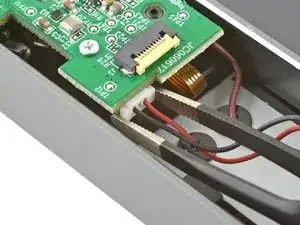
    • Use the point of a spudger to gently lift the hinged locking flap on the interconnect cable's ZIF connector up and away from the cable.

    • Use a pair of tweezers to slide the interconnect cable out of its connector.

    • Try to grip the cable by the blue plastic, not by the cable itself.

  10. UcnCnXkQ6mIKHA11
    UcnCnXkQ6mIKHA11
    JOfekxWHFtwWYiCw
    M4OriCjhkWYjImoQ
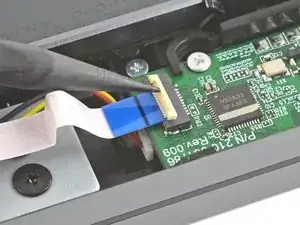
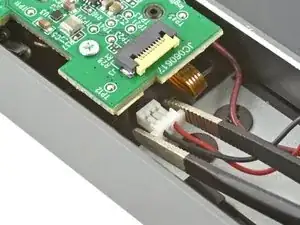
    • Use the point of a spudger to lift the hinged locking flap on the opposite end of the interconnect cable.

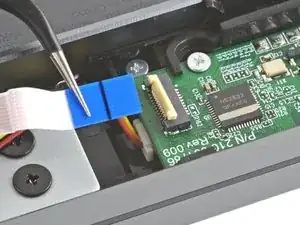
    • Use a pair of tweezers to slide the interconnect cable out of its connector.

    • Try to grip the cable by the blue plastic, not by the cable itself.

    • Remove the interconnect cable.

  11. sSeAbSaRpoeQwPXT
    sSeAbSaRpoeQwPXT
    EbALvIm1roZ4nXAN
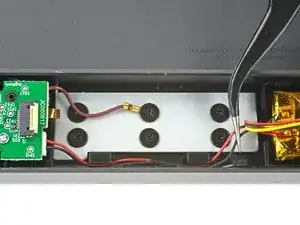
    • Use a pair of tweezers to remove the two remaining pieces of foam securing the battery wires.

  12. XA3oAaQQjhQDKxsP
    XA3oAaQQjhQDKxsP
    JrBPjLoUNUHlkNJT
    gYJI2pvRFvNNkv2M
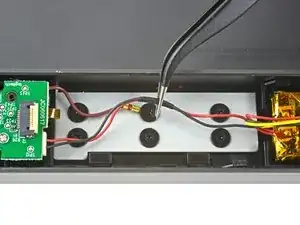
    • Use a pair of tweezers to slide the battery wires out from underneath their plastic routing clips on either side of the battery.

  13. kbIwGwWLgW1VTukG
    kbIwGwWLgW1VTukG
    n3ctKXGZS4Ui5F6b
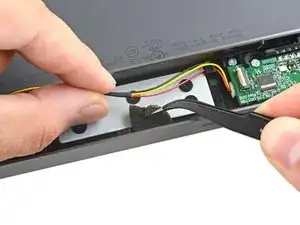
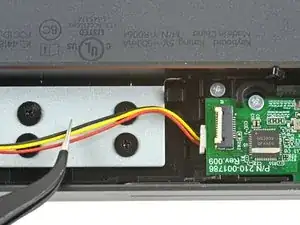
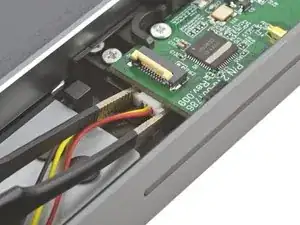
    • Use a pair of tweezers to firmly grip the left battery connector.

    • Hold the tweezers with your fingers as close to the connector as possible to get a firm hold.

    • Gently rock the connector side‑to‑side and slide it straight out of the socket.

    • Always pull cables by their connectors and not the wires themselves.

  14. vl1poSuydcURosCh
    vl1poSuydcURosCh
    JQDAHiDkAJOjU1Cb
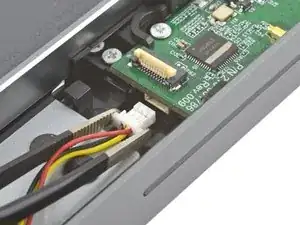
    • Repeat the previous step to disconnect the right battery connector.

    • During reassembly, note that the battery connector that goes into the right board has three battery wires, and the left has two.

  15. IkxpVRaoa1PQSsfJ
    IkxpVRaoa1PQSsfJ
    bhlK3IBBTYtyNuBE
    4PUn5XWqfKjoqLFD
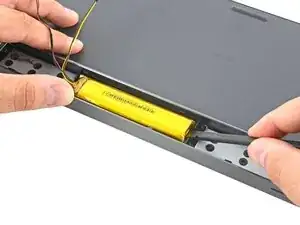
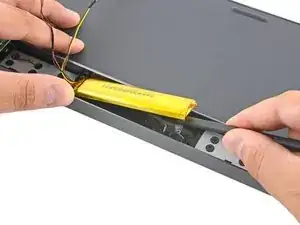
    • Insert the flat edge of a spudger underneath one of the short edges of the battery.

    • Push the spudger underneath the battery and lift, separating it from the adhesive holding it to the keyboard.

    • Make sure you push underneath the battery and not into it. Don't bend or deform the battery.

    • If the battery isn't separating, apply a few drops of isopropyl alcohol (>90%) to its edge and slightly tilt the keyboard. Wait one minute for the alcohol to soften the adhesive and try again.

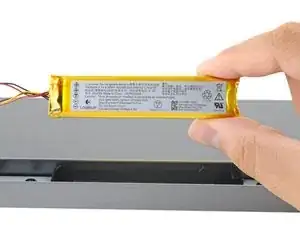
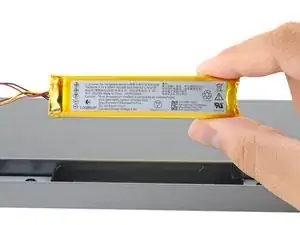
    • Remove the battery.

    • To install a replacement battery:

    • Remove any leftover adhesive from the battery well.

    • Use double‑sided tape or pre-cut adhesive to secure the battery, making sure the battery is correctly oriented—the battery connector that goes into the right board has three battery wires, and the left has two.

    Just to let people know that you can reconnect the flat wire and use the keyboard without the battery, only a USB cable.

    Stéphane Benoit -

    are replacement batteries for sale as well here?

    Theodoros Pyrillos -

Conclusão

Compare your new replacement part to the original part—you may need to transfer remaining components or remove adhesive backings from the new part before you install it.

To reassemble your device, follow the above steps in reverse order.

Repair didn’t go as planned? Try some basic troubleshooting, or ask our Answers community for help.

Reuse or Recycle—Never put discarded electronic parts in household waste. Visit Logitech Recycling to find your nearest recycling points, including the option to mail back old devices to Logitech for free if there’s no convenient solution in your area. You can also take your e-waste to any R2 or e-Stewards certified recycler. And don’t let good working parts or repaired devices die a slow death in your sock drawer—pass them along to someone who can use them.

Share your experience—Leave a comment here or send your feedback directly to Logitech at repair@logitech.com to help shape future repair guides and product design.

Carsten Frauenheim

Membro desde: 10/03/20

160437 Reputação

Um comentário

fantastic instructions, where can I get a replacement battery?

Angel L Velazquez -