Introdução
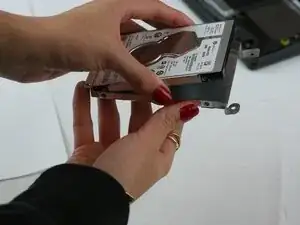
This guide will show you how to properly replace your HDD drive in your Lenovo V15 laptop.
The HDD drive, which is used to store permanent digital data, like applications, documents, videos etc., is important to be in good condition in your device. Some signs your HDD drive may need a replacement include file corruption, persistent system crashes, S.M.A.R.T. diagnostics indicating bad health of the HDD are all signs your HDD needs to be replaced.
Before you begin the process of this replacement, you need to power off the device and be sure it is not plugged into anything once you start.


-
-
Flip the laptop over so that the lower case is facing up.
-
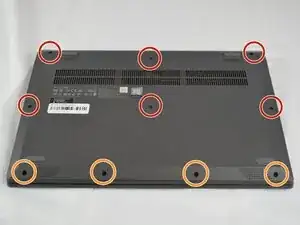
Remove the following Phillips #1 screws:
-
Six 7 mm-long
-
Four 4 mm-long
-
-
-
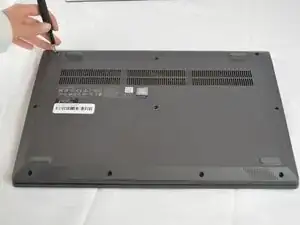
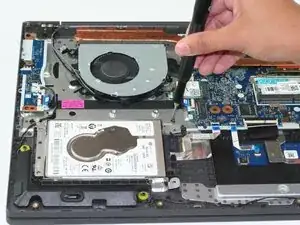
Insert an opening pick into the seam between the lower case and chassis.
-
Slide the opening pick around the entire perimeter until all of the retaining clips are fully released.
-
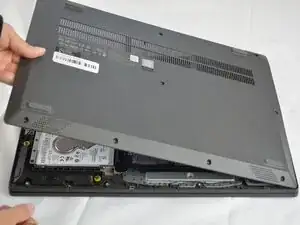
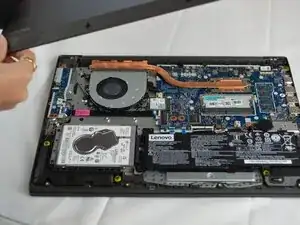
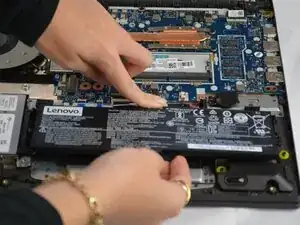
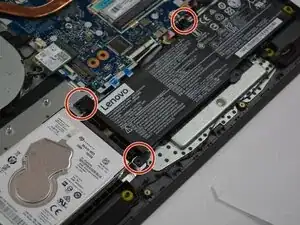
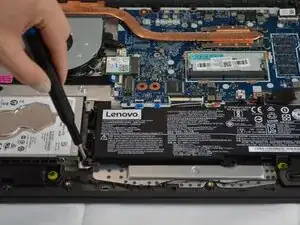
Lift and remove the lower case.
-
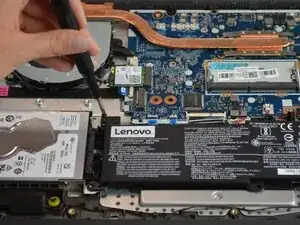
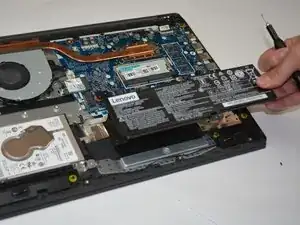
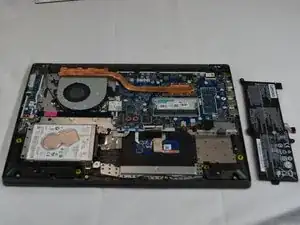
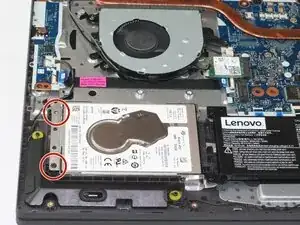
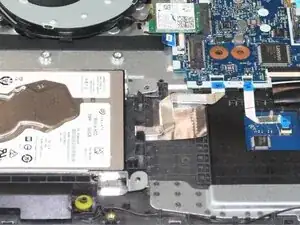
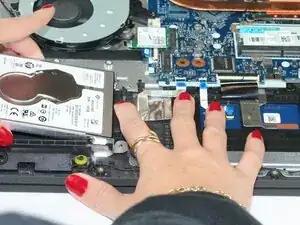
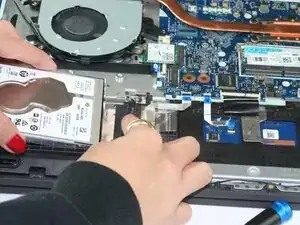
To reassemble your device, follow the above steps in reverse order.
Take your e-waste to an R2 or e-Stewards certified recycler.
Repair didn’t go as planned? Try some basic troubleshooting or ask our Answers community for help.