Introdução
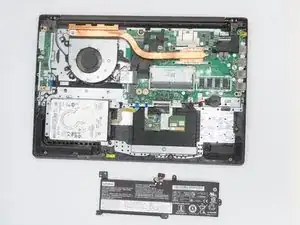
If your device isn’t charging or loses charge quickly, it may be time to replace the battery. Follow the instructions below to replace the battery in the Lenovo V15-ADA.
Before you begin this repair, make sure your laptop is powered off and unplugged from the charger.


-
-
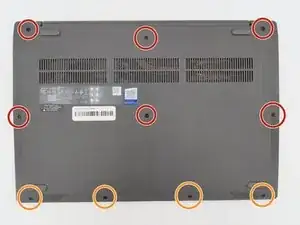
Remove the 10 marked screws using a Phillips #1 screwdriver from the back plate.
-
M2.5 × 7 mm, Phillips-head (6) (RED circles)
-
M2.5 × 4 mm, Phillips-head (4) (ORANGE circles)
-
-
-
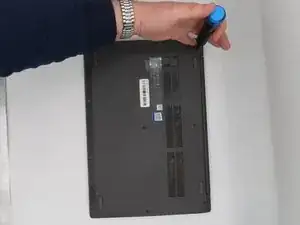
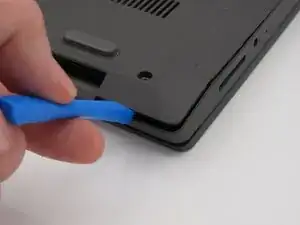
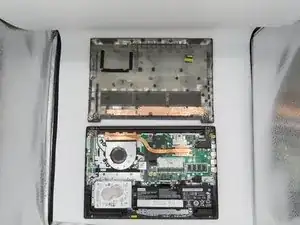
After removing all ten screws, use a plastic spudger to separate the bottom cover from the laptop.
-
Gently slide the tool around the edges until the clips begin to release.
-
Once all the clips are loose, lift the cover off and set it aside.
-
-
-
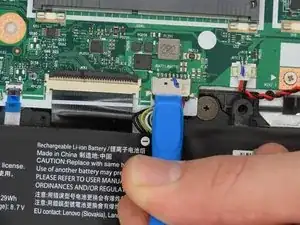
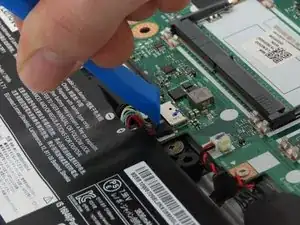
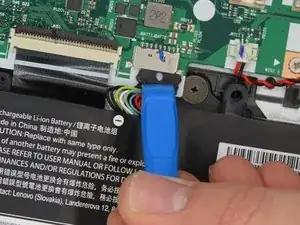
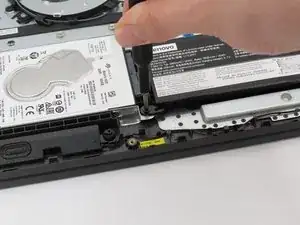
To start the removal of the battery, disconnect the ribbon cable connecting the battery to the computer.
-
-
-
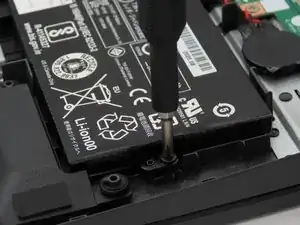
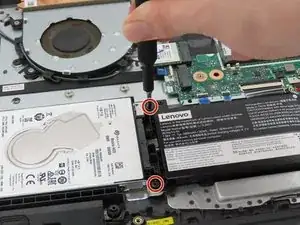
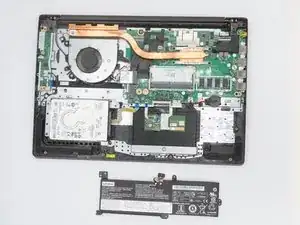
The battery is held in place by 3 screws. Use the Phillips #0 screwdriver to remove the screws that secure the battery.
-
M2 × 6 mm, Phillips-head, nylok-coated (3)
-
To reassemble your device, follow these instructions in reverse order.
