Introdução

Use this guide to replace the camera/LED cable in your Lenovo ThinkPad T480s laptop.

Some signs your camera/LED cable may be faulty include the camera light not turning on, the camera not working, or the LED flashing. These symptoms may also indicate that the camera card is faulty, rather than the cable itself.

Before attempting a camera/LED cable , you may be able to resolve the issue using Lenovo’s troubleshooting guide.

Make sure to disable the internal battery, power down your device, and disconnect from any external power sources before you begin.


  1. RNt3cWxTIjeD1Mhe
    RNt3cWxTIjeD1Mhe
    haCRyLGBRClsXGrF
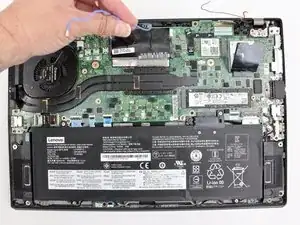
    • Disable the battery, power down the device, and unplug the power adapter from your device before proceeding/beginning the guide.

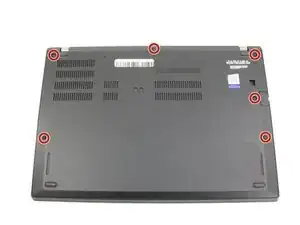
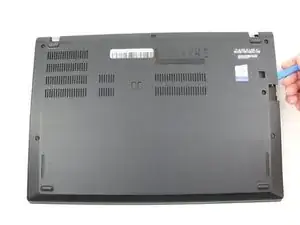
    • Loosen the six captive screws with a Phillips #1 screwdriver.

    Somehow I find the screws for the T480s bottom cover to be slightly more prone to stripping, compared to the ThinkPad T480 and X1 Carbon Gen 6. However, the #1 Phillips screws on the T480s have drives that are cut in a way that also let you use a #3 flathead.

    Tai Lam -
  2. Vboy5of3qMKgumu1
    Vboy5of3qMKgumu1
    Xg36ebBqZsGYEUXf
    lIwLqVaU1qnjeJil
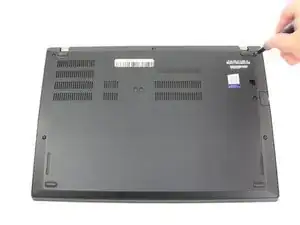
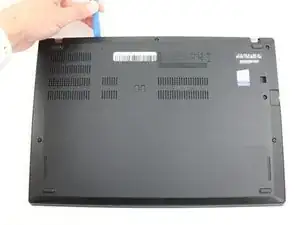
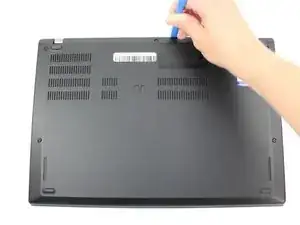
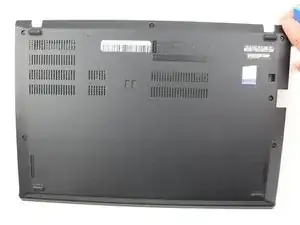
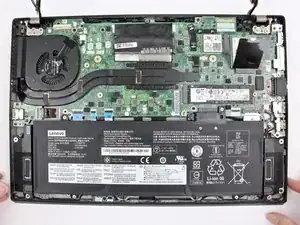
    • Remove the bottom cover with an opening tool.

    • Start from the top edge near the hinge and work your way along the edge until all of the clips are unsnapped.

  3. l4tenwgnMuEBiPRu
    l4tenwgnMuEBiPRu
    OndiEfoacVynMaGD
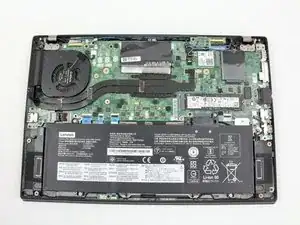
    • Lift the bottom cover off.

  4. 3nHbvpX4muPD4TU1
    3nHbvpX4muPD4TU1
    5iOIWYCafD2XRw6B
    3HUCbANhTlagQtVA
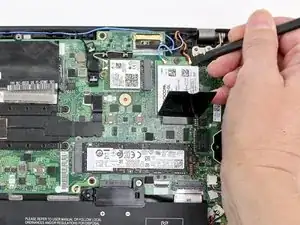
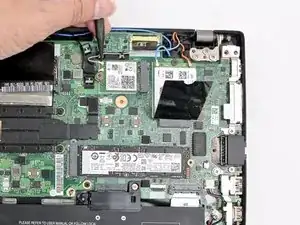
    • Use the spudger to disconnect the coaxial cables from the Wi-Fi card and WWAN card.

    • When reassembling the Wi-Fi card, reattach the black wire closest to the screw and the gray wire on the other side of the black wire. With the WWAN card, reattach the blue wire on the left and the orange wire on the right.

    • There are also small color coded arrows on each card that match the corresponding wires, to make sure you connect to the correct spot.

  5. ZAItEEFU2pRbFhVH
    ZAItEEFU2pRbFhVH
    RVi3mr4GdeyjkRrX
    KChdrepJmvHXJZv4
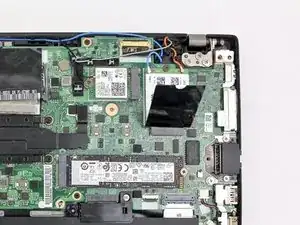
    • Use the spudger to disconnect the LCD cable from the motherboard.

  6. GtFbnE4JplAGGIWP
    GtFbnE4JplAGGIWP
    1NG2weDhrNBWdHCe
    NbJ3EYQLmy2BJsPv
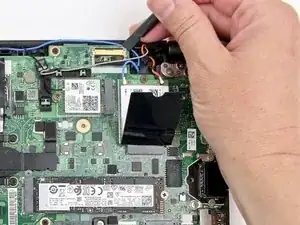
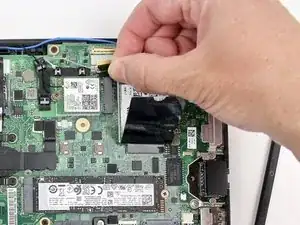
    • Disconnect the camera cable from the motherboard using a spudger.

  7. ZDfJskXmaR2OkuIZ
    ZDfJskXmaR2OkuIZ
    jGe6ZNkH1LjyiNAA
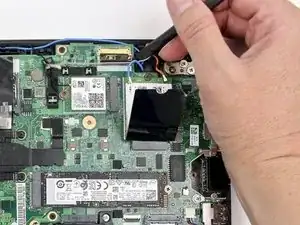
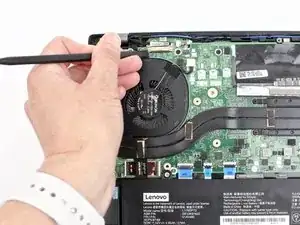
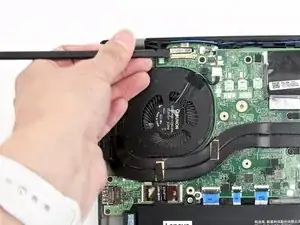
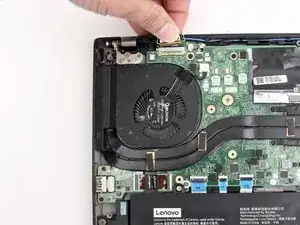
    • Remove all antenna cables from their routing.

  8. SnkPIsvL3cWHW5RT
    SnkPIsvL3cWHW5RT
    YvRBXP3Laj6R6nSD
    YwO6AAVeCN6ALERX
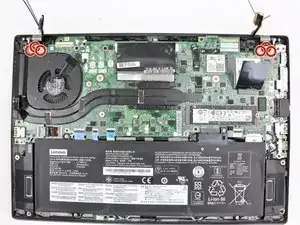
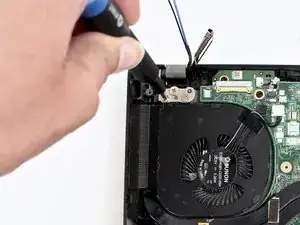
    • Using the Phillips #1 screwdriver, remove three 5 mm screws from the left hinge and three 5 mm screws from the right hinge.

  9. oroONEhm5dEN1SWL
    oroONEhm5dEN1SWL
    iQQbknHPVFDKtaFT
    MSEOJsawnMKOtodo
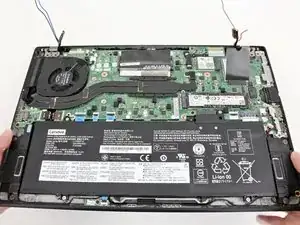
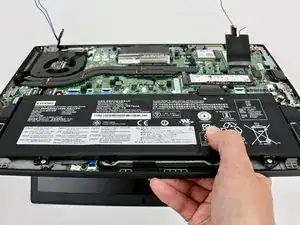
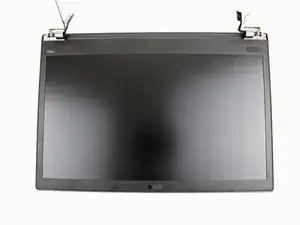
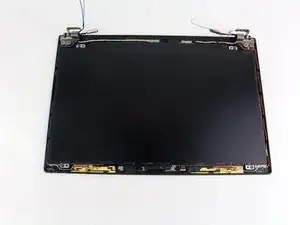
    • Carefully rotate the hinges upward and remove the bottom of the machine from the LCD unit.

  10. PvBuljbPSSF4DEQi
    PvBuljbPSSF4DEQi
    OeSAaflhgHyRw1OK
    bHJlJCac3ihiTMe3
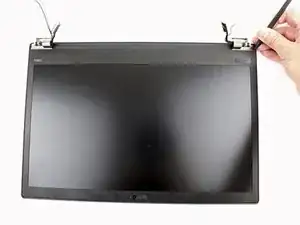
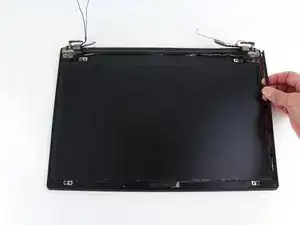
    • Using the spudger, pry the LCD bezel up from the edges starting near the hinges.

    • It is attached by adhesive so be careful not to break it. You may hear loud snaps when detaching the clips; this is normal.

  11. tHCyJwY4WgWhbOUL
    tHCyJwY4WgWhbOUL
    t52MPYIUP5WFVXEE
    yURlAKEWJhH2nvIy
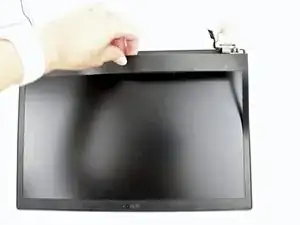
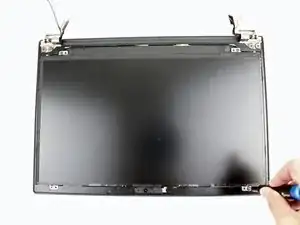
    • Use the spudger to remove the internal bezel.

    • Start at the corner by the hinge and lift the edge of the internal bezel up with the pointed end of the spudger.

    • Hold the internal bezel with your fingers and work your way around the perimeter of the screen carefully pulling the bezel up.

    • You will feel resistance and hear snapping as you remove the bezel because it is connected with clips. Be careful that you don't crack the bezel. The plastic is delicate in places.

    The internal bezel is more much likely to be reusable than the outer bezel. However, do be careful to not bend the internal bezel too much so that you can avoid cracking the internal bezel during the process. Even if you have 1 crack, you can get away with putting the internal bezel back, as long as the bezel hasn't completely broken into separate pieces at the crack location.

    You may find that you will need to buy an OEM outer bezel replacement from Lenovo, rather than for the internal bezel. Luckily in mid-late 2025, you may be able to still find those from the Lenovo parts store. (Somehow the site for parts isn't like the usual customer-facing web store, where you'd buy a whole new laptop/other pre-assembled accessories.

    This is important to note: Lenovo gives official OEM support and maintains firmware for its business-class computers for 5 years (as this is the max time limit for business-to-business service periods from Lenovo). Models are considered end-of-life after 7 years of its release date and no longer get firmware updates.

    Tai Lam -
    You can no longer assume/depend on the Lenovo parts store to have all parts available after 5 years from release date, and basically you are lucky if you see any individual model-specific parts available after 7 years.

    The general method to get to the Lenovo US parts store for your Lenovo laptop is to find the by web searching for <thinkpad-model-name> support, such as thinkpad 480s support). You will likely find the "Drivers & Software" page, such as this one for the ThinkPad T480s. Click on the "Parts" tab in the vertical on the left to go to the parts page. Lastly, enter the model name of your laptop: in this case, simply typing t480s into the search box and picking any of the results will take you to the ThinkPad T480s parts page as an example. (Don't worry about getting the specific model name correct, there always seems to be at least 2 or more different model names for ThinkPad laptops, including the T480s.)

    Tai Lam -

  12. 1xZsmZZKRPMAPeFF
    1xZsmZZKRPMAPeFF
    ZSOjdMO5dO4mtUMk
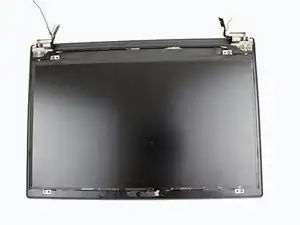
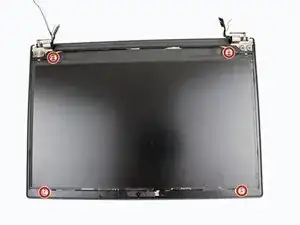
    • Remove four 2.9 mm screws from the LCD panel using the Phillips #1 screwdriver.

    For models that originally came with the WQHD display panel (i.e., the "4K display"), those 4 screws are absent. In fact, there are no screw mount points on the WQHD display panel.

    Instead, the panel will otherwise fit inside a predefined rectangle, bounded to form a slight border.

    Tai Lam -

  13. 2FwoTJcp3udVOlwK
    2FwoTJcp3udVOlwK
    PIWwuWRMvj3RpjLL
    VW1KPjS4fQstkGRB
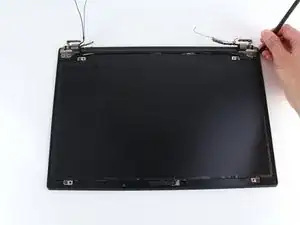
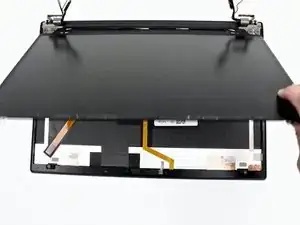
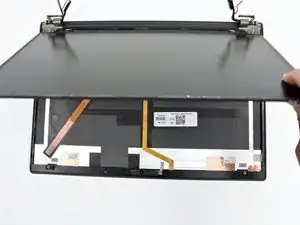
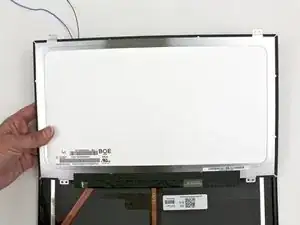
    • Gently lift the panel and flip it over.

    • The panel is still connected to the unit by the LCD cable, so be careful not to rip the connector when flipping it over.

  14. Eiq3nD2UaApMCNCJ
    Eiq3nD2UaApMCNCJ
    DAIAyMRv3uOM5GYH
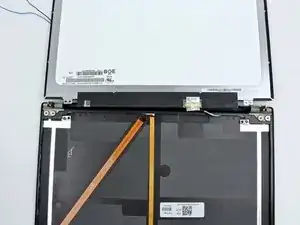
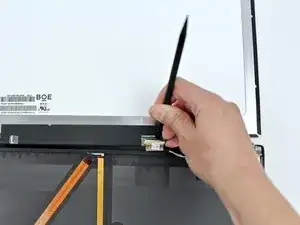
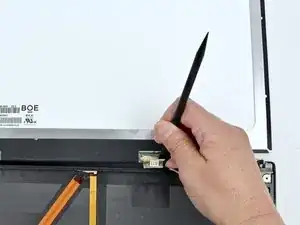
    • Peel back the tape covering the LCD cable connector.

    • Use the spudger to unlock the LCD cable.

  15. xNocFxUW3ZmqsQNf
    xNocFxUW3ZmqsQNf
    sLgbniafRsEYeMXM
    • Remove the LCD cable from the socket.

  16. gjcP1boVSIN2jPGQ
    gjcP1boVSIN2jPGQ
    6SNBUskTjyND1ou2
    • Remove the LCD panel from the system.

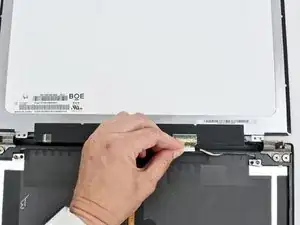
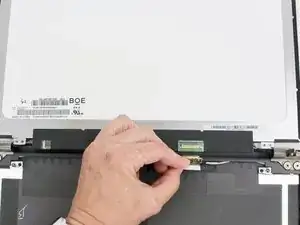
    Be very aware when purchasing compatible replacement LCD panels (even from the Lenovo US parts store).

    On the screen that I ordered from the Lenovo US parts store, the connector was about 1cm closer to the right hinge, as shown in Step 16. This meant there was some slack left over in the display cable. My successful spur-of-the-moment decision was to try to fit about slightly less than 25% within the display cable; while gently pulling the display cable through and tucking the rest of the slack in the bottom keyboard half of the laptop.

    Although this felt overall very dodgy - as generally you don't want to bend the display cable too much; I was able to get the new LCD panel to work again.

    Tai Lam -

  17. 5UXSxIykcJiSBgwj
    5UXSxIykcJiSBgwj
    csrwmyaIlvBuhRfw
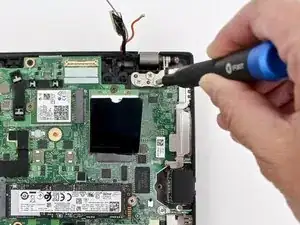
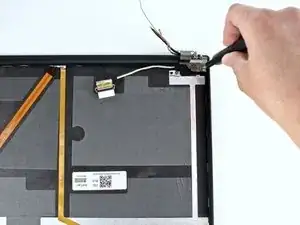
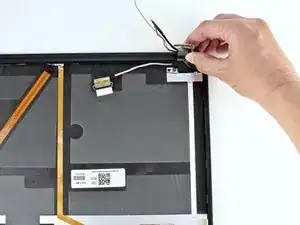
    • Use the Phillips #1 screwdriver to remove two 2.8 mm screws from the hinge in the upper right corner.

  18. dgSxfRGhNELFhCQc
    dgSxfRGhNELFhCQc
    2BwBLgKONg1WgBMd
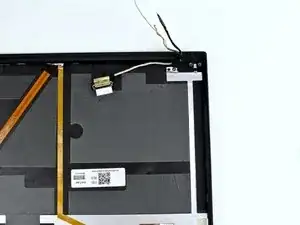
    • Remove the hinge in the upper right corner.

  19. iHsPdW5lMDMaErgu
    iHsPdW5lMDMaErgu
    EEwfMNUEl6rppMQL
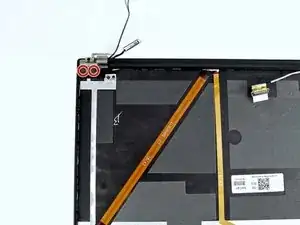
    • Use a Phillips #1 screwdriver to remove two 2.8 mm screws from the hinge in the upper left corner.

  20. wHbLSVkO4XI1eEoR
    wHbLSVkO4XI1eEoR
    PGuMuiKTEYXvTiNd
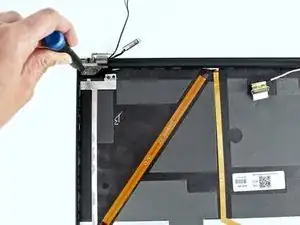
    • Remove the hinge in the upper left corner.

  21. HMKLTQGB5nDjtAjh
    HMKLTQGB5nDjtAjh
    oUIBwgcvoCTZOEdR
    JRHQedFYuObtKZtI
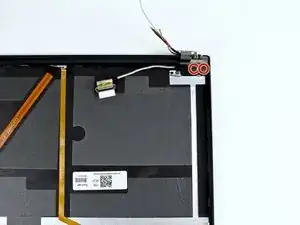
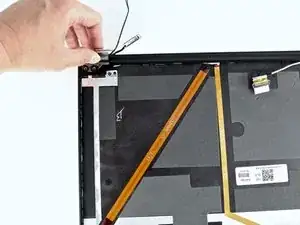
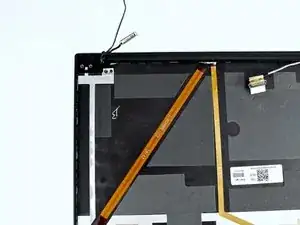
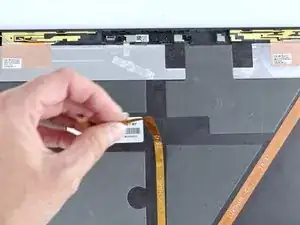
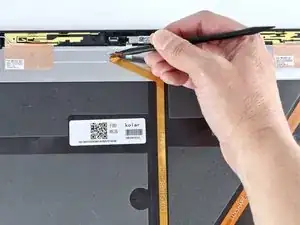
    • Use the spudger to disconnect the cable from the camera card, then peel the cable up from the LCD unit.

  22. 4ogEbXUKD4yZn5UU
    4ogEbXUKD4yZn5UU
    XpWDIVEZ2xphA5ui
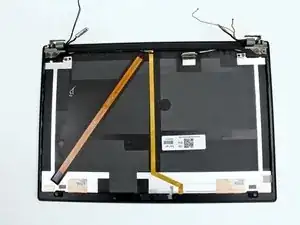
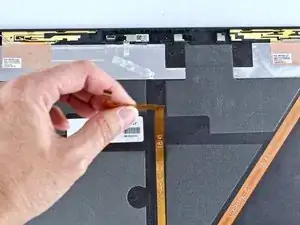
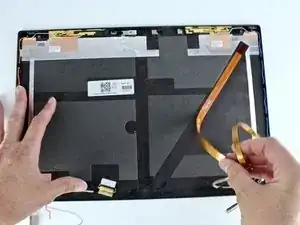
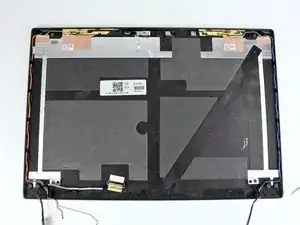
    • Peel the ThinkPad logo LED cable from the LCD unit and remove the cables from the system.

Conclusão

To reassemble your device, follow these instructions in reverse order.

Take your e-waste to an R2 or e-Stewards certified recycler.

Repair didn’t go as planned? Try some basic troubleshooting, or ask our Answers community for help.

Sarah Westberg

Membro desde: 11/03/19

37883 Reputação

0 comentários