Introdução
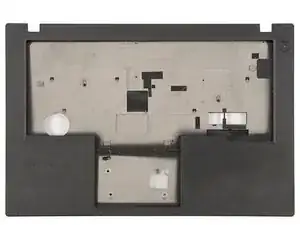
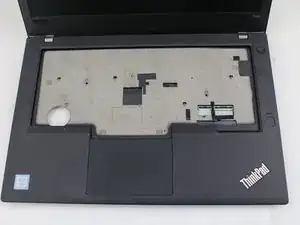
If you need to replace the palmrest of your ThinkPad T480, read this guide.
As someone who has used ifixit for many years, I feel like i should contribute.
I have done tons of work on my thinkpad, and looking at the t480 page, i realized nobody had done a guide on replacing this.
so here we are :3
Ferramentas


Peças
-
-
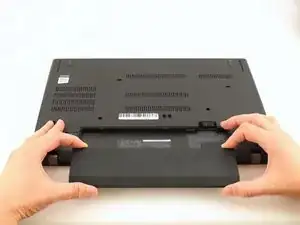
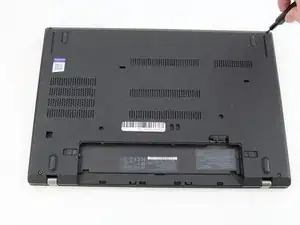
Using your fingers, slide the lock on each side of the battery to the unlocked position.
-
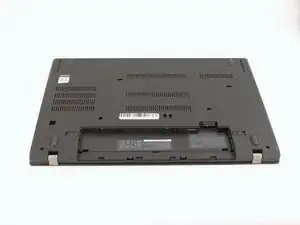
Remove the battery from the slot.
-
-
-
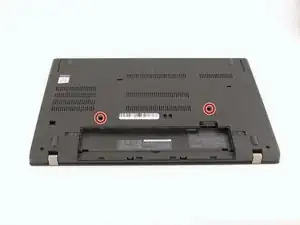
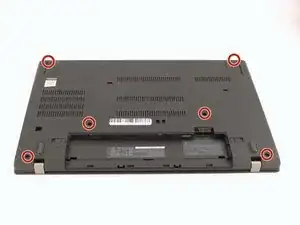
Use the Phillips #1 screwdriver to loosen the two screws parallel to the battery compartment.
-
-
-
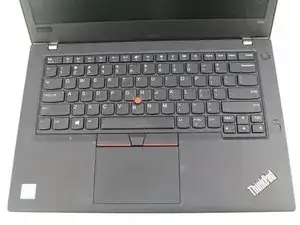
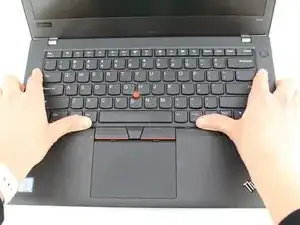
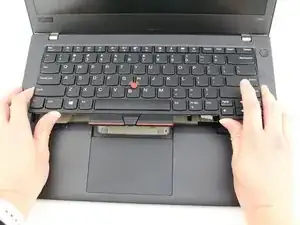
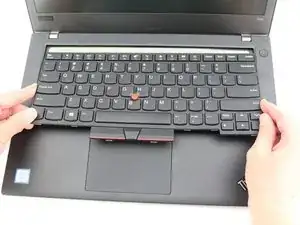
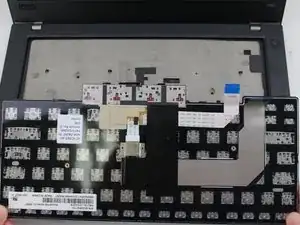
Push the keyboard towards the screen and away from the trackpad and then slide it out towards you gently.
-
-
-
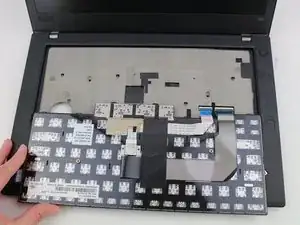
Flip the keyboard over towards you to expose the backside of the keyboard and the two ribbon connectors.
-
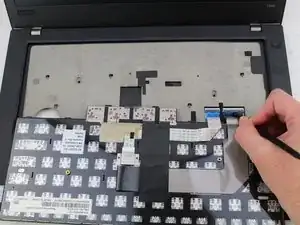
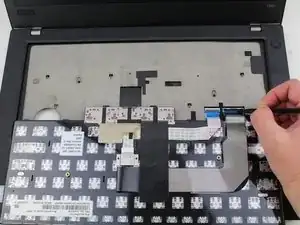
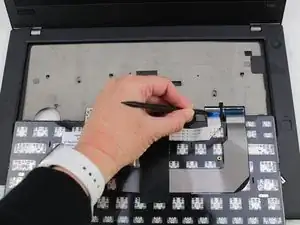
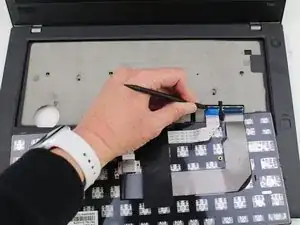
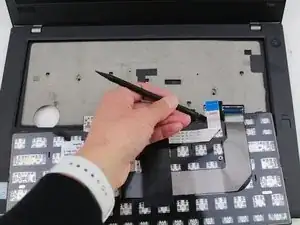
Using the black nylon spudger, flip the first ribbon connector lock open. Slide the first connector out.
-
-
-
Using the black nylon spudger, unlock the second ribbon connector and slide it out from the port.
-
-
-
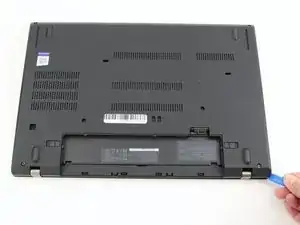
Insert the blue plastic opening tool into the space between the lower case and the chassis.
-
Slide the opening tool around the perimeter of the case to release the clips holding the case and the chassis together.
-
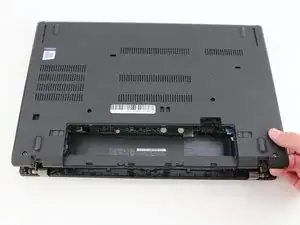
Remove the back case.
-
-
-
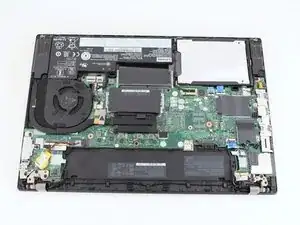
Use a Phillips #1 screwdriver to remove the two 4.6 mm screws that secure the internal battery to the frame.
-
-
-
Use the spudger to slide the battery socket connector parallel to the motherboard and out of its socket on the motherboard.
-
-
-
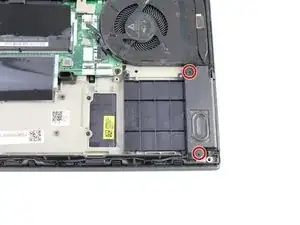
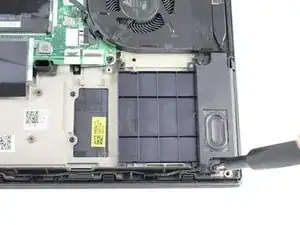
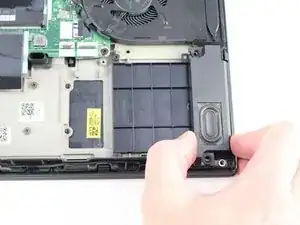
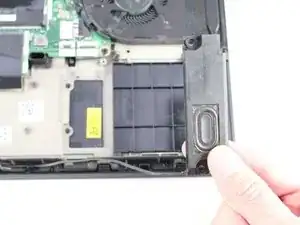
Lift the right speaker out of the case.
-
Gently remove the speaker cable from the perimeter of the chassis, connecting the right speaker to the left speaker.
-
-
-
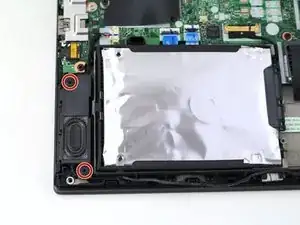
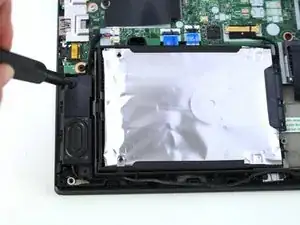
Using the black nylon spudger, remove the slide connector which attaches the left speaker to the motherboard.
-
Remove the left speaker from the case.
-
-
-
Using the black nylon spudger, lift the connector lock up.
-
Disconnect the storage cable from the system board.
-
-
-
Lift the hard drive up with a tab if it has one or with your spudger.
-
Lift the drive assembly from the system.
-
-
-
Using the Phillips #1 screwdriver, remove the three 4.1 mm screws from the RJ45 bracket.
-
Lift the bracket off of the motherboard.
-
-
-
Use the black nylon spudger to lift up the small locking flap on the power button cable's ZIF connector.
-
Slide the power button cable out of the ZIF connector.
-
-
-
Use the tip of a spudger or an opening tool, to flip up the small, hinged locking flap on the camera cable connector to remove the cable from the motherboard.
-
-
-
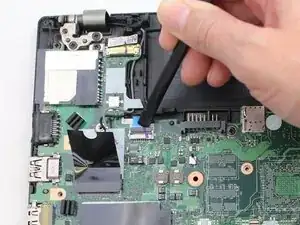
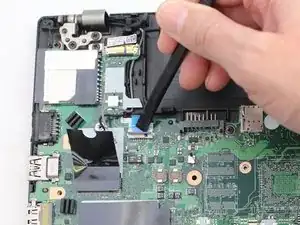
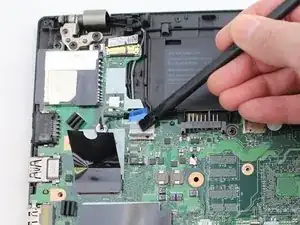
Using the black nylon spudger, remove the NFC cable connector and trackpad connector from the motherboard.
-
-
-
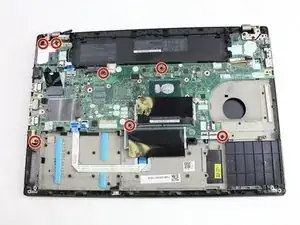
Using the Phillips #1 screwdriver, remove seven 3.6 mm screws from the motherboard.
-
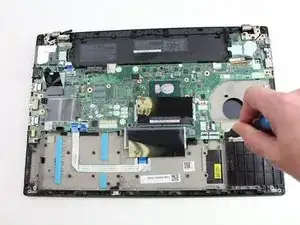
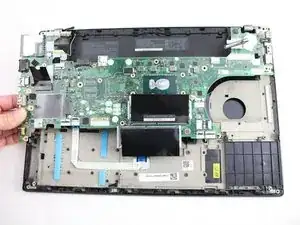
Lift the motherboard off of the case to remove it.
-
-
-
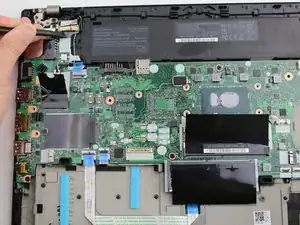
Lift the keyboard bezel up and slide it out from the hinges to separate it from the LCD assembly.
-
-
-
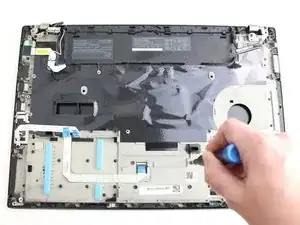
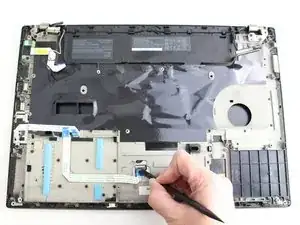
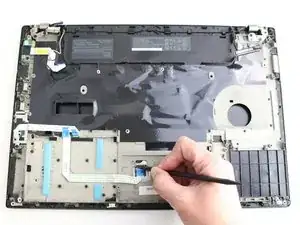
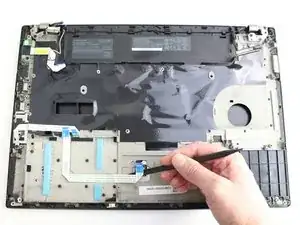
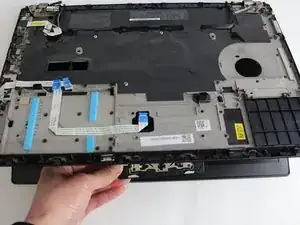
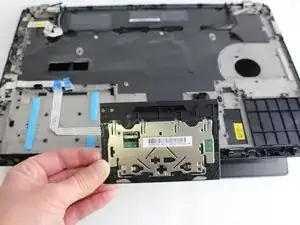
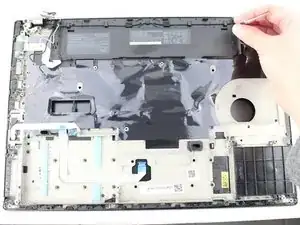
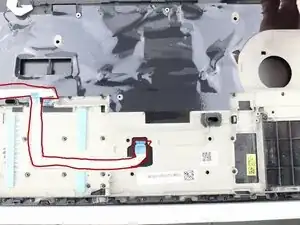
Remove the trackpad ribbon from the old palm rest and move it to the same spot on the new one. Pull it up carefully and glue it down or use kapton tape.
-
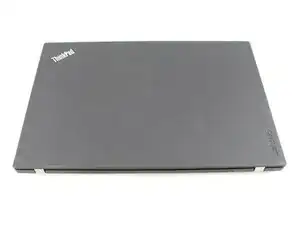
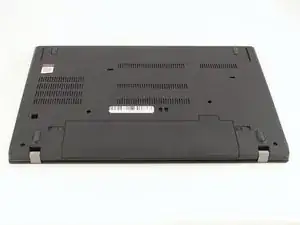
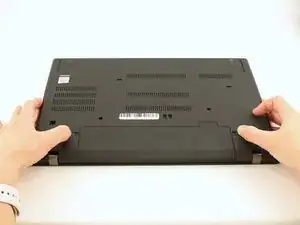
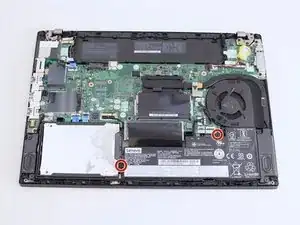
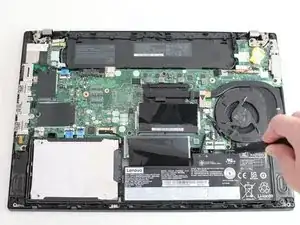
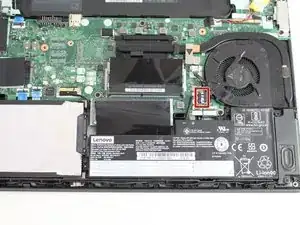
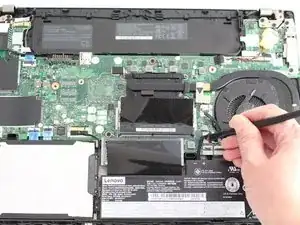
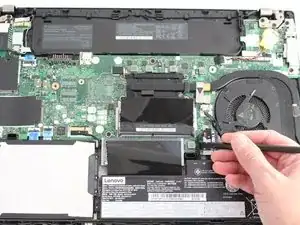
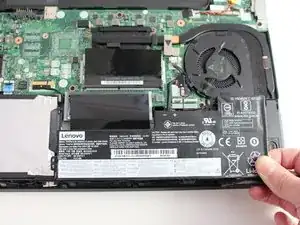
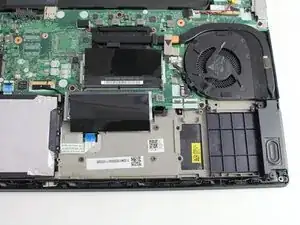
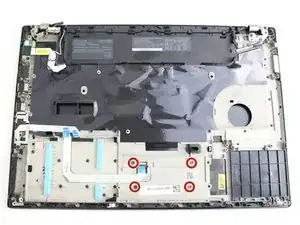
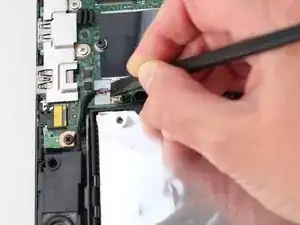
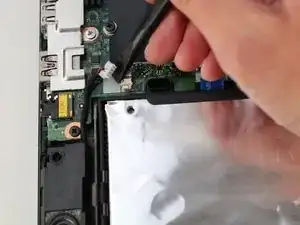
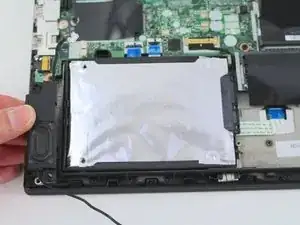
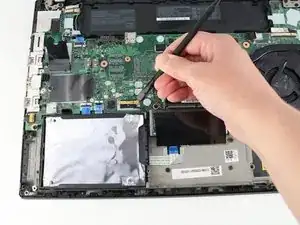
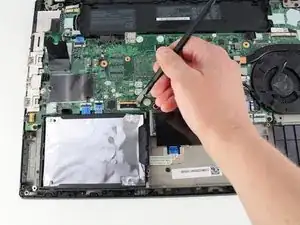
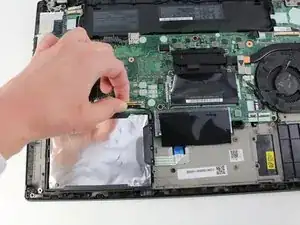
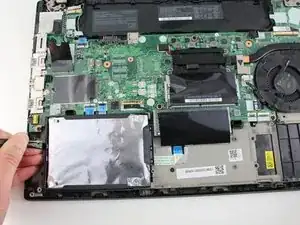
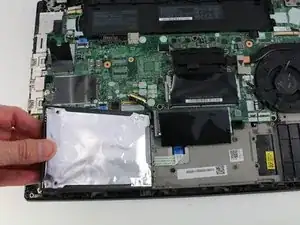
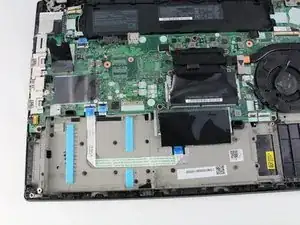
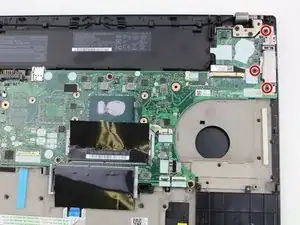
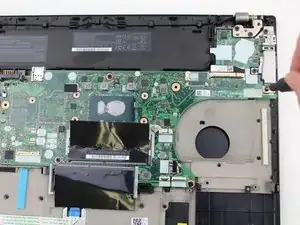
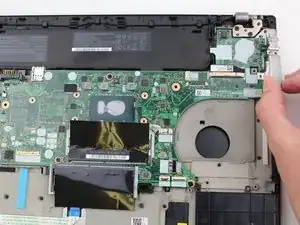
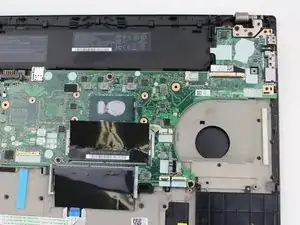
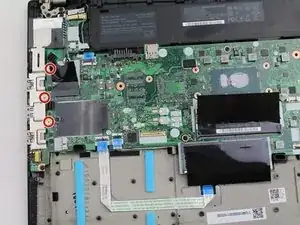
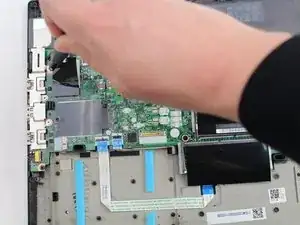
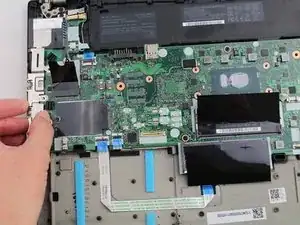
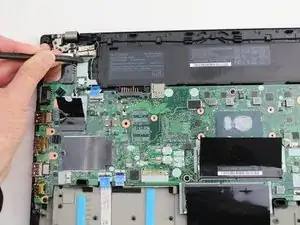
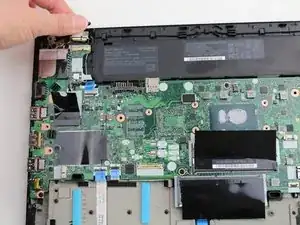
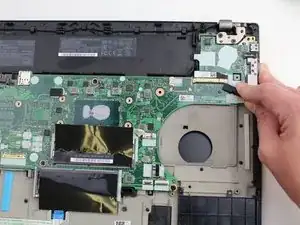
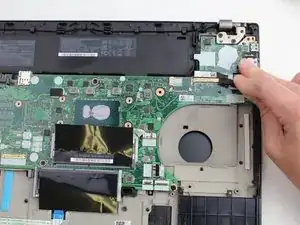
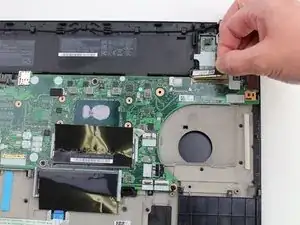
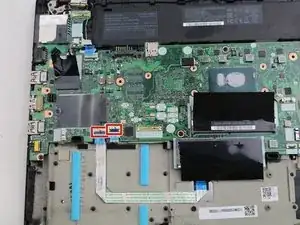
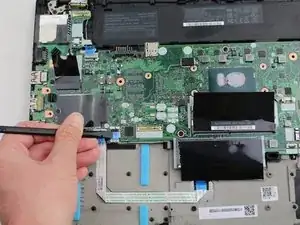
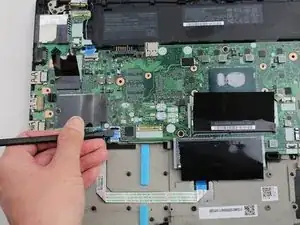
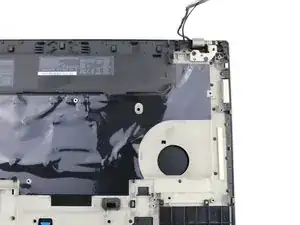
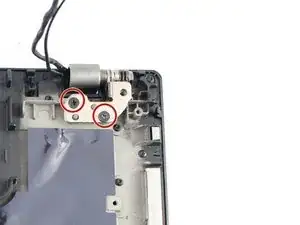
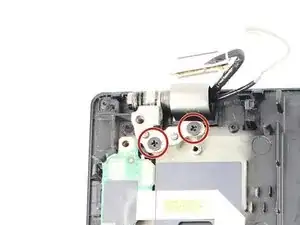
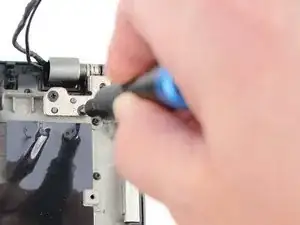
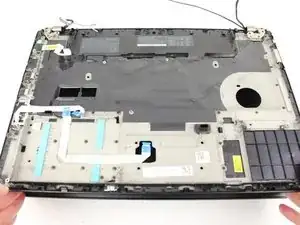
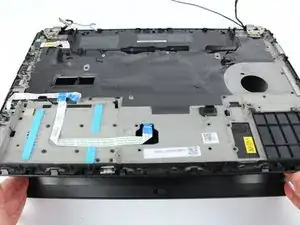
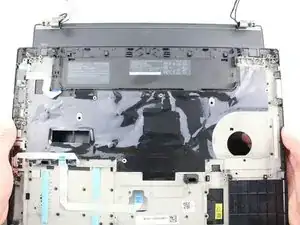
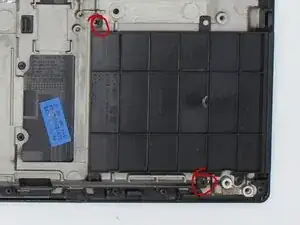
To reassemble your device, follow these instructions in reverse order. If I missed anything, Please feel free to update my guide.
Things to remember during reassembly
Make sure to put everything back in the new palm rest, not the old one. (I made that mistake)
When reattaching the fan, please reapply thermal paste: follow this guide.
When putting the trackpad back in, make sure to center it before fully screwing it in.
Good luck, take your time, and don't break any connectors off of the motherboard.
EN: NOTE: The built-in battery needs to be disabled first! This can be done in the BIOS.
DE: ANMERKUNG: Die eingebaute Batterie muss zuerst deaktiviert werden! Dies kann im BIOS getan werden.
Thomas -