Introdução
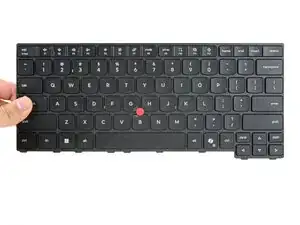
Follow this guide to remove and replace the keyboard on your Lenovo ThinkPad T14 Gen 7 laptop.
Ferramentas

-
-
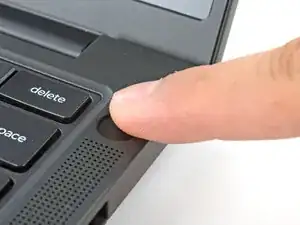
For your safety, discharge your battery below 25% before disassembling your laptop. A charged battery may catch fire if damaged. If your battery is swollen, take appropriate precautions.
-
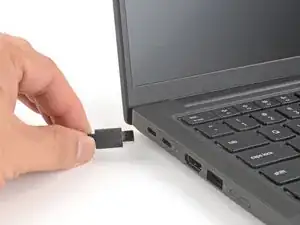
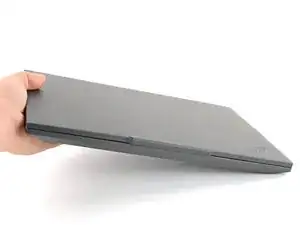
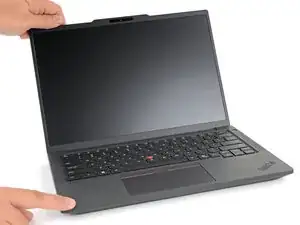
Completely shut down your laptop (don't just put it in sleep mode) and disconnect all cables.
-
-
-
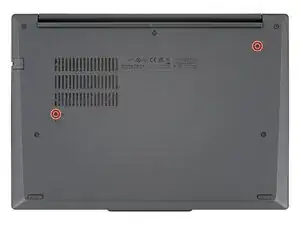
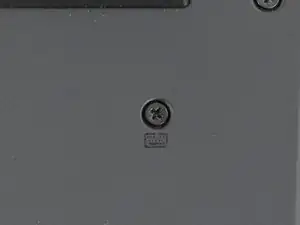
On the base cover, use a Phillips screwdriver to fully loosen the two captive screws securing the keyboard.
-
-
-
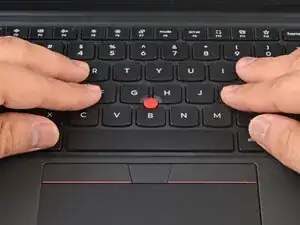
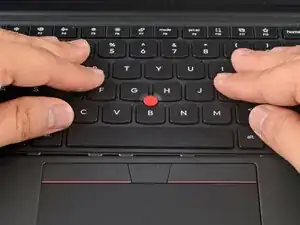
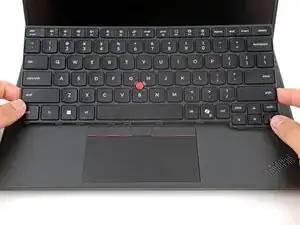
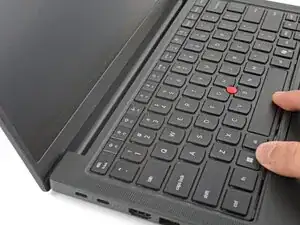
Place your fingers over the the lower part of the keyboard.
-
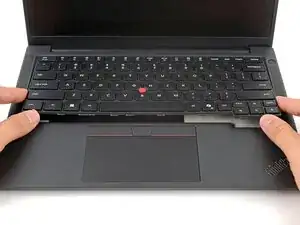
Push the keyboard down and away from you until you can see the tabs along the bottom edge.
-
-
-
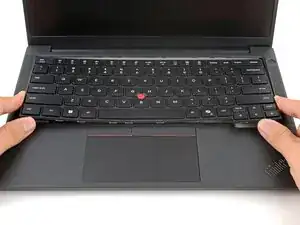
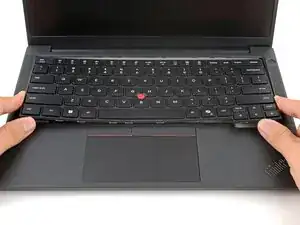
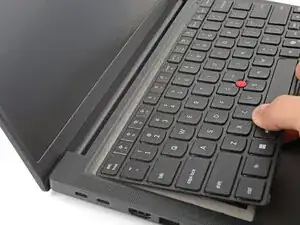
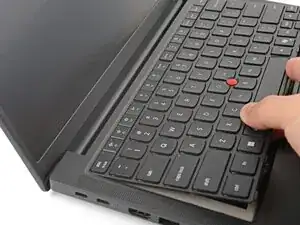
Lift the bottom edge of the keyboard slightly off the laptop.
-
Pull the keyboard slightly towards you to release the top edge from the laptop.
-
-
-
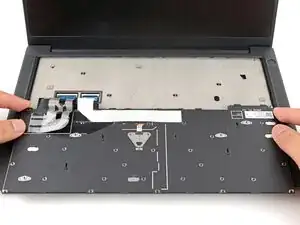
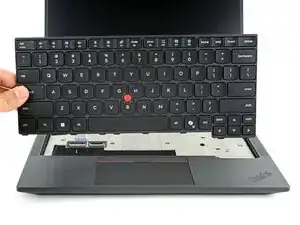
Flip the keyboard over so the keys rest on the touchpad, being careful not to strain the two flex cables.
-
-
-
Insert the front edge of the keyboard into the laptop at a shallow angle.
-
Rest the keyboard in its recess.
-
Use your fingers to slide the keyboard down towards the touchpad until the tabs along the bottom edge are covered.
-
-
-
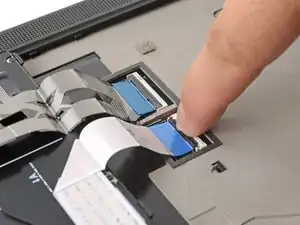
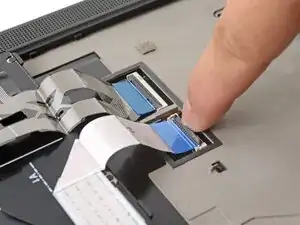
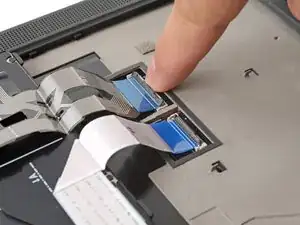
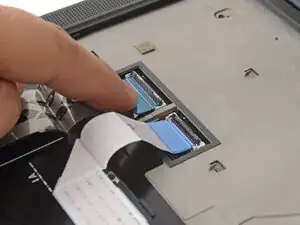
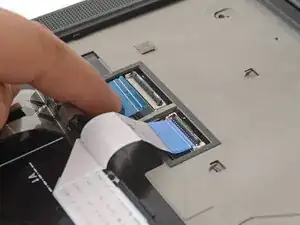
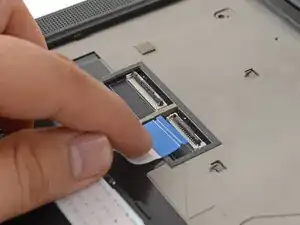
Use your fingernail or the flat end of a spudger to flip up the locking flaps on the two ZIF connectors.
-
To reassemble your device, follow these instructions in reverse order.
Take your e-waste to an R2 or e-Stewards certified recycler.
Repair didn’t go as planned? Try some basic troubleshooting, or ask our Answers community for help.