Introdução

This is a guide to show you how to remove the Trackpad from the Lenovo ThinkPad T14 Gen3 laptop. This guide is suitable if you are having issues with your trackpad. Remember to unplug and power off your laptop before beginning.

  1. iIkcRfyQjOtElYcB
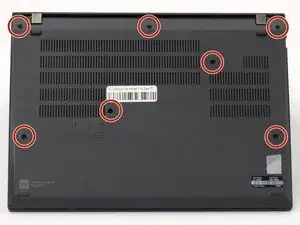
    • Use a Phillips #1 screwdriver to loosen the seven captive screws securing the back panel.

    • The screws are captive and will not come out of the panel.

  2. bBdBKpxqc5m2gmMM
    bBdBKpxqc5m2gmMM
    qp4fvjplehmtPSJo
    IEJ1MBMquFUVJGOD
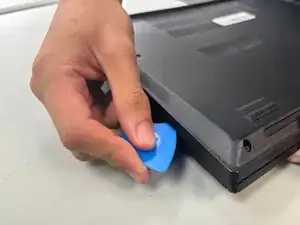
    • Insert an opening pick into the seam between the back panel and chassis.

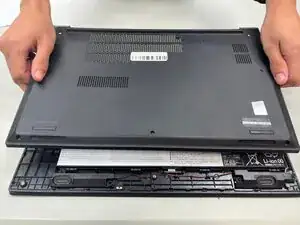
    • Slide the opening pick around the perimeter of the device to release the clips that hold the back panel to the device.

    • Remove the back panel.

  3. gSqgVLUQJMYD5Km4
    gSqgVLUQJMYD5Km4
    1e6FMkIoIkBTPiw3
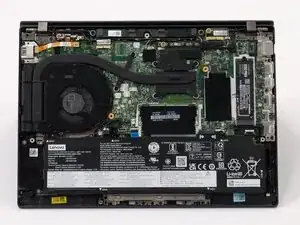
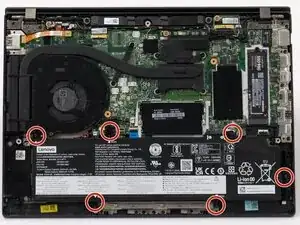
    • Use a JIS #1 screwdriver to remove six M2 x 5 mm screws that hold the battery in place.

    • There is a risk to your laptop if the battery is not discharged properly.

  4. ykCOUKWDVdWHE1vZ
    ykCOUKWDVdWHE1vZ
    FNOWcdXwbyVsOYnW
    bmpVU3WIYdOOpMCH
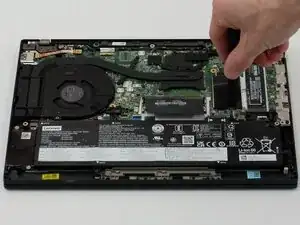
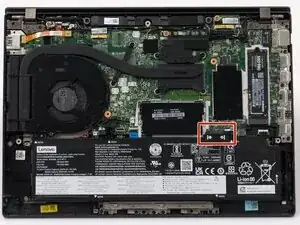
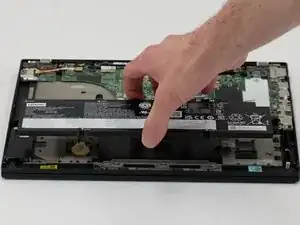
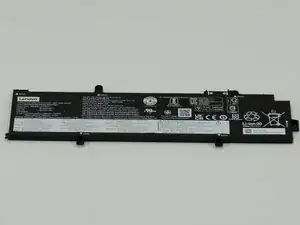
    • Slide the battery from the battery connector and remove it.

  5. TEtMwlkTxVukwAmQ
    TEtMwlkTxVukwAmQ
    ZBHaCVkLj4TkIuWN
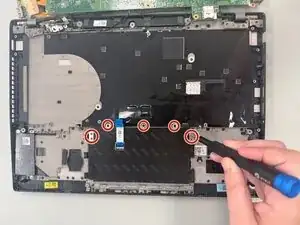
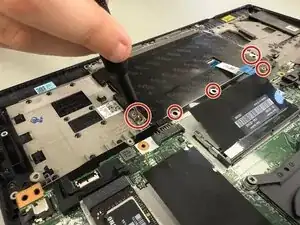
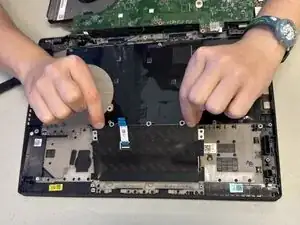
    • Remove each of the seven 2.5 mm-long screws securing the trackpad.

  6. A2EUSH2tq6UhLftG
    A2EUSH2tq6UhLftG
    svRJTf45SDrIL4KP
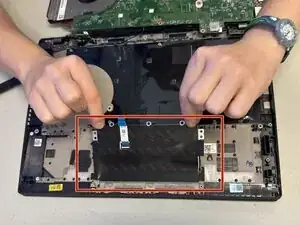
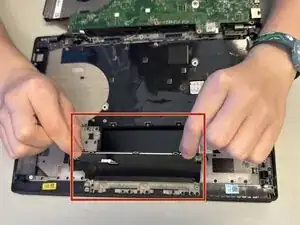
    • Lift the trackpad away from the laptop using your fingers.

Conclusão

To reassemble your device, follow the above steps in reverse order.
Take your e-waste to an R2 or e-Stewards certified recycler.
Repair didn’t go as planned? Try some basic troubleshooting or ask our Answers community for help.

Enzo Garrett

Membro desde: 08/09/25

85 Reputação

0 comentários