Introdução

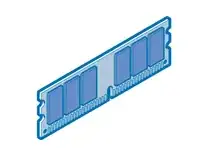
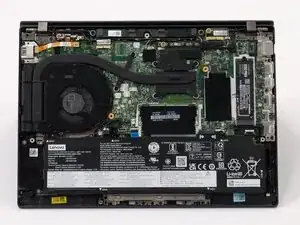
In this guide, we are adding or, in other cases, changing the RAM out for the Lenovo ThinkPad T14 Gen 3. The RAM helps to store data and instructions that the computer needs to use while it is running. Without this, it would significantly slow down its performance.

Before you begin this repair, make sure to power off and unplug your laptop.

  1. iIkcRfyQjOtElYcB
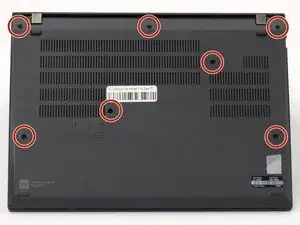
    • Use a Phillips #1 screwdriver to loosen the seven captive screws securing the back panel.

    • The screws are captive and will not come out of the panel.

  2. bBdBKpxqc5m2gmMM
    bBdBKpxqc5m2gmMM
    qp4fvjplehmtPSJo
    IEJ1MBMquFUVJGOD
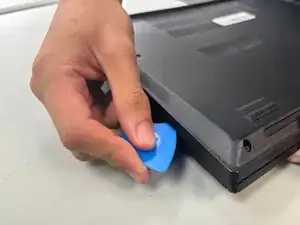
    • Insert an opening pick into the seam between the back panel and chassis.

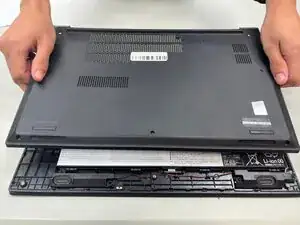
    • Slide the opening pick around the perimeter of the device to release the clips that hold the back panel to the device.

    • Remove the back panel.

  3. gSqgVLUQJMYD5Km4
    gSqgVLUQJMYD5Km4
    1e6FMkIoIkBTPiw3
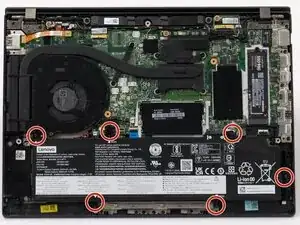
    • Use a JIS #1 screwdriver to remove six M2 x 5 mm screws that hold the battery in place.

    • There is a risk to your laptop if the battery is not discharged properly.

  4. ykCOUKWDVdWHE1vZ
    ykCOUKWDVdWHE1vZ
    FNOWcdXwbyVsOYnW
    bmpVU3WIYdOOpMCH
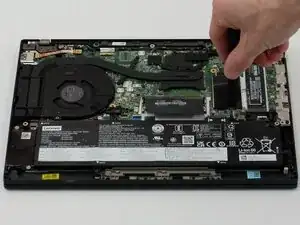
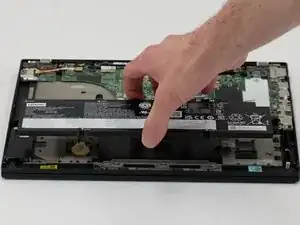
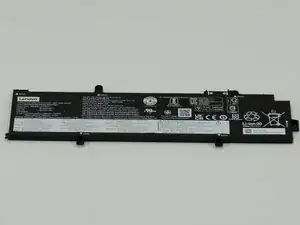
    • Slide the battery from the battery connector and remove it.

  5. 5ZjhjUIZPNsQtRjA
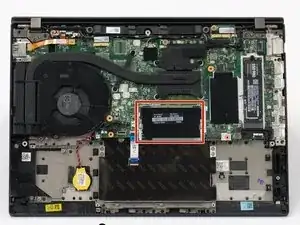
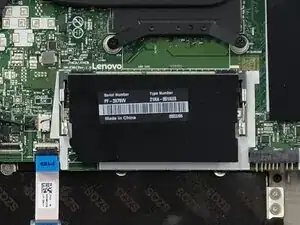
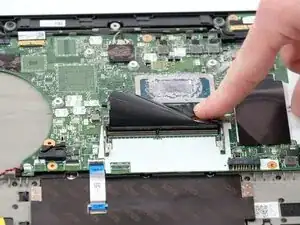
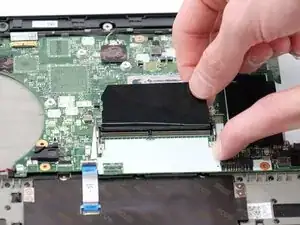
    • Lift the plastic covering the RAM stick.

  6. MLlmDKJj1drEyBPV
    MLlmDKJj1drEyBPV
    EejHYCu6YrZUsDnj
    xdDyYWGC5RKeYIRu
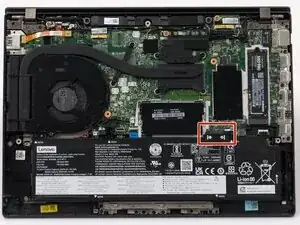
    • This device is missing the RAM.

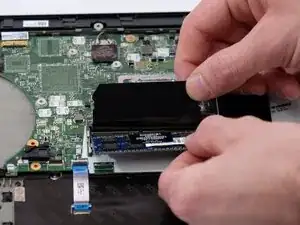
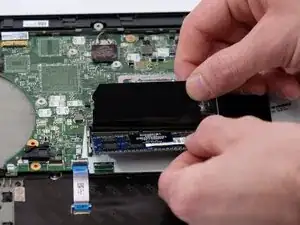
    • If you do have one gently pull the metal clips on each side to disengage the clips holding the card.

  7. 4EUisTPLU1stecBI
    • Slide the old RAM from the slot.

Conclusão

To reassemble your device, follow these instructions in reverse order. Take your e-waste to an R2 or e-Stewards certified recycler.

Chris Dalton

Membro desde: 09/04/25

577 Reputação

0 comentários