Introdução
Lenovo ThinkPad T14 Gen 3
- Alternate names: 21CF, 21GF
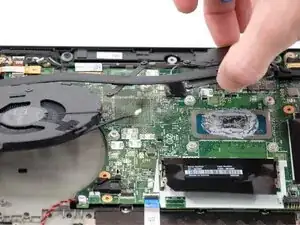
- What is being accomplished by the guide: This guide will help guide the user replace a faulty cooling fan and/or heat sink assembly.
- These parts are responsible for keeping the device running cool and efficiently. This is critical for proper operation and longevity.
- If you're unsure if your culprit for hot operation and poor performance is the cooling fan assembly, follow my troubleshooting steps here: Lenovo ThinkPad T14 Gen 3 Feels Hot
- Symptoms of a hot device include:
- Accessories stop working and/or have a significant delay or lag
- Error messages involving heat-related issues and/or sudden shutdowns
- Device feels abnormally hot, or smells like something is burning
- Laptop doesn't last as long on battery power as it had in the past
- Symptoms of a hot device include:
- Watch out for large capacitors and be careful with plastic and delicate components. ESD safe tools and precautions should be followed. Additional steps and concerns could be found here:
- More detailed information can be found here:
Before you begin this repair, make sure to power off and unplug your laptop.
It's a good idea to replace the thermal paste before you replace the fan assembly. Follow this guide for tips on how to replace thermal paste.



-
-
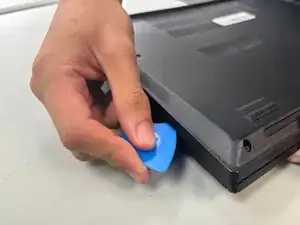
Insert an opening pick into the seam between the back panel and chassis.
-
Slide the opening pick around the perimeter of the device to release the clips that hold the back panel to the device.
-
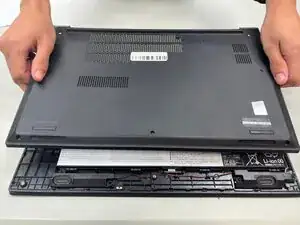
Remove the back panel.
-
-
-
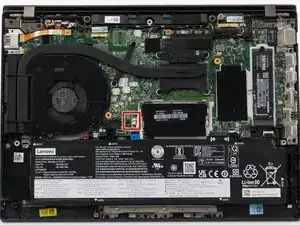
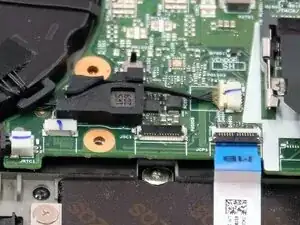
Use the point of a spudger to push on alternating sides of the fan connector to "walk" it out of its socket.
-
To reconnect the cable, align the connector and use a spudger or clean fingernail to push it fully into the socket.
-
-
-
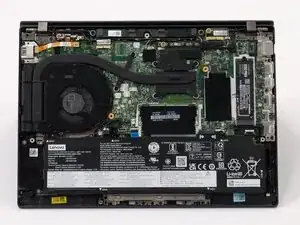
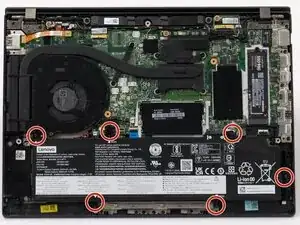
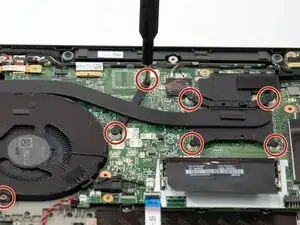
Remove the fan and heatsink from the laptop.
-
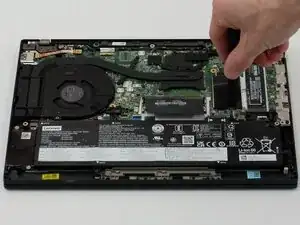
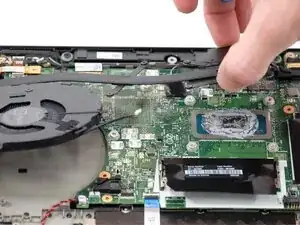
The heat sink for the CPU can be tough to remove. Use an opening tool to help you pry it from the board.
-
Remove the old thermal paste from the CPU using isopropyl alcohol.
-
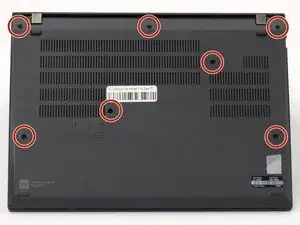
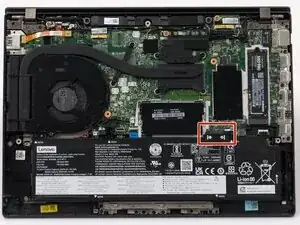
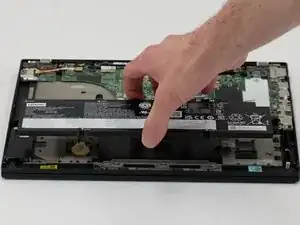
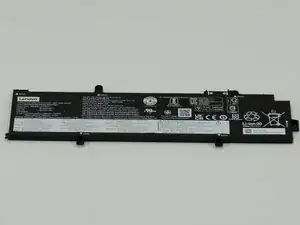
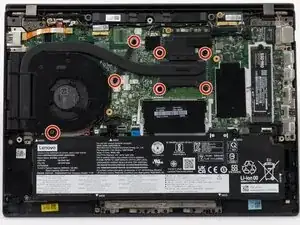
To reassemble your device, follow these instructions in reverse order. Take your e-waste to an R2 or e-Stewards certified recycler.