Introdução
The keyboard of the laptop serves as the input device, allowing users to enter characters and functions into the laptop's system. When the keys start to not work or produce the wrong characters, you will want to replace the keyboard of your Lenovo ThinkPad L490.
This guide will walk you through the steps to replacing the keyboard of your Lenovo ThinkPad L490.
For this guide you will need the Spudger and the Phillips #0 screwdriver. This guide may have some difficult steps.


-
-
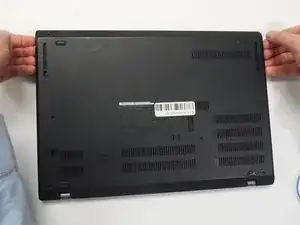
Lay the laptop down with the lower case facing up.
-
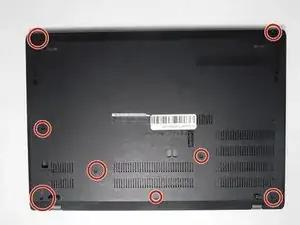
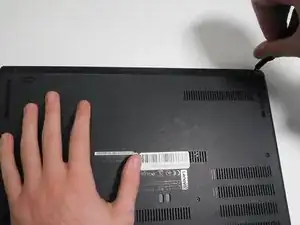
Use a Phillips #00 screwdriver to remove eight 3 mm screws that secure the lower case.
-
-
-
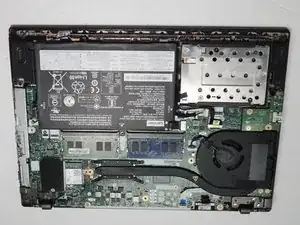
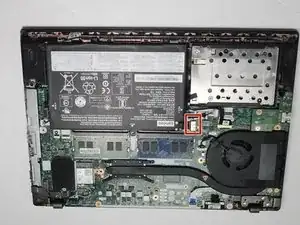
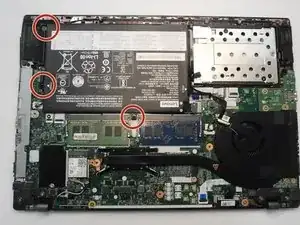
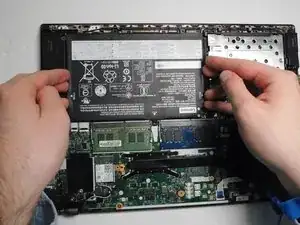
Use a Phillips #0 screwdriver to remove the three m2 x 2.5 mm screws that secure the battery.
-
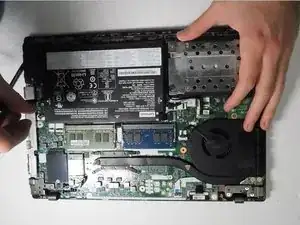
Lift the battery up and out of the chassis.
-
-
-
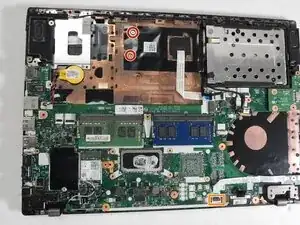
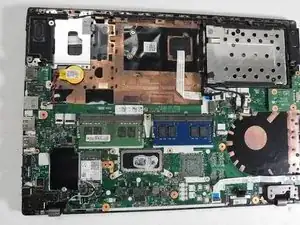
Use a Phillips screwdriver to remove the two screws that secure the keyboard.
-
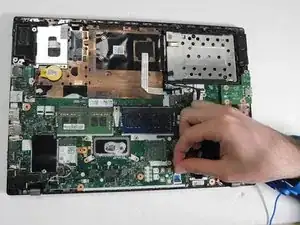
Flip up the black ZIF locking flap and disconnect the ribbon cable.
-
-
-
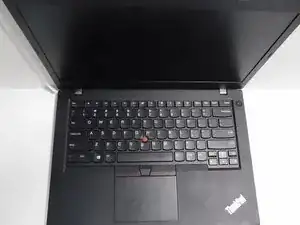
Turn the laptop over and open the lid.
-
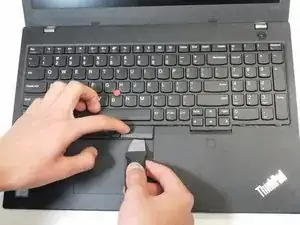
Use a Jimmy to pry the left and right mouse buttons off.
-
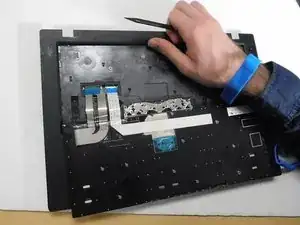
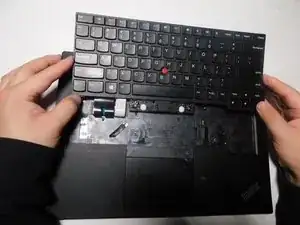
Insert a spudger under the keyboard and pry around the perimeter until it fully releases.
-
Slightly lift the keyboard and set it face down on the palm rest, with care not to strain the attached ribbon cables.
-
-
-
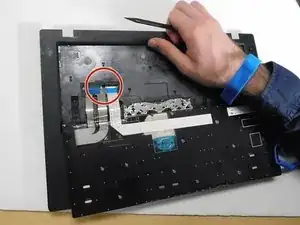
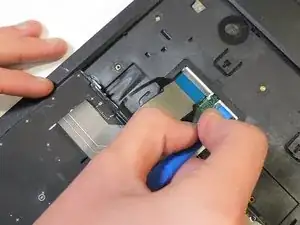
Flip up the two black ZIF locking flaps.
-
Gently pull the two ribbon cables out of their sockets.
-
Remove the keyboard.
-
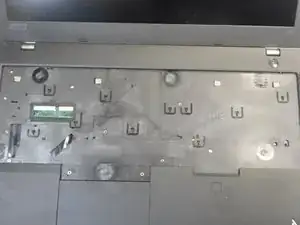
To reassemble your device, follow the above steps in reverse order.
Take your e-waste to an R2 or e-Stewards certified recycler.

3 comentários
This guide is dangerous because it omits that below the two mouse buttons are two screws that need to be removed.
If you don't remove them the keyboard will not move without excessive force because it is still held in place in the bottom middle by this.
Also the description which screws neet to be removed in step 5 "remove the four screws that secure the keyboard" is a total hallucination. Those screws do either not exist because they are part of the already removed back cover or they just secure the mainboard. None of those have anything to do with the keyboard! They keyboard is NOT secured by screws. Well actually it is, but the only screws the keyboard in the L490 is secured by are those under the mouse buttons which are not mentioned here!
Thanks for your suggestions, Gerald. We've addressed them and modified the guide. If you see anything else wonky—either on this guide or any other—feel free to edit the guide. iFixit is a wiki, after all!