Introdução
Use this guide to replace the combined Wi-Fi/Bluetooth WLAN card with the Lenovo ThinkPad L470.
Repairing or replacing the WLAN card can resolve issues such as weak or missing Wi-Fi connections, Bluetooth devices failing to pair, or the system not detecting the wireless adapter at all.
This procedure shows how to remove the bottom cover, disconnect the antenna leads, and safely swap the WLAN card.
What this part does
The WLAN card provides both wireless internet (Wi-Fi) and Bluetooth connectivity for the laptop.
It allows the device to connect to Wi-Fi networks, pair with Bluetooth peripherals (like headphones or mice), and maintain stable wireless communication.
A faulty WLAN card may cause the system to lose wireless access, drop connections frequently, or completely fail to detect Wi-Fi/Bluetooth hardware.
Common symptoms of faulty Wi-Fi/Bluetooth card
- Wi-Fi networks not working
- Bluetooth option missing in Windows settings
- Frequent Wi-Fi disconnections or extremely slow internet
- Bluetooth devices unable to pair or connect
Before you begin
- Shut down the laptop and unplug the AC adapter.
- Remove the external battery for safety.
- Turn the laptop over a clean, static-safe surface.
After the repair
- Boot into Windows and confirm that Wi-Fi and Bluetooth are detected.
- Reconnect to your Wi-Fi network and test Bluetooth pairing.
Ferramentas


-
-
Turn off the laptop and unplug the AC adapter.
-
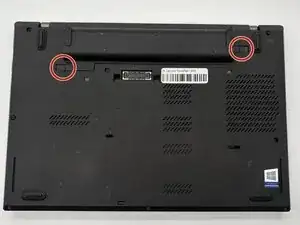
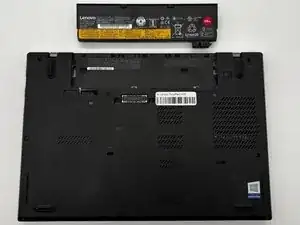
Slide the battery latch to unlock and lift out the external battery.
-
Hold the power button for 10 seconds to discharge any leftover power.
-
-
-
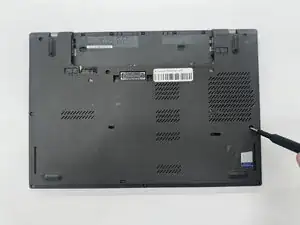
Use a Phillips #0 screwdriver to loosen the captive screws on the bottom cover.
-
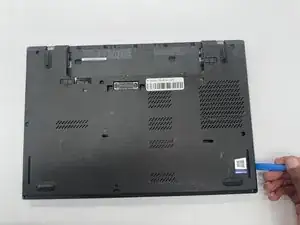
Use an opening tool to pry the back cover off of the laptop.
-
-
-
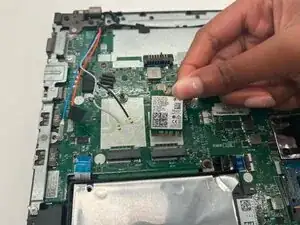
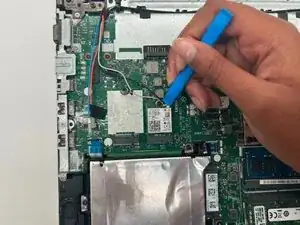
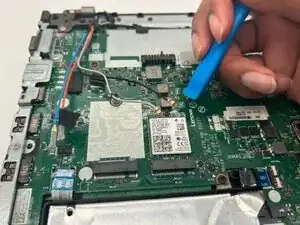
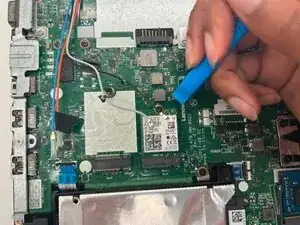
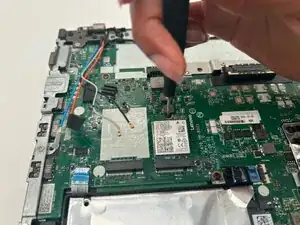
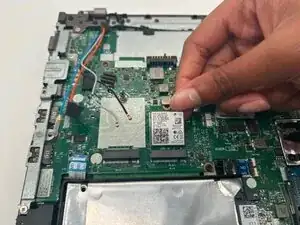
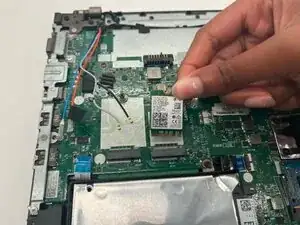
Using a plastic opening tool, gently lift the gray and black antenna connectors straight upward to disconnect them.
-
To reassemble your device, follow these instructions in reverse order.