Introdução
Use this guide to replace or upgrade the hard drive in a Lenovo ThinkPad L470.
Replacing the hard drive can fix slow boot times, freezing, crashing, and failing storage issues. Upgrading to an SSD can dramatically improve overall speed and responsiveness.
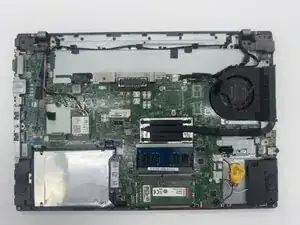
This procedure shows how to remove the bottom cover, disconnect the internal battery, and replace the 2.5-inch drive inside its caddy.
What this part does
The hard drive (HDD or SSD) stores the operating system, applications, and all user files.
Unlike RAM, it retains data even when powered off.
Modern SSDs are significantly faster and more reliable than traditional spinning HDDs, resulting in much quicker load times and better performance.
Common symptoms of a failing or slow hard drive
- Extremely long startup or shutdown times
- Frequent freezing, crashing, or overheating
- Clicking or grinding noises (HDD only)
- “No boot device found” or repeated boot failures
- Corrupted files or frequent repair prompts in Windows
Before you begin
- Shut down the laptop and unplug the AC adapter.
- Remove the external battery before opening the device.
- If upgrading, choose a 2.5-inch SATA HDD or SSD compatible with the ThinkPad L470.
- Back up your data if the old drive is still readable.
- If diagnosing problems, try checking the drive’s SMART status or running Lenovo Diagnostics before replacement.
After the repair
- Enter BIOS/Setup at startup (press F1) to confirm the new drive is detected.
- If installing a new OS, boot from a USB installer for Windows or Linux.
- If cloning your old drive, verify the system boots correctly and check storage capacity in Windows → Settings → System → Storage.
Ferramentas


-
-
Turn off the laptop and unplug the AC adapter.
-
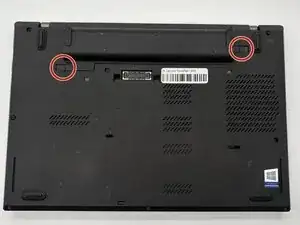
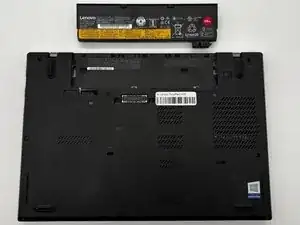
Slide the battery latch to unlock and lift out the external battery.
-
Hold the power button for 10 seconds to discharge any leftover power.
-
-
-
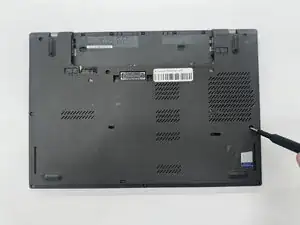
Use a Phillips #0 screwdriver to loosen the captive screws on the bottom cover.
-
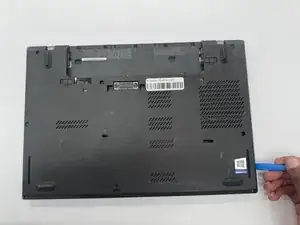
Use an opening tool to pry the back cover off of the laptop.
-
-
-
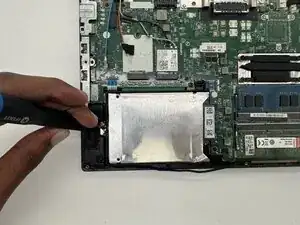
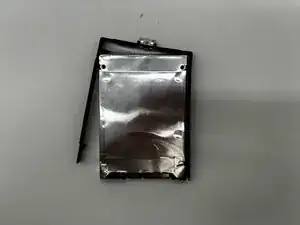
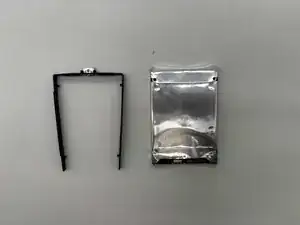
Unscrew the old hard drive caddy.
-
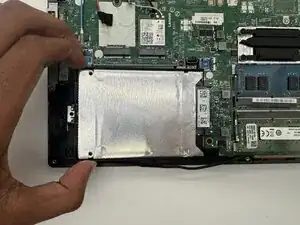
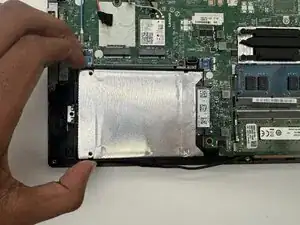
Slide the entire drive caddy straight out of its SATA port.
-
To reassemble your device, follow these instructions in reverse order.