Introdução
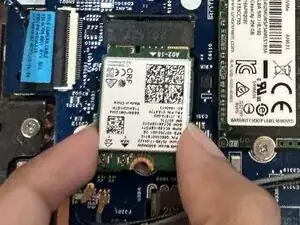
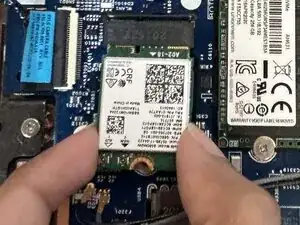
The Wi-Fi card is a component that is responsible for connecting your device to the internet. This guide is made to support you with information needed to find and replace the broken Wi-Fi card. If you are experiencing a problem in your wireless connection or it feels slower it might be worth considering replacing your Wi-Fi card.
Ferramentas


-
-
Power off your laptop and disconnect the charger and any peripheries before beginning disassembly.
-
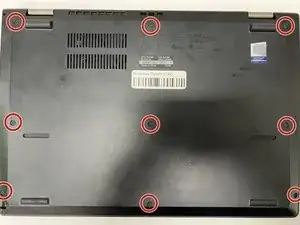
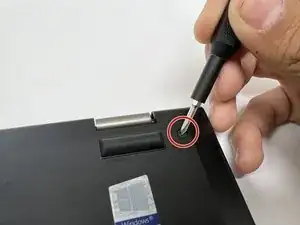
Unscrew the nine 5 mm Phillips #00 screws that secure the lower case.
-
-
-
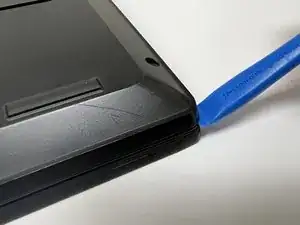
Insert an opening tool in the gap between the lower case and the chassis.
-
Pry around the entire perimeter of the lower case until it fully releases.
-
Lift the lower case up and off.
-
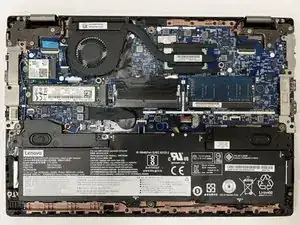
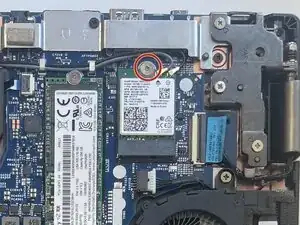
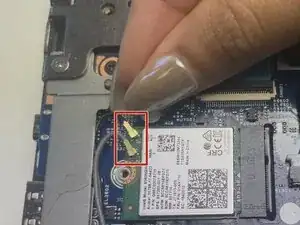
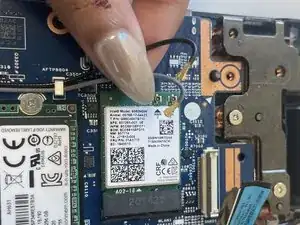
To reassemble your device, follow the above steps in reverse order.
Take your e-waste to an R2 or e-Stewards certified recycler.
Repair didn’t go as planned? Try some basic troubleshooting or ask our Answers community for help.