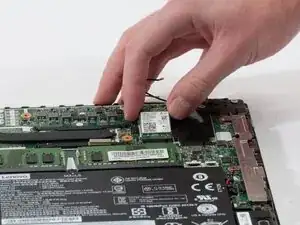
Introdução
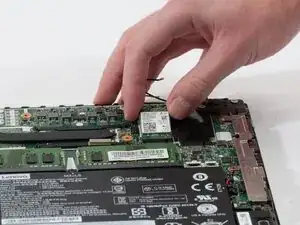
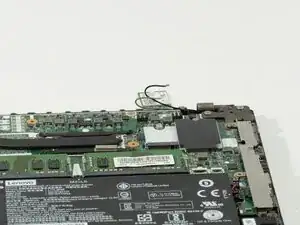
This guide will show you how to replace the Wi-Fi card in your Lenovo ThinkPad L14 Gen 2 (ID- TP00120F2) (Type number- 20x1-006FUS) (Serial number- PF-38VNB5). The Wi-Fi card is what helps your computer to connect to wireless networks using radio waves allowing internet access and data exchange without physical change.
If you’re experiencing frequent disconnections, an inability to detect Wi-Fi networks, consistently weak signal strength, or an error indicating that the network adapter is not working, it may be time to replace your Wi-Fi card. If your symptoms don’t match these issues, refer to the troubleshooting page to see if another solution better fits your situation. (Lenovo ThinkPad L14 Gen 2 Running Slowly )
- CAUTION: Before beginning, make sure the laptop is powered off.
- CAUTION: When removing the back panel, either wear an electromagnetic wrist band or ground yourself by touching metal. To avoid electrostatic discharge which can fry the motherboard and make your computer not turn on again.
Ferramentas


-
-
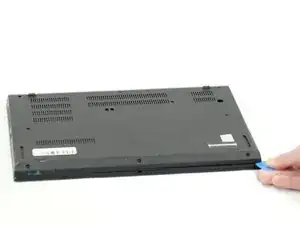
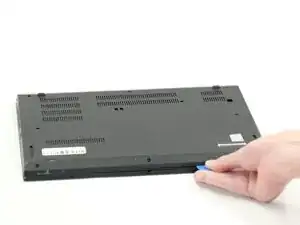
Turn your Lenovo ThinkPad L14 Gen 2 so that the bottom of the laptop is facing upward.
-
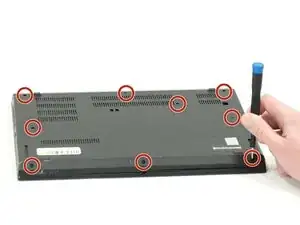
Using a Phillips #00 screwdriver, unscrew the nine 5 mm spring secured screws.
-
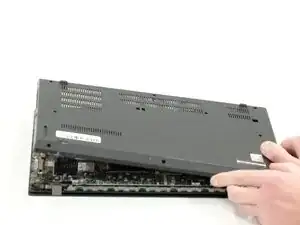
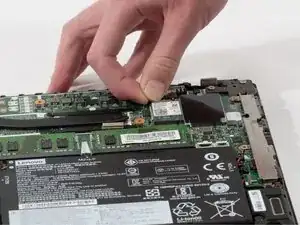
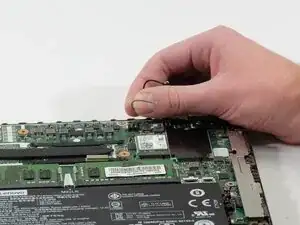
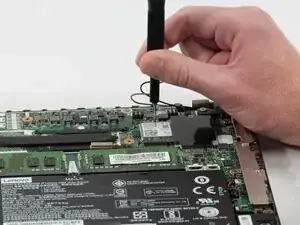
To reassemble your device, follow these instructions in reverse order.