Introdução
This guide shows how to replace the solid-state drive (SSD) in a Lenovo ThinkPad L14 Gen 2 (ID: TP001120F2, Model: 20X1-006FUS, Serial: PF-38VNB5).
The SSD plays a critical role in overall system performance, affecting boot times, application loading speeds, system responsiveness, and data storage.
You may need to replace the SSD if your computer shows symptoms such as slow performance, frequent freezing or crashing, long startup times, difficulty opening files, or the system becoming read-only. For additional troubleshooting, refer to the related troubleshooting page. (Lenovo ThinkPad L14 Gen 2 Running Slowly)
Before you begin, make sure the computer is powered off.
Caution: Due to the sensitive nature of electronic components, be sure to wear an electromagnetic wrist band or ground yourself by touching metal to avoid electrostatic discharge which can fry your motherboard and cause your computer to not turn on.
Ferramentas


Peças
-
-
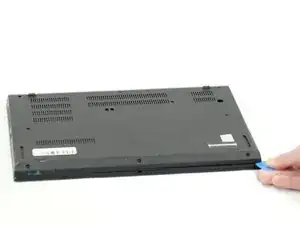
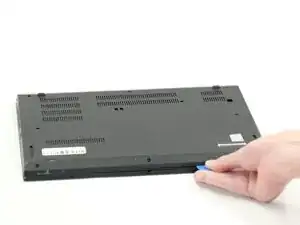
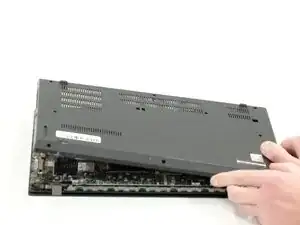
Turn your Lenovo ThinkPad L14 Gen 2 so that the bottom of the laptop is facing upward.
-
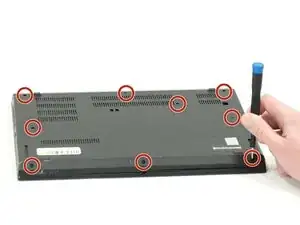
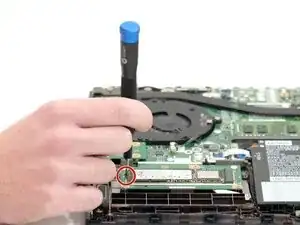
Using a Phillips #00 screwdriver, unscrew the nine 5 mm spring secured screws.
-
-
-
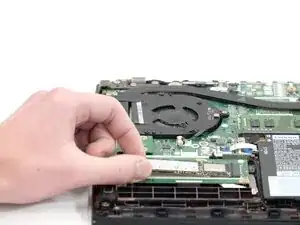
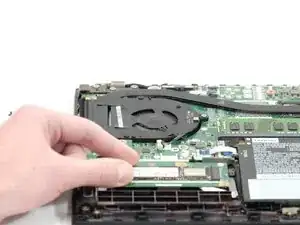
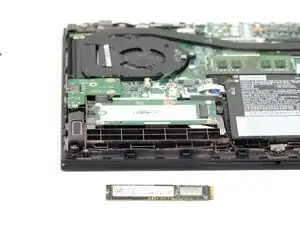
Dislodge and gently lift up the solid state drive so that it is facing a 45 degree angle.
-
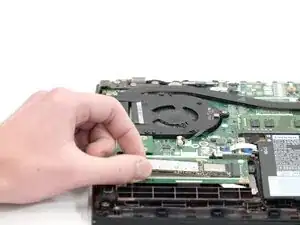
Remove the SSD and set aside.
-
To reassemble your device, follow these instructions in reverse order.