Introdução

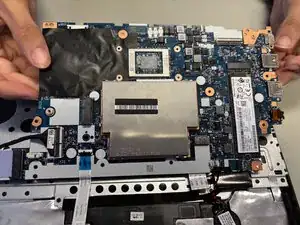
Laptop not functioning correctly? Need to replace your motherboard? Here's how to replace the motherboard on the Lenovo ThinkPad E15 Gen 3.

  1. C4QAHJkeOdBdUhCR
    C4QAHJkeOdBdUhCR
    hIlpCgp3ZRbNUGPU
    FPSD5rdOFIaTEAZK
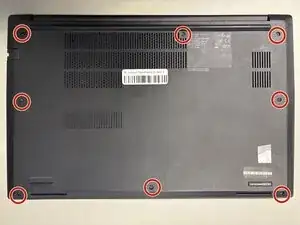
    • Use a Phillips #1 screwdriver to loosen the eight Phillips #1 captive screws.

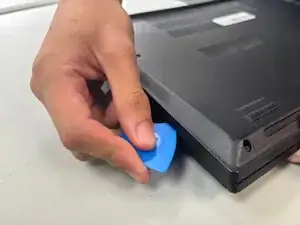
    • Slide the opening pick in-between the bottom cover and the upper case.

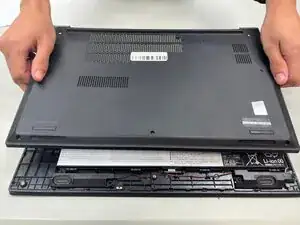
    • While gently pulling up with your free hand, slide the pick around the perimeter of the case disconnecting the clips.

    • Lift the case upwards to remove it.

  2. JYr3kBsUnP36GGhA
    JYr3kBsUnP36GGhA
    tOMMqoHBwhg4vPVD
    WOwZPuZdImBvA5Wo
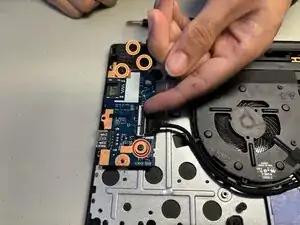
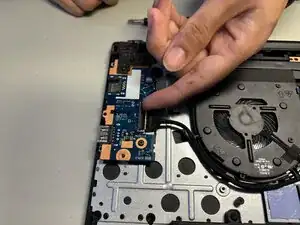
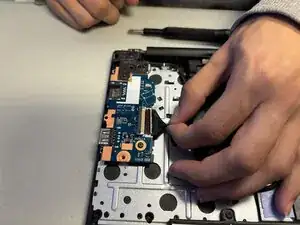
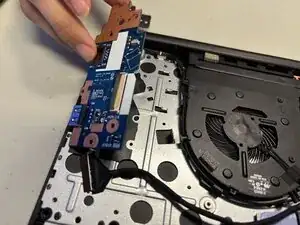
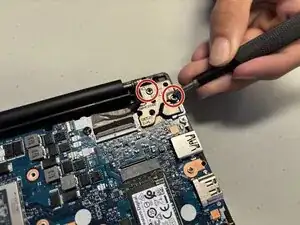
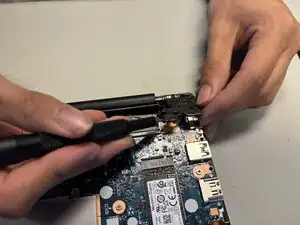
    • Use a Philips #1 Screwdriver to remove the one 5.6 mm-long Phillips #1 screw on the I/O board.

    • Remove the three 6.5 mm-long Phillips #1 screws on the hinge.

    • Flip the ZIP locking flap up with your fingertip or a spudger.

    • Disconnect the cable.

  3. iwpuEVVGMQEjqqFG
    iwpuEVVGMQEjqqFG
    CpkCo6V2tMSwm1lY
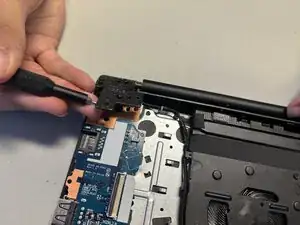
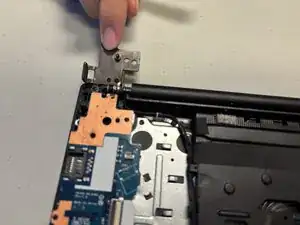
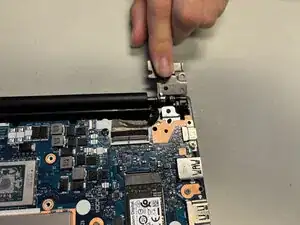
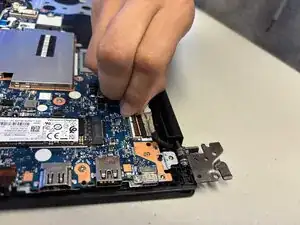
    • Use a screwdriver to lift up the hinge.

    • Rotate the hinge 180 degrees.

  4. QsSKjj1nodSQLU5H
    • Lift the I/O board out.

  5. rkvmsgSmVP3jCPww
    rkvmsgSmVP3jCPww
    M45qmGtYEEgYfcVs
    • Use the point of a spudger to push on alternating sides of the connector to "walk" it out of its socket.

    • It may take a lot of alternating before the connector comes out. Be patient, and don't pull on the cables.

    • To reconnect the cable, align the connector and use a spudger or clean fingernail to push it fully into the socket.

    • Don't push on the cables themselves, or you may damage the connector.

  6. KFUUC3RDM2CrsDXQ
    KFUUC3RDM2CrsDXQ
    xfq1lJlFmHHETPlb
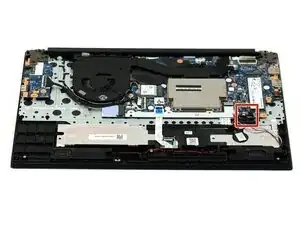
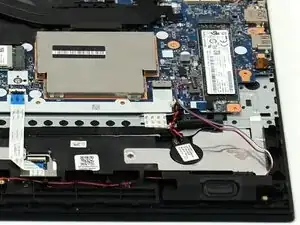
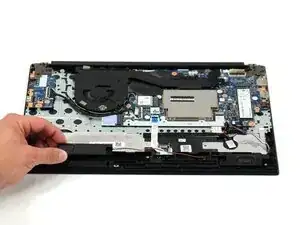
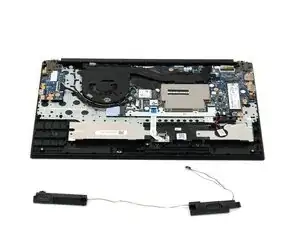
    • Remove the speakers from the device.

    • The cables connecting the speakers may need to be gently untucked from the small plastic hooks bordering the battery.

    • Take note of how the speakers and their wires are arrayed, as you will need to arrange them in the same positions.

  7. OoRpSXgM2URUslUT
    OoRpSXgM2URUslUT
    psAQL5IAdwZoqUBs
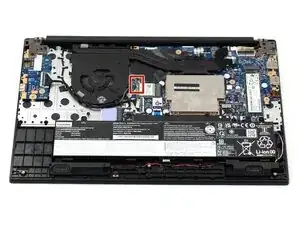
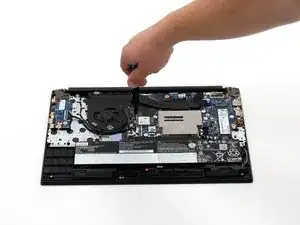
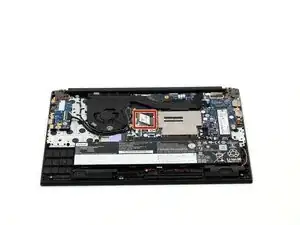
    • Slide a thin, ESD-safe pry tool or angled tweezers under the metal neck of the connector (as close to the head as possible) and lift straight up from the board.

    • When working with these connectors, it's key to always lift the head straight up. If pried on at an odd angle, you risk breaking the socket off of the board underneath.

    • Reconnecting these can be tricky. Use tweezers to hold the connector in place over its socket and gently press down with your finger or a spudger—the connector should "snap" into place. If you're having trouble, reposition the head and try again.

    • When putting the cables back onto the Wi-Fi Card, make sure that the cables are attached to the correct places on the Card.

  8. qXwElDSMS15vf6P5
    qXwElDSMS15vf6P5
    5oQSt2QSf2HxPZqH
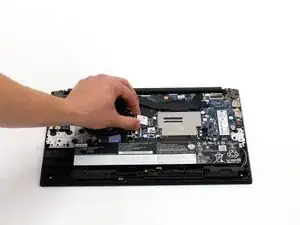
    • Use a Phillips #1 screwdriver to remove the 2.8 mm screw from the Wi-Fi card.

    • The Wi-Fi Card will pop up from the motherboard once the screw is removed.

  9. PqjnhAfmQlyPw5of
    PqjnhAfmQlyPw5of
    2RcUSbRQXVNPAfeh
    EcOGCLFgOAgJToPl
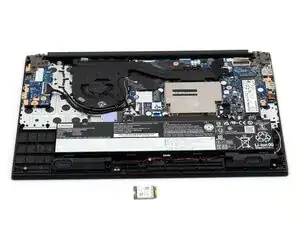
    • Gently slide the Wi-Fi card from the connector to remove it from the motherboard.

    • When reinstalling the Wi-Fi Card, make sure that the flat side of the card is facing towards the motherboard.

  10. iALD2AqKZR5MxWGG
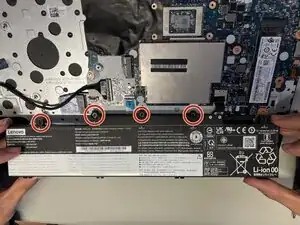
    • Use a Phillips #1 screw to remove the five 5.5 mm-long Phillips #1 screws securing the battery.

    • Disconnect the battery connector.

    • Remove the battery.

  11. L61EnGtomIctdLgx
    L61EnGtomIctdLgx
    XCJPrNGM5NNeBnsb
    mMWnSmxQuDabgw5F
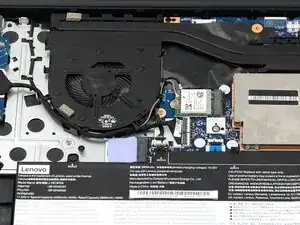
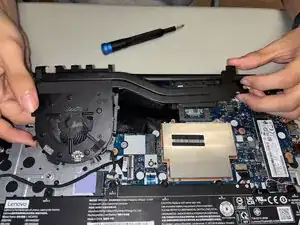
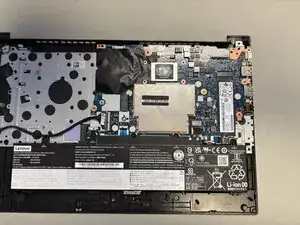
    • Loosen and remove all screws securing the fan and heatsink assembly using a Phillips #1 screwdriver.

    • Disconnect the fan connector.

    • Remove the fan and heatsink assembly.

  12. fSVLHBN5DbFYSMQU
    fSVLHBN5DbFYSMQU
    pypYQTSmqRcMpLYG
    tybvwdNfBSxWUPXN
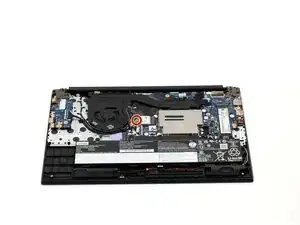
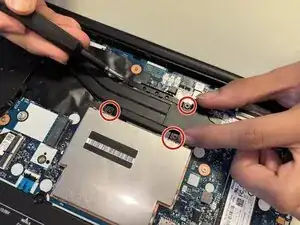
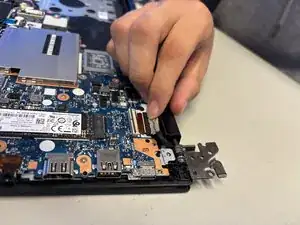
    • Remove the two black 6.5 mm-long right hinge screws with a Phillips screwdriver.

    • Lift the right hinge.

  13. KEi2sukIxi2IQYLL
    KEi2sukIxi2IQYLL
    LtSArPTydbHE4uPv
    6SLgIh1Tr2UbBHDC
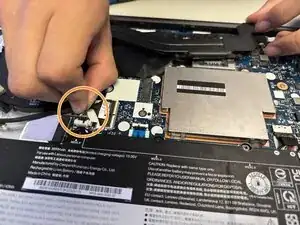
    • Lift the cable locking flap with your finger or a spudger.

    • Disconnect the cable.

  14. teNZWqPAKRKyvi2k
    teNZWqPAKRKyvi2k
    U5cdYbbveuUSAb6X
    JLoWMPtC6lByheYr
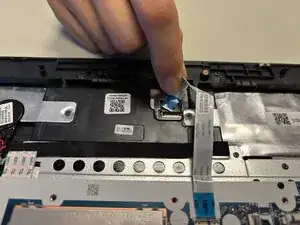
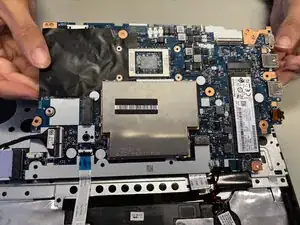
    • Lift the locking flap and remove the touchpad ribbon cable.

    • Lift the motherboard.

  15. TkeeKK5tkD3YFghJ
    TkeeKK5tkD3YFghJ
    xLCcAXpMmjOYKqCQ
    EKACpUjEBIlNtsHW
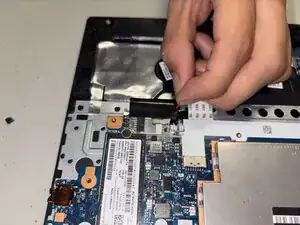
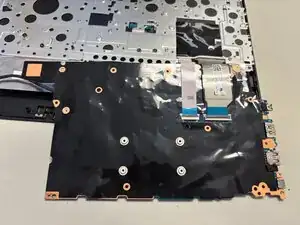
    • Flip the mother board onto its back.

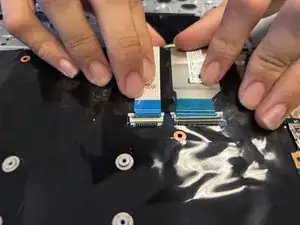
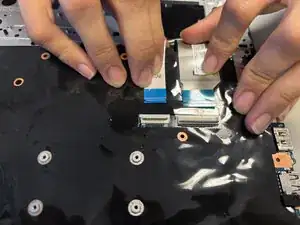
    • Flip up the two locking flaps and disconnect the two ribbon cables.

Conclusão

To reassemble your device, follow the above steps in reverse order.
Take your e-waste to an R2 or e-Stewards certified recycler.
Repair didn’t go as planned? Try some basic troubleshooting or ask our Answers community for help.

Dre

Membro desde: 09/09/25

133 Reputação

0 comentários