Introdução

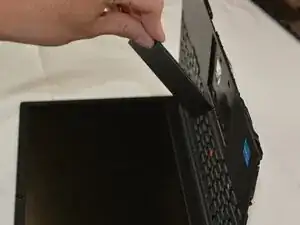
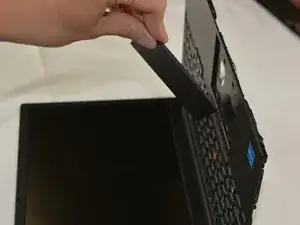
Use this guide to replace a faulty trackpad on the Lenovo ThinkPad E15 Gen 2 (Models 20T8, 20T9, 20TD, 20TE).

  1. L2RJGMLwnHthYFoD
    L2RJGMLwnHthYFoD
    AFCnSZNEdfwfEoFx
    Uyu55PMWFRBxZmNV
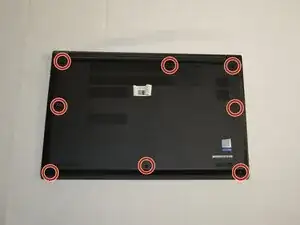
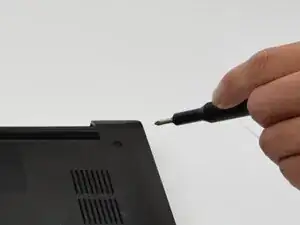
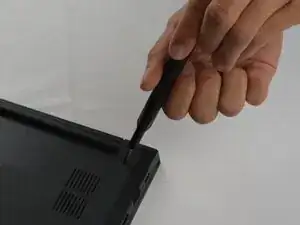
    • Use a Phillips #1 screwdriver to loosen the eight captive screws securing the lower case.

    • The screws are captive and should not have the ability to be taken out.

  2. ScZODUnvNZaoeAA5
    ScZODUnvNZaoeAA5
    WU5mVDoYrs13LPXB
    dHNsRObZulxM4TBu
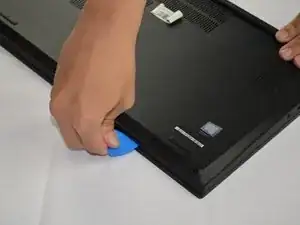
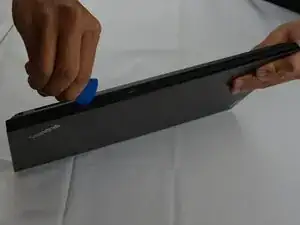
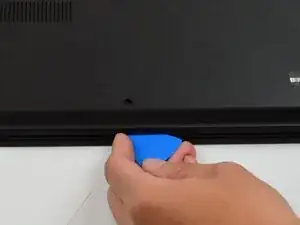
    • Insert an opening pick into the seam between the lower case and chassis.

    • Slide the pick around the entire perimeter until the lower case fully releases.

  3. tfnL32nBHONiTlt4
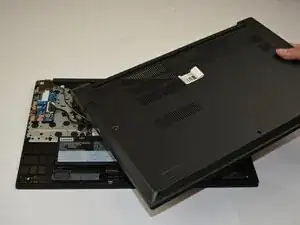
    • Remove the lower case.

    • When reassembling, place the lower case on top of all the clips and push down around the edges until all the clips are engaged.

  4. SwJTj4DJ4jeZlDIp
    SwJTj4DJ4jeZlDIp
    1tLJurSfkj1JJBc6
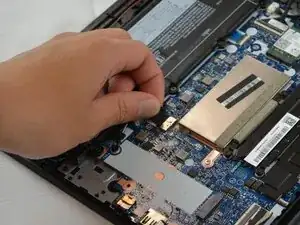
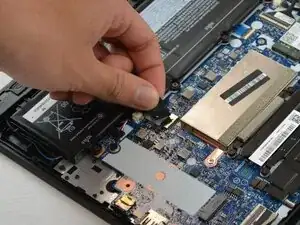
    • Pull the battery connector directly out of its socket.

  5. 5HGQWDclgJwiGscj
    5HGQWDclgJwiGscj
    UDQYgs2U1OIoIK1p
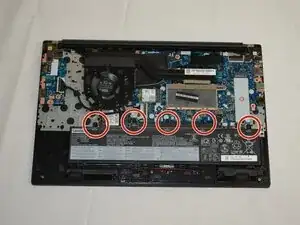
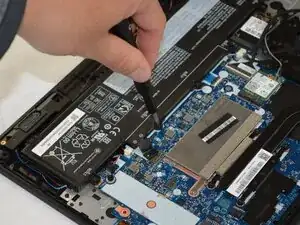
    • Remove the five 5.7 mm-long Phillips #1 screws securing the battery.

  6. FiNCUPX6y5YUHGxf
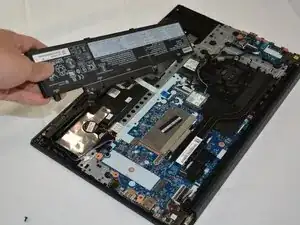
    • Lift the battery up and out.

  7. Is3MpCfOLvUxQy4i
    Is3MpCfOLvUxQy4i
    qNRDdXNmET3hEitN
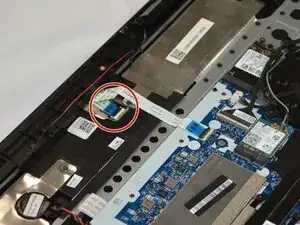
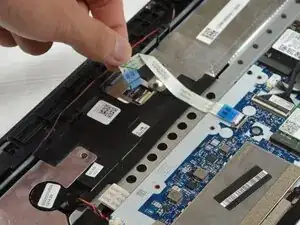
    • Flip up the locking flap on the trackpad and disconnect the ribbon cable.

  8. 1dO5vSvDfAhcxgnV
    1dO5vSvDfAhcxgnV
    ftbybPyELmYMWQi4
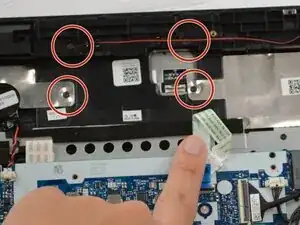
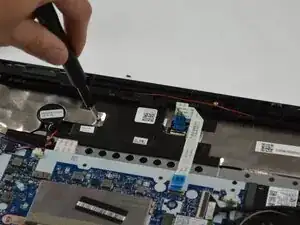
    • Remove the four 2.4 mm-long Phillips #1 screws securing the trackpad.

  9. AHHjdI3lf1XqLqJb
    • Remove the trackpad.

Conclusão

To reassemble your device, follow the above steps in reverse order.
Take your e-waste to an R2 or e-Stewards certified recycler.
Repair didn’t go as planned? Try some basic troubleshooting or ask our Answers community for help.

Loic

Membro desde: 30/09/25

277 Reputação

0 comentários