Introdução

The Lenovo ThinkPad E14 Gen 4 is a 14-inch business laptop available with either 12th Gen Intel Core or AMD Ryzen 5000 Series processors, mainly marketed for professional use. Key features include fast storage up to a Gen 4 SSD, Wi-Fi 6, and a range of ports including USB-C.

Use this guide when you need to clean or replace the fan and/or heat sink or to replenish the thermal paste in your device. Make sure your device is not connected to any form of electricity when opening to do any repairs.

If you need to apply thermal paste, you should check out this comprehensive guide.

Warning: Thermal paste is responsible for conducting heat from the processor to the heat sink. Reassembling a computer without applying thermal paste will cause the processor to overheat, resulting in permanent damage.

  1. pUmlh6oBPmJNgHjp
    pUmlh6oBPmJNgHjp
    eDQG4ZZlUOimFfgf
    TSypuPsYPLoHUJt3
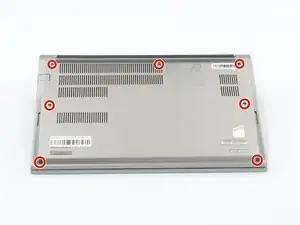
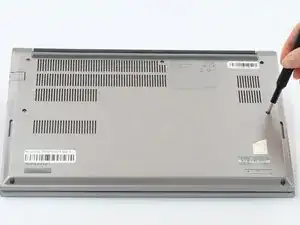
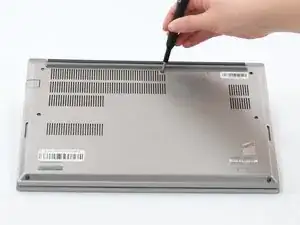
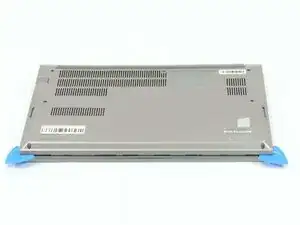
    • Loosen all seven captive screws on the back panel of the device with a Phillips #1 screwdriver.

  2. ljjste5X2fADVmDc
    ljjste5X2fADVmDc
    hMJeLUAjnKjYHPtR
    LY4ZacTDOk6NVEc1
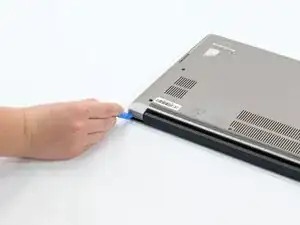
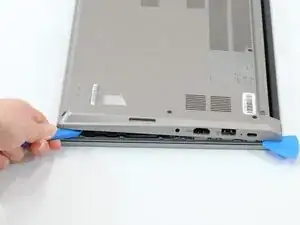
    • Insert an opening pick into the seam near the hinges.

    • Working from the hinges to the front, gently pry apart the back of the device from the main body.

    • You should hear little pops and see a small gap forming at the seam before attempting to remove.

    • Plastic pry tools are the best to use with electronics such as phones, tablets, and laptops because they are designed to break before the device does.

  3. ILJrjUhARIuINRaD
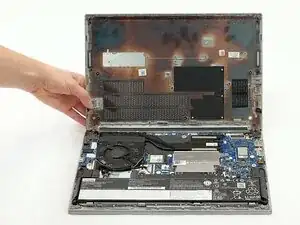
    • Carefully lift the loosened panel away from the laptop.

    • Before attempting to lift the panel off, make sure it has been pried away from all edges and corners of the device. Trying to remove the back panel when any part is still firmly attached to the laptop can cause damage to the device.

  4. SJ3HK1HoaVGxKZPs
    SJ3HK1HoaVGxKZPs
    duaEnAybDqyEPRnB
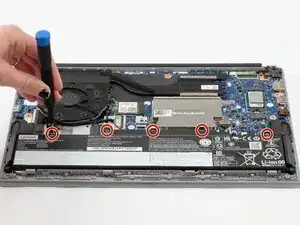
    • Remove all five 5mm screws from the battery using a Phillips #1 screwdriver.

  5. M1Qmw6GFD6ZMN22A
    M1Qmw6GFD6ZMN22A
    21E64tEuVmQBhgPO
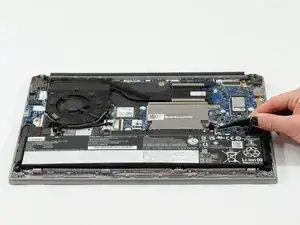
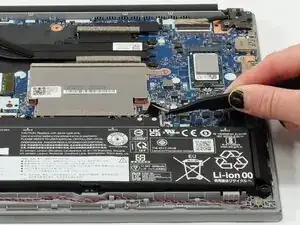
    • Using the fabric tag, disconnect the battery cables from their port inside the device.

  6. QIVJQmWCaAuPj2YD
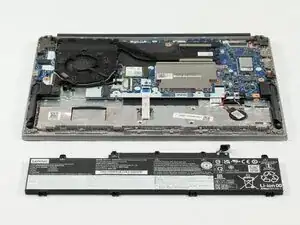
    • Lift the battery out of the device.

  7. 1yQvJiM4OQZZADpF
    1yQvJiM4OQZZADpF
    QauCypYNE51CmjXc
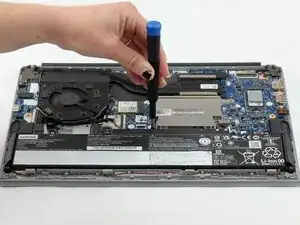
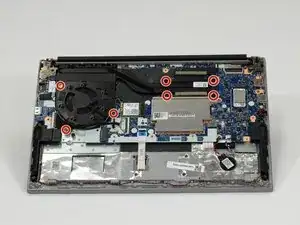
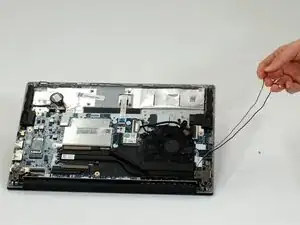
    • Loosen the seven screws from the fan and heat sink using a Phillips #1 screwdriver.

  8. ELIEhIw1yQRDtGhZ
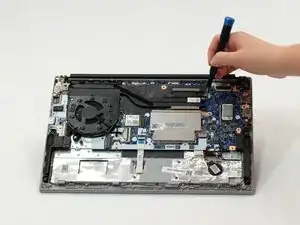
    • Unplug the fan connector from the motherboard.

    • It is under another wire so it might be a bit tricky to wiggle it out.

  9. oXXub2ohkWerQNYp
    oXXub2ohkWerQNYp
    FJjsuBQiSvwi15xF
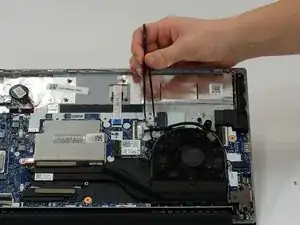
    • Unplug and unwind the coaxial wires attached to the Wireless LAN card.

    • The gray wire attaches to the main plug, and the black wire attaches to the auxiliary plug.

  10. 2pEEpCyLVvAjjF1J
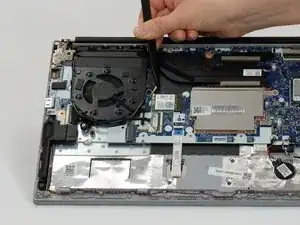
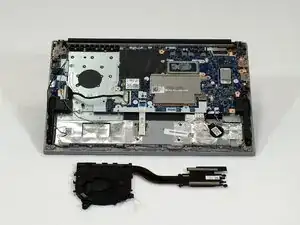
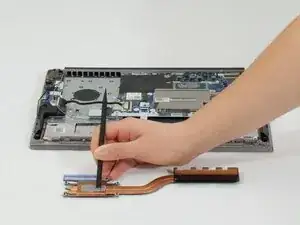
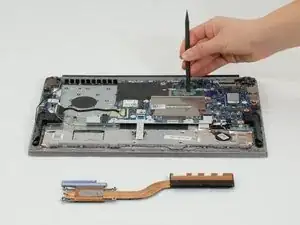
    • Lift the fan and heatsink out of the device.

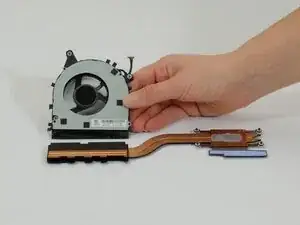
    • They are attached at the base and can come apart, but only separate them for replacement and/or cleaning.

  11. JCBW51l2ALo2xfVn
    JCBW51l2ALo2xfVn
    GuPOe2T5PiGIrLH3
    sAvS5x3BO3Y1OBwv
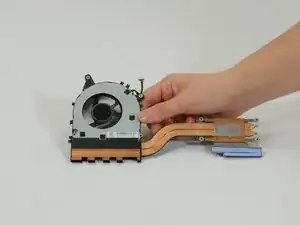
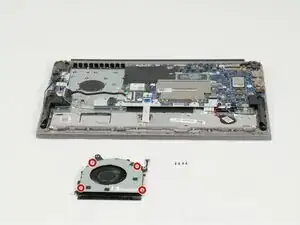
    • For cleaning the fan, detach it from the heatsink and flip it over.

    • Unscrew the four 3mm Phillips #1 screws and lift the back plate off to provide direct access to the fan.

  12. 2J2FAFDxOExsQ5ud
    2J2FAFDxOExsQ5ud
    nuq2gfjF56sYu1E1
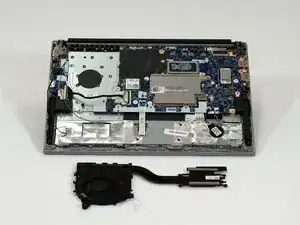
    • The thermal paste may need to be replaced before you put things back together. Look for the spot the heatsink was previously attached; if the surface seems dried out, that will need to be removed.

    • Make sure you remove all of the old thermal paste before applying new paste.

Conclusão

To reassemble your device, follow these instructions in reverse order.

Macy Bornheimer

Membro desde: 07/10/25

575 Reputação

0 comentários