Introdução

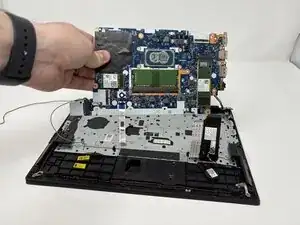
If your Lenovo ThinkPad E14 Gen 2 fails to power on, shows no display, or has multiple hardware components that no longer function, the motherboard may be faulty and require replacement. The motherboard is the main circuit board that connects all internal components and allows them to communicate properly.

Before replacing the motherboard, review the Lenovo ThinkPad E14 Gen 2 troubleshooting pages to confirm that the issue isn’t caused by other components such as the battery, RAM, or power adapter.

To replace the motherboard, you’ll need to remove the back cover and disconnect several internal cables, screws, and components.

Warning: Always power off your laptop and unplug it before beginning this repair. Handle the motherboard with care and avoid touching exposed circuitry to prevent static or electrical damage.

  1. 4SCUbCKRIbYcYAmf
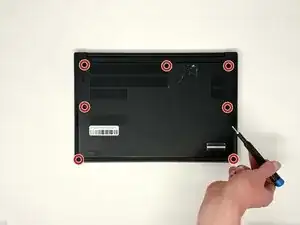
    • Unscrew the seven 8 mm screws from the back of your device with the JIS #000 screwdriver.

  2. LSPCFQieTDQdQjMd
    LSPCFQieTDQdQjMd
    n4Ww6ZF55FFfAvni
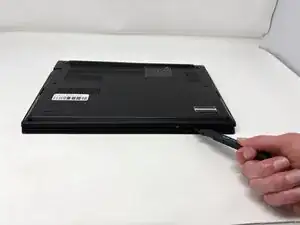
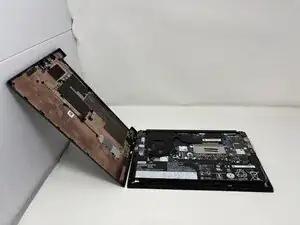
    • Use the Jimmy tool to pry off the back of the device.

  3. RT4guUlptPvrNlVe
    RT4guUlptPvrNlVe
    H1B6cveVCKhZFGJj
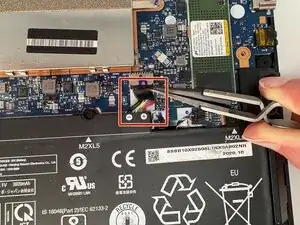
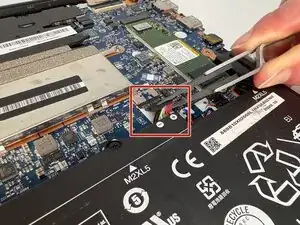
    • Use precision tweezers or your fingers to gently unplug the battery connector directly out of the motherboard socket.

  4. nTp3GDiFlFXwhkZo
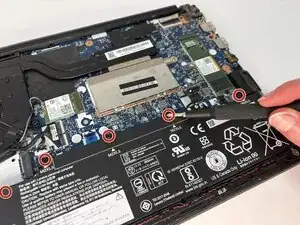
    • Remove the five 6 mm screws that hold the battery in place with the JIS #0 screwdriver.

  5. B5QAdUBekEEa3fgd
    B5QAdUBekEEa3fgd
    4XGpqprVvsQUpAWs
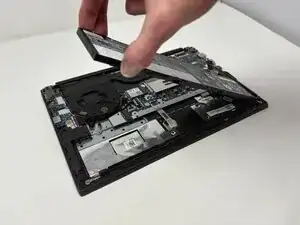
    • Gently use your fingers to lift the battery up and out.

  6. UBJgfyvllAgWqb1W
    UBJgfyvllAgWqb1W
    3cSoULH2grqTqQ5t
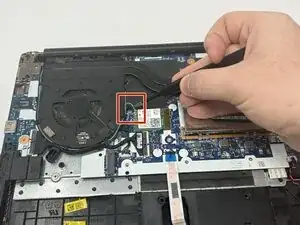
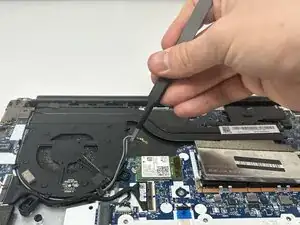
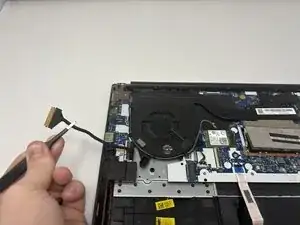
    • Using the precision tweezers, gently disconnect the thermal sensor wire (the thin grey and black wires) from the Wi-Fi card.

  7. eZ43uwtchlcYcQ2c
    eZ43uwtchlcYcQ2c
    a6GT4fdYtxaAKTbN
    VAQlMQbEXPQSGFvC
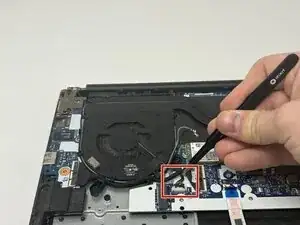
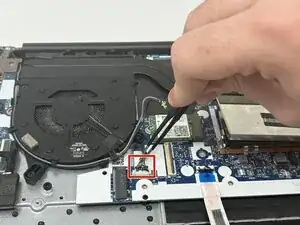
    • Using the precision tweezers, gently disconnect the motherboard wire (the thick black wire wrapped in thermal tape).

  8. scTZtyKjF14etBao
    scTZtyKjF14etBao
    RA5BYhfo5DxiYtTU
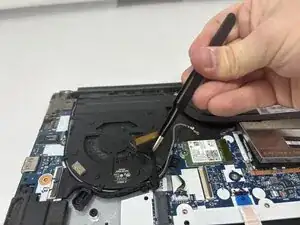
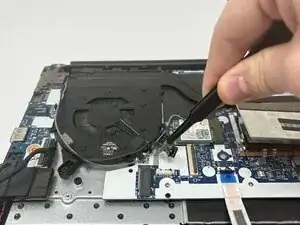
    • Using the precision tweezers, gently disconnect the fan power cable (the bundle of thin wires) from the motherboard.

  9. BQaST3VjXnHP1ELk
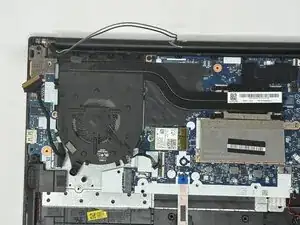
    • Move all of the disconnected wires (thermal sensor wire, motherboard wire, fan power cable) out of the way.

  10. yMjMXVS1KpOISmlU
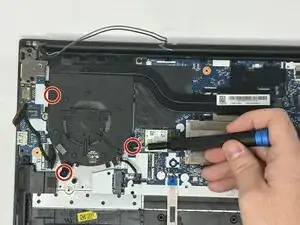
    • Remove the three 7 mm screws with the JIS #00 screwdriver.

  11. u1Tf3cJ4TtNQIjJL
    u1Tf3cJ4TtNQIjJL
    YQgPgZlV6dxW4cpm
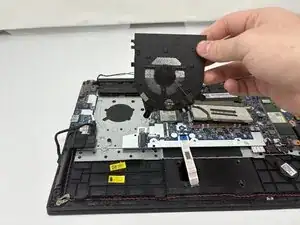
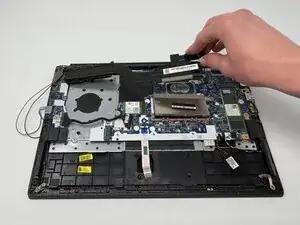
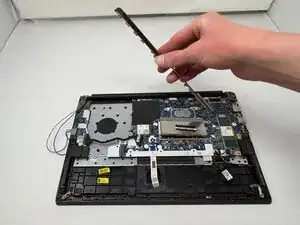
    • Remove the cooling fan from your device.

  12. Hp2GMLkkTwUJ3fZr
    Hp2GMLkkTwUJ3fZr
    iUWTjaRqrOtIXnuZ
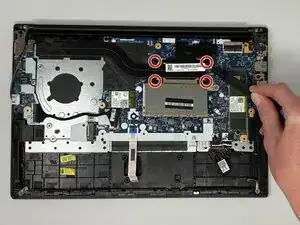
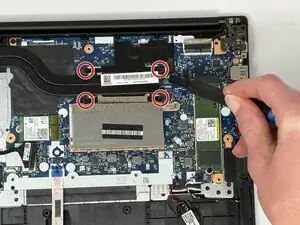
    • Remove the four 7 mm screws with the JIS #000 screwdriver

  13. gWIgHNpZH2t4PGyT
    gWIgHNpZH2t4PGyT
    ripUCYLY1KsGKFsD
    YChbWyqsAi5cpnu3
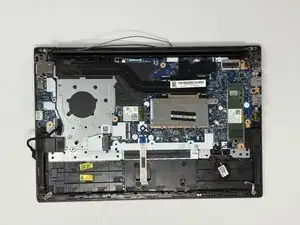
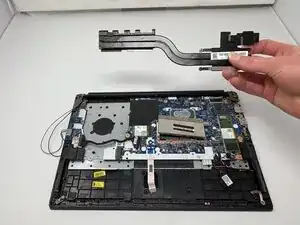
    • Carefully remove the heat sink from the device.

  14. S2KSOSZvOyIOBCMm
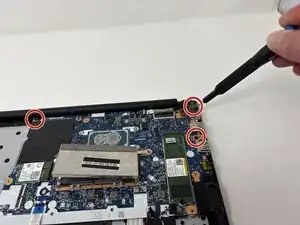
    • Remove the three 7 mm screws with the JIS #000 screwdriver.

  15. 6ArOuQH5fqUyYyfd
    6ArOuQH5fqUyYyfd
    3PCdHDxfqvJI6Fsh
    yHZod2ZMIIrSSoEC
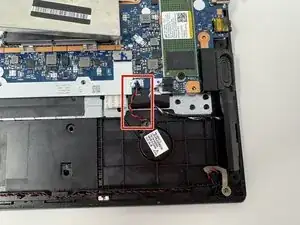
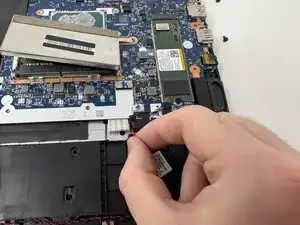
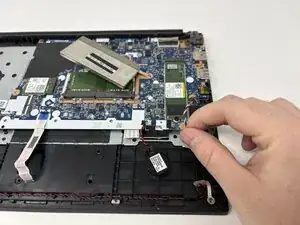
    • Use your fingers to unplug the low-voltage power wire (red and black wire).

  16. DKsylfkD6vghXQMS
    DKsylfkD6vghXQMS
    Ds2VPJOhbIaaqWPQ
    • Use your fingers to gently unplug the control wire trio (red, white, and blue wire).

  17. sZpgP4MuqJCMbSOF
    sZpgP4MuqJCMbSOF
    SfFpWrFG11mrwp3i
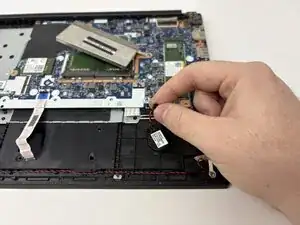
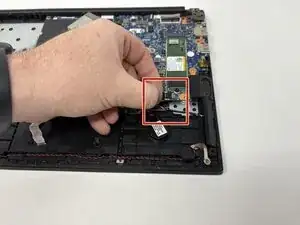
    • Use your fingers to gently unplug the display cable (black wired plug).

  18. oyO4F32HGEmUQXlA
    oyO4F32HGEmUQXlA
    xd1Ed6B5YFuxsA66
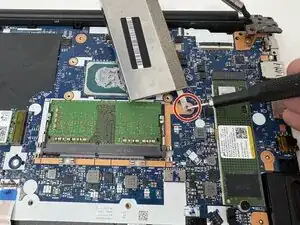
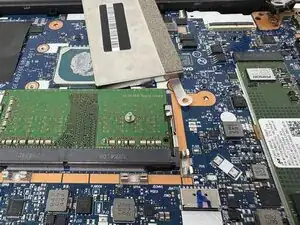
    • Remove the 3 mm screw from the shielding cover with the JIS #000 screwdriver.

  19. RdKMLJQWItdSVk5O
    RdKMLJQWItdSVk5O
    bxQX5hna1ZKMFwMh
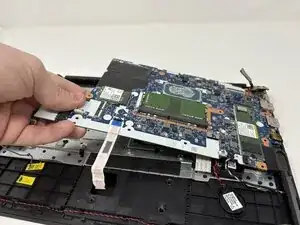
    • Lift up the motherboard.

  20. 2I3J1qTVEt1PHNOi
    2I3J1qTVEt1PHNOi
    giaIsxEcA5HKvCQe
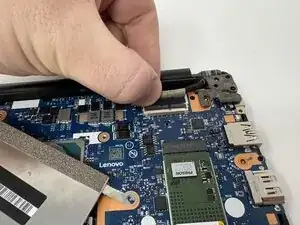
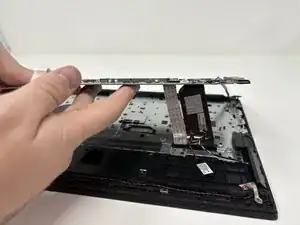
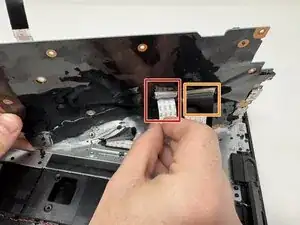
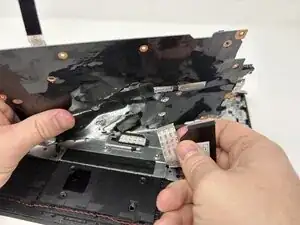
    • Use your fingers to gently unplug the flat ribbon cable (white cable) from the back of the motherboard.

    • Use your fingers to gently unplug the shielded ribbon cable (black cable) from the back of the motherboard.

  21. hImTddj1dNX5PaeN
    hImTddj1dNX5PaeN
    lRTxH2kvPr1pLQOJ
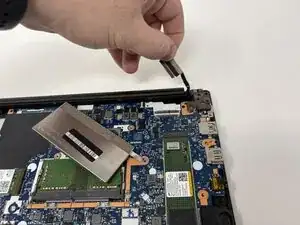
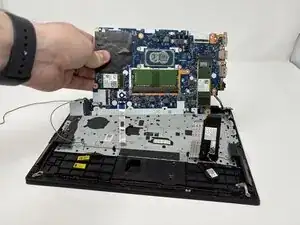
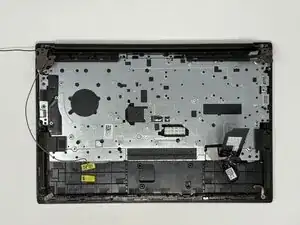
    • Remove the motherboard.

Conclusão

To reassemble your device, follow these instructions in reverse order.

Ainsley Cook

Membro desde: 09/09/25

1020 Reputação

0 comentários