Introdução
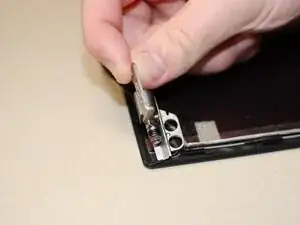
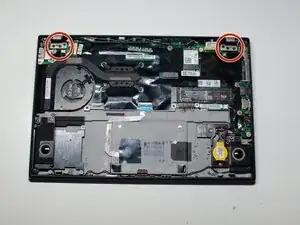
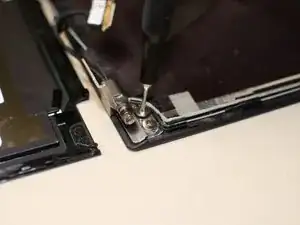
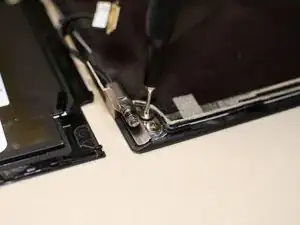
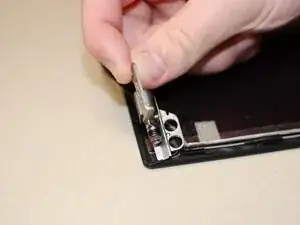
This guide is for people whose hinge on their device is damage or needs replacement.


-
-
Flip your laptop over so the bottom panel is facing up.
-
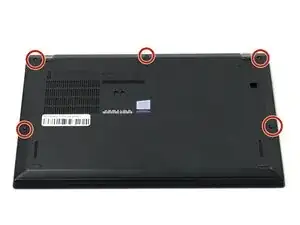
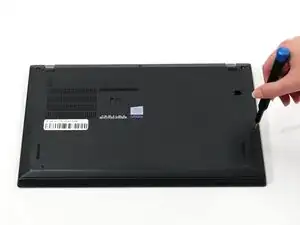
Use a Phillips #0 to loosen the five screws holding the back panel to the laptop.
-
Lift the bottom of the panel to separate the back panel away from the device.
-
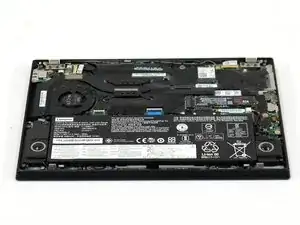
Remove the back panel.
-
-
-
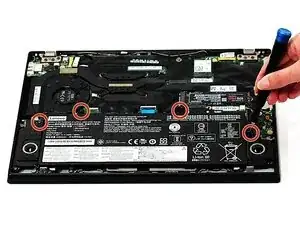
Use a Phillips #0 screwdriver to remove the four 5 mm screws connecting the battery to the device.
-
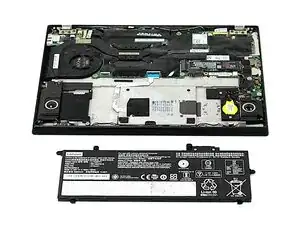
Slide the battery away from the connector on the motherboard to remove it.
-
-
-
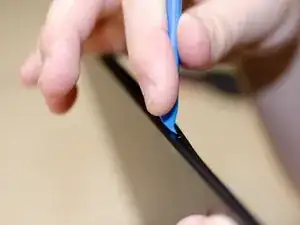
Pry open the screen with an opening tool to gain access to the other set of hinge screws behind the screen.
-
To reassemble your device, follow the above steps in reverse order.
Take your e-waste to an R2 or e-Stewards certified recycler.
Repair didn’t go as planned? Try some basic troubleshooting or ask our Answers community for help.