Introdução
If your Lenovo ThinkPad 285 shows the wrong time or BIOS errors when starting up, the CMOS battery might be dead. This small battery helps your laptop remember settings when it’s turned off. Before you begin, make sure the laptop is off and unplugged. Follow this guide to safely replace the CMOS battery and get your laptop working normally again.


-
-
Flip your laptop over so the bottom panel is facing up.
-
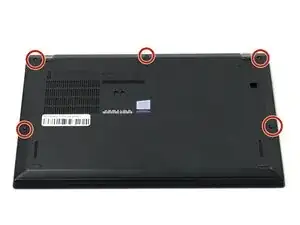
Use a Phillips #0 to loosen the five screws holding the back panel to the laptop.
-
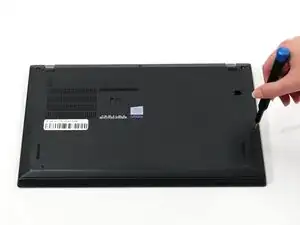
Lift the bottom of the panel to separate the back panel away from the device.
-
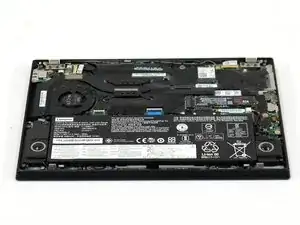
Remove the back panel.
-
-
-
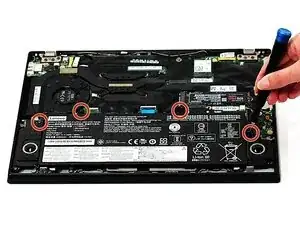
Use a Phillips #0 screwdriver to remove the four 5 mm screws connecting the battery to the device.
-
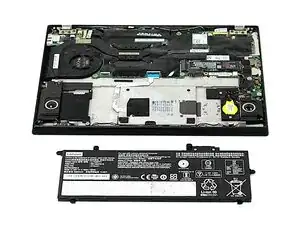
Slide the battery away from the connector on the motherboard to remove it.
-
-
-
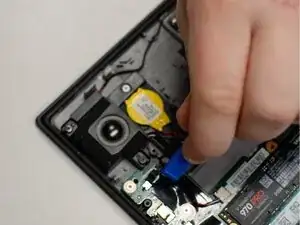
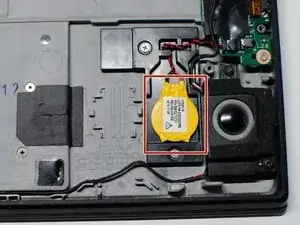
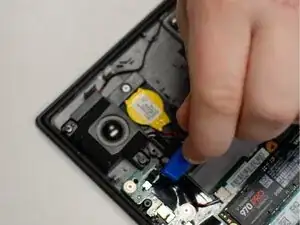
Locate the CMOS battery. It is a small, round, yellow battery directly connected to the motherboard.
-
To reassemble your device, follow the above steps in reverse order.
Take your e-waste to an R2 or e-Stewards certified recycler.
Repair didn’t go as planned? Try some basic troubleshooting or ask our Answers community for help.
