Introdução

  1. fqubWSv1RDEiduwf
    fqubWSv1RDEiduwf
    ZtBk2GAgtVDdVpgb
    GRnYIbPaLMuZgq3d
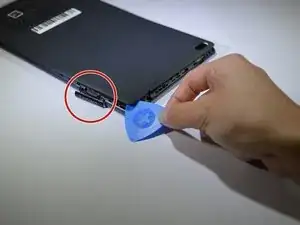
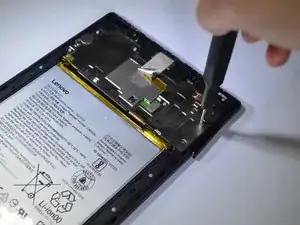
    • Start at the microSD slot. This is the easiest entry point.

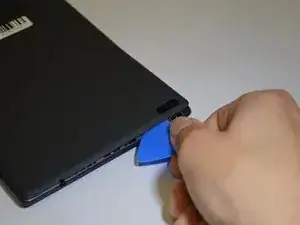
    • Use the opening pick gently to slide underneath the back cover of the tablet.

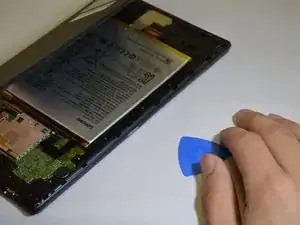
    • Slide the opening pick around the entire edge of the tablet. Don't force it and work slowly to release all clips.

    • Once all clips are loose, lift and remove the back cover.

  2. 2Ylntyp6rDVq5TEB
    2Ylntyp6rDVq5TEB
    aU1ELmay3XRMOyPV
    RUBvPexUx34XTgVa
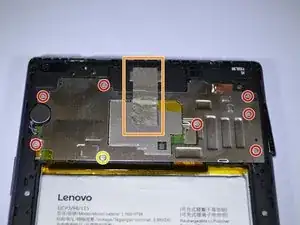
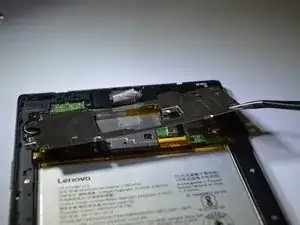
    • Remove the 8 Phillips #000 screws holding the plastic shield.

    • Important: One screw is hidden under the blue "S" sticker.

    • Remove any tape holding the plate shield.

    • Use precision tweezers or your fingers to remove the plate.

  3. qHQlsdF2jHEIvAC4
    qHQlsdF2jHEIvAC4
    GVRQ3JxqkNuGIWy6
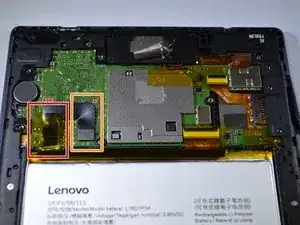
    • Peel back the yellow protective tape over the battery connector.

    • Use a spudger or plastic opening tool to remove the battery's ribbon cable from the motherboard.

  4. 4MO6MMJ46JmxDgp6
    4MO6MMJ46JmxDgp6
    5nAIHZqe6FuwuNgt
    FAT3CjAhHjevJYu2
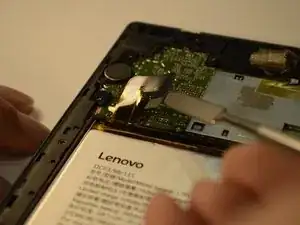
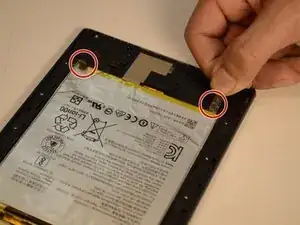
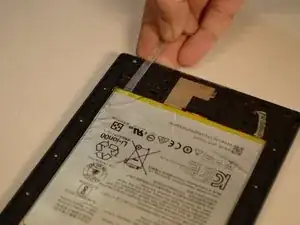
    • Locate the two stretch-release adhesive strips at the bottom of the battery.

    • Gently pull each strip slowly and straight out under the battery.

    • Don't pull upward, only pull horizontally away from the battery

    • The strips are longer than you think, so take your time

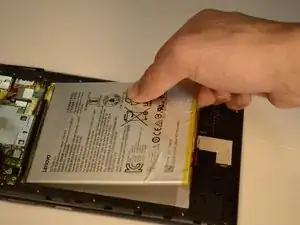
    • Once both strips are off, lift the battery from the frame.

    Hi

    What I want to ask is how did you get to the motherboard after step four. I couldn't see how you removed the upper protection plastic part.

    I couldn't get it out either!!!

    I wish you good work.

    vedatemre şahin -

    Be cautious when removing the adhesive strip. Pull it straight ( not up) from the battery a little bit at a time. It is longer than you'd think.

    Arthur Watson -

    Spot on instructions. Be sure to seat the battery connector very carefully and make sure it doesn't pop off. It look me several tries to seat it.

    Philip F -

  5. ZoN2WAAwWnTRHDSi
    ZoN2WAAwWnTRHDSi
    5NU1TkF1iYfJWLkO
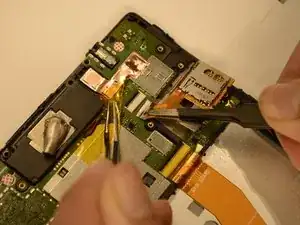
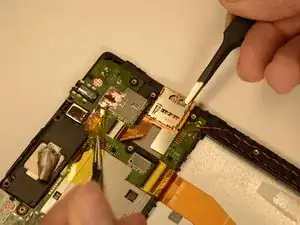
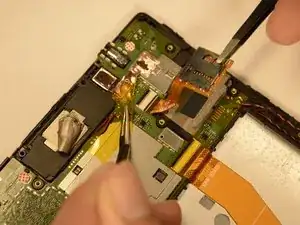
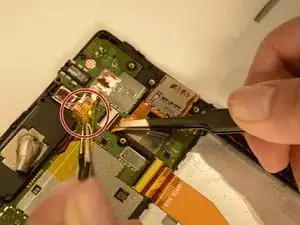
    • There is a yellow tape holding the microSD card reader connector. Use tweezers to hold down the tape.

    • Gently lift the tab on the microSD card reader's ZIF connector, and gently pull the ribbon cable free.

    Before this step, you have to remove the bezel. Be cautious.

    Laszlo Fazakas -

    Yes this is a poor how-to without that major step explained. You need to remove the 8 silver screws and 10 black screws from the chassis, then carefully pry outward on the Tab 4’s edge bezel, working all around from the front side of the tablet with a thin plastic pick or similar. Then the whole bezel can be lifted off from the back.

    Steve Tab4 -

    Also, the above step says “lift tab” on ZIF socket, but doesn’t show or explain what tab, or which direction. The “tab” is actually the black bar at the top of the ribbon cable socket. You don’t lift it, you pivot it up from the rear (top). In other words, pry the back edge up and it will pivot forward, toward the white section of the socket. That releases the ribbon cable.

    Steve Tab4 -

  6. YJKBMPAjdFKGtuEV
    YJKBMPAjdFKGtuEV
    G2REFmTidDFOeSGK
    • Lift the microSD card reader with tweezers or your fingers.

Conclusão

To reassemble your device, follow these instructions in reverse order.

Ivan Chavez

Membro desde: 06/02/19

809 Reputação

0 comentários