Introdução
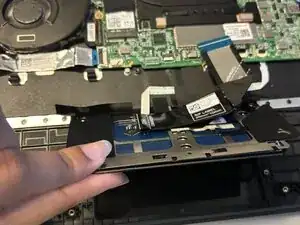
The Lenovo IdeaPad Flex 5 Chromebook touchpad is essential to the use of the laptop. If the touchpad is stuck or is not powered correctly, this is how you remove it. The part is essential to navigating the laptop without an external mouse. When removing, be careful of delicate wires and hidden screws.


-
-
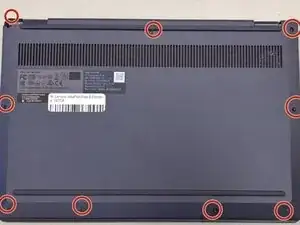
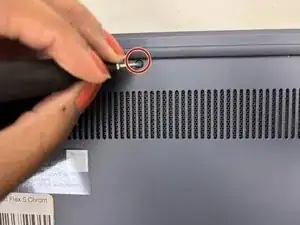
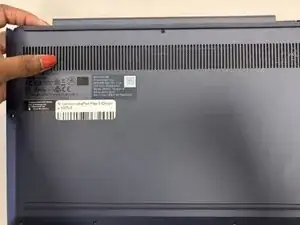
Remove the nine 6.2 mm-long screws securing the lower case with a Phillips #0 screwdriver.
-
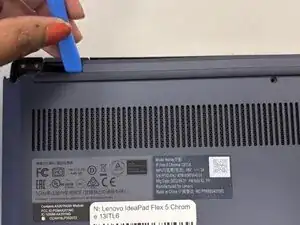
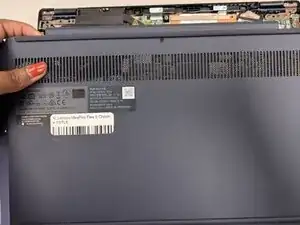
Insert an opening pick or opening tool into the seam between the lower case and chassis.
-
Pry around the entire perimeter until the lower case fully releases.
-
-
-
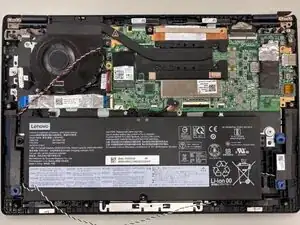
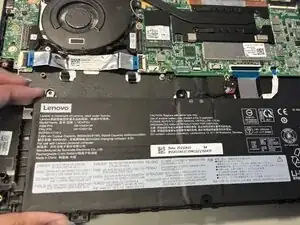
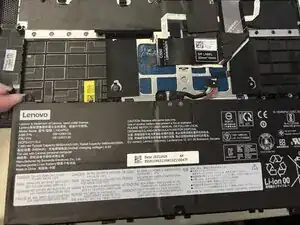
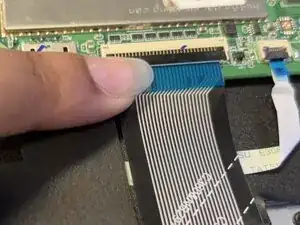
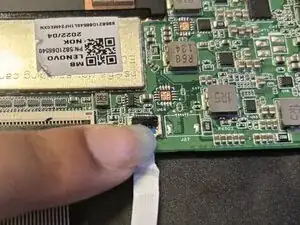
Place your fingernail under the black tab and flick up the black tab that is holding the blue wire.
-
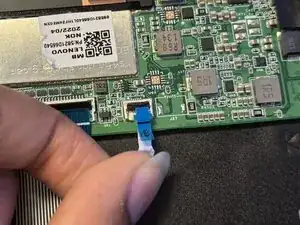
Lightly pull the blue ribbon cable out from the white connector.
-
-
-
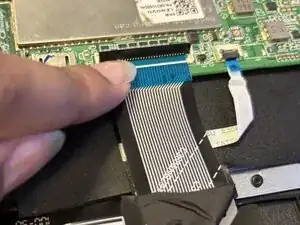
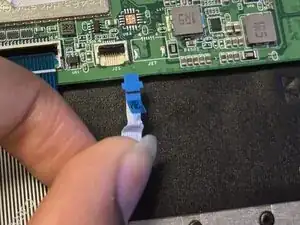
Using a fingernail or a prying tool, flick the small black tab up.
-
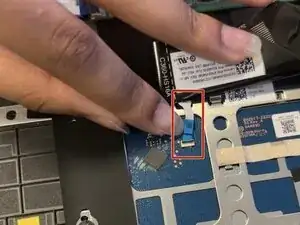
Pull the blue plastic wire from the white small connector.
-
-
-
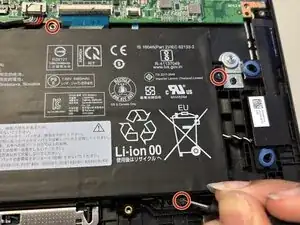
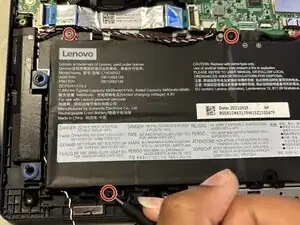
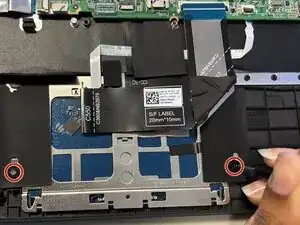
Unscrew the two 2.4 mm-long screws that secure the touchpad with a Phillips #00 screwdriver.
-
-
-
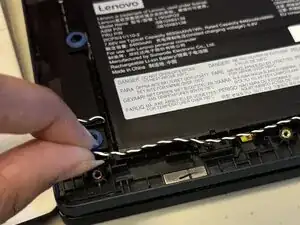
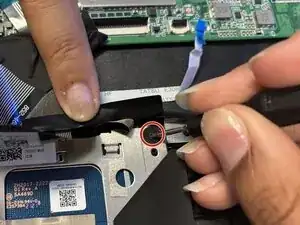
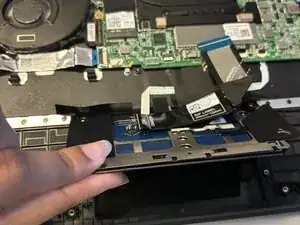
Lift the black plastic on the right top side of the touchpad with one hand.
-
Remove the 2.4 mm-long screw with a Phillips #00 screwdriver.
-
-
-
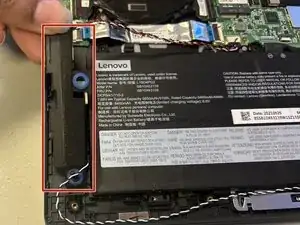
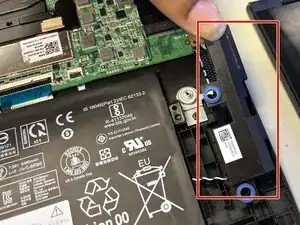
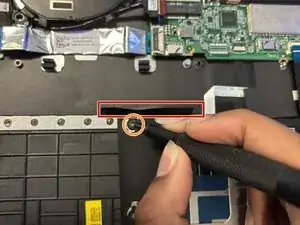
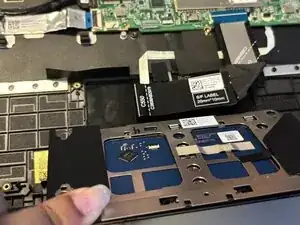
Fold back the black plastic on the top left side of the touchpad.
-
Remove the 2.4 mm-long screw with a Phillips #00 screwdriver.
-
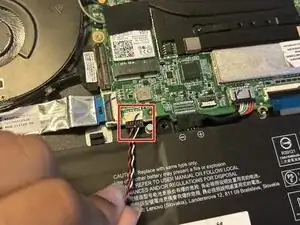
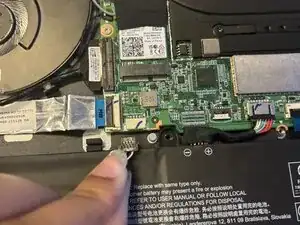
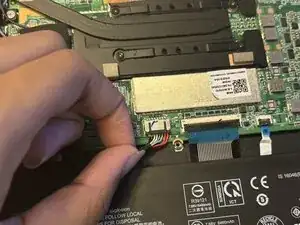
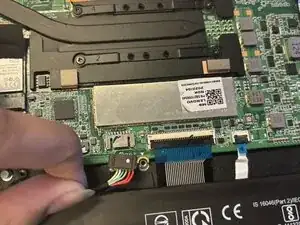
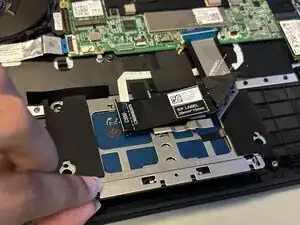
To reassemble your device, follow the above steps in reverse order.
Take your e-waste to an R2 or e-Stewards certified recycler.
Repair didn’t go as planned? Try some basic troubleshooting or ask our Answers community for help.
