Introdução
Use this guide to replace the damaged screen display in the Lenovo Flex 11 Chromebook za27 Model. The primary function of the display screen is providing an interactive visual interface, allowing a 10-point multitouch tablet screen and a traditional laptop display. Signs Chromebook screen needs replacement are physical damage (i.e., cracks or black spots), or internal damage (i.e., discoloration or flickering).
Before beginning this replacement guide, make sure to power off the Chromebook and disconnect from any external power sources to prevent electrical harm.
Warning: the LCD Bezel is the frame around the screen providing protection and support to the display. Do not apply excessive pressure to the LCD screen itself or attempt to pry off the strong adhesive that secures the Bezel. This may result in damage such as cracking, pulling layers of the screen off, or pressure spots.
After following this replacement guide, ensure the proper dispose of unused screen displays as they contain hazardous chemicals. To prevent environmental or human health harm, Lenovo offers take-back programs for customers to properly recycle end-of-life electronics.
For more information of which programs are in your area, please visit:
Or you can recycle at certified e-waste facilites though the Environmental Protection Agency. For more information for e-waste recycling programs near you, please visit:
Changing the screen requires basic technical proficiency in hardware repair.


-
-
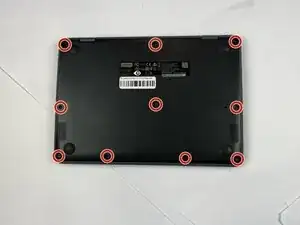
Close the lid and turn the laptop over so the underside is facing up.
-
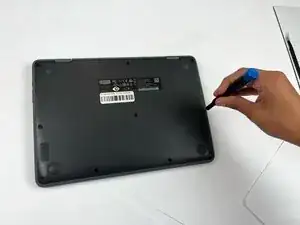
Use a Phillips #00 screwdriver to remove the ten 7 mm-long screws on the lower case.
-
-
-
Flip the Chromebook over again.
-
Open the lid 180 degrees, folding the Chromebook in half like a tablet.
-
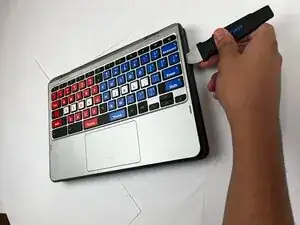
Insert an opening pick between the palmrest and keyboard assembly and the chassis.
-
Slide the pick around the perimeter until the assembly releases.
-
-
-
Slowly lift the palmrest and keyboard assembly, with care not to strain the connected ribbon cables.
-
Flip up the locking flap securing the keyboard ribbon cable.
-
Disconnect the keyboard ribbon cable.
-
-
-
Flip up the locking flap securing the touchpad ribbon cable.
-
Disconnect the touchpad ribbon cable.
-
Remove the palmrest and keyboard assembly.
-
-
-
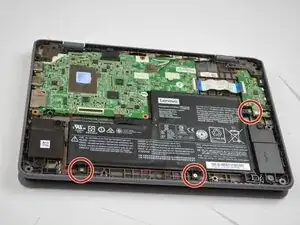
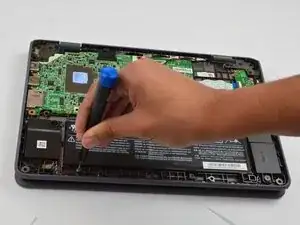
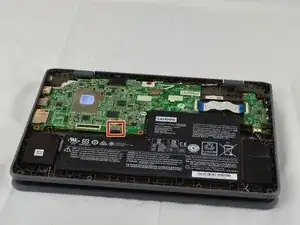
Use your fingernails to gently "walk" the battery connector directly out of its motherboard socket.
-
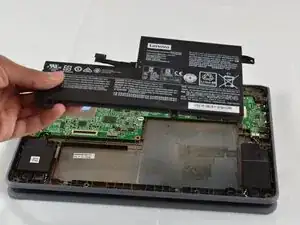
Remove the battery.
-
-
-
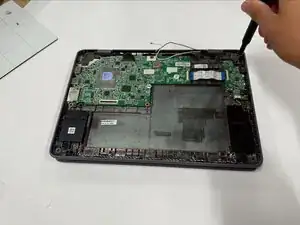
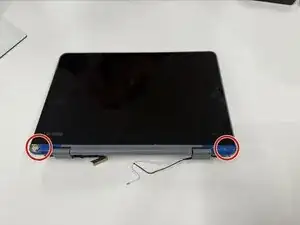
Remove the six 5.4 mm-long Phillips screws securing the two hinges.
-
Remove the display assembly.
-
-
-
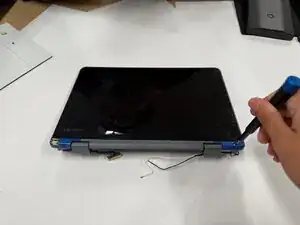
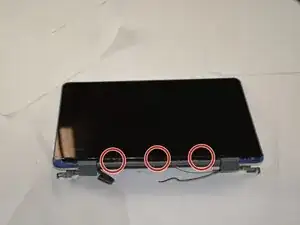
Using tweezers, remove the small rubber screw covers to reveal the screws underneath.
-
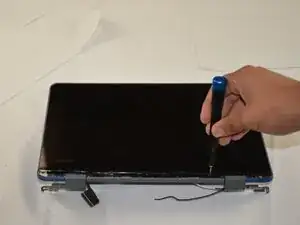
Unscrew the two 3.5 mm-long Phillips screws.
-
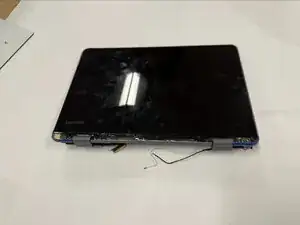
Remove the hinge cover.
-
-
-
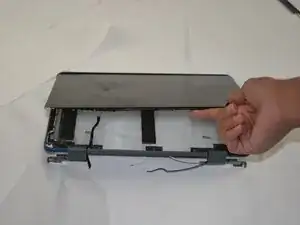
Using fingernail pressure or a plastic opening tool, pry the LCD bezel (screen) up from the LCD panel (case).
-
Slide the LCD bezel downwards to unhook it from the LCD panel.
-
Move the LCD bezel to the right of the LCD panel to expose the bracket underneath.
-
-
-
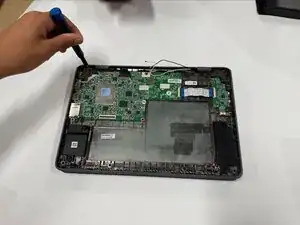
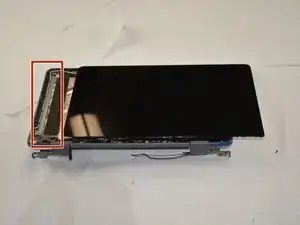
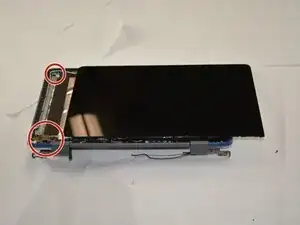
Remove the three 3.5 mm-long screws and one 2 mm-long bracket screw from the left side of the panel with a Phillips screwdriver.
-
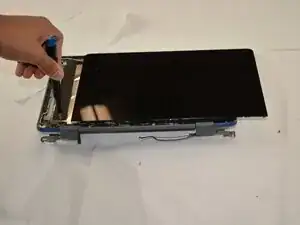
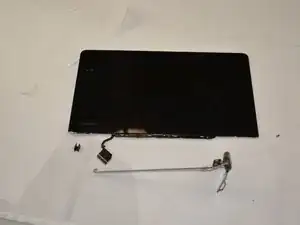
Remove the bracket and LCD bezel from the LCD panel.
-
-
-
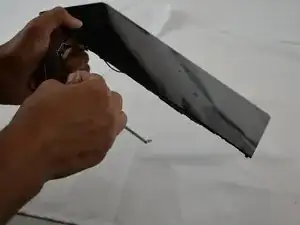
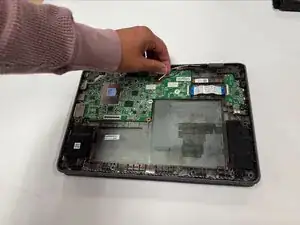
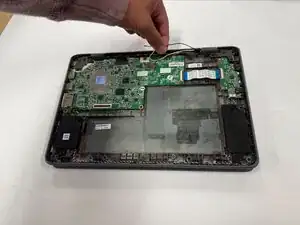
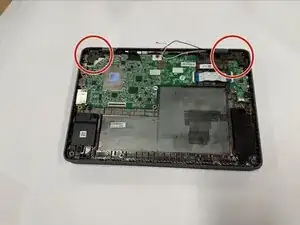
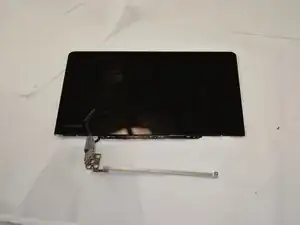
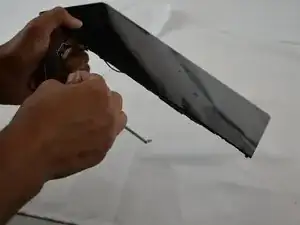
Using tweezers, pry the small cover inside the remaining hinge out.
-
Gently remove the cable inside of the hinge.
-
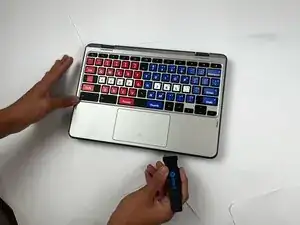

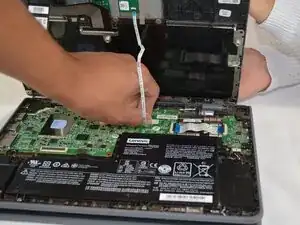
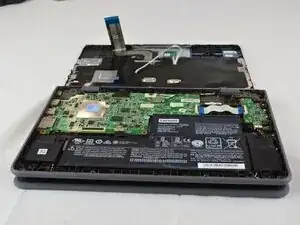
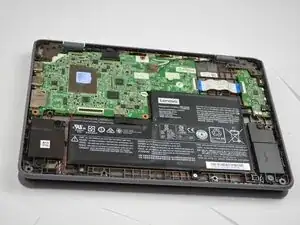
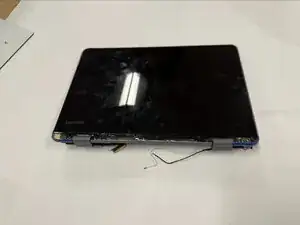
To reassemble your device, follow the above steps in reverse order.
Take your e-waste to an R2 or e-Stewards certified recycler.
Repair didn’t go as planned? Try some basic troubleshooting or ask our Answers community for help.