Introdução
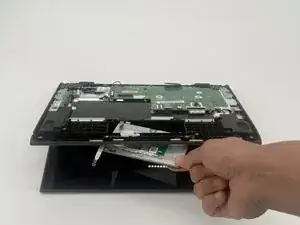
This guide will help you replace the touchpad in the Lenovo 500e Chromebook 81ES. If you are experiencing issues with the touchpad, including being unresponsive to inputs or having bad connections, follow this guide. For this guide, you will need a spudger, Phillips #0 screwdriver, and tweezers. Make sure the Chromebook is powered off and unplugged from the charger.
Ferramentas


-
-
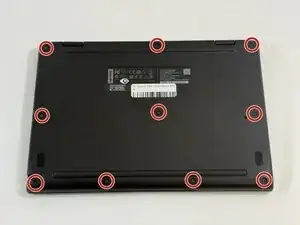
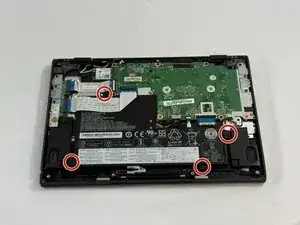
Use a Phillips #0 screwdriver to remove the ten 4 mm-long screws that secure the lower case.
-
-
-
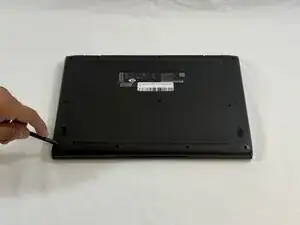
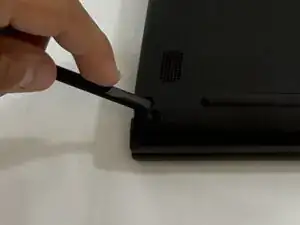
Insert the flat end of a spudger into the seam between the lower case and chassis.
-
Pry around the entire perimeter until the lower case fully releases.
-
Remove the lower case.
-
-
-
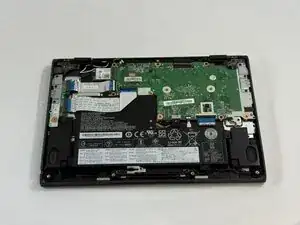
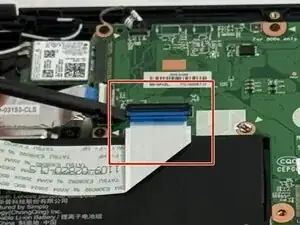
Use a spudger to flip up the locking flap securing the lower I/O board ribbon cable to the motherboard.
-
-
-
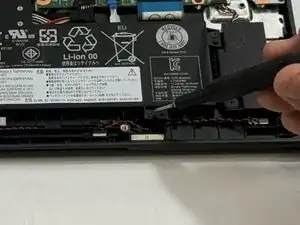
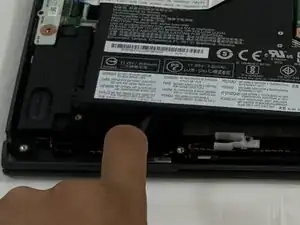
Slide a spudger under the battery.
-
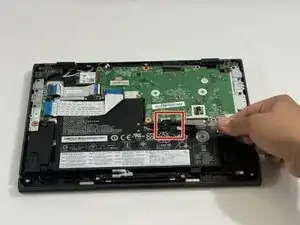
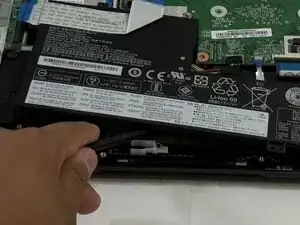
Slightly lift the battery with the spudger, then grip and remove the battery.
-
-
-
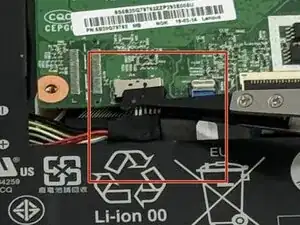
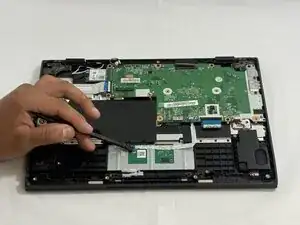
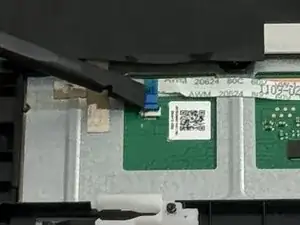
Use a spudger to flip open the locking flap securing the touchpad ribbon cables.
-
Disconnect the touchpad ribbon cable.
-
-
-
Lift the black shielding.
-
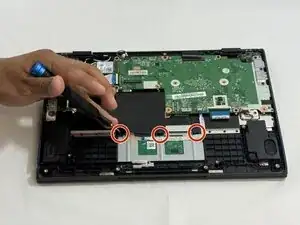
Use a Phillips #0 screwdriver to remove the three 2 mm-long screws that secure the touchpad.
-
-
-
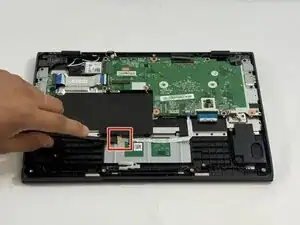
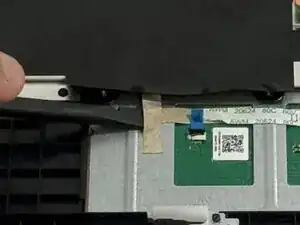
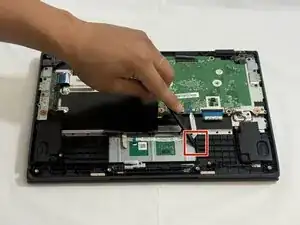
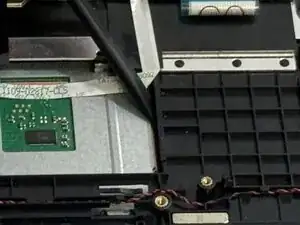
Apply gentle pressure with the spudger around the edges to pop out the touchpad.
-
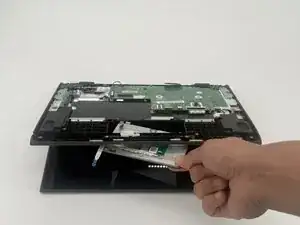
Slightly open the laptop lid and remove the touchpad.
-
To reassemble your device, follow the above steps in reverse order.
Take your e-waste to an R2 or e-Stewards certified recycler.
Repair didn’t go as planned? Try some basic troubleshooting or ask our Answers community for help.