Introdução
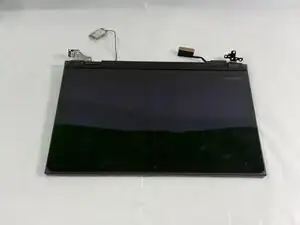
This guide will help you replace the screen in the Lenovo 500e Chromebook 81ES. If you are experiencing issues with the cracks, including a physical damage, color distortion, flickering, follow this guide. For this guide, you will need a spudger, Phillips #0 screwdriver, opening picks and tweezers. Make sure the Chromebook is powered off and unplugged from the charger.
Ferramentas


-
-
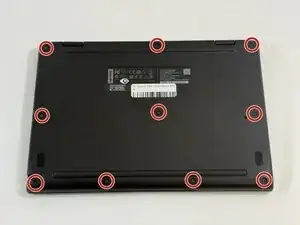
Use a Phillips #0 screwdriver to remove the ten 4 mm-long screws that secure the lower case.
-
-
-
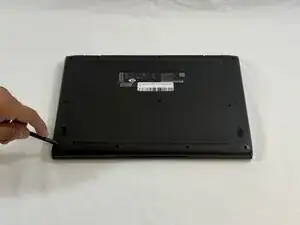
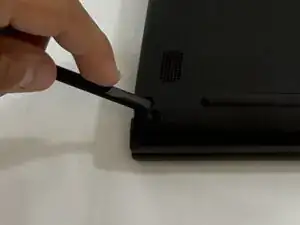
Insert the flat end of a spudger into the seam between the lower case and chassis.
-
Pry around the entire perimeter until the lower case fully releases.
-
Remove the lower case.
-
-
-
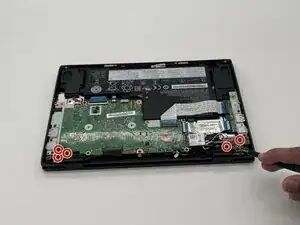
Use a Phillips #0 screwdriver to remove the six 5 mm-long screws securing the two hinges.
-
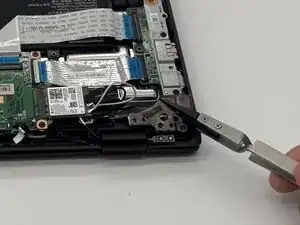
Use tweezers to lift up the hinges.
-
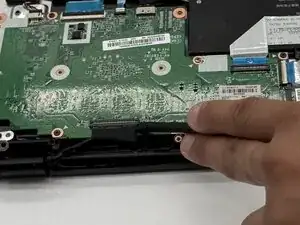
Using a spudger, gently disconnect the display connector.
-
-
-
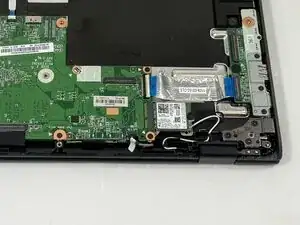
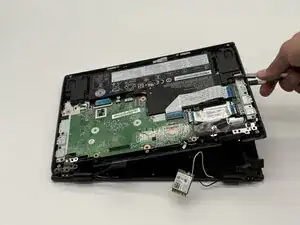
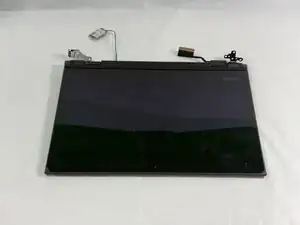
Remove the display assembly.
-
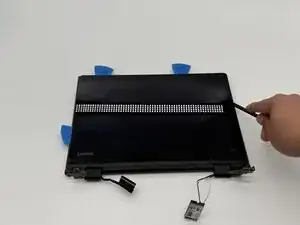
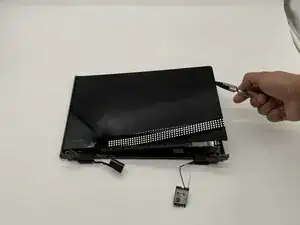
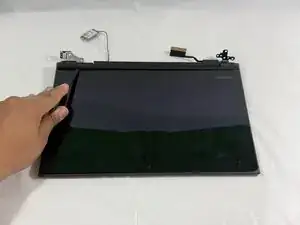
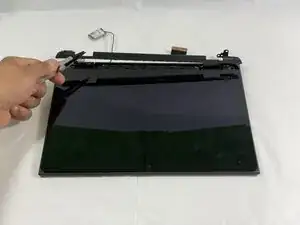
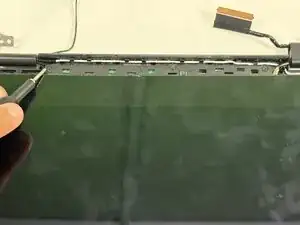
Insert the opening picks and spudger into the screen casing.
-
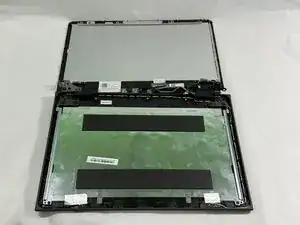
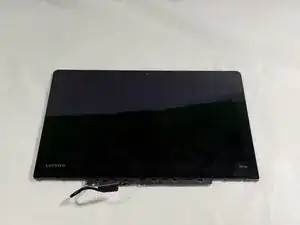
Remove the screen.
-
-
-
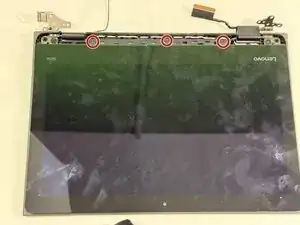
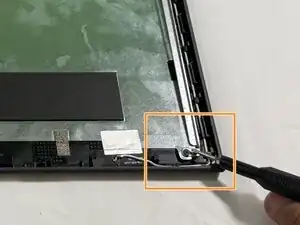
Use a Phillips #0 screwdriver to remove the three 3 mm-long screws on the top holding the display hinge metal bracket.
-
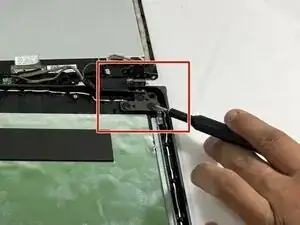
Use a Phillips #0 screwdriver to remove the two 2 mm-long screws on the bottom of the metal bracket.
-
-
-
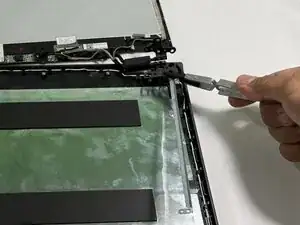
Use tweezers to remove the metal bracket.
-
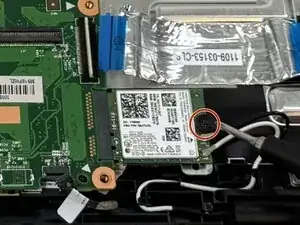
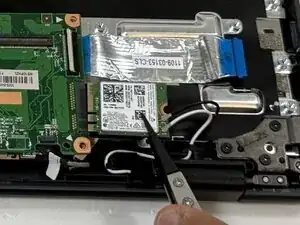
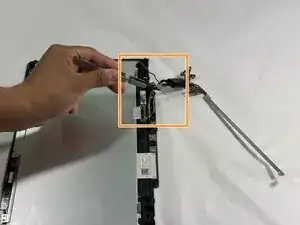
Using tweezers, gently pull the main cables attached to the sensor board.
-
To reassemble your device, follow the above steps in reverse order.
Take your e-waste to an R2 or e-Stewards certified recycler.
Repair didn’t go as planned? Try some basic troubleshooting or ask our Answers community for help.