Introdução

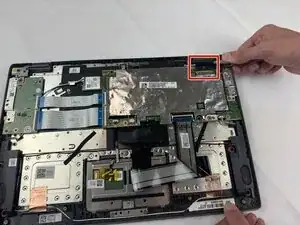
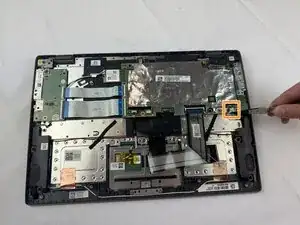
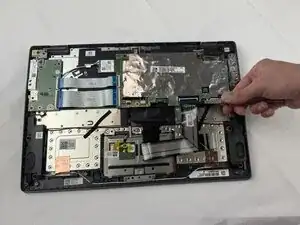
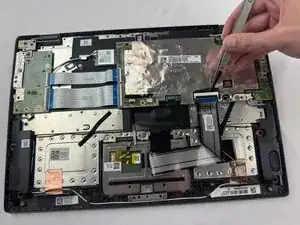
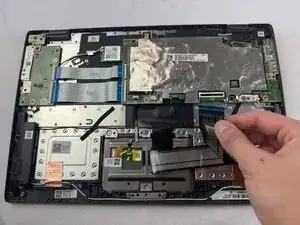
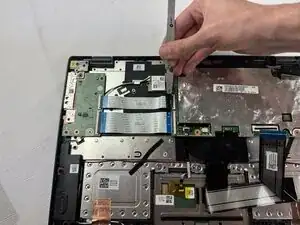
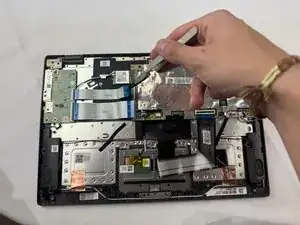
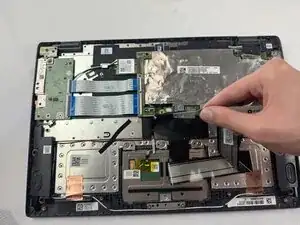
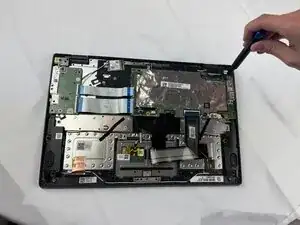
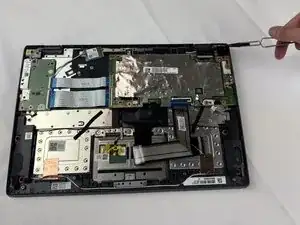
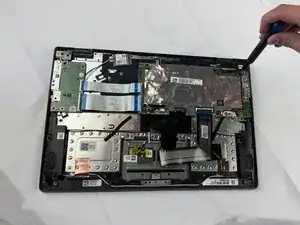
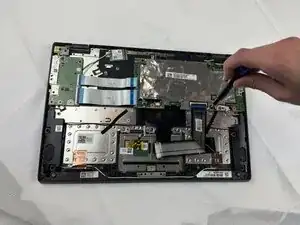
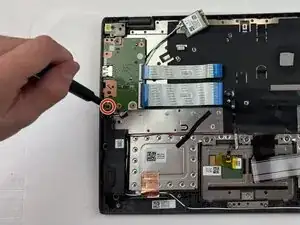
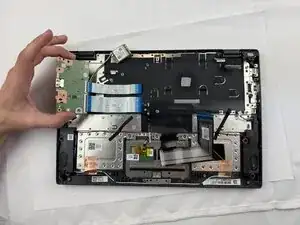
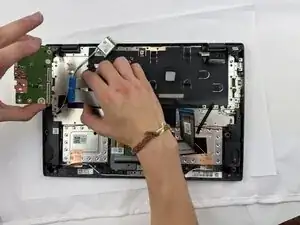
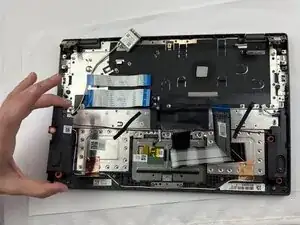
Are you having issues with your Lenovo 14e Chromebook keyboard being slow, unresponsive, or just not functioning as intended? In this guide you will find the steps on how to replace the palm rest assembly, which includes the keyboard.

It is recommended you visit the designated troubleshooting page for this part first to ensure that a keyboard replacement is necessary.

Before beginning the steps in this guide, ensure the Chromebook is powered off and unplugged from any devices.

  1. IKu11TonQKJcygDa
    IKu11TonQKJcygDa
    WvFgHMl22fPfmEVA
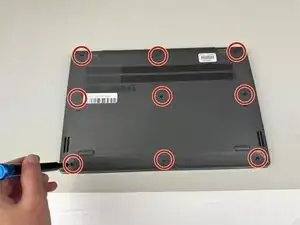
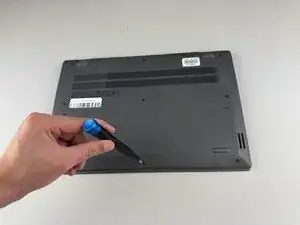
    • Use a Phillips #0 screwdriver to remove the nine 8.6 mm screws from the back cover.

  2. jZpuKcgQ2xyIELsB
    jZpuKcgQ2xyIELsB
    2NDjqiUXLLYu4NwZ
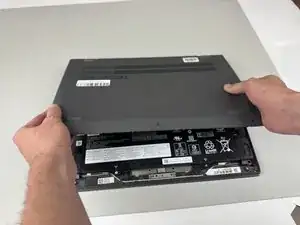
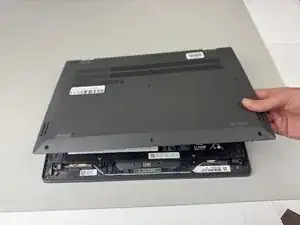
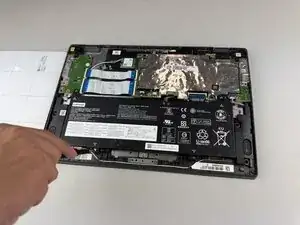
    • Carefully remove the back cover from the Chromebook.

    • You may hear clicking sounds as the cover becomes detached from the frame.

  3. ivmGNWOPoByUWlH1
    ivmGNWOPoByUWlH1
    ZRkDtjrBPGNnW1jN
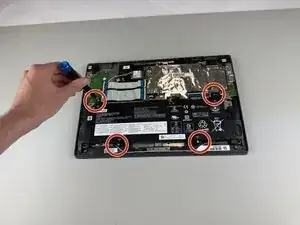
    • Use a Phillips #0 screwdriver to remove the four 5.5 mm screws holding the battery in place.

    • Do not apply too much downward pressure when unscrewing the screws, as the interior contains many vital and fragile components.

  4. I5eFgGN1iKReiJL1
    I5eFgGN1iKReiJL1
    rY6S2wstor1oDEwd
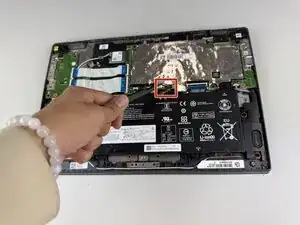
    • Gently disconnect the power interface using a pair of tweezers.

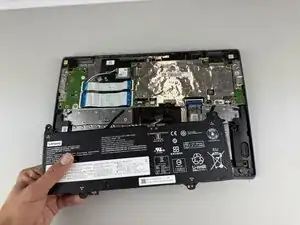
    • Lift the battery out of the Chromebook.

  5. uNDcUlYymDJSEpvm
    uNDcUlYymDJSEpvm
    o3Rq1hOiekPW4QGR
    • Disconnect the display cable from the top of the motherboard.

    • Detach the white speaker cable connector from the bottom of the motherboard.

  6. ymIFNHlqZhdNSOqB
    ymIFNHlqZhdNSOqB
    bvUBJPfdE4ATephU
    4ikMnwIdfbLeVNTG
    • Grasp the KB strip and disconnect it.

  7. ygYleRLGuXO3fMna
    ygYleRLGuXO3fMna
    lvyfjQYhFetZmpkI
    Xa1tqx2iRgfaYmYj
    • DIsconnect the three MB strips.

  8. sB3ZITVoYDTbNH6X
    sB3ZITVoYDTbNH6X
    rsavqPRFwlZNtWUp
    • Using a Phillips #0 screwdriver, remove the 5.5mm screw holding the WLAN card in place.

    • Disconnect the two wires from the WLAN card.

    • Remove the WLAN card.

  9. Wd2PdL2WjINJSdeD
    Wd2PdL2WjINJSdeD
    4PWAGFVpOtY2ZSmh
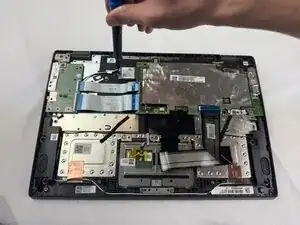
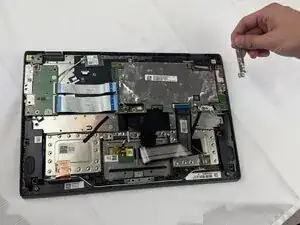
    • Remove the 8.3 mm screw holding the bracket in place using a Phillips #0 screwdriver.

    • Remove the bracket.

  10. oVoDevXQZVGQRSLH
    oVoDevXQZVGQRSLH
    TCqibh2t53MZChwJ
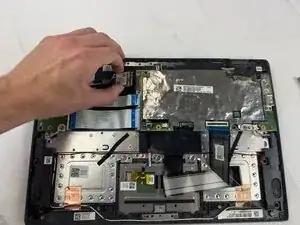
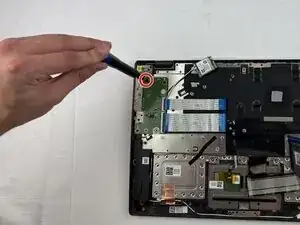
    • Remove the black 5.5 mm screw in the top right hinge using a Phillips #0 screwdriver.

    • Pull the hinge up.

  11. GsIcTQqMVeYLQdit
    GsIcTQqMVeYLQdit
    Wm3EKBP4qAnKdSJu
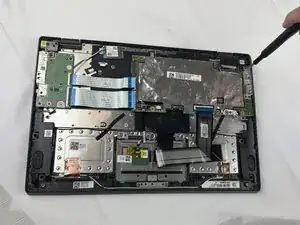
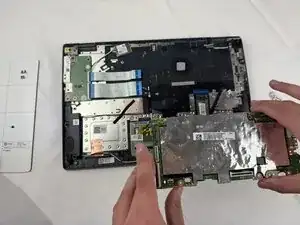
    • Remove the 5.5mm screws surrounding the motherboard using a Phillips #0 screwdriver.

  12. 41mAbaGHaEE26CoN
    • Carefully remove the motherboard.

  13. sgKSRyTfBeYAVCKC
    sgKSRyTfBeYAVCKC
    CbsgROyAHZMOlQIC
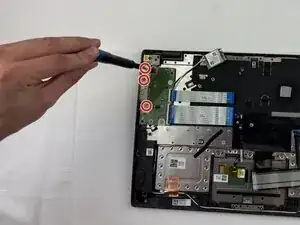
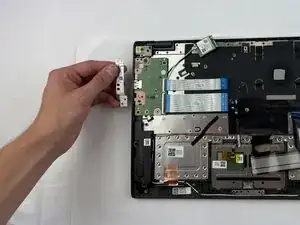
    • Use a Phillips #0 screwdriver to remove the three screws from the daughterboard bracket.

    • Remove the bracket.

  14. SauhhWt2HPmSN4WJ
    SauhhWt2HPmSN4WJ
    RTXXtYSLTeXKN1bf
    • Use a Phillips #0 screwdriver to remove the two screws from the daughterboard.

  15. 5kZsP1YrL3YAdDfv
    5kZsP1YrL3YAdDfv
    HZKSrSoDCMCLK4Nx
    • Detach the two ribbon cables from the daughterboard and remove it from the laptop.

  16. EKYRastn5T14IuRA
    • Remove the surrounding audio frame in order to access and remove the wire.

  17. Ral1DJugjydNKetS
    Ral1DJugjydNKetS
    L3XkpOPlWe2xYUPB
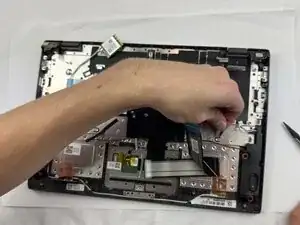
    • Remove the tape keeping the wire in place.

  18. NQMN1elRSBlS1DKe
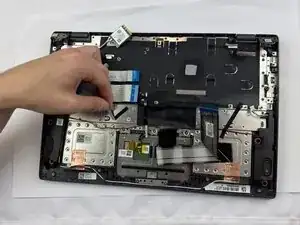
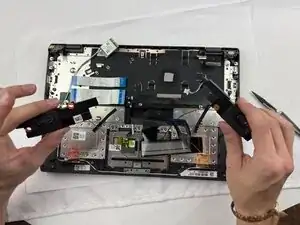
    • Carefully remove the audio frames and the connecting red wire from the Chromebook.

  19. IfVaHZGAJojfkZg2
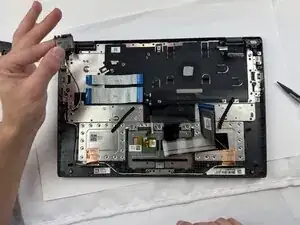
    • Gently remove the connecting keyboard wire.

  20. LdOpN3WcbVil6iLH
    LdOpN3WcbVil6iLH
    HSqWGILjItPm5lJf
    NZx2dnM4ZXAoDxHT
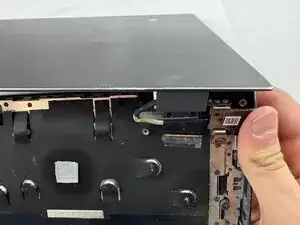
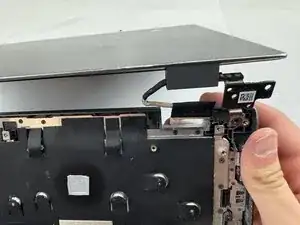
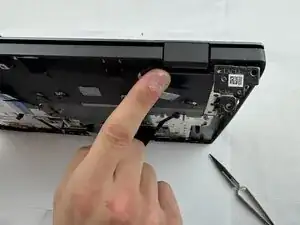
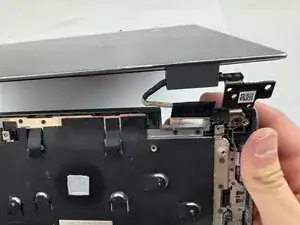
    • Separate the palm rest assembly from the screen.

    • Repeat on the other side.

Conclusão

To reassemble your device, follow these instructions in reverse order.

Jordan Ortiz

Membro desde: 24/09/25

121 Reputação

0 comentários