Introdução

Use this guide to replace the battery in your Kobo Libra Colour (N428B model) eReader.

Important: There are two Libra Colour versions: N428 and N428B. Check your eReader's model number (printed on the edge of the device with the USB‑C port) before starting this guide. This guide is for the N428B model.

If your battery isn't holding a charge or is starting to swell, it's time to change your battery!

Following this guide will remove your eReader's IP (Ingress Protection) rating, making it susceptible to water damage.

If your battery is swollen, take appropriate precautions.

Kobo supports their eReaders with a warranty. If your device is still under warranty, Kobo may be able to help. Before starting a repair, review your warranty information or check support documentation.

  1. GqxIiULncF21ENgO
    GqxIiULncF21ENgO
    EB6HnFSdo3HjgEtv
    fPKWpfBhwVB6DaXx
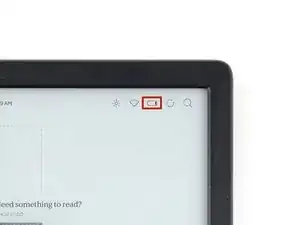
    • Drain your eReader's battery as much as possible before starting your repair. Ideally, it should be fully discharged.

    • Optionally, to drain the battery faster, navigate to MoreSettingsEnergy saving and privacy and set Automatically go to sleep after and Automatically power off after to Never.

    • When working on or near the battery, don't use sharp metal tools to avoid puncturing and shorting the battery.

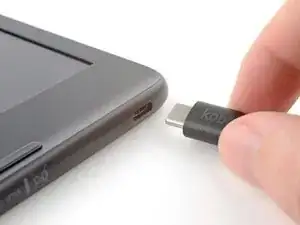
    • Unplug all cables and fully shut down your eReader.

    • Your screen should be black and say Powered off.

    Don't forget to remove the protective sheet from the replacement screen (as I did). Thanks for the manual, its working now again!

    Hans -

    Haha I second that! I nearly had a heart attack when I realized I hadn't removed the plastic film

    Arianna A -

  2. TPpxsLcsmgaPFxNF
    TPpxsLcsmgaPFxNF
    CT1XMaClc61CCTCI
    VmtBxMMmLknG1ZtT
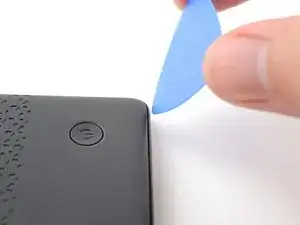
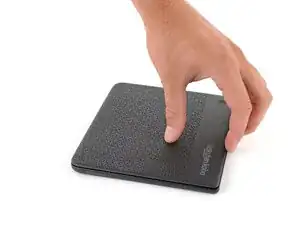
    • Flip your eReader over so the screen is facing down.

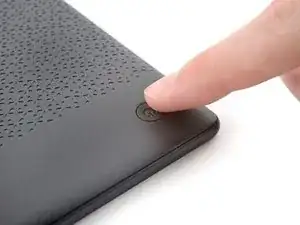
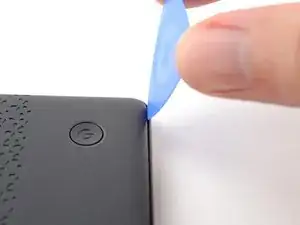
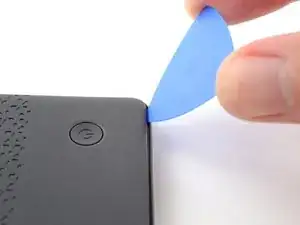
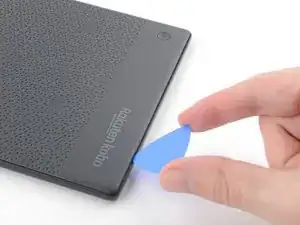
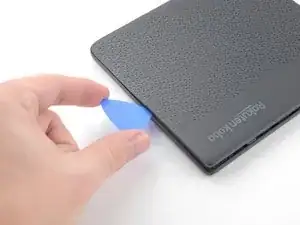
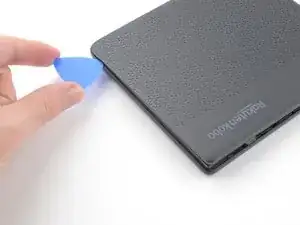
    • Angle an opening pick straight down, and insert its tip under the top right corner of the back cover, near the power button.

    • Push downward and pry up with the pick until you feel it slide between one of the clips and the frame.

    • You may have to test a few spots along the corner until the pick slides between one of the clips.

  3. 4Wyg6sI55X4XfZXn
    4Wyg6sI55X4XfZXn
    KW1XrUEr5GjSIh2q
    ZYracIWpbZtsDMfa
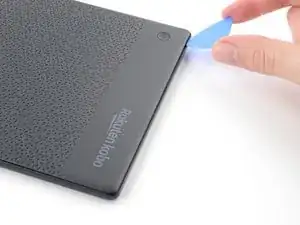
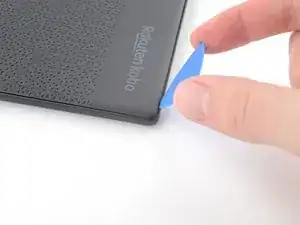
    • Slide the pick toward the bottom right corner to release the clips along the right edge.

  4. ew2UsHdvphafIIOT
    ew2UsHdvphafIIOT
    gUxJCgS4liVAJQuQ
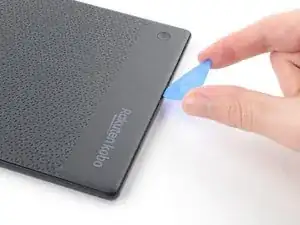
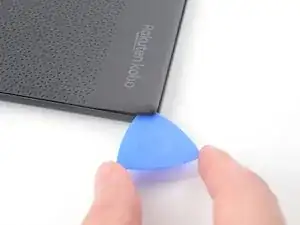
    • Angle the pick flat under the back cover and rotate it around the bottom right corner to release its clips.

    • If you're having trouble, try twisting the pick to lift the corner clips out of their slots.

  5. JLZk2HqRxSpTumot
    JLZk2HqRxSpTumot
    DHybTPoDNsLASolZ
    YHoXY4TvTwMDS2tr
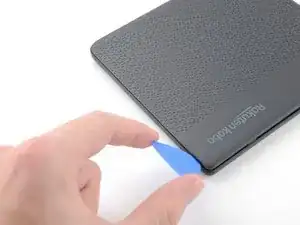
    • Slide the pick toward the bottom left corner to release the clips along the bottom edge.

  6. eELw4HIs3in5FnBH
    eELw4HIs3in5FnBH
    Fld1qdbbZ4gHFGBE
    yftQSCXd2Pv3x5fS
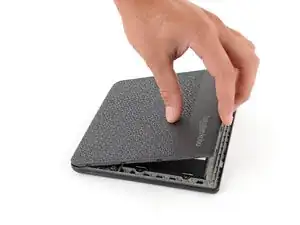
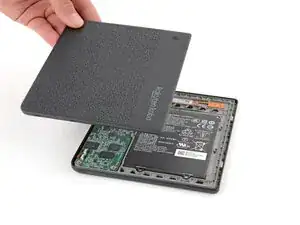
    • At this point, you should be able to grip the back cover and release its remaining clips. If not, slide a pick under the perimeter of the back cover until you can grip an edge.

    • Grip the right edge of the back cover and lift it away from the eReader to release the remaining clips.

    • Remove the back cover.

    • During reassembly, align the back cover over the eReader and press along the perimeter until all its clips snap back into place.

  7. OeLbFETLaFUo2GXh
    OeLbFETLaFUo2GXh
    2Ydyo6TikdYnhfIV
    SEEQeLjowJyhH2R4
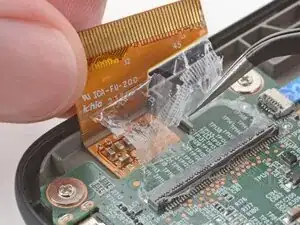
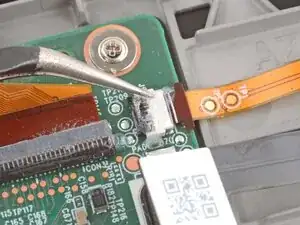
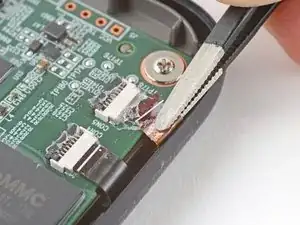
    • The entire surface of the eReader's internals is covered in a thin, plastic-like waterproof coating. Keep the following in mind as you continue disassembly:

    • While this won't hurt your device, removing the coating compromises the device to potential water damage.

    • The coating is brittle and can flake into many small pieces. Heating the coating helps, but working with it is still a time-consuming process.

    • Depending on your repair, you might have to remove the coating from ZIF connectors and their cables.

  8. iPT2cBmrPoKZgVBd
    iPT2cBmrPoKZgVBd
    RGJO1qP3a5uC6ENO
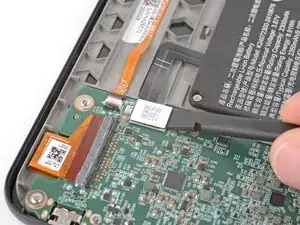
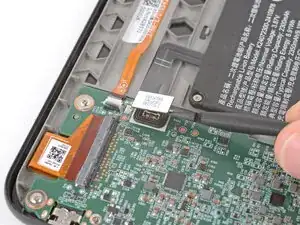
    • Use a spudger to pry up and disconnect the battery press connector.

    • Don't pry against the motherboard, as you risk breaking small, surface-mounted components.

    • Your E-ink screen will continue to say Powered off even after disconnection—this is normal!

  9. yiGJsPavaJZWNpkd
    yiGJsPavaJZWNpkd
    Pu2jTWjBooRycwg2
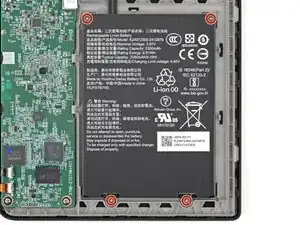
    • Be careful not to poke the battery with your screwdriver.

    • Use a Phillips screwdriver to remove the four 2.1 mm‑long screws securing the battery.

  10. HXtTCUcmsM514ACS
    HXtTCUcmsM514ACS
    qmoDCGlaSbq4PPj4
    LdZIHdWC4PwTJwCN
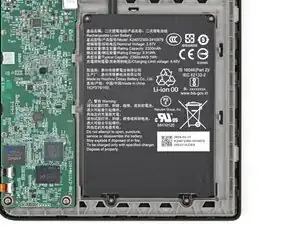
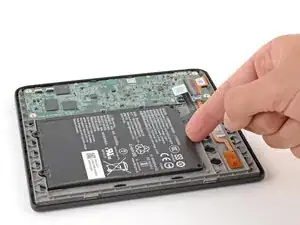
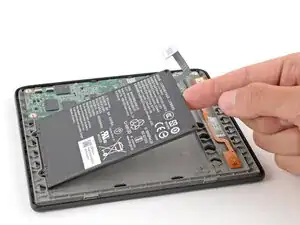
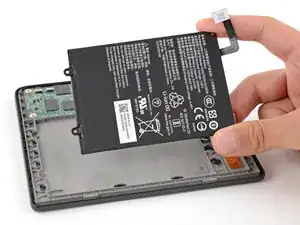
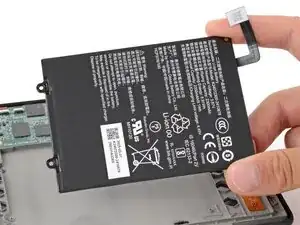
    • Use your fingers to lift and remove the battery.

    • If you're transferring the battery to a new screen, inspect the battery for any dents or deformations.

    • Never reuse a damaged battery! If your battery shows any signs of damage, replace it with a new one.

Conclusão

To reassemble your device, follow these instructions in reverse order.

Remember: after repairs, your eReader is no longer IPX8 waterproof.

Compare your new replacement part to the original part—you may need to transfer remaining components or remove adhesive backings from the new part before you install it.

Make sure each of your device's main functions still work, e.g., LED backlight, touch, Wi-Fi, etc.

For optimal performance, calibrate your newly installed battery after completing this guide.

Take your e-waste to an R2 or e-Stewards certified recycler.

Repair didn’t go as planned? Try some basic troubleshooting, or ask our Answers Community for help.

Spencer Day

Membro desde: 14/09/22

165254 Reputação

0 comentários