Introdução

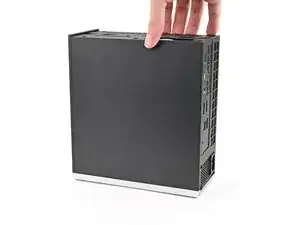
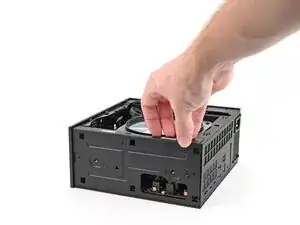
Follow this guide to replace the thermal pad covering the APU.

The Honeywell thermal phase change interface material (the thermal pad) shouldn't dry out and need to be replaced by itself. However, if you need to remove or replace the heatsink, you can follow this guide to apply a new thermal pad.

  1. DjDhorNOQwh3ZGMT
    DjDhorNOQwh3ZGMT
    kjwZlai1KO5WDWSF
    TqEBZOhj5ATriECX
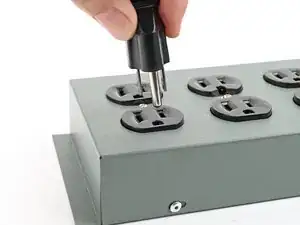
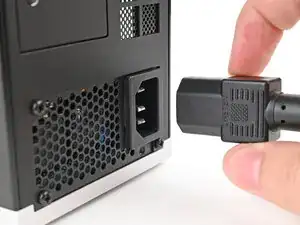
    • Before you begin repairs, shut down your desktop from the operating system and unplug it.

    • Wait one minute before continuing to allow your Desktop to fully power down.

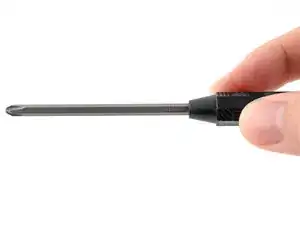
    • Make sure your Framework Desktop Screwdriver has the Phillips #2 bit (labeled as PH2) facing outwards. If it's not, pull the bit out and flip it.

  2. bCnmRpDo2L1muYA5
    bCnmRpDo2L1muYA5
    PkjmE66QFWiGyJPD
    rXfwXpgdDlUm4VSA
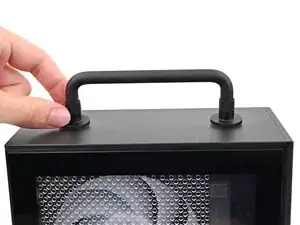
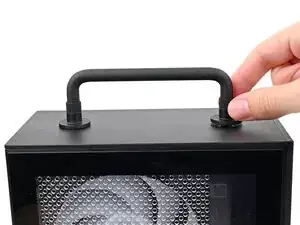
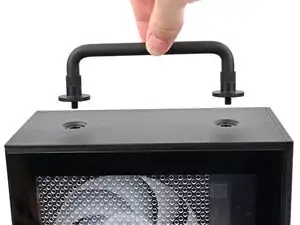
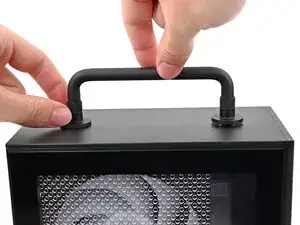
    • If you installed the Handle on your Desktop, follow this step. Otherwise, skip it.

    • Rotate the Handle's screw threads counterclockwise on both sides until it comes free.

    • Remove the Handle.

  3. 25uSW5yTweC4DhJH
    25uSW5yTweC4DhJH
    NLSHNAcGIfXySxVC
    uIxWPNWJJEnVnIum
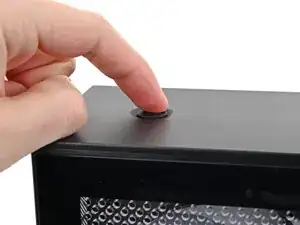
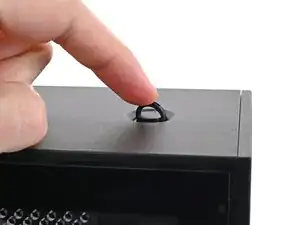
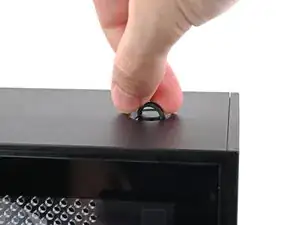
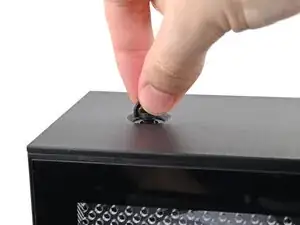
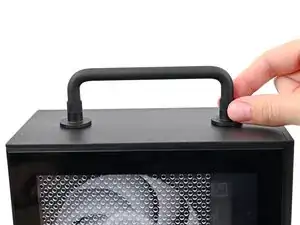
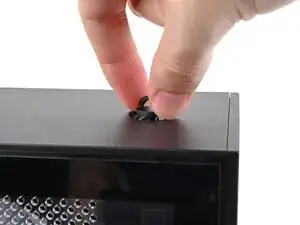
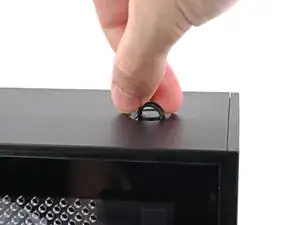
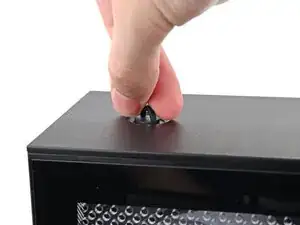
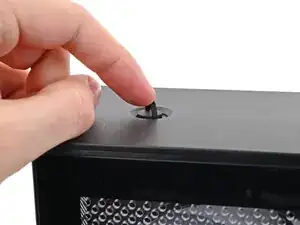
    • Use your finger to lift up the two D-rings on the Top Panel screws.

  4. BeKqSvRJr2nX2qFK
    BeKqSvRJr2nX2qFK
    odGLjCiIdEQeE2bh
    IDSwwb3LHUUaXukA
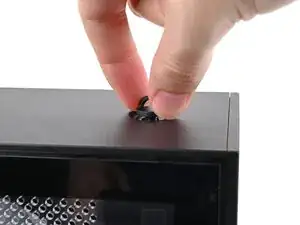
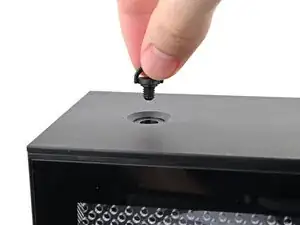
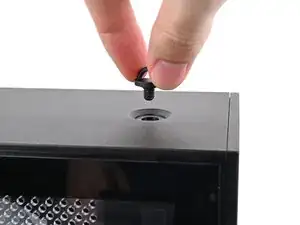
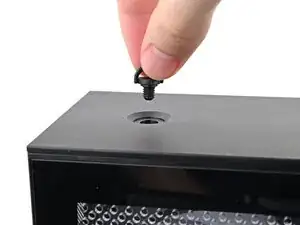
    • Use your fingers to twist the screw counter-clockwise and loosen it.

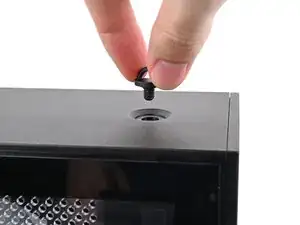
    • Remove the Top Panel screw.

  5. 4RopBQ6BtjnY1WrK
    4RopBQ6BtjnY1WrK
    ktjYiQLsGJUndqrb
    J4lBDyCSGfYoWxD4
    • Repeat the same procedure for the other Top Panel screw.

  6. jTMMgoIeaomUVn3V
    jTMMgoIeaomUVn3V
    k25EnLrWVNWIYJKF
    l1bqihYbxPsKZm41
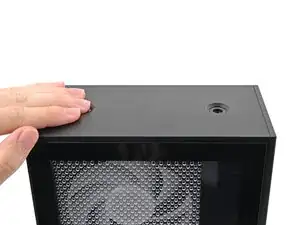
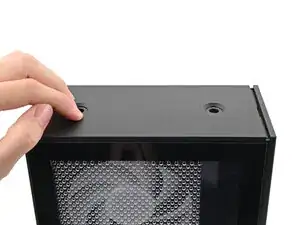
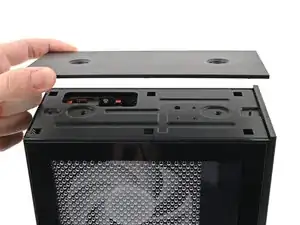
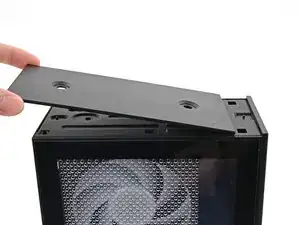
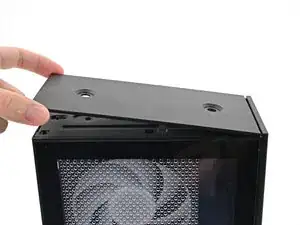
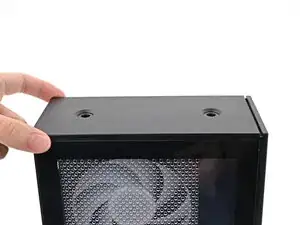
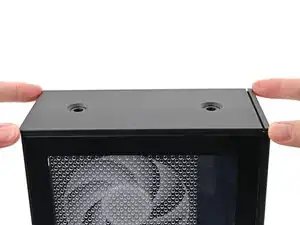
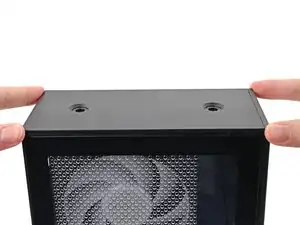
    • Slide the Top Panel towards the rear of the computer to release the clips securing it to the chassis.

    • If you're having a hard time gripping the Top Panel, use the screw holes to get a better handhold.

    • Lift the Top Panel off the chassis and remove it.

  7. XLTfeld1KUdjWOKV
    XLTfeld1KUdjWOKV
    W3VjNdQ4KsjDPN3e
    xqnJp46bmuCf5pno
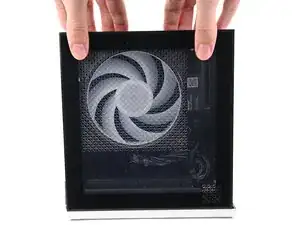
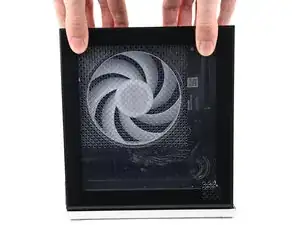
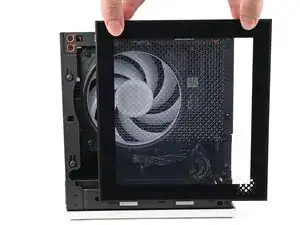
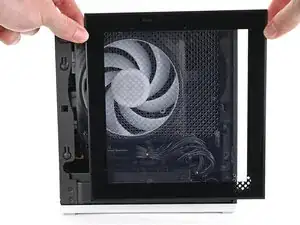
    • Use your fingers to grip the top of the Left Panel and slide it upward to release its clips.

    • Remove the Left Panel.

  8. ZHrFVeqRPOnJE6u4
    ZHrFVeqRPOnJE6u4
    oo5N5OPHpJCIAtUd
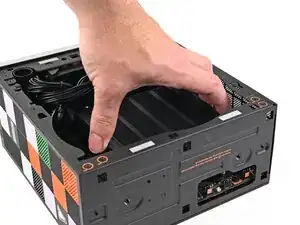
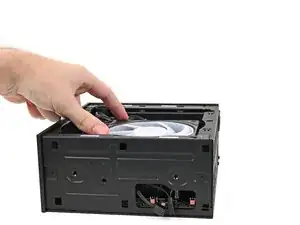
    • Lay down the Desktop on its side so the fan is facing upward.

  9. DsZB13WRF1jbbQMG
    DsZB13WRF1jbbQMG
    gK2SgLUMEhLPyDcS
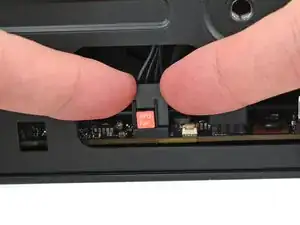
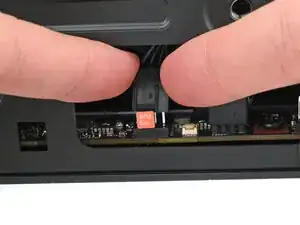
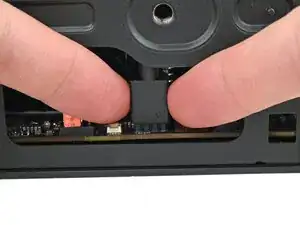
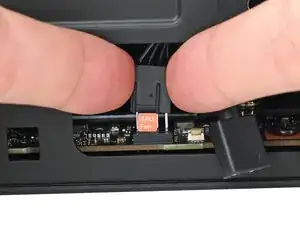
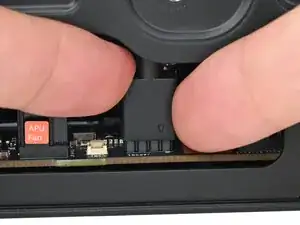
    • Use your fingers to lift the APU fan cable connector off its four‑pronged socket on the Mainboard.

  10. MtMUNuamBHYgkNWA
    MtMUNuamBHYgkNWA
    YhCfHtk6QNGEEKmY
    • If you aren't using an RGB fan, then skip this step.

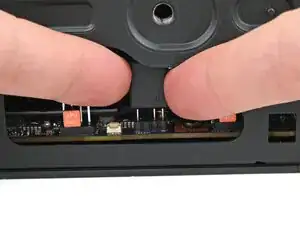
    • Use your fingers to lift the fan RGB cable connector off its three‑pronged socket on the Mainboard.

  11. wYCTGPWMAcOeR4XS
    wYCTGPWMAcOeR4XS
    SdYJJGSHmltiwLSx
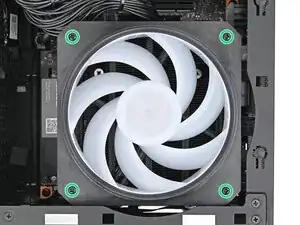
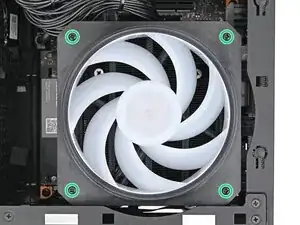
    • Use your Framework Desktop Screwdriver to remove the four 27.3 mm‑long Phillips screws securing the CPU fan and fan duct.

  12. a6lNGtOgVT5bSj4g
    a6lNGtOgVT5bSj4g
    ZLCCVV2aywoiGZSM
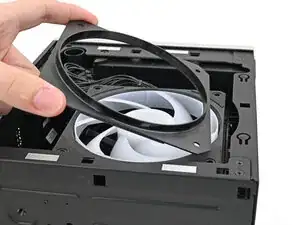
    • Lift the fan duct off the fan and remove it.

  13. CHxalKIsFQMXkPTS
    CHxalKIsFQMXkPTS
    ckmIUBoAtibQFaQj
    ZZ6j42hbHTrSJI1Y
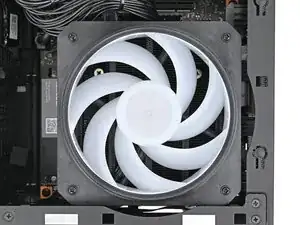
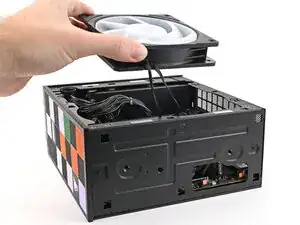
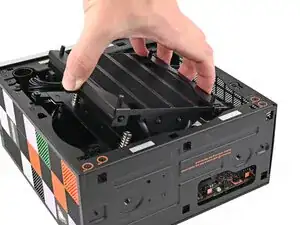
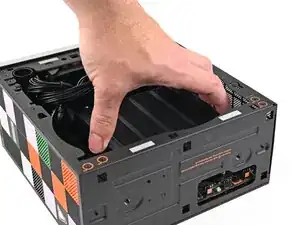
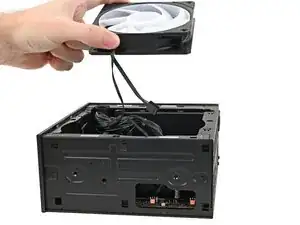
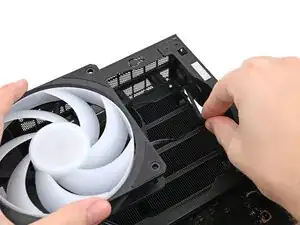
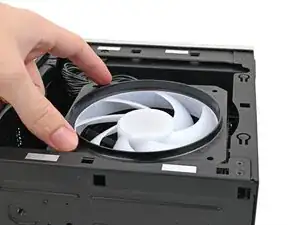
    • Lift the fan out of the chassis, making sure the cables thread through the side of the heatsink.

  14. IAYWGCWarabcCRGb
    IAYWGCWarabcCRGb
    l2OLQttZkPPDDU44
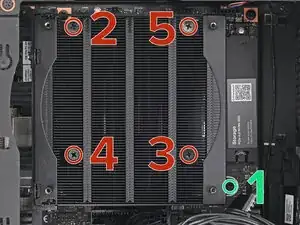
    • Use your Framework Desktop Screwdriver to loosen the final captive Phillips screw jutting out under the Primary Storage.

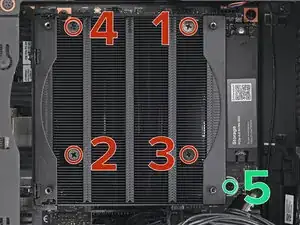
    • Use your Framework Desktop Screwdriver to loosen the four captive Phillips screws securing the heatsink in an "X" pattern starting with the top left screw.

    • Only loosen the screws a few turns at a time to avoid applying uneven pressure to the APU.

    • In order: top left→ bottom right→ bottom left→ top right

  15. TbMFb3Qc2PC4c2ye
    TbMFb3Qc2PC4c2ye
    m4WurjVJkxcfEwBt
    ZOPVkWqH6BOokLYR
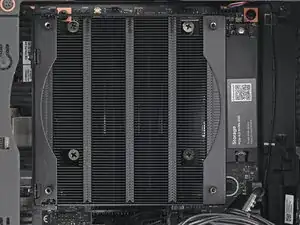
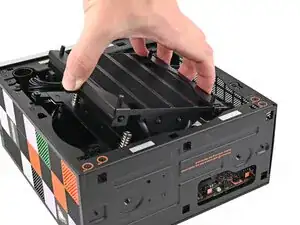
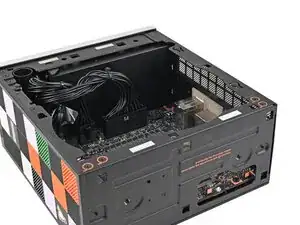
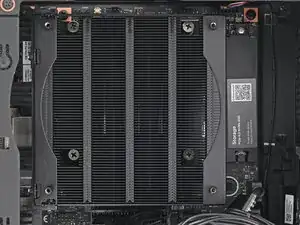
    • Lift the heatsink and tilt it up towards the front of the Desktop to navigate it out of the chassis.

    • Only grab the heatsink by its left and right edges (the edges facing the back I/O ports and the Primary SSD). If you grab the other edges, you risk bending the heatsink fins.

    • Remove the heatsink and rest it on your work area upside down to avoid damaging the thermal pads.

  16. WOlu2k25NBIgChsJ
    WOlu2k25NBIgChsJ
    QLnexYQkPEpdZWjk
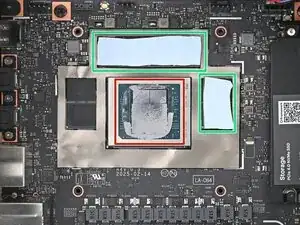
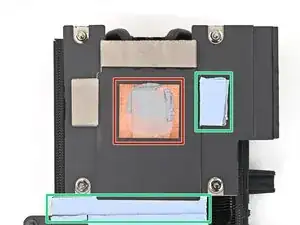
    • There are two types of thermal pads in the Desktop:

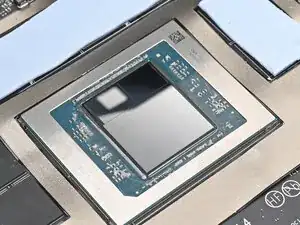
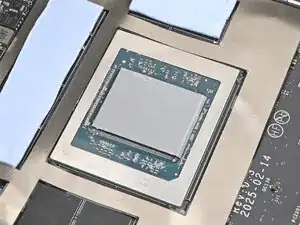
    • One thin, grey pad covering the back of the APU

    • Four thicker, blue pads covering the memory and power management

    • Upon removing the heatsink, the thicker pads will stick to either the bottom of the heatsink or to the Mainboard. Keep them in place and use your fingers to reposition them over their slots if they got folded or partially moved.

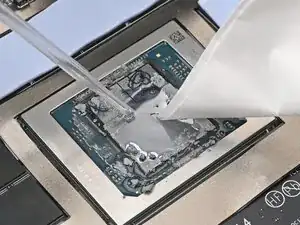
    • Follow the remaining steps to remove the thin thermal pad and replace it.

  17. uSTfsvYUhwaHSBmV
    uSTfsvYUhwaHSBmV
    HkNpHWuSPW6qnioO
    • Apply a few drops of isopropyl alcohol (>90%) to the APU and use a coffee filter or a lint-free cloth to wipe away any residue.

  18. NjHgouZUL1XTUwGM
    NjHgouZUL1XTUwGM
    WwEGvjAljV4ooLkU
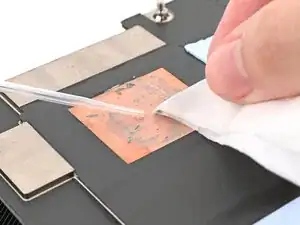
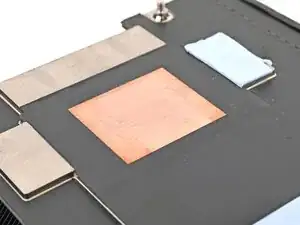
    • Repeat the cleaning procedure on the heatsink.

  19. DXU1TdcENFQlSDjW
    DXU1TdcENFQlSDjW
    HhXWmbkMPegrFfNC
    jEAn6QxpwlFdHBUT
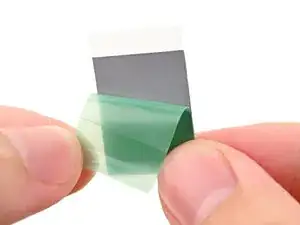
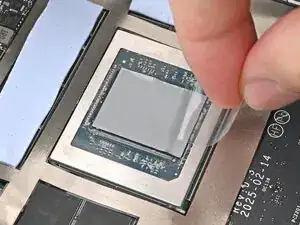
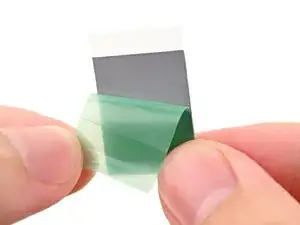
    • Remove the green liner from the replacement thermal pad to expose one side of it.

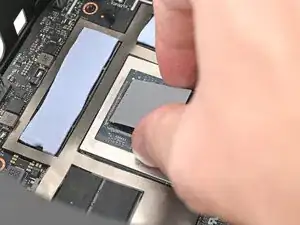
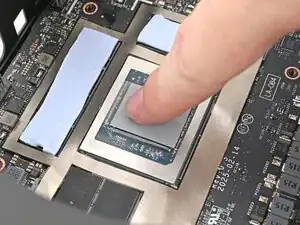
    • Place the exposed side of the thermal pad over the APU and press it into place.

    • If you have trouble handling your thermal pad, you can store it in your fridge for a few minutes to make it more rigid.

  20. YhnKVuEAqI61oYrF
    YhnKVuEAqI61oYrF
    gFgDskaPHVp6rnMP
    RhTQtapgb3YyMlDa
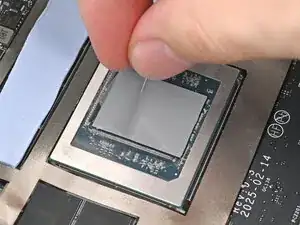
    • Remove the clear liner from the thermal pad to expose its top side.

  21. gpu6VmcHIIU5DUt6
    gpu6VmcHIIU5DUt6
    FAuUWyfltL4fWqLc
    • Tilt the heatsink down towards the rear of the Desktop and place it into its slot on the Mainboard.

    • Only grab the heatsink by its left and right edges (the edges facing the back I/O ports and the Primary SSD). If you grab the other edges, you risk bending the heatsink fins.

  22. ecLYhClLT5bWQLlJ
    ecLYhClLT5bWQLlJ
    rRDQOwuYsbaAXHvK
    • Use your Framework Desktop Screwdriver to tighten the four captive Phillips screws securing the heatsink in an "X" pattern starting with the top right screw.

    • Only tighten the screws a few turns at a time to evenly compress the APU and thermal pads.

    • In order: top right → bottom left → bottom right → top left

    • Use your Framework Desktop Screwdriver to tighten the captive Phillips screw jutting out under the Primary Storage.

  23. 3pcZLc4uPnXnJOtM
    3pcZLc4uPnXnJOtM
    6XUIOKnsiynvQEke
    vw2BKQkZC6NK4blU
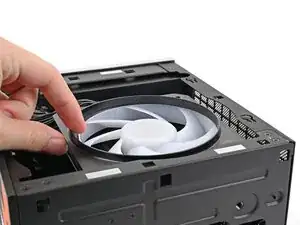
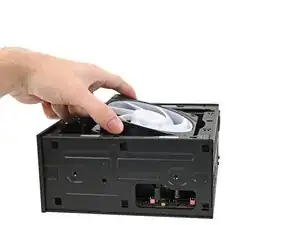
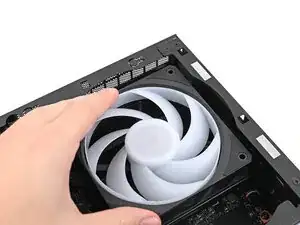
    • Orient the fan so its label is facing downward and the cable(s) is pointing towards the top of the computer.

    • If your fan has an arrow indicating airflow direction, make sure it's pointed towards the heatsink.

    • If you're using a different fan, orient it such that the fan is blowing towards the heatsink, not away.

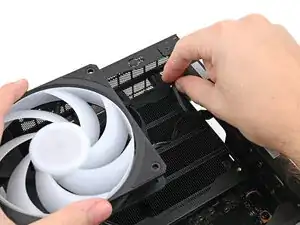
    • Lay the fan on top of the heatsink, making sure the cables are routed so they poke out of the hole on the top of the computer.

  24. hFPbMTrNTHeCxmPv
    hFPbMTrNTHeCxmPv
    vWExokOAUYshDsw5
    RdxvifGnFVTYZWJi
    • If the cables aren't routed properly, lift the fan up slightly and use your fingers to reposition the cables over the side of the heatsink.

    • If you're installing an RGB fan, make sure the "male" end of the RGB cable is covered and set aside in the corner of the chassis.

  25. erFIOJZXRZdkXA6u
    erFIOJZXRZdkXA6u
    qCPJhAm6rOxLw2yi
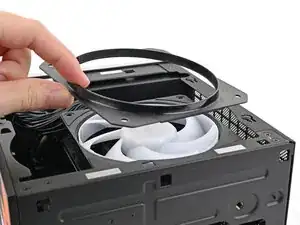
    • Lay the fan duct on top of the fan with the lip facing upward.

    • Align the screw holes on the fan duct with the ones on the fan.

  26. cJXFaJy5KgRfYfTS
    cJXFaJy5KgRfYfTS
    AqA3ZlysNECcaASm
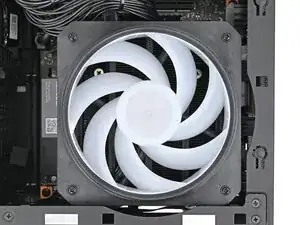
    • Use your Framework Desktop Screwdriver to install the four 27.3 mm‑long screws securing the fan and fan duct.

  27. BL3ygwREO1Fw5aF1
    BL3ygwREO1Fw5aF1
    qsJCinJgtEvFxXwE
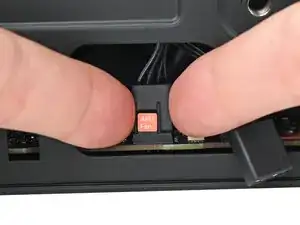
    • Orient the main fan cable so its two vertical lines are facing you.

    • Slide the main fan cable over the four-pronged connector labeled "APU Fan," making sure the orange label slots between the vertical lines.

  28. nFPEPcR1mudbNPCq
    nFPEPcR1mudbNPCq
    avKydg2UpSOudkfs
    yWpaheNAMq4suFkB
    • If you aren't using an RGB fan, then skip this step.

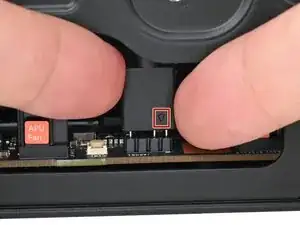
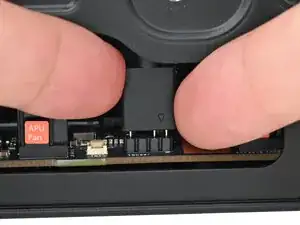
    • Orient the RGB cable so the arrow is on the right side of the connector.

    • Use your fingers to slide the RGB cable over the three pronged connector located to the right of the "APU Fan" connector.

  29. goRkkAxLhNUigiCU
    goRkkAxLhNUigiCU
    eA5rRNWKIMJseyOy
    ZvgNCU23cJQjlA6l
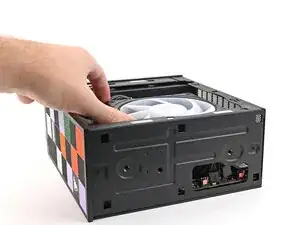
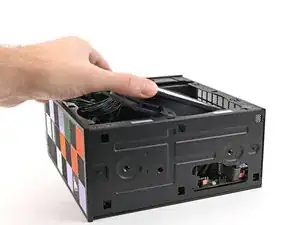
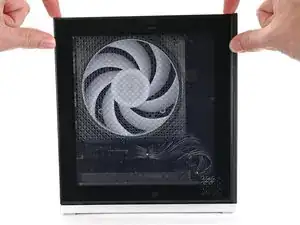
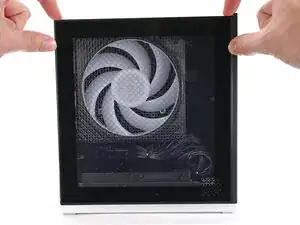
    • Slide the Left Panel onto the left edge of the chassis and press it flat to ensure its clips are slotted into place.

    • There should be a small gap between the bottom of the Left Panel and the silver base.

    • Push the Left Panel towards the base of the computer to close the gap and engage the clips.

  30. iIGHoTNwTjk6CsYT
    iIGHoTNwTjk6CsYT
    2bSMInO1IvGGlGdY
    V2XKH5ItaYfTBjxB
    • Orient the Top Panel so its arrow is pointing towards the rear of the computer.

    • While holding the Top Panel at a slight downward angle, slide it across the top of the chassis (from rear to front) until you feel its clips catch.

    • There should be a small gap between the Top Panel and the front of the Desktop.

    • Lay the Top Panel flat on the chassis to align the remaining clips.

  31. 5jqYIJjCMYTIluBK
    5jqYIJjCMYTIluBK
    1HnNsOxjfWH3CW2A
    • While securing the computer with one hand, use the other hand to slide the Top Panel towards the front of the computer to close the gap and engage the clips.

  32. wMSbHEseVBHs4sQl
    wMSbHEseVBHs4sQl
    RUiXT1LIuwYW1mgA
    • If you're installing the Handle on your Desktop, follow this step. Otherwise, skip it.

    • Place the Handle over the Top Panel screw holes.

    • While holding the Handle in place, twist the screw threads on both sides clockwise until they're snug on the Top Panel.

  33. QvoH6OkAy6SluuRN
    QvoH6OkAy6SluuRN
    E5MbWITINqhggrhU
    sJHXRSaGVTAJTLGA
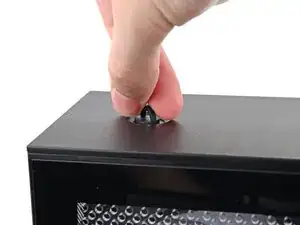
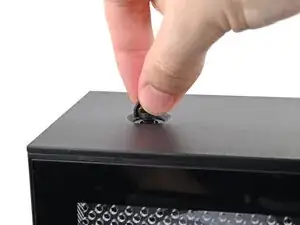
    • Insert the top panel screw into its hole and twist clockwise until it feels snug.

  34. omEEwgWEsLJVJGtZ
    omEEwgWEsLJVJGtZ
    yT2GekLdu6iCeSiv
    sehBCxDWubPcnoTn
    • Repeat the same procedure for the other top panel screw.

  35. 6dIq2aLI3wcuuFRc
    6dIq2aLI3wcuuFRc
    QFF5xZUlxcXQmRow
    svPrkAZgMdvGMFrS
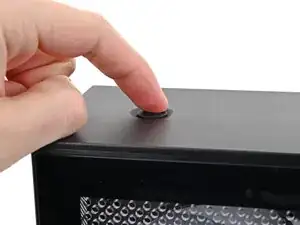
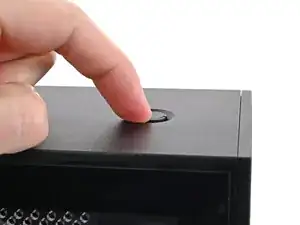
    • Use your finger to close the two D-rings on the top panel screws.

Conclusão

If you need help, contact Framework support.

Alex Diaz-Kokaisl

Membro desde: 16/01/22

227430 Reputação

0 comentários