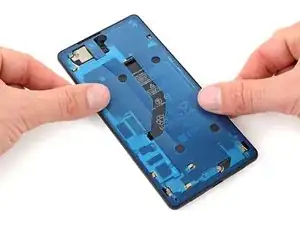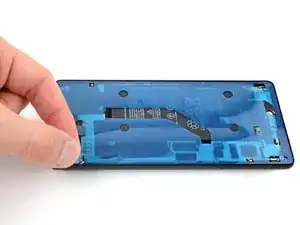
Introdução

This repair guide was authored by the iFixit staff and hasn’t been endorsed by Google. Learn more about our repair guides here.

Use this guide to apply new screen adhesive in your Google Pixel 7 following a repair.

Retaining water resistance after the repair will depend on how well you reapply the adhesive, but your device will lose its IP (Ingress Protection) rating.

Note: This guide is written with the Pixel 6, but the procedure is the same.

  1. FMMmDS4NHPcCEGXX
    FMMmDS4NHPcCEGXX
    nFSaENRYloNc4iHd
    IUliStATsQWJIuQq
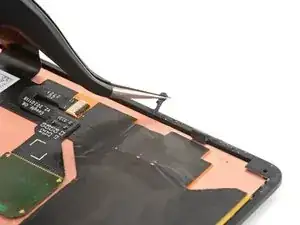
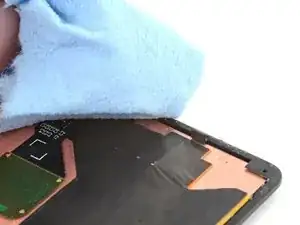
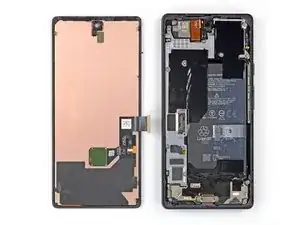
    • Any residual adhesive or debris will prevent your screen from sealing properly.

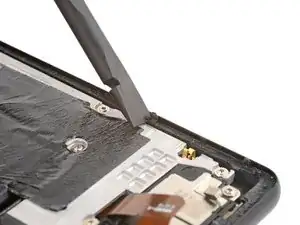
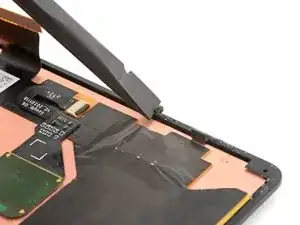
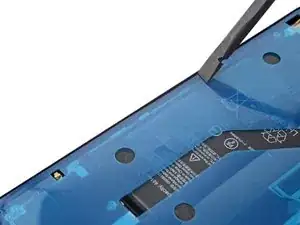
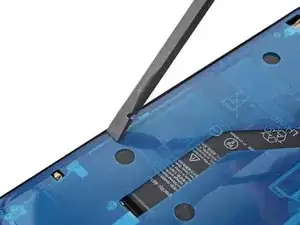
    • Use the flat end of your spudger to scrape off as much adhesive as you can.

    • Use caution not to damage the spring connectors near the perimeter of the frame.

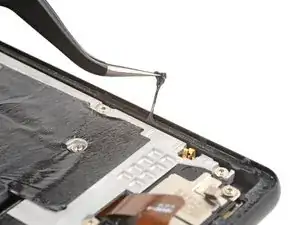
    • Use tweezers or your fingers to peel and remove any remaining adhesive.

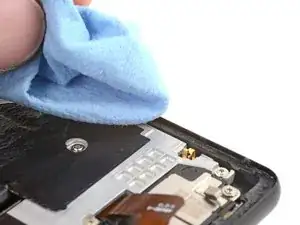
    • Clean the perimeter of the frame with a small amount of highly-concentrated isopropyl alcohol (over 90%) and a lint-free or microfiber cloth.

  2. D15AeZfLxoVLV5PP
    D15AeZfLxoVLV5PP
    DIrKwqUbWdslDbbH
    4gtZbBSWZyGQaE6H
    • If you're reusing your screen, clean it as you did for the frame.

  3. wbWQ1WYIoqAHHASP
    wbWQ1WYIoqAHHASP
    OtToUXWCcX1MfkwA
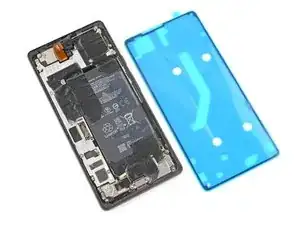
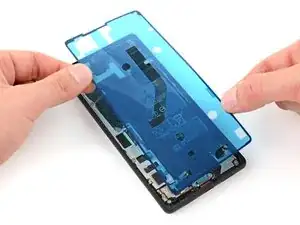
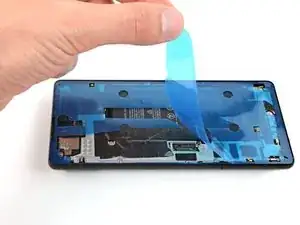
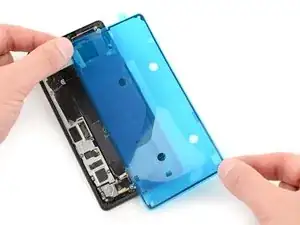
    • Before applying the new adhesive, lay it over the frame to find its proper orientation.

    • Use features such as the upper loudspeaker cutout, lower left hole, and upper right hole to orient the adhesive.

  4. SRVbG2u2lnSM6ZE6
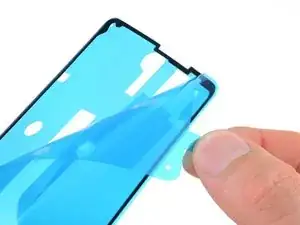
    • Use the pull tab on the top of the adhesive to remove the protective backing.

    • This will expose the adhesive that sticks to the frame.

  5. EqVBPhJRsPOS2rYx
    EqVBPhJRsPOS2rYx
    n3JGbjmfgFoPhbX5
    D2lPi1vk4XJXFTwG
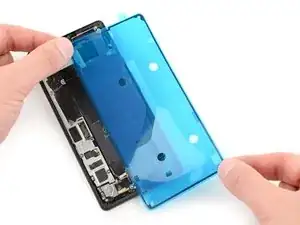
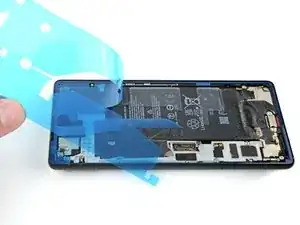
    • Be very careful during this step! The adhesive is very sticky and can't be repositioned once it sticks. Misaligned adhesive can lead to an improper seal.

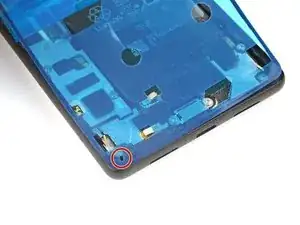
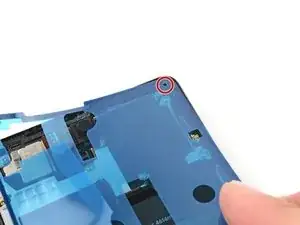
    • Lay the adhesive onto the frame, starting with the bottom or top edge. Make small corrections as you go.

    • There are holes in the bottom left and top right corners to help align the adhesive.

    Instructions and photos should be clear about not touching any part of the edge where the adhesive is exposed. It appears as if it's okay if your fingers tough the edge, but you can't let any of the adhesive touch anything or else it will stick so badly that it stretches and no longer will adhere cleanly and flatly on the edge of the phone. I will need to buy a new adhesive andy phone is wide open and exposed in the meantime.

    ALR -

    This step is critical, I was extremely careful and yet, a small portion stuck to the side of the frame. I had to remove it and install the screen with a tiny portion of the adhesive missing. No big deal. However i would suggest one try to peal the back from the bottom and not the top, slowly fitting the adhesive as you go from bottom to top. Disappointed with the adhesive form and instructions. BE Extra careful.

    Denis Y -

  6. JIssKlOsKVaUXYbG
    JIssKlOsKVaUXYbG
    b2EcjNiejPrC1THR
    QZWmnK3We1HxXhjq
    • Use a spudger or your fingers to firmly press along the perimeter of the adhesive and adhere it to the frame.

    • Be careful not to damage the spring connectors near the perimeter of the frame.

  7. p6g4f2aoXmohTL3D
    p6g4f2aoXmohTL3D
    YCTnyydoSQdgID14
    vVlCP2ulLi5TkbwW
    • Grab the pull tab on the upper left of the frame and peel off the main liner.

    Don't remove the final skinny liner around the outer adhesive - only remove the big liner. Leave the skinny blue liner in place until step 10 after the bracket has been attached.

    Amanda B -

    Please note, there is a second, slim liner on top of the actual adhesive, so you really can go ahead and remove the big positioning liner before attaching the display connector and bracket. As long as the slim liner is still on the adhesive, there is no danger of accidentally getting the display or something else stuck in the adhesive. There are small pull tabs on the slim liner which you can grab (carefully) with tweezers. Also the sim liner is in two pieces, so you can easily remove it while keeping the fully attached display hovering 3mm or so above the phone's body with your fingers.

    Einhirn -

  8. RPedlaFw6kbOLMBy
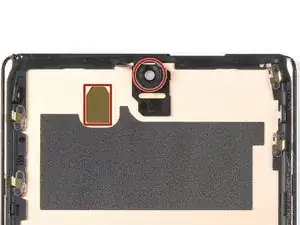
    • If you replaced the screen, check the front-facing camera hole and sensor cutout on the replacement screen and remove any remaining protective liners in it.

  9. H2CqVG2UNhwye1hM
    • Return to your phone's guide and continue reassembly.

    • Remember to reinstall the screen connector bracket.

    • Finish this guide when your screen is installed and you're ready to seal the phone up.

    My new screen came with a tab on the selfie camera opening. Remove before sealing!

    Alex Thengvall -

    Guide fails to add step or note to reinstall the metal bracket and screw sitting on top of the display cable connector. I followed guide and resealed my phone only to realize this was not mentioned and now my phone is sealed without the bracket..

    Derek -

    Hi Derek, we're sorry that an instruction was missed! In this case, which guide did you follow to continue reassembly?

    Clay Eickemeyer -

    Would be good to add some tips on re connecting the display cable connector - took a bit of fiddling.

    bogdan dobrin -

    I plugged the screen cable in with the screen hanging over the right side of phone, snapping both top and bottom of the cable in. Then I moved the screen back to the left and put that metal bracket in place. Does anyone know if this is the correct way. There wasn't instructions on this part.

    Simon B -

    I missed a step or misread instructions and pictures. cleaned all the adhesive off the digitizer and put new adhesive on digitizer plugged it all in realized screen has digitizer on it.. the good news is all these missing steps means I order another adhesive. Almost broke screen getting it off.. be careful..

    The bad news is I really don't recommend these directions.

    Simon B -

  10. VJbNash5eiqUZ2nA
    VJbNash5eiqUZ2nA
    kH4ewXTUg4ut5Uqr
    lKv6OushZQpTIKKX
    • Take care not to puncture the battery with your tweezers—a punctured battery may leak dangerous chemicals or cause a fire.

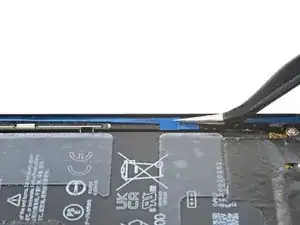
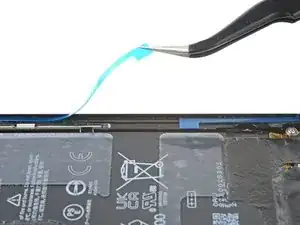
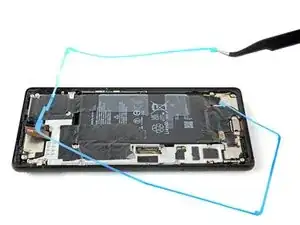
    • Grab the pull tab on the lower right of the frame and peel off the liner covering the perimeter adhesive.

    • Make sure the adhesive doesn't peel up with the liner.

    Add an image of the screen already connected with the display cable. It should eliminate any confusions (it's way easier to fiddle connecting the display cable when you don't have to worry about touching the adhesive (like I did).

    bogdan dobrin -

    This layer should be removed ONLY when the screen is connected and tested !

    LGRI -

    Directions and order of steps are not clear. There should be an earlier warning about keeping the final liner on. It was confusing when the large liner was peeled off because you don't know if the final liner should or should not stay on.

    ALR -

    The liner was like 1mm longer than normal, so while laying it down it clipped one of the sides but didn't notice until I took off the first liner.

    To my dismay, it was not the most simple task up pull up the adhesive from the inner side wall of the device to lay onto the flat track it is meant to go on, but I did the best I could.

    I'm hoping that when I go to cure the adhesive it'll flatten out the way it's supposed to for surface area, as well as maintain water resistance.

    The first time I performed a screen replacement (this is 2nd) I actually was able to submerge device with no water leakage so if done properly (and the sheets are cut to specifications) it is very possible to retain water resistance after screen replacement

    Zachary (Zach) -

    My liner was had no middle cut. When I started to peel it off (with the screen already connected after test), I realised it needed to be cut to remove it. Needed to cut the liner with scissors in that tricky (due to the screen connector plugged) position.

    Francisco Daza -

  11. TkAkRLEQkKbKhBsk
    TkAkRLEQkKbKhBsk
    p2TE4fwBsRQVfLBH
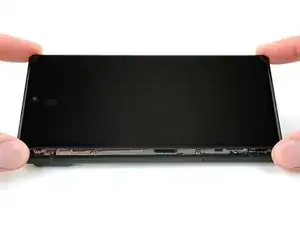
    • Flip the screen over and lay it onto the frame.

    • Press along the perimeter of the screen to secure it.

    I wish there was a warning here not to close the screen without testing it if reinstalling one. I thankfully was able to separate my newly installed screen and discover my display cable connection wasn't fully attached, but I am not sure if I compromised the seal or not. We will see!

    Edward Rowe -

  12. NwAtTv6AriWRfDrA
    NwAtTv6AriWRfDrA
    3ZgBh3qGSwjGnKJZ
    c5oA2BK5vIbKFHo6
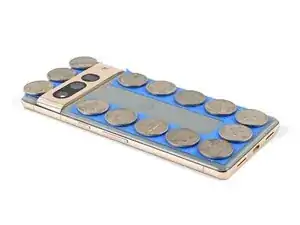
    • To evenly compress your Pixel and strengthen the bond of the screen to the frame, you need to account for the camera bar.

    • If you have screen vise clamps, you can work around the camera bar. Secure the clamps to the perimeter of the device.

    • Apply tape to the perimeter of your rear glass to protect its finish.

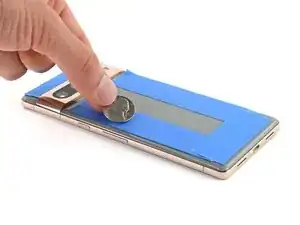
    • Place coins or similarly thick objects along the edges of the rear glass. Make sure they're as thick or thicker than the camera bar.

    • Stack multiple books or other heavy objects on your phone. Leave them in place for thirty minutes or longer. Ideally, leave them stacked overnight.

    Would be useful to list these coins (spacers) as a requirement for the installation. Not everyone has coins or similar spacers around.

    bogdan dobrin -

    Excellent guide. I recommend reading through it a couple times before starting, but really good instruction.

    msqualls -

    My screen has actually separated from the bracket that's attached to the frame of the phone. As in it's come off one layer above where the new adhesive would be placed.

    Anyone have any recommendations for adhesive to attach the screen to the bracket? The screen has a thin black gasket around it, on very solidly, not sure I want to scrape that off.

    Mark H -

    I'm in the same situation as you. No idea what to do. My best guess would be to add some kind of liquid adhesive around blacks gasket.

    Aivaras -

    I'm following up on what I did. ⏎
    I've bought T-7000 universal glue (B-7000 works too - the difference is in colour).

    Just put it around the already existing adhesive around the screen part. ⏎
    I could not manage to remove the already existing adhesive, even with the isopropyl alcohol.

    Put the screen back. On top, I added several heavy books and left the phone overnight.

    I've been using the phone for almost a month without any issues.

    Be aware that the phone may not be waterproof.

    Aivaras -

    Instead of coins, I finally evened out the gap surface by using several old cards and badges I had. Then put the weight above.

    Francisco Daza -

    I did forget to remove the final skinny blue adhesive protector but luckily that an easy mistake to remedy.
    On my Pixel 7 I had to do a forced restart by holding [POWER] + [VOLUME_DN]
    Otherwise everything went exactly as described.

    Stephanie -

Arthur Shi

Membro desde: 03/01/18

326108 Reputação

4 comentários

Fantastic guide. Read through it first. Go slowly and re-read each section as you do it. Get the iFixit tools. They are invaluable.

msqualls -

Do not force anything during any step of this guide. Like most sensitive electronics, force is rarely if ever required.

Take your time, be patient, if something is proving to be tricky take a small break and come back to it in a few minutes.

Things I felt should be included in guide or I had issue with:

1. You might end up cracking or breaking the original screen as you insert the pry tools. If replacing the whole screen, this should not matter to you and it’s ok if you notice cracks or breaks.

2. You want to aim for under the black plastic frame that is UNDER the screen to insert your pry tool.

3. Have extra alcohol wipes or isopropyl alcohol on hand. Repair kit only comes with 1 wipe (seriously??). You can use goo gone if you have some but USE SPARINGLY DO NOT SATURATE. Allow time to air out and evaporate before applying new adhesive. I was able to remove about 95% of old adhesive this way.

4. When you think you’re ready to reassemble, don’t forget the bracket and adhesive before sealing the new screen!!!

Zachary (Zach) -

This guide is showing photos of the wrong phone (my guess is that it's the Pixel 7 PRO). My phone's screen detached from the top of the inner plastic frame rather than the bottom. That frame is black, and because these photos show the device without the screen and the inner rim being black (not the case with the Pixel 7), I incorrectly assumed that the frame was not to be removed and this resulted in wasting the adhesive because it was no longer usable. Please update this guide to use the proper device. Had I seen that the inside of the phone rim where the adhesive is supposed to go was the wrong colour, I may have been able to catch this before.

Ryan Field -