Introdução

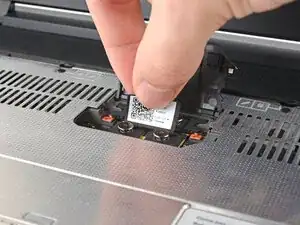
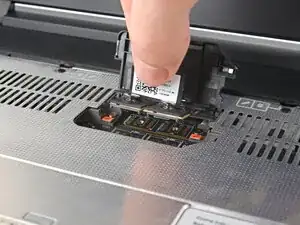
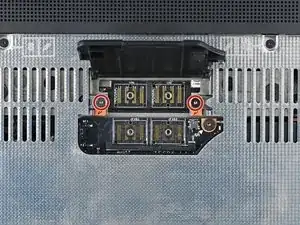
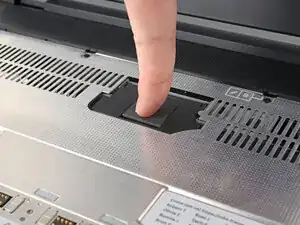
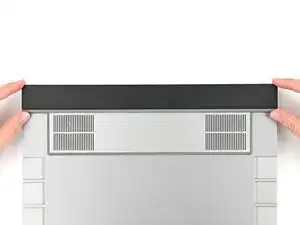
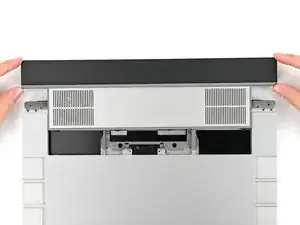
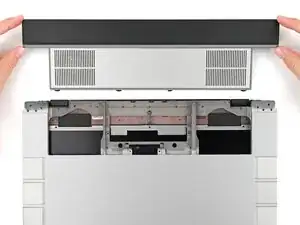
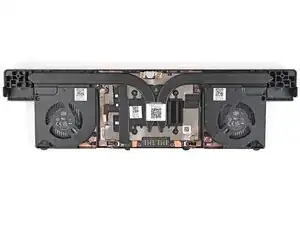
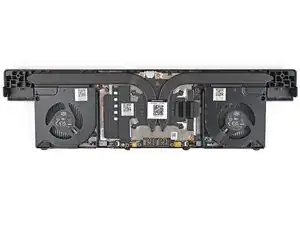
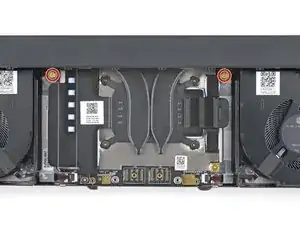
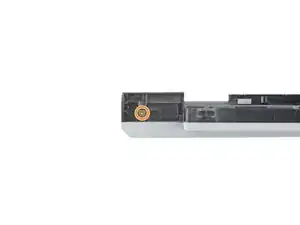
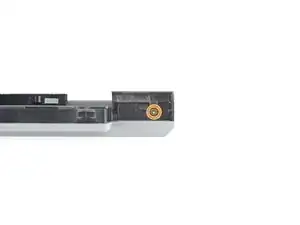
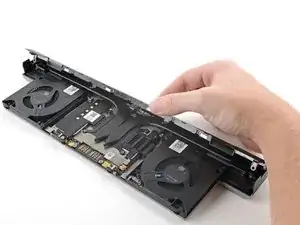
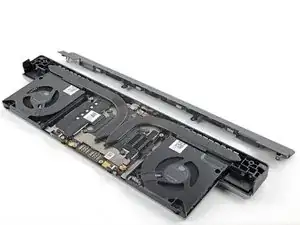
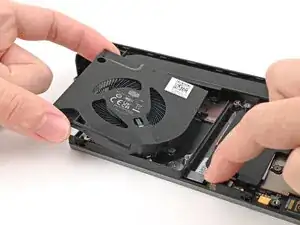
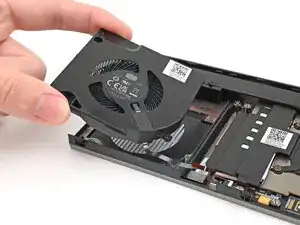
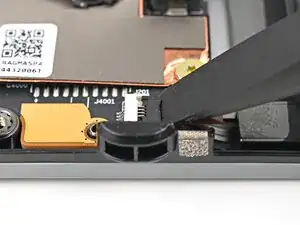
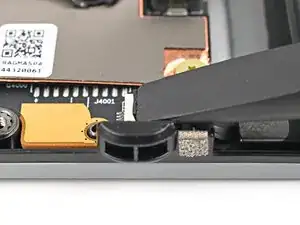
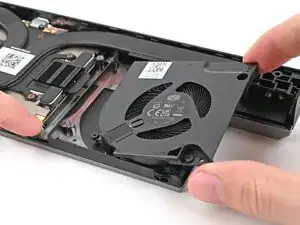
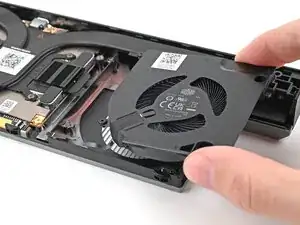
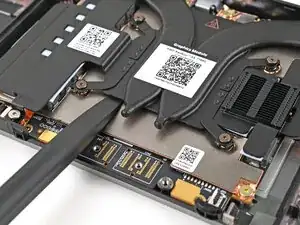
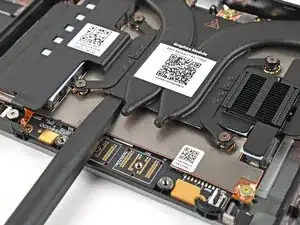
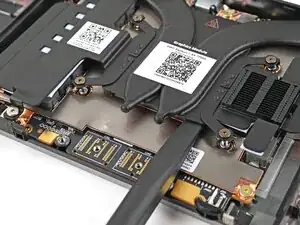
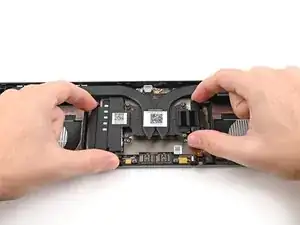
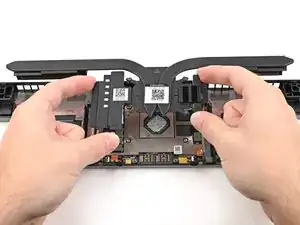
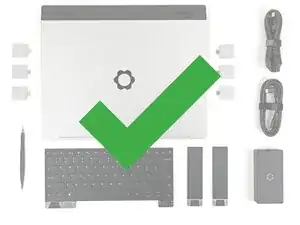
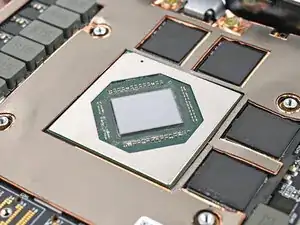
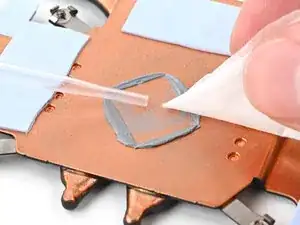
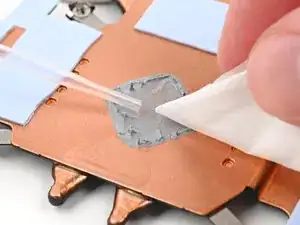
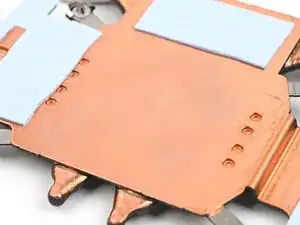
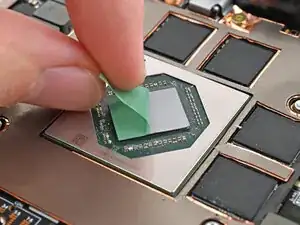
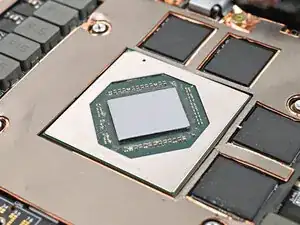
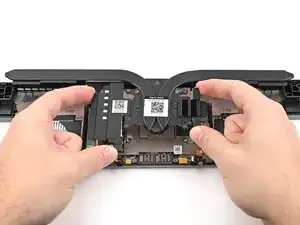
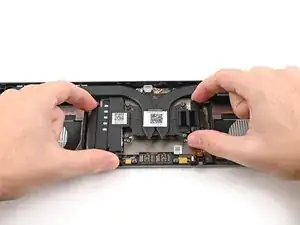
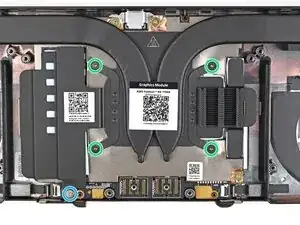
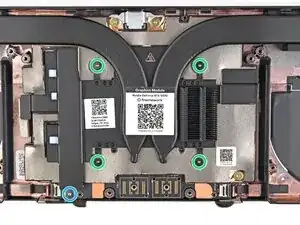
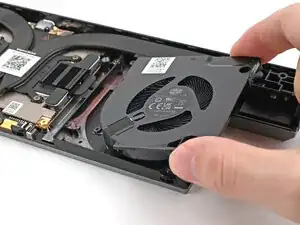
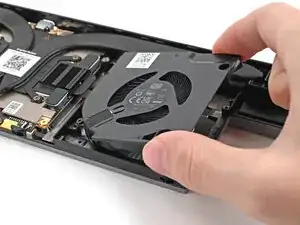
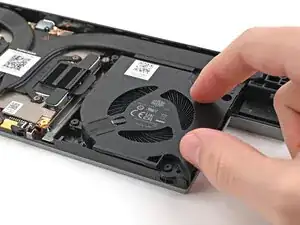
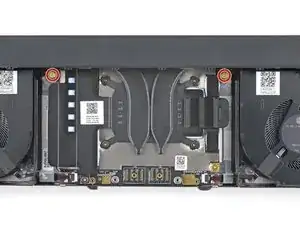
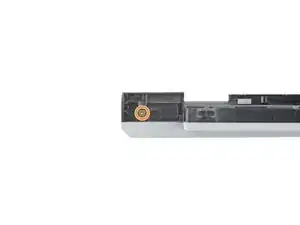
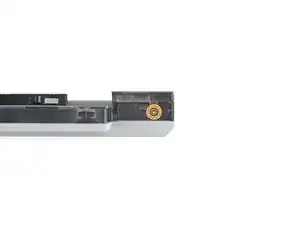
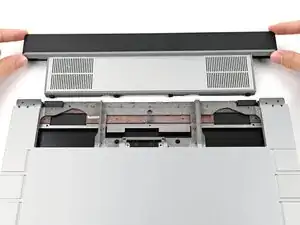
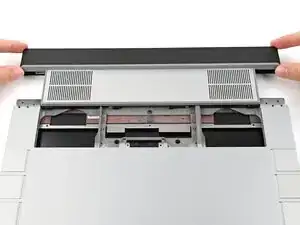
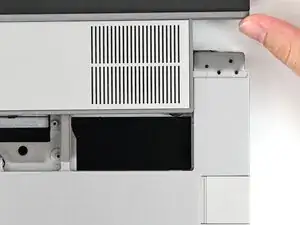
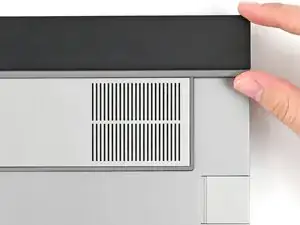
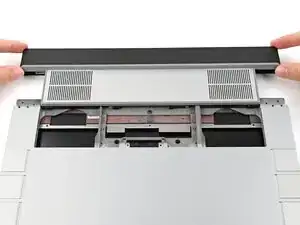
Use this guide to replace the thermal pad in your Framework Laptop 16 Graphics Module.

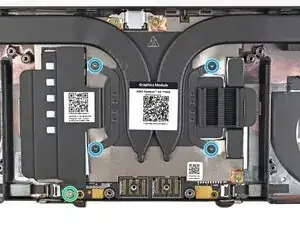
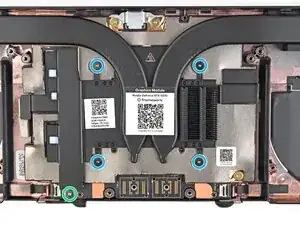
This guide is applicable for both the NVIDIA® GeForce RTX™ 5070 and AMD Radeon™ RX 7700S Graphics Modules. There are slight visual differences between the two, but the procedure is identical.

After installation, the thermal pad needs to go through a few thermal cycles before it gets to full performance.

  1. FyZqYQXlGGSUVdfO
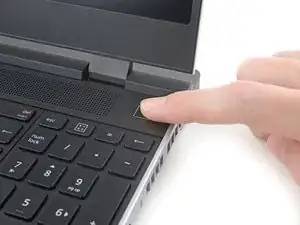
    • Unplug all cables and fully shut down your laptop.

  2. KX6SbVDOSK11tpww
    KX6SbVDOSK11tpww
    xUsiPWFWSHywwlyH
    YUTaVvGIQMvEBoVL
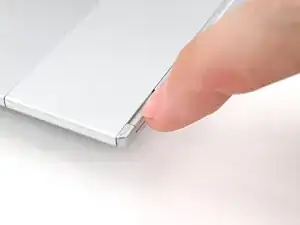
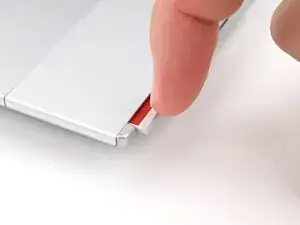
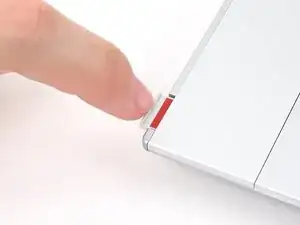
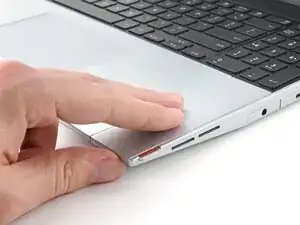
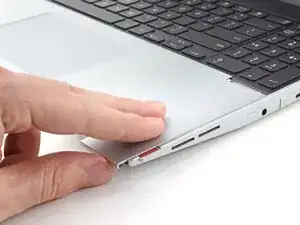
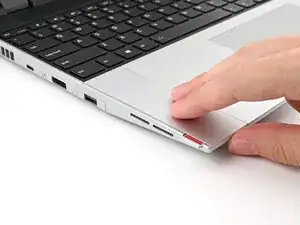
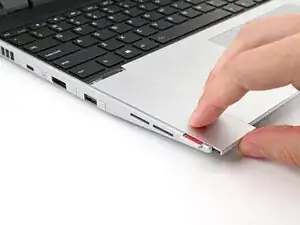
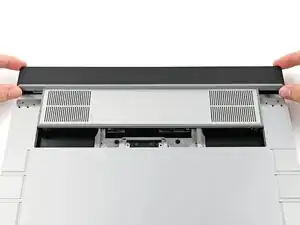
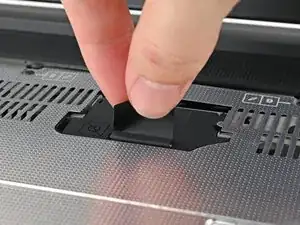
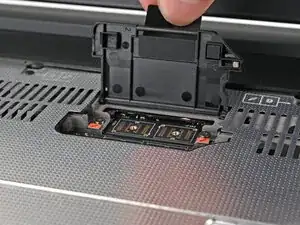
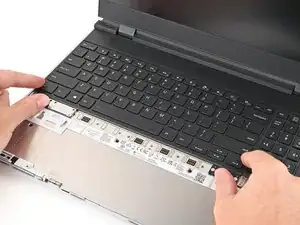
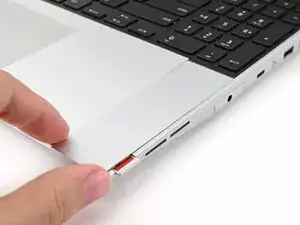
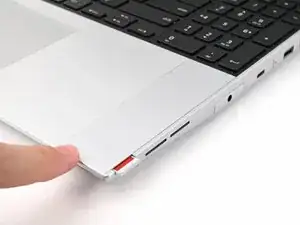
    • Use your fingernail to pull out the two Input Module latches and unlock them.

    • The latch will show red if it's unlocked.

  3. SJk2GqymsGfFPtk6
    SJk2GqymsGfFPtk6
    qYPAIGK4ZAN1UcxK
    RJPENmljQ6MIcvnN
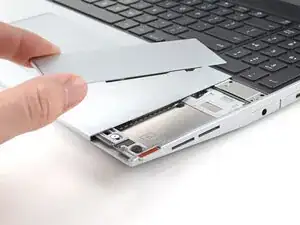
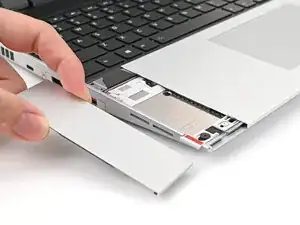
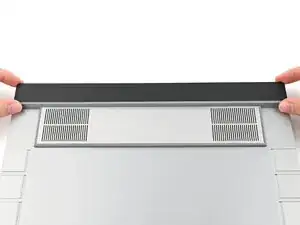
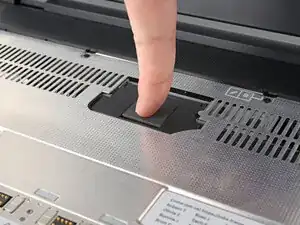
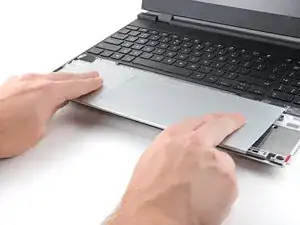
    • Use your fingers to slide the Touchpad Spacer toward the bottom edge of the laptop and unclip it.

    • If you're having trouble, check if the corresponding Input Module latch is properly unlocked.

    • Lift the Touchpad Spacer off the laptop and remove it.

  4. jNWbnEQoPE1b5FNs
    jNWbnEQoPE1b5FNs
    T4eCedmNWxtIK3E4
    qMrYphKZARGoeODv
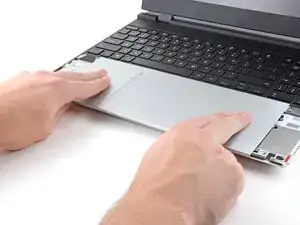
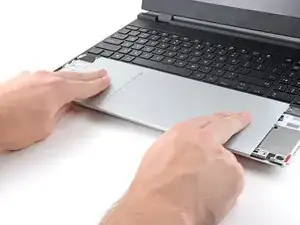
    • Repeat the same procedure for the other touchpad spacer.

  5. yYIvnKNYAZ5ZR5Cw
    yYIvnKNYAZ5ZR5Cw
    1OO4eJ2caggITR13
    fbmNJeKVP62XPULp
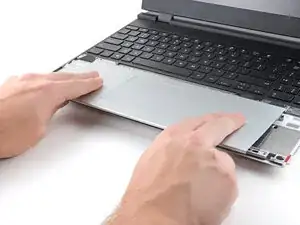
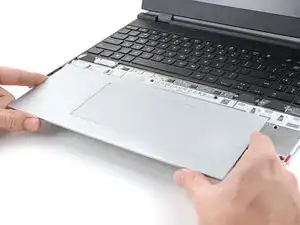
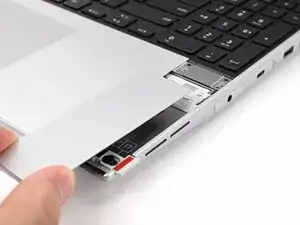
    • Use your fingers to slide the Touchpad Module toward the bottom edge of the laptop and disconnect it.

    • If you're having trouble, check if the Input Module latches are properly unlocked.

    • Lift the Touchpad Module and remove it.

  6. WXjcPFl2MgDiX2PZ
    WXjcPFl2MgDiX2PZ
    PojU1s2ZQqyfYBvO
    YlWkflmfJPHDuZov
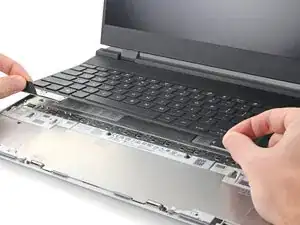
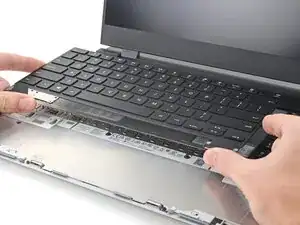
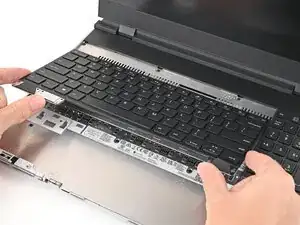
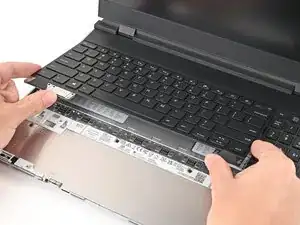
    • The keyboard is held in place with strong magnets. Apply gradually increasing force to avoid having the keyboard violently eject.

    • Grip the two pull tabs along the bottom of the keyboard and lift until its magnets release.

    • Remove the keyboard.

  7. hesMM66MFJtTfvCZ
    hesMM66MFJtTfvCZ
    3ZJ4rrrJTvR22eiV
    WesxvpHZwQSNZ3fK
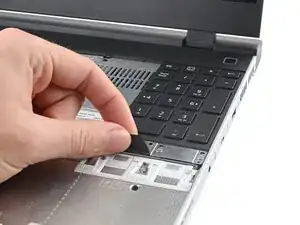
    • Your Input Module(s) might be different, but the procedure to remove them is the same.

    • Grip the pull tab at the bottom of the Input Module and lift until its magnets release.

    • Remove the Input Module.

    • Repeat for any remaining Input Modules.

  8. BHwA1RJF1lpIAq4e
    BHwA1RJF1lpIAq4e
    VkpLUbh4wtSFIZ2u
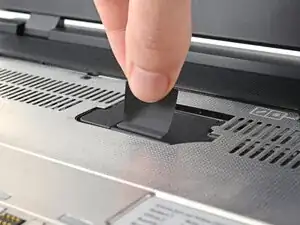
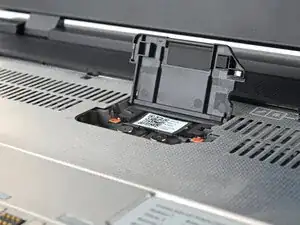
    • Lift the interposer door by its black pull tab and let it rest upright.

  9. oKdJHon6nNCIm1ii
    • Use your Framework Screwdriver to loosen the four captive T5 Torx screws securing the interposer.

  10. KqXx1rITOYMfOEeI
    KqXx1rITOYMfOEeI
    EgXNiThu5ZAp2qo1
    • Lift the interposer by its pull tab and remove it.

  11. 1xM31Q5HLnOx22yi
    1xM31Q5HLnOx22yi
    BFNZQlRYjBrJIHOJ
    • Use your Framework Screwdriver to loosen the two captive T5 Torx screws securing the Graphics Module.

    • Close the interposer door before continuing.

  12. LD4vR4HCV1GgbgfH
    LD4vR4HCV1GgbgfH
    qZQIOkPbUWX5wfYK
    C2BItTmGoSeimSuN
    • Close your laptop and flip it over.

    • Slide the Graphics Module out of the laptop and remove it.

    • The module should slide out easily. If you feel any resistance, check that the screws holding it in place are fully loosened.

  13. Mdcqw61clqNSnpgP
    Mdcqw61clqNSnpgP
    Wv2w6dMCXaBwDLJT
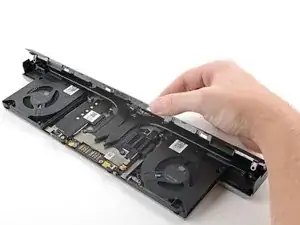
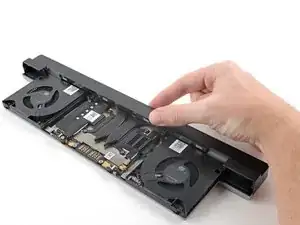
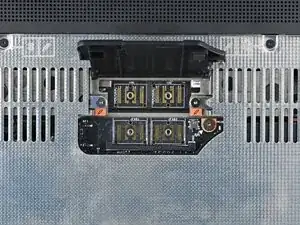
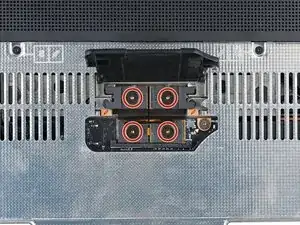
    • There are two models of Graphics Modules:

    • NVIDIA® GeForce RTX™ 5070 (first photo)

    • AMD Radeon™ RX 7700S (second photo)

    • There are slight visual differences between the models, but the disassembly procedure is the same.

  14. YxTcFMXZJH5CfdWW
    YxTcFMXZJH5CfdWW
    fskAXmbXPqRQFGCV
    AWWkJZVAOUjOhlo3
    • Use your Framework Screwdriver to remove the four 3.6 mm‑long T5 Torx screws securing the Graphics Module cover:

    • Two screws on the flat surface of the module, next to the fans.

    • Two screws on the thin edge of the module, near the ends. You'll need to flip the module on its back edge to access them.

  15. cSMWWRQooCwYVIF2
    cSMWWRQooCwYVIF2
    3icdo4iLTTQLoMxv
    dP21TsmSwa1VwHFO
    • Use your fingers to lift the cover off the Graphics Module and remove it.

  16. JRJWeVyXwGINggXv
    JRJWeVyXwGINggXv
    afoYcfSZK2ciqSny
    IWZoNwt3ZXNMM3Cq
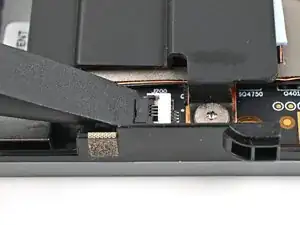
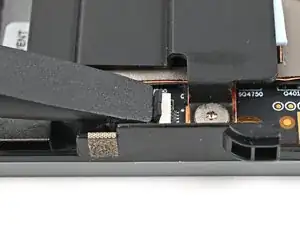
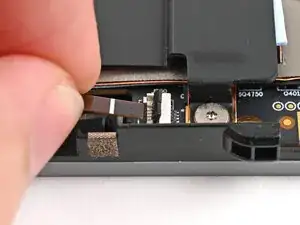
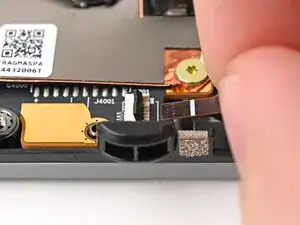
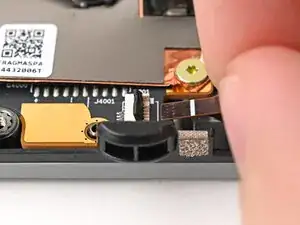
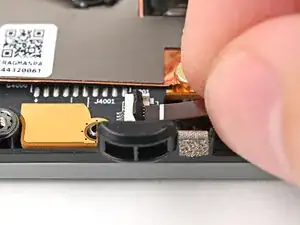
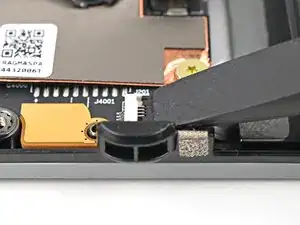
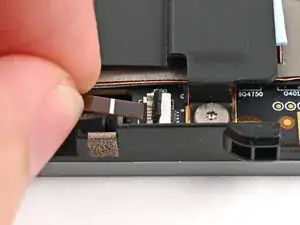
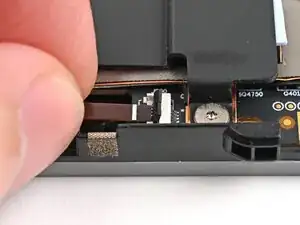
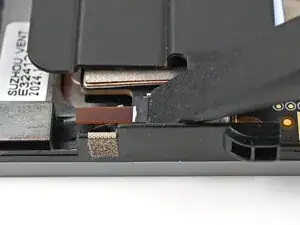
    • Use the flat end of a spudger, or a clean fingernail, to lift up and release the locking tab on the left fan ZIF connector.

    • Use your fingers to grip the brown pull tab and slide the fan cable straight out of its socket.

  17. rDyTyNR6R3qpUQvG
    rDyTyNR6R3qpUQvG
    vAZZtbOVbAZELWHW
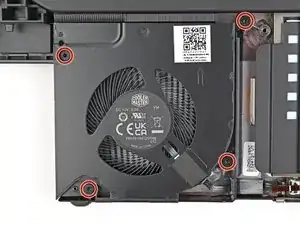
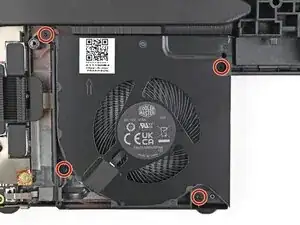
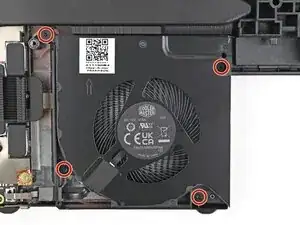
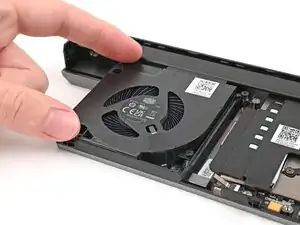
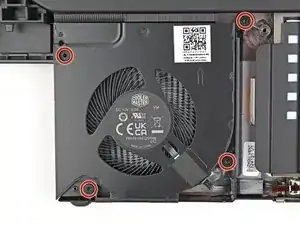
    • Use a T5 Torx screwdriver to loosen the four captive screws securing the left fan.

  18. R1wmWeGhdZ4x6X2A
    R1wmWeGhdZ4x6X2A
    G2tcLscmaLnpdpE1
    6Xx5DsDFVGGbGgRO
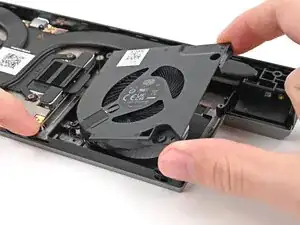
    • Use one hand to press the fan cable flat to the module.

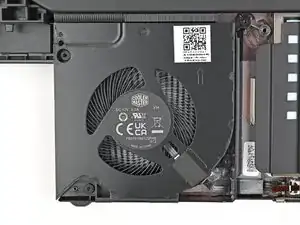
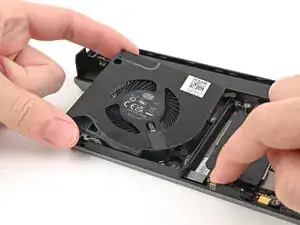
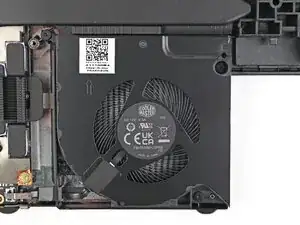
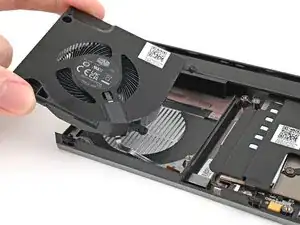
    • Use your other hand to pull the fan out of its housing, making sure to thread the cable though its slot.

    • Remove the fan.

  19. 4I1LH4FOdnJ3wjPb
    4I1LH4FOdnJ3wjPb
    aCuBjYgIrCsOlgF3
    vlSZ1tMLFUBQxWJE
    • Use the flat end of a spudger, or a clean fingernail, to lift up and release the locking tab on the right fan ZIF connector.

    • Use your fingers to grip the brown pull tab and slide the fan cable straight out of its socket.

  20. qpDnTNQHXIBDdsIl
    qpDnTNQHXIBDdsIl
    xPYnNGRvUiMyEOTN
    • Use a T5 Torx screwdriver to loosen the four captive screws securing the right fan.

  21. XfYBUdiLj3cgRvi6
    XfYBUdiLj3cgRvi6
    2L1oiZQ3bpO2XVFt
    tOU5riTFCWwTY4Rv
    • Use one hand to press the fan cable flat to the module.

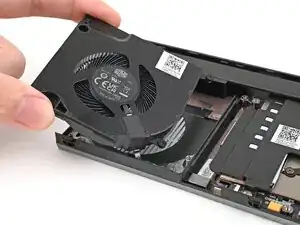
    • Use your other hand to pull the fan out of its housing, making sure to thread the cable though its slot.

    • Remove the fan.

  22. EI3IICvH1DME13pj
    EI3IICvH1DME13pj
    XrWk2MnAoXa4CHOw
    • The screw configuration will look different depending on your Graphics Module, but the procedure is the same.

    • Use your Framework Screwdriver to loosen the captive T5 Torx screws securing the Graphics Module Heatsink:

    • Loosen the captive screw at the bottom left corner of the heatsink.

    • Loosen the captive screws directly over the GPU in order from 1–4 (the numbers are engraved on the metal near the screw).

  23. ICOlhXCyGummMSEE
    ICOlhXCyGummMSEE
    6mGYJPH2MOiD4dou
    NoShRlI3Npumiqgv
    • Use the flat end of the Framework Screwdriver to pry up the flat metal plate under the heat pipes until you feel the thermal pads separate.

    • Don't pry under the heat pipes as you risk bending them.

  24. dSbm1LflGmjR2Li3
    dSbm1LflGmjR2Li3
    NYWRMlJ4O5PjFEVX
    • Grip the edges of the heatsink, near its curved pipes, and lift it straight up to remove it.

  25. yAqjOcYW4FxBfQJa
    • Congratulations on completing disassembly! The remaining steps will show how to reassemble your Framework Laptop.

  26. osXBMw3xgKIVZZMF
    osXBMw3xgKIVZZMF
    yNCh5cBXXNgLPKBO
    SOn5pPMFBTbcl21Q
    • Your Graphics Module will have either a thermal pad or thermal paste. Follow the procedure normally to remove either compound.

    • Use a few drops of high concentration (>90%) isopropyl alcohol and a lint-free cloth to wipe away the thermal compound residue.

  27. KeC6sbANniCNhVjv
    KeC6sbANniCNhVjv
    hBNLgZ6gAqGUgd1P
    AgOjNFErVDBLccQJ
    • Repeat the previous step for the thermal compound residue on the bottom of the heatsink.

  28. Ff6UogMmgGjGEoXa
    Ff6UogMmgGjGEoXa
    5C6QqSwZG6WE2CZG
    AjVaBtg1DkWUPHAb
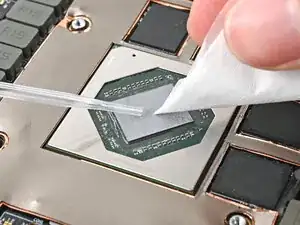
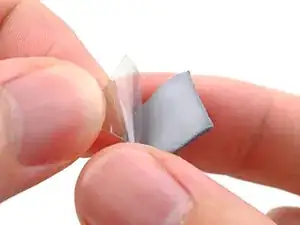
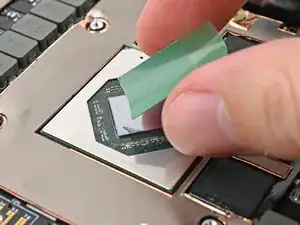
    • Peel off the clear liner from the thermal pad to expose one side of it.

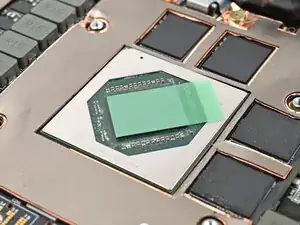
    • Place the exposed side of the thermal pad over the CPU.

    • If you have trouble handling your thermal pad, you can store it in your fridge for a few minutes to make it more rigid.

  29. PZSEVXvZY2ZRkgFE
    PZSEVXvZY2ZRkgFE
    caIgjLrnPnlLpBCf
    43DFlGjgPcyQHH3p
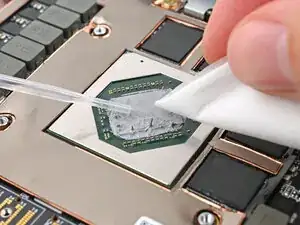
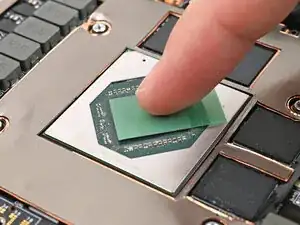
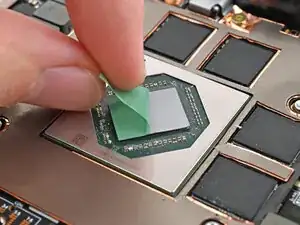
    • Use your finger to lightly press the thermal pad to the GPU and bond it.

    • Remove the green liner from the thermal pad to expose its top side.

  30. LN43xyqhYQEpuKAw
    LN43xyqhYQEpuKAw
    dOPLEVLE1LKK363W
    • Align your heatsink over the CPU and place it straight down onto the Mainboard.

    • The thermal pad needs to go through a few thermal cycles before it gets to full performance.

  31. kdlWXSIOCOBaS1KB
    kdlWXSIOCOBaS1KB
    JA1wNANPdQXPUkiN
    • The screw configuration will look different depending on your Graphics Module, but the procedure is the same.

    • Use your Framework Screwdriver to tighten the captive T5 Torx screws securing the Graphics Module Heatsink:

    • Tighten the captive screws directly over the GPU in order from 4–1.

    • Tighten the captive screw at the bottom left corner of the heatsink.

  32. UdFVLINtMKJ2S1gu
    UdFVLINtMKJ2S1gu
    mu6e6TU6pYRRBBdq
    1DOhTnJjrjJKCJ1w
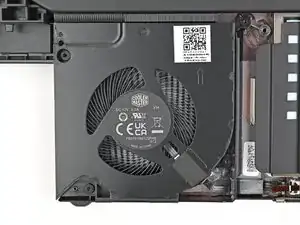
    • Place the right fan onto the Expansion Bay Shell, making sure to thread the cable through its slot.

  33. CUlHNceXcRGuRuYd
    CUlHNceXcRGuRuYd
    GQ5tAliAf6WGpody
    • Use a T5 Torx screwdriver to tighten the four captive screws securing the right fan.

  34. lHopEWUj3RTDrLqo
    lHopEWUj3RTDrLqo
    6JLlFnJNvEdboJOm
    sVM5MRZJDnrRqRn6
    • Use your fingers to grip the brown pull tab and slide the right fan cable straight into its socket.

    • Use the flat end of your Framework Screwdriver, or a clean fingernail, to press down the locking tab on the fan ZIF connector.

  35. NQgFahY5OQmcVPaN
    NQgFahY5OQmcVPaN
    ZXdtSX3wmsQKQBJr
    YuYH4RvID1SZWFFd
    • Place the left fan onto the Expansion Bay Shell, making sure to thread the cable through its slot.

  36. 3fLqiSCuHMtJagP1
    3fLqiSCuHMtJagP1
    NMeSHanVtI1JJgkv
    • Use a T5 Torx screwdriver to tighten the four captive screws securing the left fan.

  37. 3Xt6vA1jvVmMthav
    3Xt6vA1jvVmMthav
    41oNLrspDQcGqW61
    QTaZF3cOwMN63BpC
    • Use your fingers to grip the brown pull tab and slide the left fan cable straight into its socket.

    • Use the flat end of your Framework Screwdriver, or a clean fingernail, to press down the locking tab on the fan ZIF connector.

  38. pSIYfFUMNe5OHfKd
    pSIYfFUMNe5OHfKd
    EDaAQrrgKBGDCvLc
    • Place the cover over its slot on the Graphics Module.

  39. JE62YCP6APwutPbg
    JE62YCP6APwutPbg
    wBENBwr4KwQsSs1M
    YkTToqAwhECKAEUL
    • Use your Framework Screwdriver to install the four 3.6 mm‑long T5 Torx screws securing the Graphics Module cover:

    • Two screws on the flat surface of the module, next to the fans.

    • Two screws on the thin edge of the module, near the ends. You'll need to flip the module on its back edge to access them.

  40. VBbHTLV1DNAf1do2
    VBbHTLV1DNAf1do2
    ZOX4NVApgvEBKRiI
  41. PHM1CKWmrK4lemoa
    PHM1CKWmrK4lemoa
    PwgZXTpSxwu5PndZ
    • When installing the module, keep it level to the laptop so it doesn't buckle on the rails.

    • There should be no gaps between the laptop and the module when it's installed correctly.

  42. AStkDBskdrYqfhiA
    AStkDBskdrYqfhiA
    WMoioQJlrvXXfpK4
    A5XJcbeys6UMdNLo
    • While keeping the module level with the laptop, slide it into its slot.

    • The module should slide in easily. If you feel any resistance, pull the module out and realign it.

    • You should hear an audible "click" when the module's clips snap into place.

  43. NsLANgBfHMLDErwZ
    NsLANgBfHMLDErwZ
    s1ITDDLLWOrZpkuk
    • Flip over the laptop and open it.

    • Lift the interposer door by its black pull tab and let it rest upright.

  44. 1xM31Q5HLnOx22yi
    1xM31Q5HLnOx22yi
    K2msUAJei2QOCFTF
    • Use your Framework Screwdriver to tighten the two captive T5 Torx screws securing the Graphics Module.

  45. EgXNiThu5ZAp2qo1
    EgXNiThu5ZAp2qo1
    KqXx1rITOYMfOEeI
    • Place the interposer over its spot between the Mainboard and the Graphics Module.

  46. D6OTWEhxRXGNdkN3
    D6OTWEhxRXGNdkN3
    ny2MDHPvLAEQtmsl
    • Use your Framework Screwdriver to tighten the four captive T5 Torx screws securing the interposer.

    • Close the interposer door.

  47. BBO4XYB3ysWZvs56
    BBO4XYB3ysWZvs56
    peNFvFksKctgPMfK
    E1SBrYRbex1ZjN32
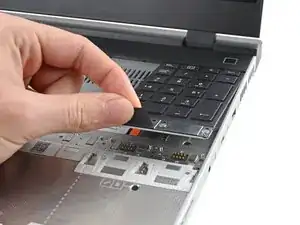
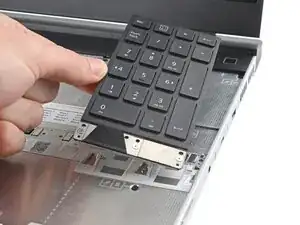
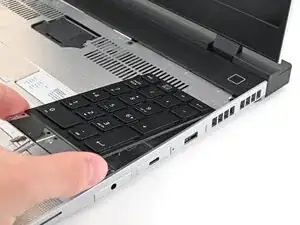
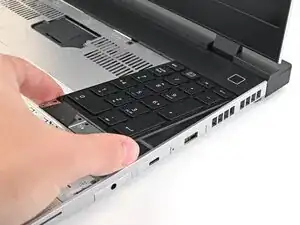
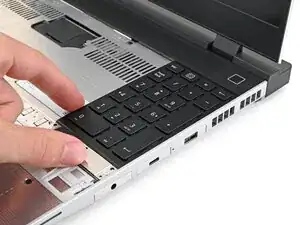
    • The numpad is held in place with strong magnets. Apply gradually increasing force to avoid having the numpad violently eject.

    • Grip the pull tab at the bottom of the numpad.

    • Lift the pull tab until the numpad magnets release.

    • Remove the numpad.

    • During reassembly, make sure the numpad is seated properly on its alignment pegs and sits flush with the edges of the laptop.

  48. 2oPYqKStliPhyMNB
    2oPYqKStliPhyMNB
    Sa6jykktBZSuiFBK
    mSXYbDZf6nqTloeB
    • Align the top edge of the keyboard with the top edge of the laptop.

    • Lay the keyboard on the laptop and let the magnets pull the keyboard into place

    • Make sure the keyboard is seated properly on its alignment pegs and sits flush with the edges of the laptop.

  49. OGgC5a1tSqgNY2QF
    OGgC5a1tSqgNY2QF
    5m5NiQxMvTWjIbjQ
    • Place the Touchpad Module flat on its cutout so its clips are properly aligned.

    • Press the Touchpad Module down and slide it into place so it lines up evenly with the bottom edge of the laptop.

  50. nrQTspaoMXJKTnok
    nrQTspaoMXJKTnok
    rRqoTulPIcQVVcbP
    hH5fa2iJ4qxAPZjs
    • Place the Touchpad Spacer over its spot on the laptop with the bottom edge overhanging slightly.

    • Slide the Touchpad Spacer towards the top of the laptop to secure it.

    • Repeat the same procedure for the other Touchpad Spacer.

Conclusão

You finished fixing your Framework Laptop!

Take your e-waste to an R2 or e-Stewards certified recycler.

If you need help, contact Framework support.

Alex Diaz-Kokaisl

Membro desde: 16/01/22

227430 Reputação

0 comentários