Introdução

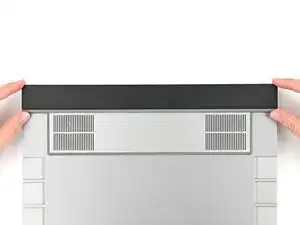
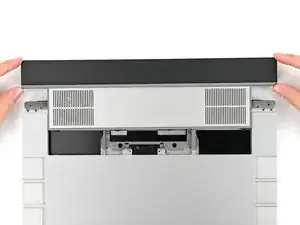
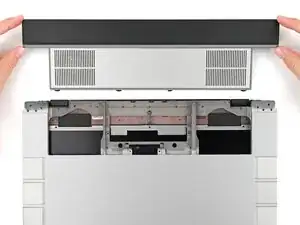
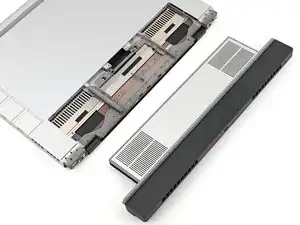
Follow this guide to remove the Expansion Bay Module, i.e., a Graphics Module or the Expansion Bay Shell, in your Framework Laptop 16.

Depending on your configuration, you may only need to remove the Touchpad Module and the keyboard to access the Expansion Bay. This guide shows removing each Input Modules to include all possible configurations.

  1. bpMHQhFddpbbE5c4
    bpMHQhFddpbbE5c4
    G1ZKNGUFENLOYu3K
    mOP6TMapXCANPZFK
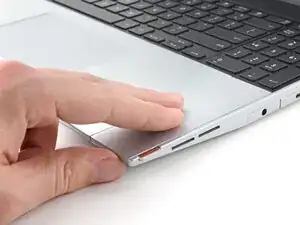
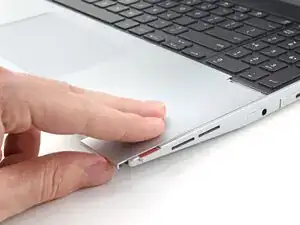
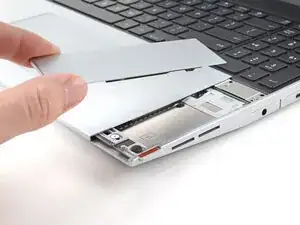
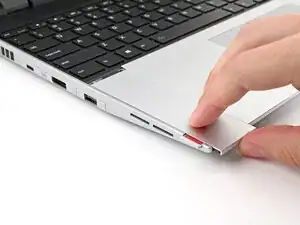
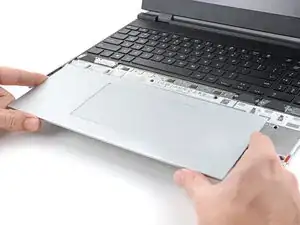
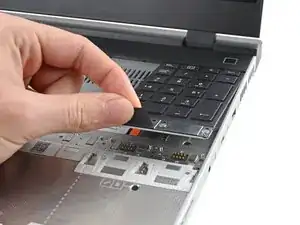
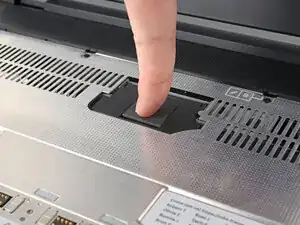
    • Use your fingers to slide the Touchpad Spacer toward the bottom edge of the laptop and unclip it.

    • If you're having trouble, check if the corresponding Input Module latch is properly unlocked.

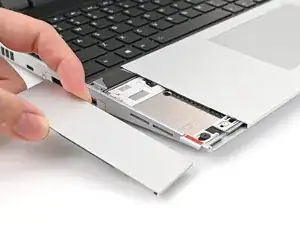
    • Lift the Touchpad Spacer off the laptop and remove it.

  2. oEqip25KTEF2gXZt
    oEqip25KTEF2gXZt
    teuRGEDSLRjVVpId
    mbydNVpAcqSPltCM
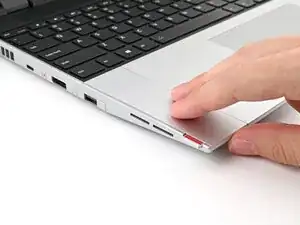
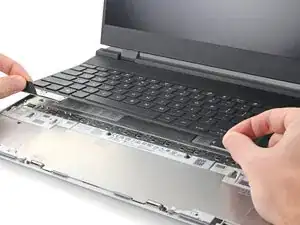
    • Repeat the same procedure for the other touchpad spacer.

  3. wpTjqyCvB2wHlNbJ
    wpTjqyCvB2wHlNbJ
    IsFbHVdd3uX4gPbf
    teReJWIbcCJhn3OH
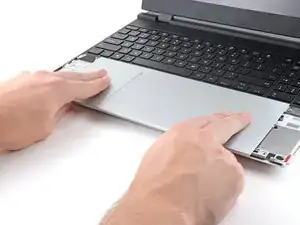
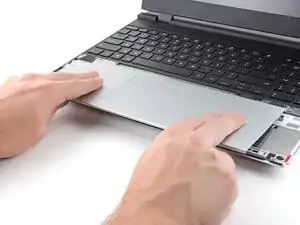
    • Use your fingers to slide the Touchpad Module toward the bottom edge of the laptop and disconnect it.

    • If you're having trouble, check if the Input Module latches are properly unlocked.

    • Lift the Touchpad Module and remove it.

  4. WXjcPFl2MgDiX2PZ
    WXjcPFl2MgDiX2PZ
    PojU1s2ZQqyfYBvO
    YlWkflmfJPHDuZov
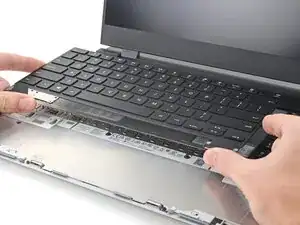
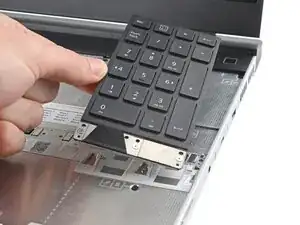
    • The keyboard is held in place with strong magnets. Apply gradually increasing force to avoid having the keyboard violently eject.

    • Grip the two pull tabs along the bottom of the keyboard and lift until its magnets release.

    • Remove the keyboard.

  5. hesMM66MFJtTfvCZ
    hesMM66MFJtTfvCZ
    3ZJ4rrrJTvR22eiV
    WesxvpHZwQSNZ3fK
    • Your Input Module(s) might be different, but the procedure to remove them is the same.

    • Grip the pull tab at the bottom of the Input Module and lift until its magnets release.

    • Remove the Input Module.

    • Repeat for any remaining Input Modules.

  6. BHwA1RJF1lpIAq4e
    BHwA1RJF1lpIAq4e
    VkpLUbh4wtSFIZ2u
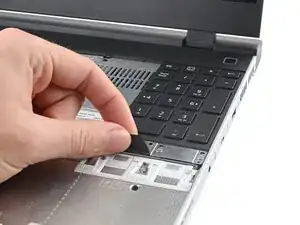
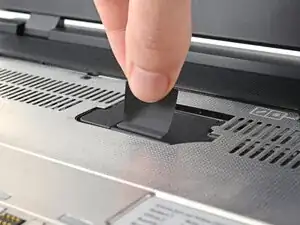
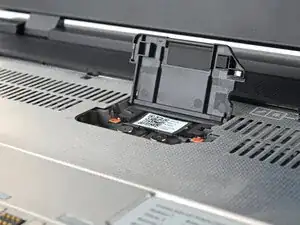
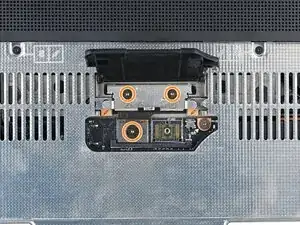
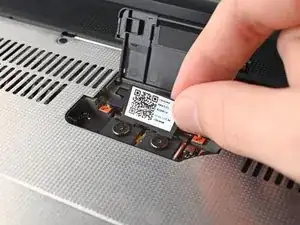
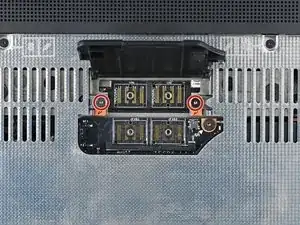
    • Lift the interposer door by its black pull tab and let it rest upright.

  7. oKdJHon6nNCIm1ii
    oKdJHon6nNCIm1ii
    Y5pjOulyPVDGZair
    Dx6pYosnUoQxCI4K
    • If you have the Graphics Module installed, your interposer will have four screws. If you have the Expansion Bay Shell installed, you'll have three screws instead.

    • If you have the Graphics Module, use your Framework Screwdriver to loosen the four captive T5 Torx screws securing the interposer.

    • If you have the Expansion Bay Shell, use your Framework Screwdriver to loosen the three captive T5 Torx screws securing the interposer.

  8. KqXx1rITOYMfOEeI
    KqXx1rITOYMfOEeI
    EgXNiThu5ZAp2qo1
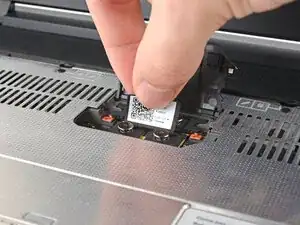
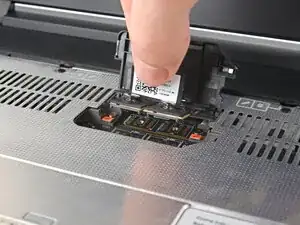
    • Lift the interposer by its pull tab and remove it.

  9. 1xM31Q5HLnOx22yi
    1xM31Q5HLnOx22yi
    BFNZQlRYjBrJIHOJ
    • Use your Framework Screwdriver to loosen the two captive T5 Torx screws securing the Expansion Bay Module.

    • Close the interposer door before continuing.

  10. LD4vR4HCV1GgbgfH
    LD4vR4HCV1GgbgfH
    qZQIOkPbUWX5wfYK
    C2BItTmGoSeimSuN
    • Close your laptop and flip it over.

    • Slide the Expansion Bay Module out of the laptop and remove it.

    • The module should slide out easily. If you feel any resistance, check that the screws holding it in place are fully loosened.

Conclusão

If you need help, contact Framework support.

Alex Diaz-Kokaisl

Membro desde: 16/01/22

227430 Reputação

0 comentários