Introdução
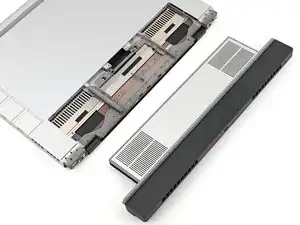
Follow this guide to remove the Expansion Bay Module, i.e., a Graphics Module or the Expansion Bay Shell, in your Framework Laptop 16.
Depending on your configuration, you may only need to remove the Touchpad Module and the keyboard to access the Expansion Bay. This guide shows removing each Input Modules to include all possible configurations.
Ferramentas

-
-
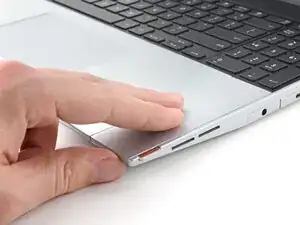
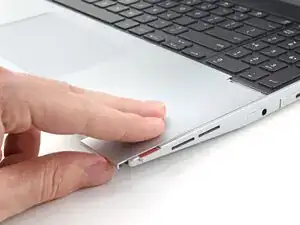
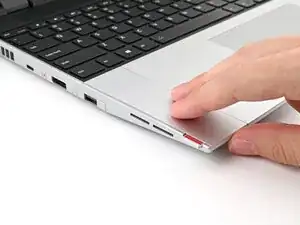
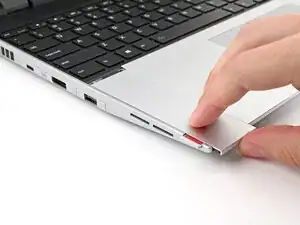
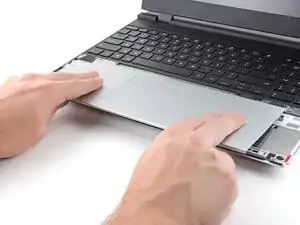
Use your fingers to slide the Touchpad Spacer toward the bottom edge of the laptop and unclip it.
-
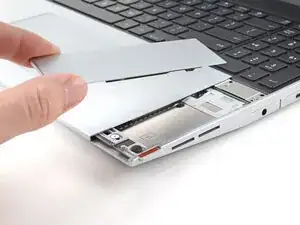
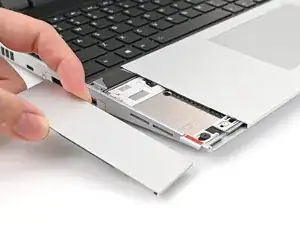
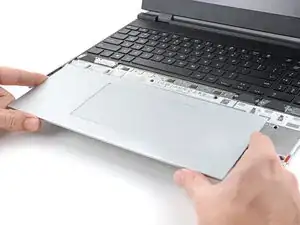
Lift the Touchpad Spacer off the laptop and remove it.
-
-
-
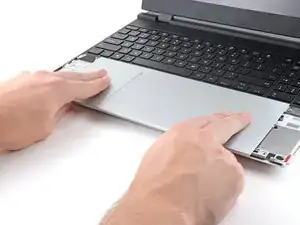
Use your fingers to slide the Touchpad Module toward the bottom edge of the laptop and disconnect it.
-
Lift the Touchpad Module and remove it.
-
-
-
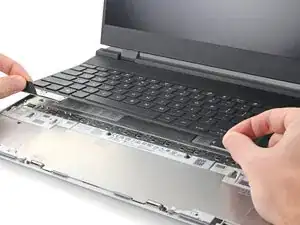
Grip the two pull tabs along the bottom of the keyboard and lift until its magnets release.
-
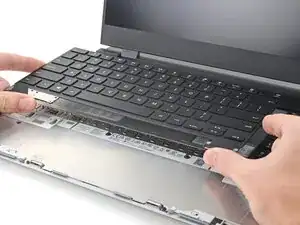
Remove the keyboard.
-
-
-
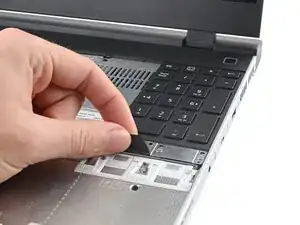
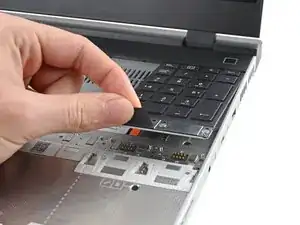
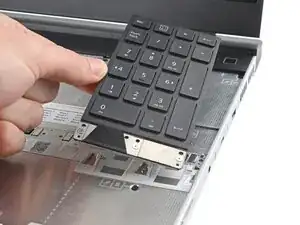
Grip the pull tab at the bottom of the Input Module and lift until its magnets release.
-
Remove the Input Module.
-
Repeat for any remaining Input Modules.
-
-
-
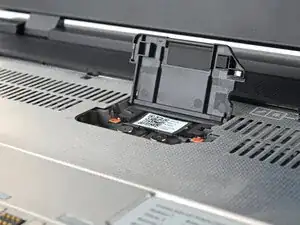
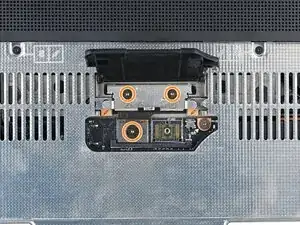
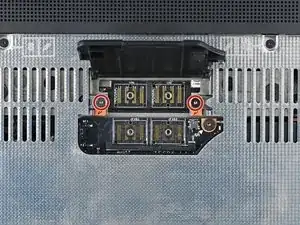
If you have the Graphics Module, use your Framework Screwdriver to loosen the four captive T5 Torx screws securing the interposer.
-
If you have the Expansion Bay Shell, use your Framework Screwdriver to loosen the three captive T5 Torx screws securing the interposer.
-
-
-
Use your Framework Screwdriver to loosen the two captive T5 Torx screws securing the Expansion Bay Module.
-
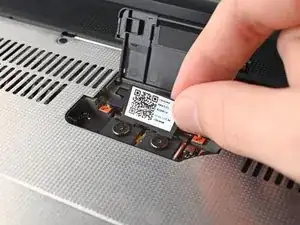
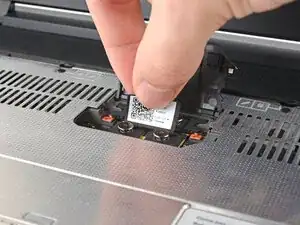
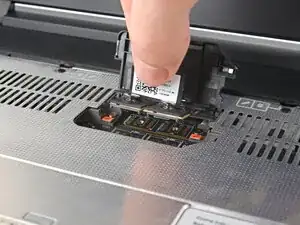
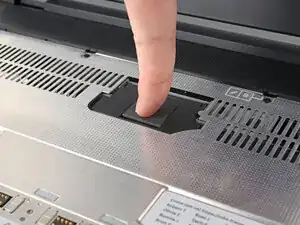
Close the interposer door before continuing.
-
-
-
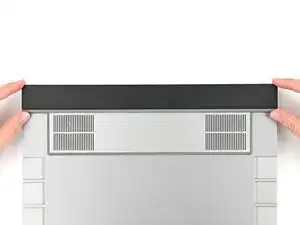
Close your laptop and flip it over.
-
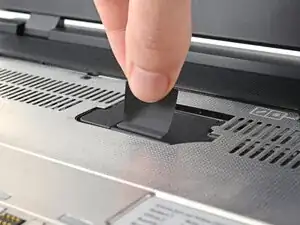
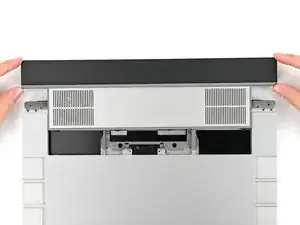
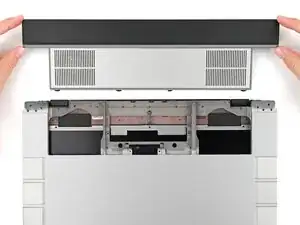
Slide the Expansion Bay Module out of the laptop and remove it.
-


If you need help, contact Framework support.
