Introdução
This guide shows how to rack mount the Framework Desktop Mainboard using a Framework Desktop Tray.
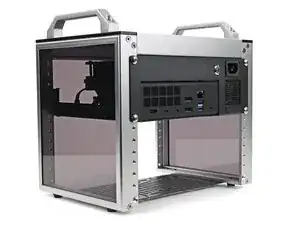
The rack shown in the guide is a DeskPi RackMate T0 4U, but you can use any 10‑inch rack that supports a Mini-ITX board. Refer to your rack's instructions for any additional installation procedures.
This guide assumes you have the Mainboard and power supply removed from your Desktop unit. For instructions on how to remove both the Mainboard and power supply, click here.
Ferramentas


-
-
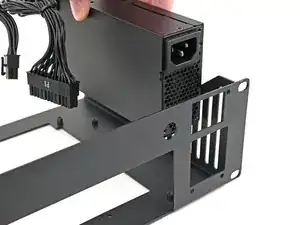
Place the power supply into its slot at the right edge of the Tray.
-
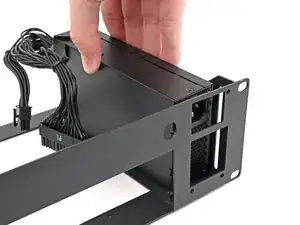
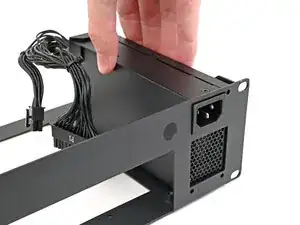
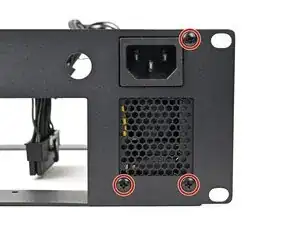
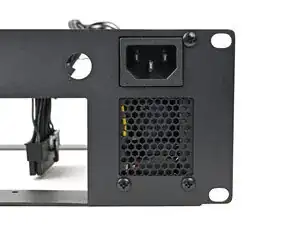
Push the plug on the power supply through its cutout on the Tray and align the three screw holes.
-
-
-
Use your Framework Desktop Screwdriver to install the three 6.0 mm‑long Phillips screws securing the power supply.
-
-
-
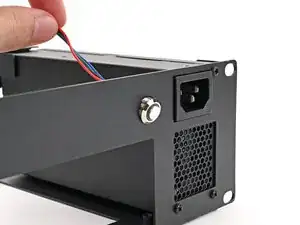
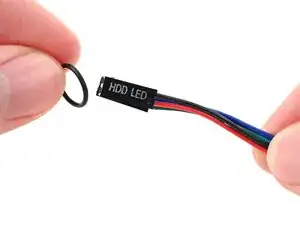
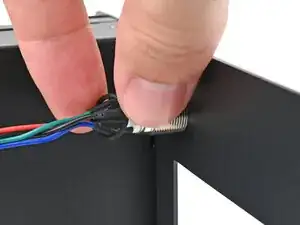
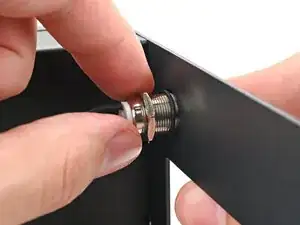
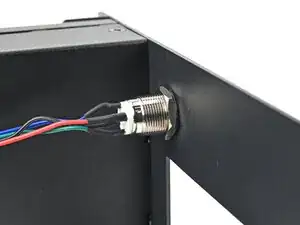
Slide the O-ring over the threads of the power button so it sits close to the front of the Tray.
-
-
-
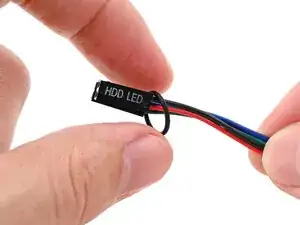
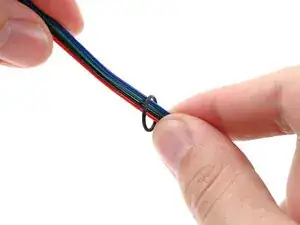
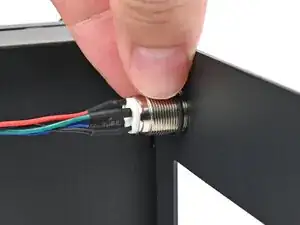
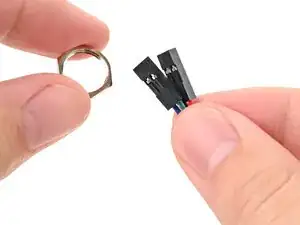
Thread the hexagonal nut over the power button cable and slide it down the length of the cable.
-
-
-
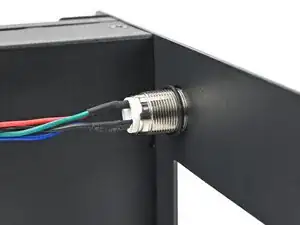
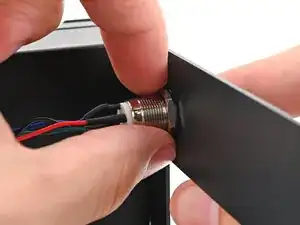
While holding the power button in place, tighten the nut over the threads of the power button until it's snug.
-
-
-
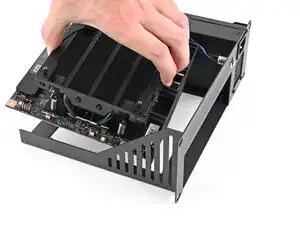
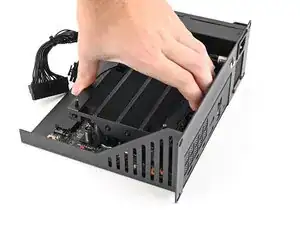
Grab the Mainboard by its heatsink and slide it into the Tray with its I/O ports facing the front.
-
Align the I/O ports with its cutout in the Tray and the screw posts with the screw holes on the Mainboard.
-
Make sure no cables are trapped underneath the Mainboard before continuing.
-
-
-
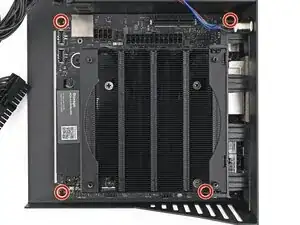
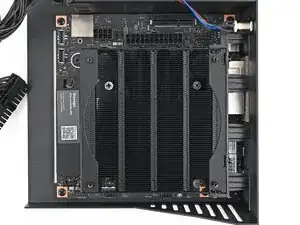
Use your Framework Desktop Screwdriver to install the four 8.2 mm‑long Phillips screws securing the Mainboard.
-
-
-
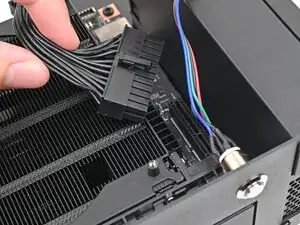
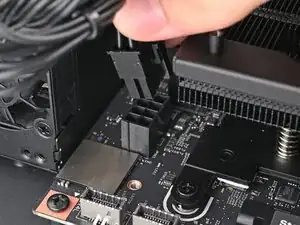
Orient the main power supply cable so its clip is facing away from the heatsink.
-
Slide the cable into its socket on the Mainboard until you feel it click into place.
-
-
-
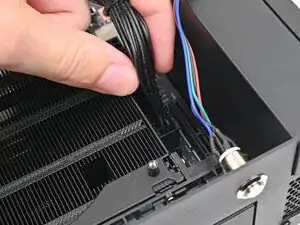
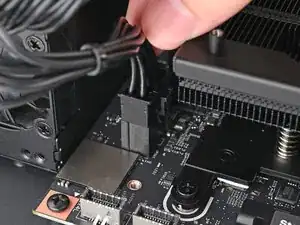
Orient the CPU power supply cable so its clip is facing the heatsink.
-
Slide the cable into its socket on the Mainboard until you feel it click into place.
-
-
-
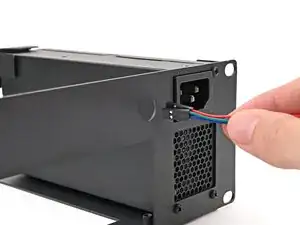
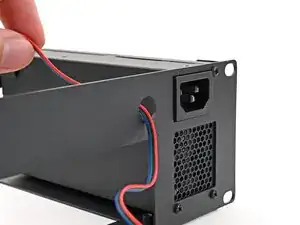
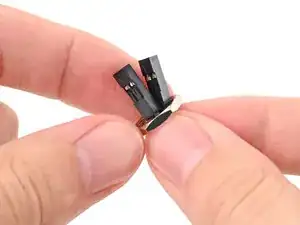
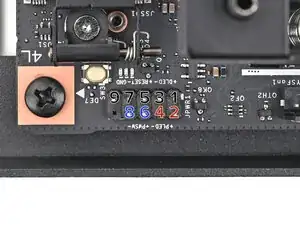
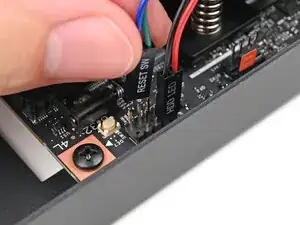
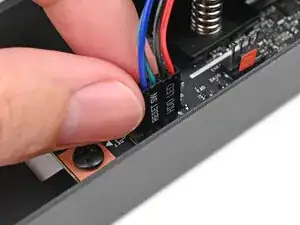
Slide the two power button cables over the nine-pronged connector near the back left corner on the Mainboard.
-
The red and black cables labeled "HDD LED" go on prongs 2 and 4, respectively
-
The green and blue cables labeled "RESET SW" go on prongs 6 and 8 (the order doesn't matter)
-
-
-
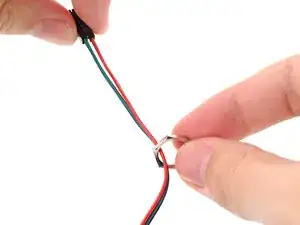
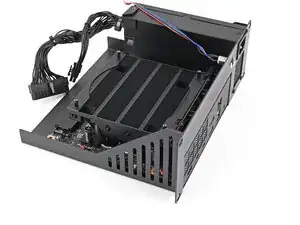
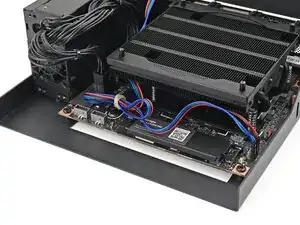
Optionally, you can shorten the power button cable and tuck it under the heatsink to keep it out of the way.
-
-
-
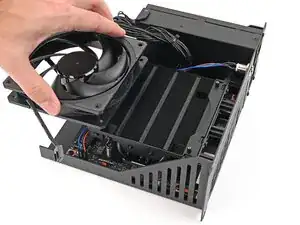
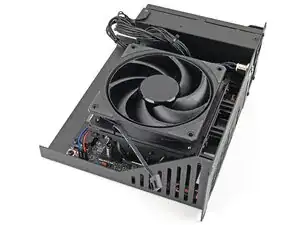
Orient the fan so its label is facing downward and the cable(s) is pointing towards the left edge of the Tray.
-
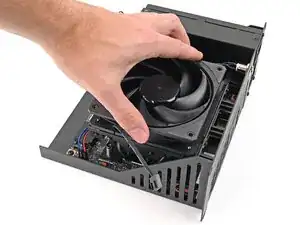
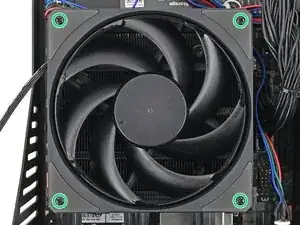
Lay the fan on top of the heatsink, making sure the screw posts on the heatsink are slotted into the screw holes on the fan.
-
-
-
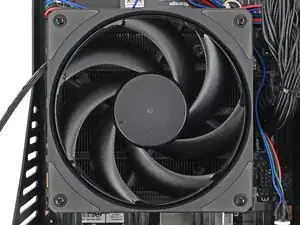
Use your Framework Desktop Screwdriver to install the four 27.3 mm‑long screws securing the fan.
-
-
-
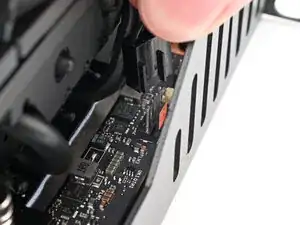
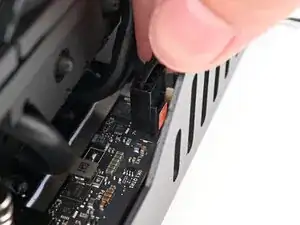
Orient the main fan cable so its two vertical lines are facing the edge of the Tray.
-
Slide the main fan cable over the four-pronged connector labeled "APU Fan," making sure the orange label slots between the vertical lines.
-
-
-
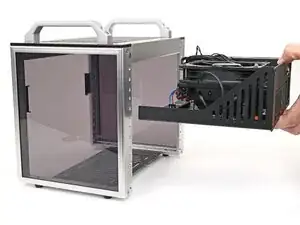
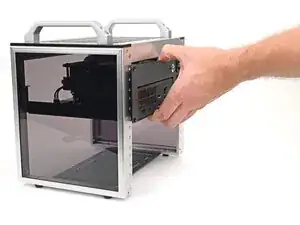
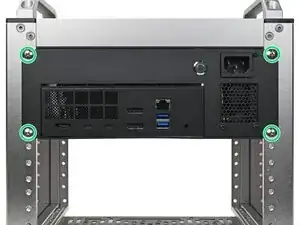
Use your Framework Desktop Screwdriver to install the four 10.3 mm‑long screws—with the included washers—securing the Tray.
-
If you need help, contact Framework support.
