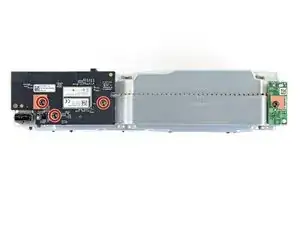
Introdução

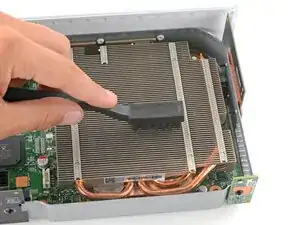
Use this guide to open up and clean dust and debris out of the fan, grilles, or vents of an Xbox Series S.

If your console is loud, overheating, or underperforming, it may have built-up dust in the cooling fan, heatsink, or main vents.

When laying down flat, the Xbox Series S draws air from the vents on its sides and expels it through the black, circular vent on top. If your Xbox lives in a TV cabinet with limited airflow, consider opening the door while gaming or moving it out to open air. If your Xbox is on the ground, it may suck in extra dust, dirt, or hair and limit its ability to keep cool.

Note: Depending on how far you disassemble your Xbox, you may need replacement thermal putty if you damage some while cleaning.

  1. ksCkcPpj1f2rbPSZ
    ksCkcPpj1f2rbPSZ
    MgCgSIErTTMZv5jk
    NdWUAfnNgVUUa1AP
    • Before you start this guide, turn off the Xbox and unplug any cables from it.

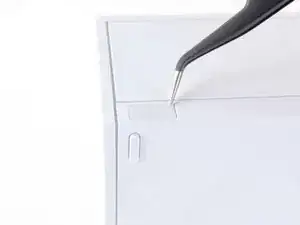
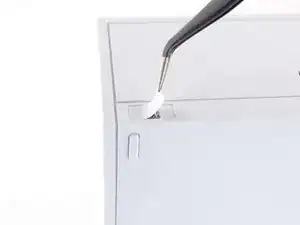
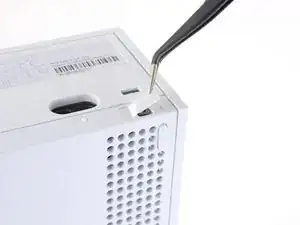
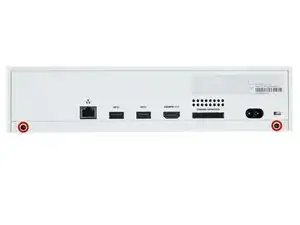
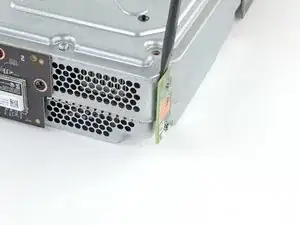
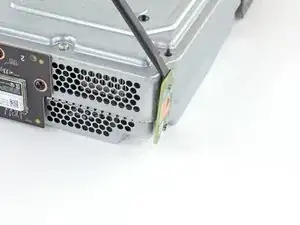
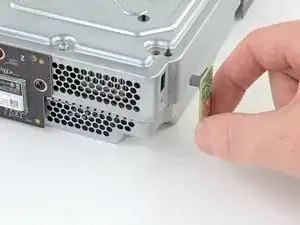
    • Use tweezers to peel off the two white screw covers located on the bottom corners of the back panel.

    Where can I get a shell replacement?

    King DK -
  2. Y5tXDBFpuucoHo2y
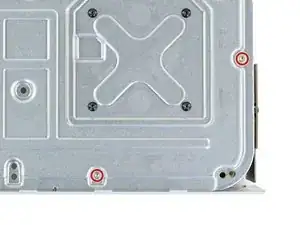
    • Use a T8 Torx driver to remove the two 10 mm-long screws securing the back panel to the bottom panel.

    • Throughout this repair, keep track of each screw and make sure it goes back exactly where it came from.

  3. mHROMZpcqKDeQXyf
    mHROMZpcqKDeQXyf
    GpmhWc3GtpTrGES3
    OTdQPA45aCH6byxX
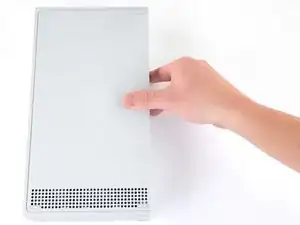
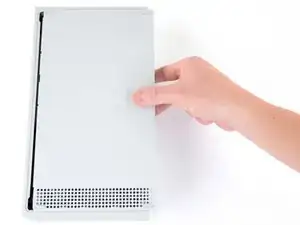
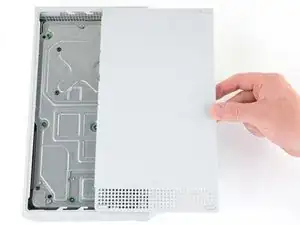
    • Slide the bottom panel horizontally toward the back of the console until it comes to a stop.

    • This slides the clips out of the slots on the plastic case.

    • Lift straight up and remove the bottom panel from the plastic case.

  4. B1OvlYqHkmYPl2rp
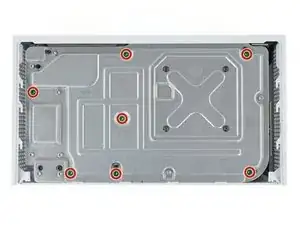
    • Use a T10 Torx driver to remove the seven 51 mm-long screws securing the chassis to the plastic case.

  5. wyLautfBRPLPIG3t
    wyLautfBRPLPIG3t
    n3WKRnayG2HH5kTp
    GRSmSAuvLi1fnliK
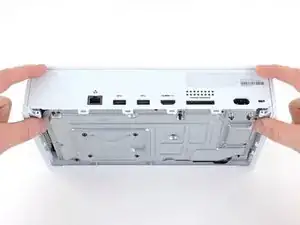
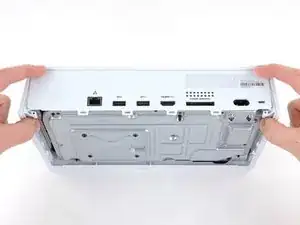
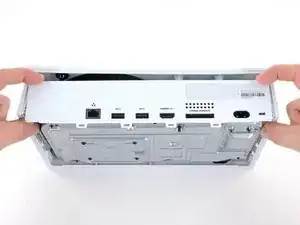
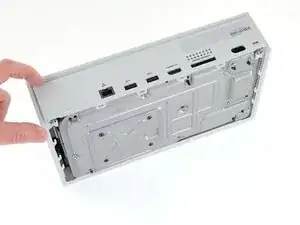
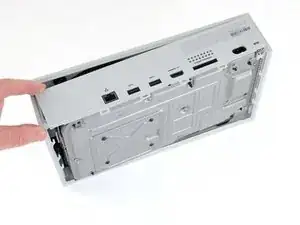
    • With the bottom of the Xbox facing you, pull the two bottom-rear corners of the plastic case away from each other.

    • As you pull the corners apart, slide the back panel towards the bottom of the device. This releases the back panel from the plastic case.

    • The back panel should now settle on top of the clips on the back of the plastic case.

    • The back panel is permanently attached to the aluminum chassis.

    • Do not attempt to fully remove the chassis from the plastic case with this technique. You may risk breaking your case.

  6. jPYaPOUIRBZQK32V
    jPYaPOUIRBZQK32V
    vu61erVTSNk4QNpX
    jgxbcKbDKA4JvY3o
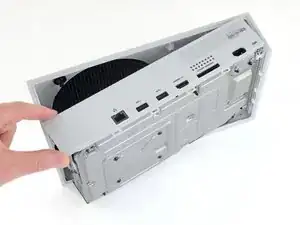
    • Pull the bottom-left corner away from the chassis while swinging the chassis away from the plastic case.

    • You may need to lift the chassis to free it from the clips on the bottom-front of the plastic case during this process.

    • Remove the plastic case from the chassis.

  7. P6Rlej4lIDbGVCZD
    P6Rlej4lIDbGVCZD
    tsZgKPukiewuHGH2
    JCWHqe5x34dZHYyl
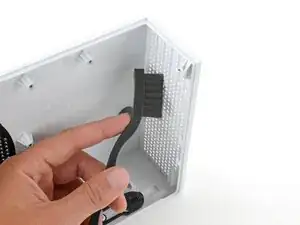
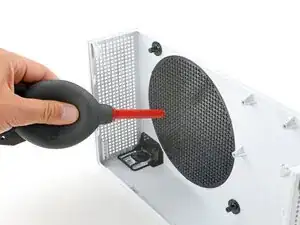
    • Over time, dust will build up in the Xbox's plastic cases and their vents.

    • Using a cleaning brush or a new toothbrush, clean any dust out of the vents on the plastic cases.

    • Use a dust blower or light compressed air to blow remaining dust out of the vents.

    • Use a clean rag or microfiber cloth to wipe clean the insides of the plastic cases.

    • If there are any particularly grimy spots, apply a few drops of soapy water or isopropyl alcohol to your cloth to help remove debris.

  8. tR2xOFmdD6OrQSMj
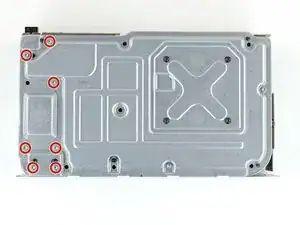
    • Use a T10 Torx driver to remove the seven 11.3 mm-long screws securing the power supply to the chassis.

    Qualcuno sa dirmi come rimuovere una vite bloccata che non gira?

    Mauro Belsito -
    I'd say, these screws require a lot of force to get it out. Maybe take advantage of your both hands and use your screwdriver to turn counterclockwise, while using the metal chassis to turn it clockwise.

    Bryan -

  9. EN5y2pLLbQftv1tS
    EN5y2pLLbQftv1tS
    LxBIhEaF3LNoJnkU
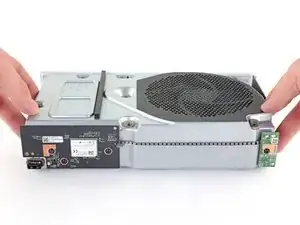
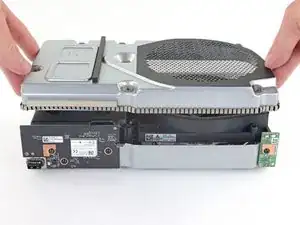
    • Flip the device over.

    • Lift the upper chassis straight up to remove it.

  10. KypeGVlKMy1uNYAZ
    KypeGVlKMy1uNYAZ
    SgLyYgUohWOPAKME
    e2W4JCiXcRCTnuQv
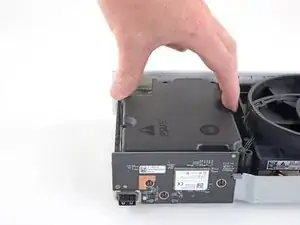
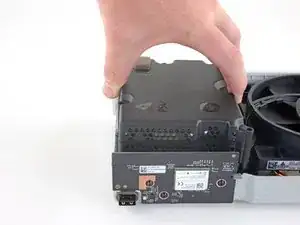
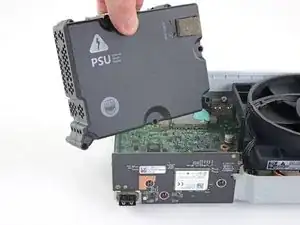
    • Lift the power supply straight up to disconnect it from the motherboard.

    • Remove the power supply.

    Can you please tell whether it is indispensable to use the power supply with exactly the same Revision, S/N and P/N or is the same model number, like 1920, 1921 enough to make it work? Thanks for showing the teardown.

    Ali Taimoor -

    Would've been nice to know at this point that if I do this step, I will likely need to replace the thermal putty, something I have not had to do before but now have no choice...

    Grizz -

  11. PDYoG1QZhuKMDCRk
    • Use a T10 Torx driver to remove the two 11.3 mm-long screws securing the fan to the chassis.

  12. khPF2XCVjOJGYL5K
    khPF2XCVjOJGYL5K
    NaLb1oT6GiIBQodG
    • Flip the device over.

    • Take care when flipping the chassis over because the fan is now loose.

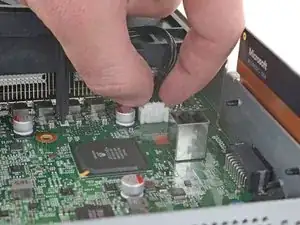
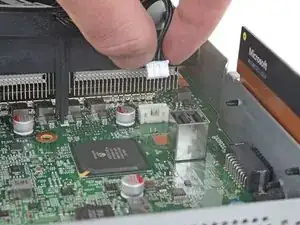
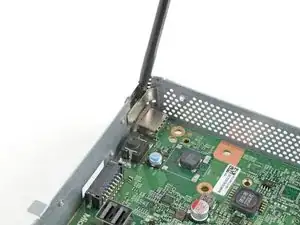
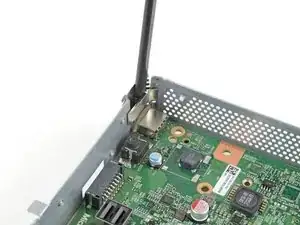
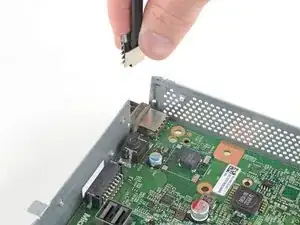
    • Use your fingers to pull and disconnect the fan connector from its motherboard socket.

    • Take care not to pull on the wires when disconnecting the fan to prevent breaking the connector.

    • This connector may be difficult to remove. A good method to remove it is to shimmy the connector up and out of its socket with a spudger.

    • You may be able to remove this connector without removing the power supply with a pair of needle-nose pliers.

    If you are careful you can also remove the connector by lightly prying from the sides of the connector in equal proportions (left then right then left etc.) using a 2.5 flathead.

    Zachary Stensrud -

    my fan was solder to my board but it broke off i have no idea ho to put it back my power button is missing the power button on the board i need help

    Edwinn du Plessis -

    If you don't know how to soldier you'll need to get a quote from repair man or company to repair it and weight up the cost or watch videos on Xbox S repairs from Ifixit or YouTube Xbox repair videos

    paul drozd -

  13. qW6W3IbcCdAYDJTy
    qW6W3IbcCdAYDJTy
    xe3lgbFUOLx1O1pu
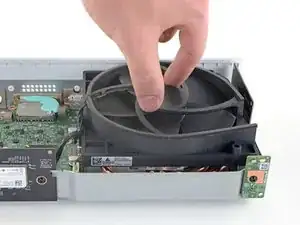
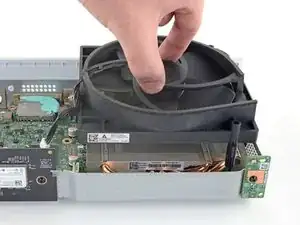
    • Lift the fan straight up to remove it from the motherboard.

  14. mFg4CTchUZmS55Uh
    mFg4CTchUZmS55Uh
    RDXV3IdkisZFuFIH
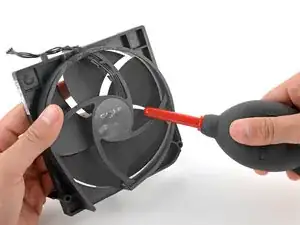
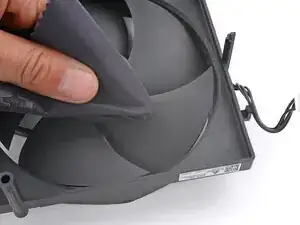
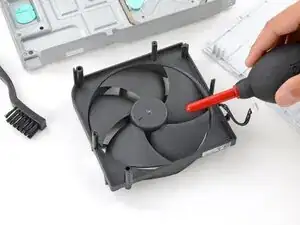
    • Over time, dust will build up inside the fan and on the fan blades.

    • Use a pair of tweezers or your fingers to grab loose hairs and dust clumps off of the fan.

    • Use a dust blower or light compressed air to blow remaining dust off of the fan.

    • Use a finger to keep the fan blades steady—it makes them easier to clean.

    • If there's a layer of grime on the fan blades, use soapy water on a damp rag or an isopropyl alcohol wipe to clean it off.

  15. CLfbFMX5EVA31m1b
    CLfbFMX5EVA31m1b
    SqJKTrLMIpLrMhbc
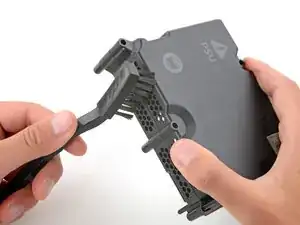
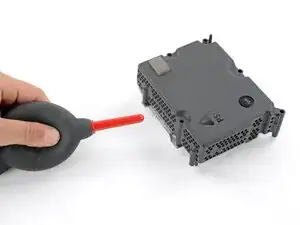
    • The fan draws air through the power supply, which can collect dust and dirt.

    • Be careful not to damage the thermal putty on the power supply.

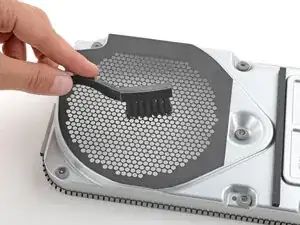
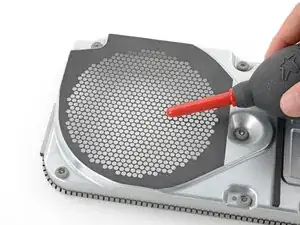
    • Using an anti‑static brush or a new toothbrush, clean any dust out of the vents on the sides of the power supply.

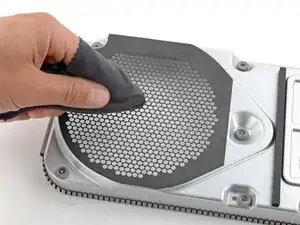
    • Use a dust blower to blow any loose dust out of the power supply and a cloth to wipe the vents clean.

  16. uMr5leBJdoNMZyeH
    uMr5leBJdoNMZyeH
    w4GIaFbdYbhLETec
    FpefNPymngg33IJv
    • Repeat the previous step to clean the fan grill on the top of the chassis.

  17. 3qrl1KEJVKUDL24H
    3qrl1KEJVKUDL24H
    OJMxUUWYvUjWf2YT
    wAYGySJCfpDiCKW1
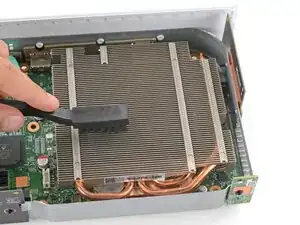
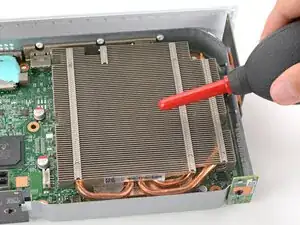
    • The fan draws air through the heatsink's metal fins, which can accumulate dust and dirt over time.

    • Gently slide the bristles of an anti‑static brush or new toothbrush back and forth between the metal fins to loosen any debris.

    • Use a dust blower to blow any loose dust out of the heatsink fins.

    • If you want to clean your Xbox even more thoroughly, follow the remaining steps to remove the motherboard—this will give you access to the metal chassis and port cutouts.

  18. 2bCRN3HVAhNxdNYs
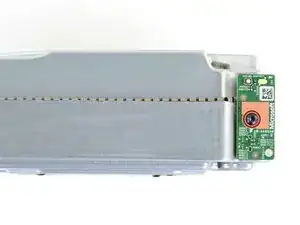
    • Use a T8 Torx driver to remove the 9.5 mm-long screw securing the power button board to the chassis.

  19. NbAvjG4qsRUuxvTP
    NbAvjG4qsRUuxvTP
    WWpdvikbhMmpNeIF
    inhKjcIUCexlMBC2
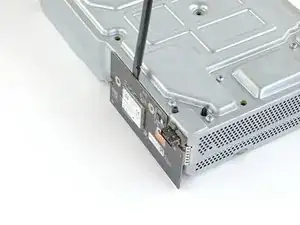
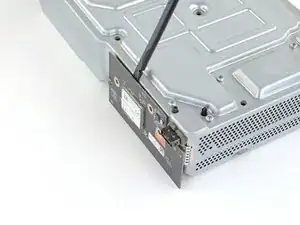
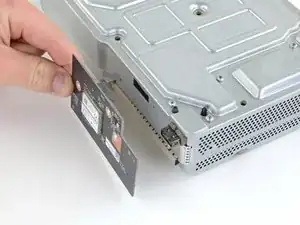
    • Use a spudger to pry and loosen the power button board.

    • Do not pry from the bottom of the power button board as it may bend the connector.

    • Pull the power button board straight out to disconnect it from the chassis.

  20. 65EyRHmggQLF15FE
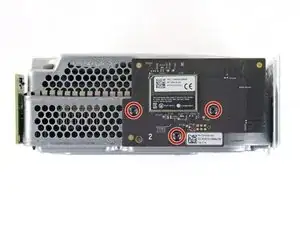
    • Use a T8 Torx driver to remove the three 9.5 mm-long screws securing the Wi-Fi board to the short edge of the chassis.

  21. ix6gZKaS3d2QJwPr
    ix6gZKaS3d2QJwPr
    BlVpMP2rj1NWyNMi
    xBgWMyTOTibYcKFw
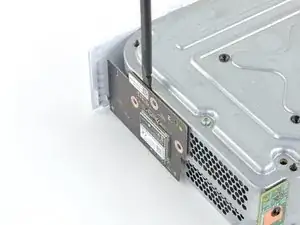
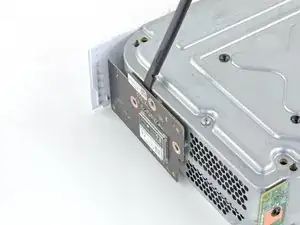
    • Use a spudger to pry and loosen the Wi-Fi board.

    • Do not pry from the bottom or sides of the Wi-Fi board as it may bend the connector.

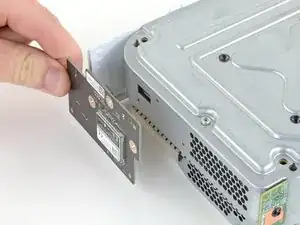
    • Pull the Wi-Fi board straight out to disconnect it from the chassis.

  22. rEUZOvhd2gSBQYAV
    • Use a T8 Torx driver to remove the three 9.5 mm-long screws securing the Bluetooth board to the long edge of the chassis.

  23. eOD3FJCVSAZy1Nvx
    eOD3FJCVSAZy1Nvx
    SrOFWZQLcgjn41GT
    fEchsWgPZqCruvT4
    • Use a spudger to pry and loosen the Bluetooth board.

    • Do not pry from the bottom or sides of the Bluetooth board as it may bend the connector.

    • Pull the Bluetooth board straight out to disconnect it from the chassis.

  24. rXqXldhFrTixFIo1
    • Use a T8 Torx driver to remove the four 9.4 mm-long screws securing the motherboard to the chassis.

  25. hiNH5awnZHbMdfUk
    hiNH5awnZHbMdfUk
    QQlEZtWSIOYIJGi1
    HfUeWYBM1nZicavZ
    • Flip the device over.

    • Insert a spudger into the locking clip located on the front-left corner of the chassis.

    • This will open up the clip to make it easier to remove.

    • Lift straight up to remove the clip.

  26. tQVm5igDd1xsurHx
    tQVm5igDd1xsurHx
    msT5w3D2rMVQb4Wi
    XfMPgFOvgdEnoNOy
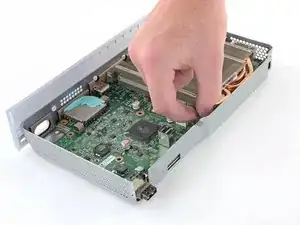
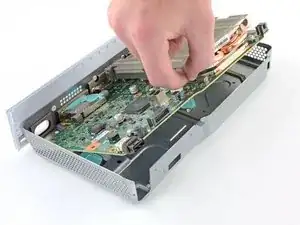
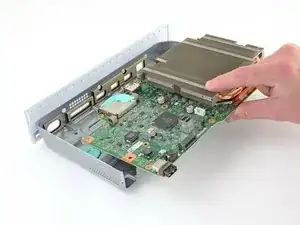
    • Grasp the heat sink with your fingers and lift up the front of the motherboard up above the edge of the chassis.

    • Pull the motherboard towards the front of the chassis to remove it.

  27. 2chijEcayFGpFZ4t
    2chijEcayFGpFZ4t
    VR1l1SPyvCuJNGU2
    2QMDwFdiWNy2AQ2I
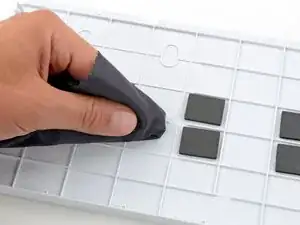
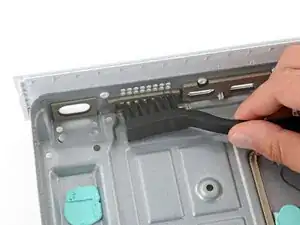
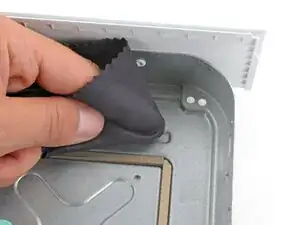
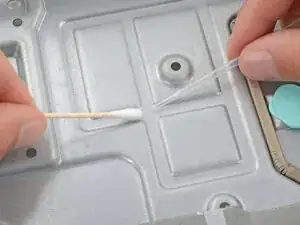
    • When cleaning the metal chassis, be very careful not to damage any thermal putty.

    • Use a cleaning brush or clean toothbrush to thoroughly clean all the port cutouts.

    • Lightly dip a clean cloth in soapy water and use it to remove any grime from the metal chassis.

    • For particularly tough spots, use a cotton swab and isopropyl to clean the area.

    • While your device is disassembled, thoroughly check all internal surfaces for dirt or grime and clean them accordingly.

    • If you damaged any of the thermal putty on the chassis, power supply, or motherboard, remove and replace the putty.

Conclusão

To reassemble your device, follow these instructions in reverse order.

If your Xbox lives in a TV cabinet with limited airflow, consider opening the door while gaming or moving it out to open air—make sure left and right sides (with vents) as well as the circular, black vent on top are unobstructed. If your Xbox is on the ground, it may suck in extra dust, dirt, or hair and limit its ability to keep cool.

Disassembly or cleaning didn’t go as planned? Try some basic troubleshooting, or ask our Xbox Series S Answers community for help.

Spencer Day

Membro desde: 14/09/22

165254 Reputação

0 comentários