Introdução
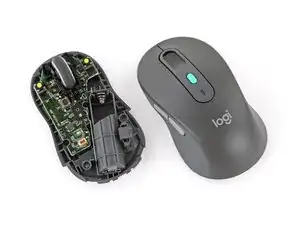
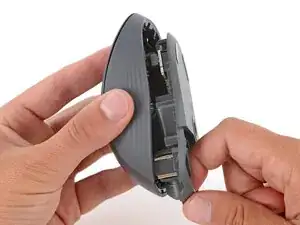
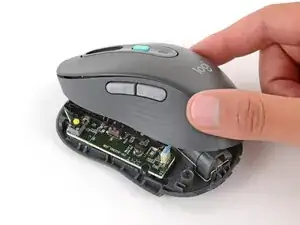
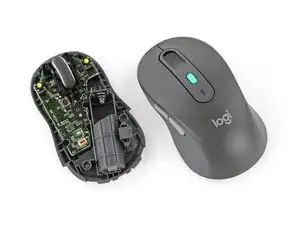
Follow this guide to open your Logitech Signature AI Edition M750 wireless mouse.
Opening your mouse gives you access to clean its internals, troubleshoot mechanical problems, or replace a part.
Ferramentas


-
-
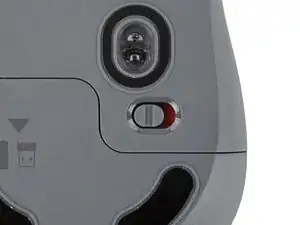
Before starting, flip the power switch on the bottom of your mouse to the left, so it's in the OFF position.
-
-
-
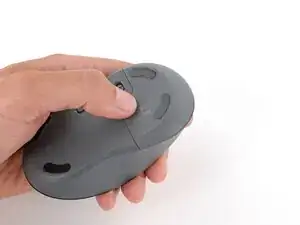
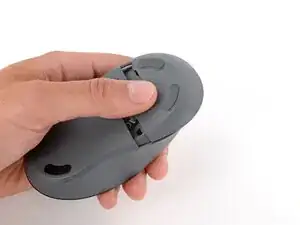
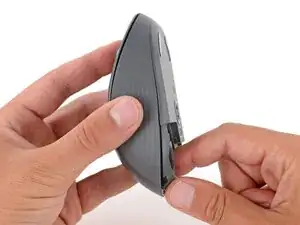
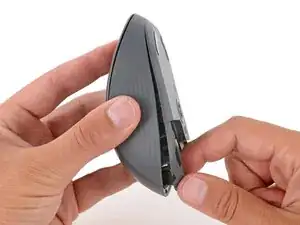
Press down on the battery cover with your thumb and slide it away from the mouse to unclip it.
-
Remove the battery cover.
-
-
-
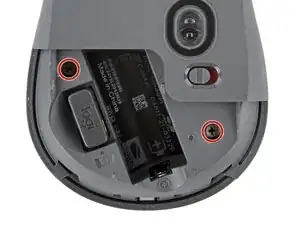
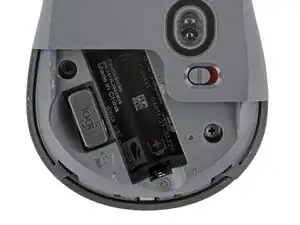
Use a Phillips screwdriver to remove the two 5.5 mm‑long screws securing the two halves of the mouse together.
-
-
-
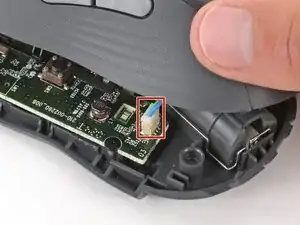
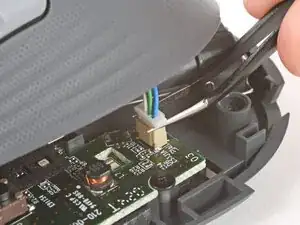
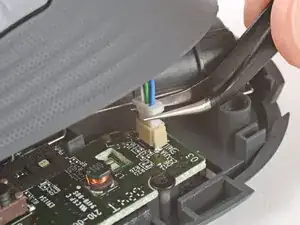
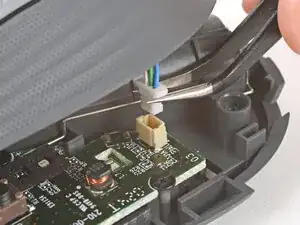
Use a pair of angled tweezers to firmly grip the base of the connector, just below its notches.
-
Gently rock the connector side‑to‑side and pull straight up to disconnect it.
-
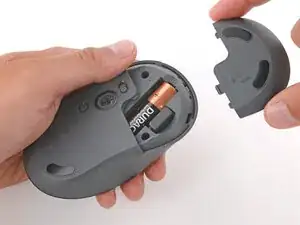
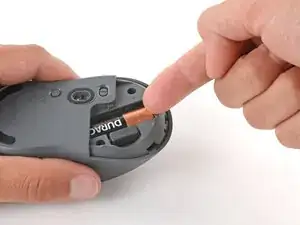
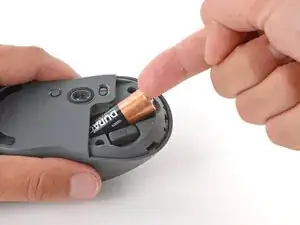
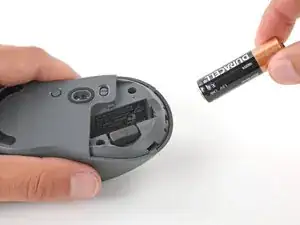
To reassemble your device, follow these instructions in reverse order.
Repair didn’t go as planned? Try some basic troubleshooting, or ask our Answers community for help.
Reuse or Recycle—Never put discarded electronic parts in household waste. Visit Logitech Recycling to find your nearest recycling points, including the option to mail back old devices to Logitech for free if there’s no convenient solution in your area. You can also take your e-waste to any R2 or e-Stewards certified recycler. And don’t let good working parts or repaired devices die a slow death in your sock drawer—pass them along to someone who can use them.
Share your experience—Leave a comment here or send your feedback directly to Logitech at repair@logitech.com to help shape future repair guides and product design.
