Introdução

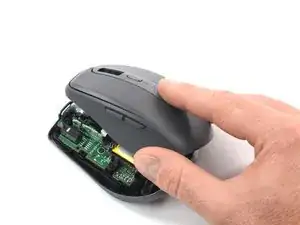
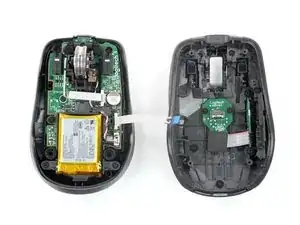
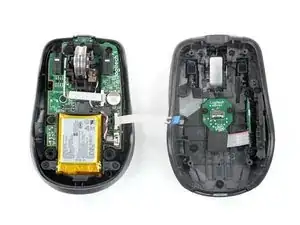
Use this guide to open your Logitech MX Anywhere 3 for Mac mouse.

Open your mouse to clean its internals, troubleshoot mechanical problems, or replace a part.

  1. ibXKHNbiHOMFhbFs
    ibXKHNbiHOMFhbFs
    jUsBXeFx6SWgXKbA
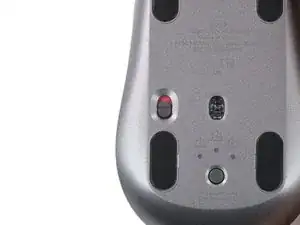
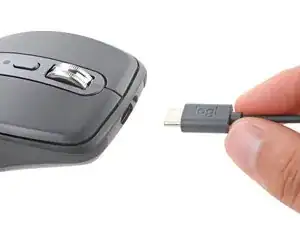
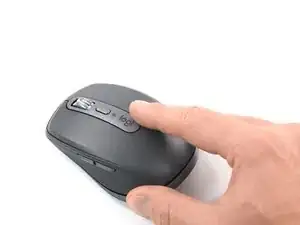
    • Slide the mouse's power switch to the OFF position and unplug any cables.

    • Flip the mouse over so the feet are facing up.

    • The unique shape of some mice can prevent them from laying flat. If you need to, lay your mouse on a soft towel to prevent wobble.

  2. RyUFDDkl3MVRCXKC
    • If you're planning to reuse your existing mouse feet, the adhesive needs to be thoroughly heated to cleanly remove them.

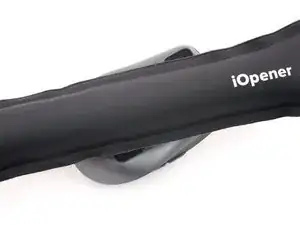
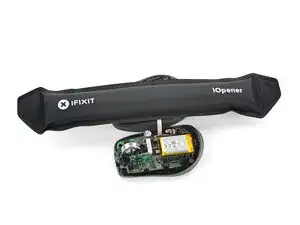
    • Heat an iOpener and lay it on the mouse feet for about two minutes to soften the adhesive.

    • Alternatively, you can use a hair dryer to soften the mouse feet adhesive.

    • When using a hair dryer, don't heat the feet for more than a couple seconds at a time—anything hotter than just warm to the touch risks melting or warping the plastic case.

  3. UAYxW4VMNHwsHtxo
    UAYxW4VMNHwsHtxo
    BykwlMZGBaun3VOW
    LlCwZeQAewKIs41n
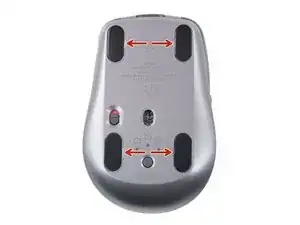
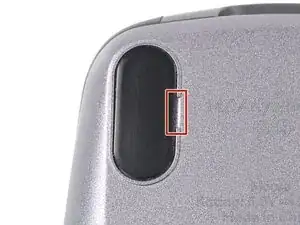
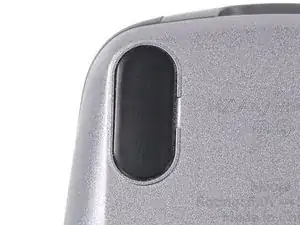
    • While you wait for the adhesive to soften, note the following:

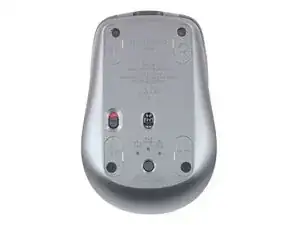
    • There are small gaps in the rims surrounding each foot. This is where to insert your tool when peeling up the feet.

  4. ScBiFTZdTAXiLrxP
    ScBiFTZdTAXiLrxP
    ERZDn6aI2XlU5aSV
    oGFMAv461mbmsdgI
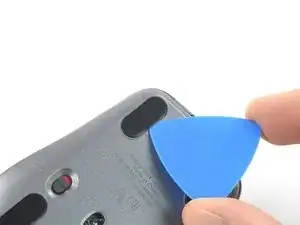
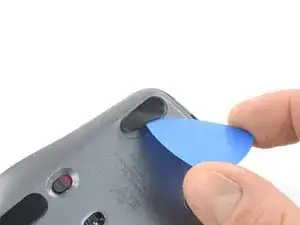
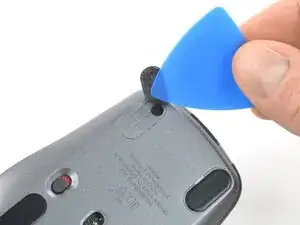
    • Push the tip of an opening pick (or spudger) underneath the mouse foot, into the gap in the rim.

    • Go slowly, and make sure the pick slides underneath both the foot and its adhesive pad—these layers separate easily.

    • If you plan on reusing your mouse feet, be careful not to crease them or separate them from their adhesive pads.

    • Slide your pick under the foot and lift to remove it.

    • Repeat the process to remove the three remaining mouse feet. If you're having trouble sliding the tool under a foot, reheat it and try again.

    • To install new mouse feet:

    • Use a pair of tweezers or a spudger to remove any large chunks of leftover adhesive. Thoroughly clean the bottom of the mouse with isopropyl alcohol and a lint-free of microfiber cloth. Allow the surface to dry completely.

    • Peel your new mouse feet off their adhesive liners and press them firmly into place.

    I would also suggest Tesa 61395 Tape as a replacement for the adhesive for the feet. It is extremely strong when applied.

    I use it on the back of a metal plate adhered to my phone for a magnet mount in my car. And is on a silicone case.

    Amazing tape and extremely thin.

    Paolo Alberto -

  5. fC2ugTfQ2kduQBGL
    fC2ugTfQ2kduQBGL
    YAiqfDIjQZhw3l5d
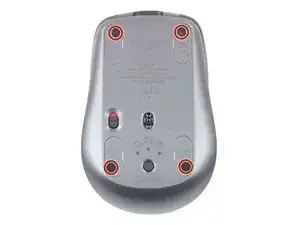
    • Use a Phillips screwdriver to remove the four 4.3 mm‑long screws securing the two halves of the mouse together.

  6. wO4ibQaTZKLTSDP4
    wO4ibQaTZKLTSDP4
    ZKIXYOHD1pHTcytE
    WdcNtSP4IXeVFcE3
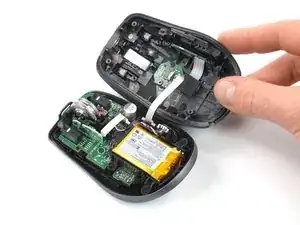
    • Gently lift the top shell off the mouse up and flip it over the right edge.

    • Don't try to fully remove the top shell yet—a cable connects it to the lower half.

    Ok I'm standing

    Gd Fs -

  7. CYKBoIvUiL4AFxEu
    CYKBoIvUiL4AFxEu
    1KoQaOpwAPSyY4oI
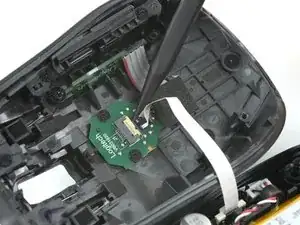
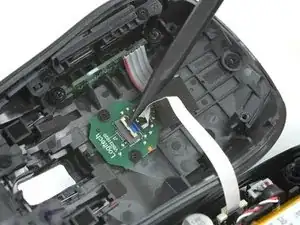
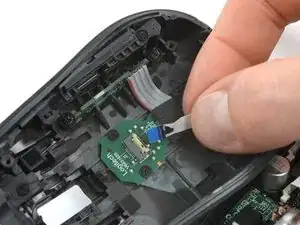
    • Use the point of a spudger or a clean fingernail to flip up the small, hinged locking flap on the interconnect cable ZIF connector (located on the underside of the top shell).

    I did this, but it was way easier to disconnect the other end of the cable by simply removing the cable with a clip (without glue)

    spam3d -

  8. BLQEBx6PipRG4eYj
    BLQEBx6PipRG4eYj
    No3DhXlSGUjo4PdW
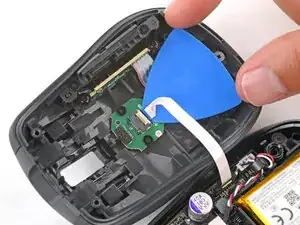
    • There may be a small piece of adhesive securing the interconnect cable to the board on the top shell, right where the cable goes into its socket.

    • Apply a heated iOpener to the board on the underside of the mouse's top half for two minutes.

    • Gently slide the tip of an opening pick under the cable to separate its adhesive.

  9. CdTEJCl2igglBkNM
    CdTEJCl2igglBkNM
    1ivABlPhbgbdBdXE
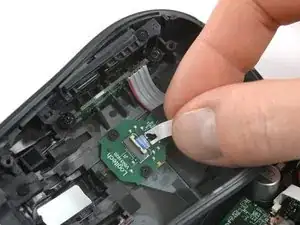
    • Use your fingers or tweezers to pull the cable straight out of its socket.

    • During reassembly, insert the cable with its blue tab facing up, then flip down the locking flap.

    On my MX Anywhere 3, the interconnect cable is also glued to the board on the top half of the mouse. It was much easier to pop up the white top of the connector on the bottom half of the mouse to free the interconnect cable.

    dustin -

  10. 2TWFVkSuT1a5Pm3d
    • Remove the top shell.

    The switches in this mouse are the Omron D2FC-F-7N and they are very loud. It might also be the plastic chassis that's contributing to the overall clicky sound signature.

    Rad -

Conclusão

To reassemble your device, follow these instructions in reverse order.

Repair didn’t go as planned? Try some basic troubleshooting, or ask our Answers community for help.

Clay Eickemeyer

Membro desde: 19/09/22

99651 Reputação

0 comentários