Introdução

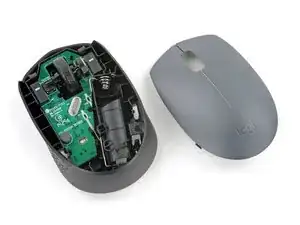
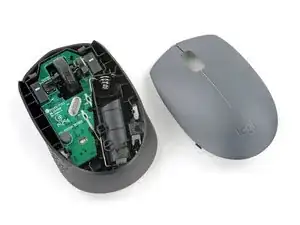
Follow this guide to open your Logitech M170 wireless mouse.

Opening your mouse gives you access to clean its internals, troubleshoot mechanical problems, or replace a part.

  1. omhNSofWCjlSurch
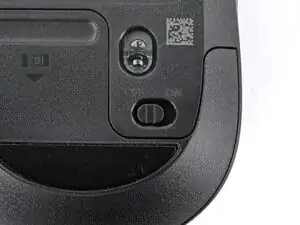
    • Before starting, slide the power switch on the bottom of your mouse to the left, so it's in the OFF position.

  2. 5JLYjnfjXWAZKnmp
    5JLYjnfjXWAZKnmp
    frIoARdAkDGRspqr
    O3itagGSVBkBNTC3
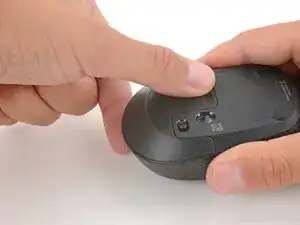
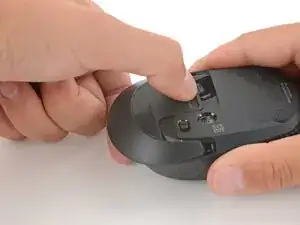
    • Press down on the battery cover and slide it away from the mouse to remove it.

  3. CAtISUFLYAypFrRq
    CAtISUFLYAypFrRq
    dxRpQmshiDNAV5vB
    mvrttxFpLb6i6GQY
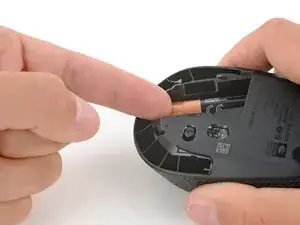
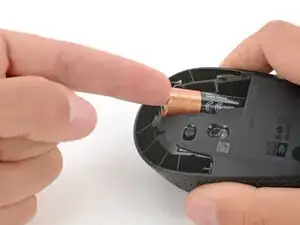
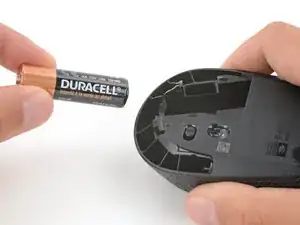
    • Use your fingers to lift the end of the battery and slide it out of its recess.

    • During reassembly, slide the battery in negative (-) end first, as shown on the engraving in the recess.

  4. HhGsccnesxeMgP6w
    HhGsccnesxeMgP6w
    vXijMZtVTwmH62OB
    HDJ3YG2D2Itv1F1K
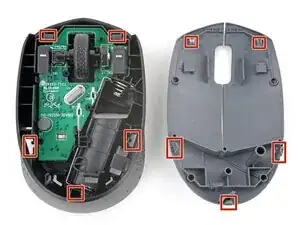
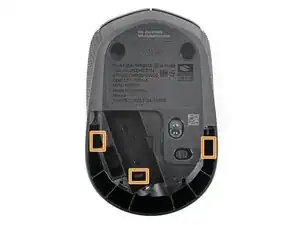
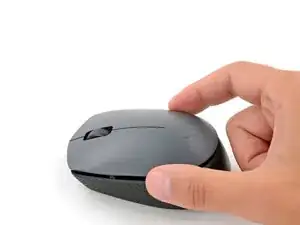
    • The top half of the mouse is held in place with plastic clips. Releasing is very tricky. Note the following before releasing the clips:

    • The clips can easily break if too much force is applied. Take your time to avoid damage.

    • There are five clips located around the perimeter of the top shell that slide into the bottom shell.

    • The clips can be accessed through cutouts on the bottom of the mouse.

  5. k4gpNNfWhvLgZbjl
    k4gpNNfWhvLgZbjl
    vN1iYTmEKdiUHiWY
    UtRgsShkrhGb1bbB
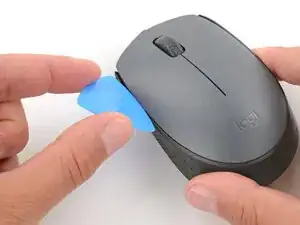
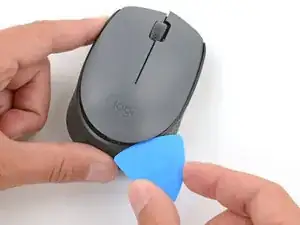
    • Insert the flat edge of an opening pick under the outer edge of the left click button.

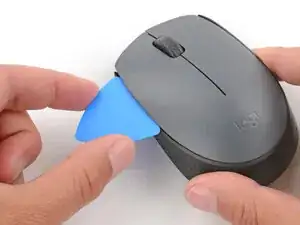
    • Tilt the pick so it's flat and slide it towards the rear of the mouse to release the back left clip—this will also release the rear clip.

    • You should feel and hear the clip release. If you don't, remove the pick and try again.

    • Leave the pick inserted near the rear of the shell for the next step.

  6. BpMPNHYGsIKhfCjW
    BpMPNHYGsIKhfCjW
    OKsCjAuM14u1fJXG
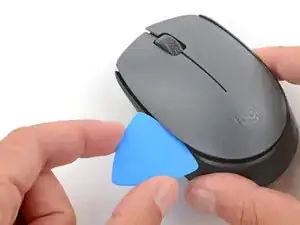
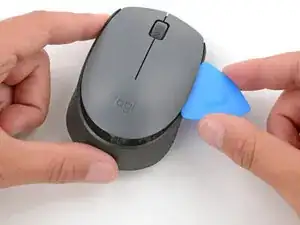
    • Slide the pick up the right side to release the back right clip.

    • If you're having a very hard time releasing the clips, you can insert a spudger in the cutouts through the bottom of the mouse and gently push the rear clips outward (away from the mouse) and try again.

  7. sDPP4rIpJsUQT4Ij
    sDPP4rIpJsUQT4Ij
    ilxpBZmVkQX6kNEl
    DOeLFaJCqk3g2s2D
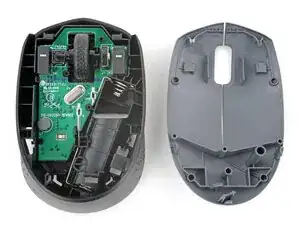
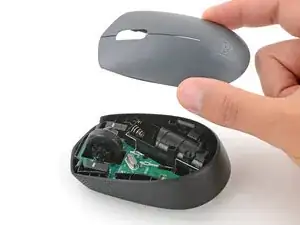
    • Lift and remove the top half of the mouse.

    • The top half should come away easily. If it doesn't, repeat the previous two steps to ensure the clips are released.

    • During reassembly, slide the hooked clips at the front of the mouse into their grooves before lowering the top half into place. Then, press down firmly around the perimeter to engage the rear clips.

Conclusão

To reassemble your device, follow these instructions in reverse order.

Repair didn’t go as planned? Try some basic troubleshooting, or ask our Answers community for help.

Reuse or Recycle—Never put discarded electronic parts in household waste. Visit Logitech Recycling to find your nearest recycling points, including the option to mail back old devices to Logitech for free if there’s no convenient solution in your area. You can also take your e-waste to any R2 or e-Stewards certified recycler. And don’t let good working parts or repaired devices die a slow death in your sock drawer—pass them along to someone who can use them.

Share your experience—Leave a comment here or send your feedback directly to Logitech at repair@logitech.com to help shape future repair guides and product design.

Spencer Day

Membro desde: 14/09/22

165254 Reputação

0 comentários