Introdução

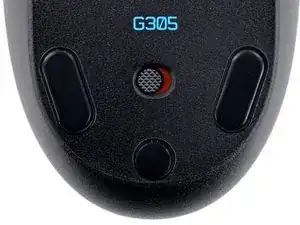
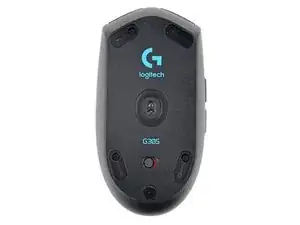
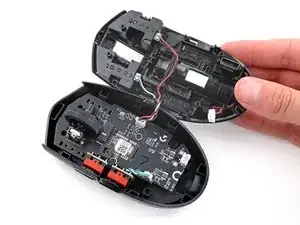
Use this guide to open your Logitech G305 wireless gaming mouse.

Opening your mouse gives you access to clean its internals, troubleshoot mechanical problems, or replace a part.

  1. DXQFQnASmefwCSsf
    DXQFQnASmefwCSsf
    WQEika5DSswBNVIC
    • Slide your mouse's power switch to the left so it's in the OFF position.

    • A red indicator should be visible beneath the switch.

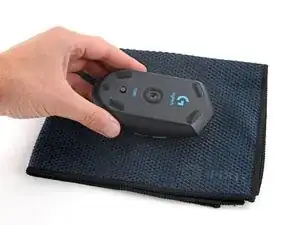
    • Throughout your repair, it may be helpful to lay your mouse on a soft cloth to stabilize it and prevent damage while you work.

  2. KqMKCHLvXQB2RcNT
    KqMKCHLvXQB2RcNT
    EFtSp2p2JtvY2wIX
    • The feet are secured to the bottom of the mouse with adhesive. In order to cleanly remove them, the adhesive needs to be thoroughly heated.

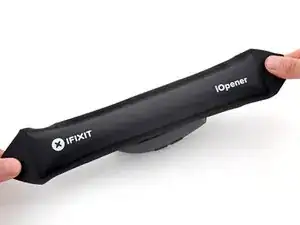
    • Heat an iOpener and lay it on the mouse feet for one minute to heat the adhesive.

    • Alternatively, you can use a hair dryer on the Low heat setting to soften the adhesive.

    • If you're using a hair dryer, only heat the feet a few seconds at a time or you may warp the plastic shell.

  3. MZtURJcLmUk5ISmj
    MZtURJcLmUk5ISmj
    UHvNllaWuGocVmOp
    gRqbuVfE4XkLVdwn
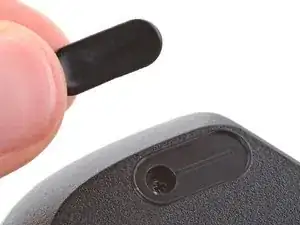
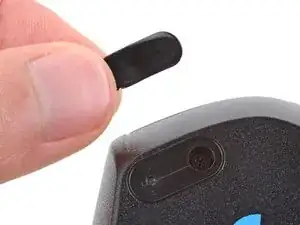
    • The feet have two layers—a rubberized one and an adhesive pad underneath.

    • If you're reusing the feet, be very careful not to separate the two layers or damage the feet.

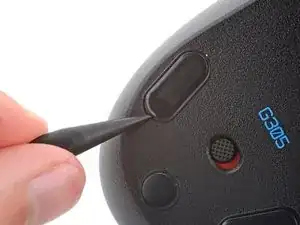
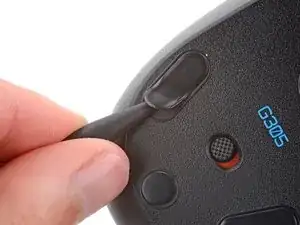
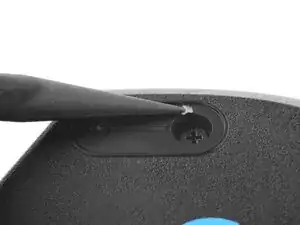
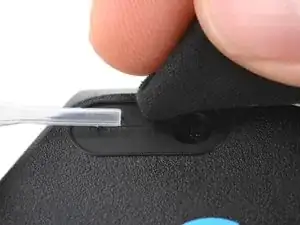
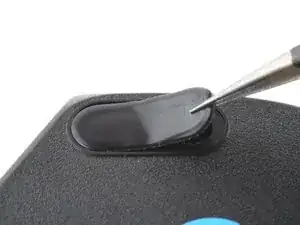
    • Carefully slide the point of a spudger under one of the feet, making sure it goes under both the foot and its adhesive pad.

    • If you're just removing the feet to open the mouse, you don't need to remove the circular one below the power switch.

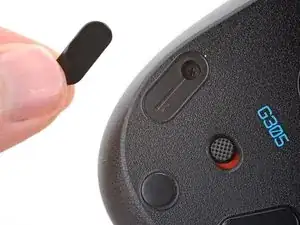
    • Gently slide the spudger farther under the foot and lift to remove it.

    • If the rubber layer separates from its adhesive pad, use the same process to remove the pad.

  4. N5Tfq5giHQ2Np1BS
    N5Tfq5giHQ2Np1BS
    OB2s5dGAdfkMGmcM
    II2XDJIeyMSavEXx
    • Repeat the previous step to remove the remaining feet.

  5. loPfYTnGSCpTujgT
    loPfYTnGSCpTujgT
    nkkFuXsTivdIALiF
    fBsDmkahTN3EOXVs
    • To install a new foot:

    • If any of the feet got damaged during removal or separated from their adhesive pads, replace them.

    • Use a spudger to carefully scrape up and remove any remaining adhesive bits.

    • If there's any adhesive residue left, use isopropyl alcohol and a microfiber cloth to remove it. Allow the surface to completely dry.

    • Remove the feet from their backing and firmly press them into place.

  6. bG2YMaYCmTgRsXyW
    bG2YMaYCmTgRsXyW
    psNeedHvuLVDBIhl
    S2QfRhyBlVuuaaiU
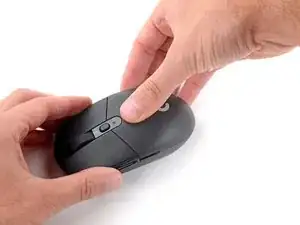
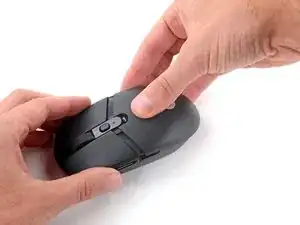
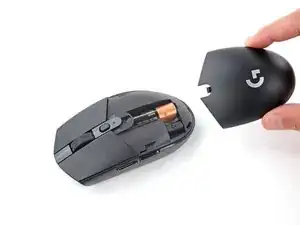
    • Press down on the top cover just above the Logitech logo and slide it back to remove it.

    • When reinstalling the cover, you should feel and hear a "click" as it slides into place.

  7. UdCowWUdNUrdHPIf
    UdCowWUdNUrdHPIf
    ZIrUVB2cWqDXFjyL
    Nf4wbJenWJewG2bD
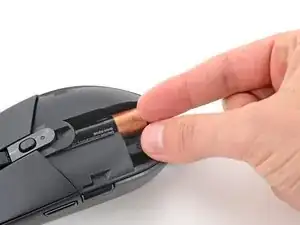
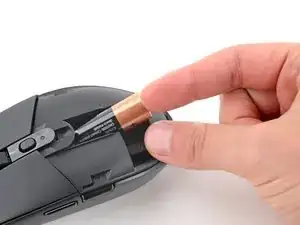
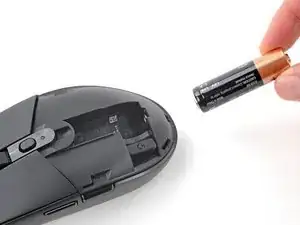
    • Lift the end of the AA battery near the back of the mouse and remove it.

    • To install a new battery, slide the negative (-) end into the recess so it's near the front of the mouse and push the battery into place.

  8. YUUNlZvZAHYyMvpi
    YUUNlZvZAHYyMvpi
    1YCLx1oYhPTjQpjr
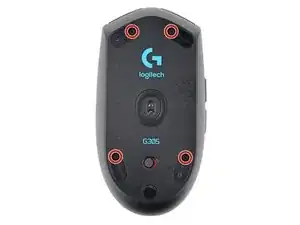
    • Use a Phillips screwdriver to remove the four 5.3 mm‑long screws securing the bottom shell.

  9. tmpmYBCosgZ3EaJP
    tmpmYBCosgZ3EaJP
    fDEnoCeVV1l6ACO6
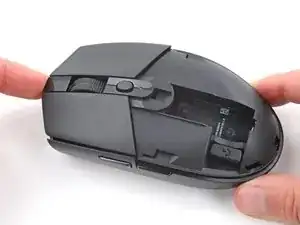
    • With one hand, firmly hold the bottom shell in place.

    • With your free hand, lift the front of the top shell to partially separate it.

    • Don't try to fully separate the top shell, as the back is still clipped in.

  10. SBlWcsS4oMoVbhXy
    SBlWcsS4oMoVbhXy
    AZkvrUUTuyDctXKG
    SV1WduHyqEEUdQXu
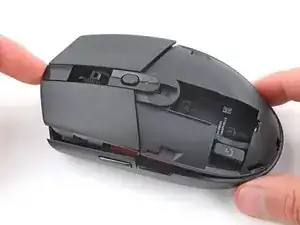
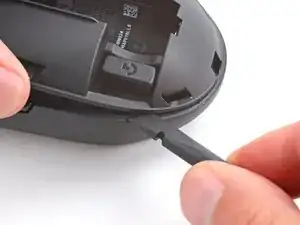
    • With one hand, firmly grip the top shell.

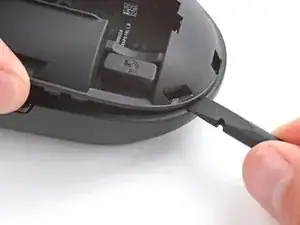
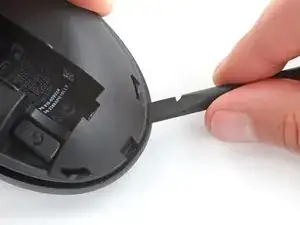
    • With your free hand, insert the flat end of a spudger between the top and bottom shells near the rear of the mouse.

    • Slide the spudger towards the rear of the mouse while pulling the top shell up and toward the front to separate the shells.

    • If the shells don't separate, repeat the process on the other side of the mouse.

  11. AvAOWGTSbTjDBOGC
    AvAOWGTSbTjDBOGC
    GQafqaNBuA1batAJ
    KKXYAWsSHUnKsCOR
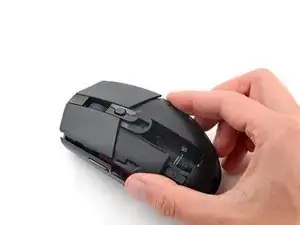
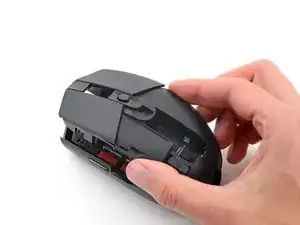
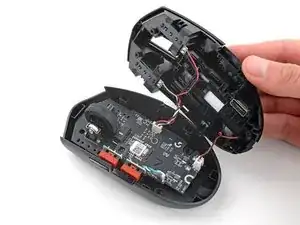
    • Don't try to fully remove the top shell yet, as two cables still connect it.

    • Lift the top shell up and flip it over the right edge of the mouse, being careful not to strain the cables.

    • The top shell should stay slightly propped up.

  12. JOhyDMAnVlkqkZ6v
    JOhyDMAnVlkqkZ6v
    IXHN6VxB1enqf1TT
    mWLNZvEXD6IHQN3m
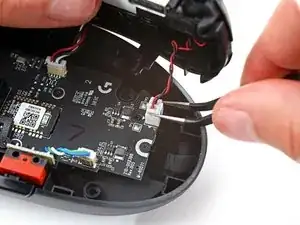
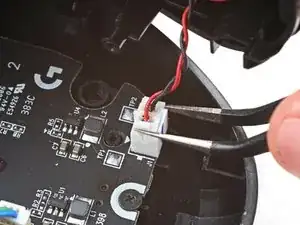
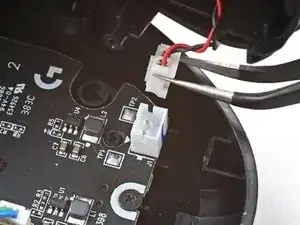
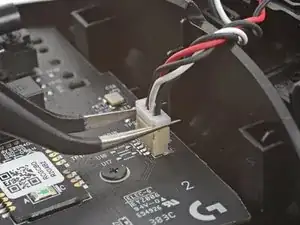
    • Use tweezers to firmly grip the short edges of the battery cable connector on the bottom right corner of the board.

    • Pull the connector straight up and out of its socket.

    • If you're having trouble, rock the connector side-to-side to help loosen it.

    • During reassembly, push down on the edges of the connector with the flat end of a spudger until it's fully seated in the socket.

  13. prNbPdY2T5IIlSrV
    prNbPdY2T5IIlSrV
    qXqHoOIZtS1wRFtq
    • Lay the top shell flat on your workspace to the right of the mouse.

  14. qAb6gNFtCMEpVjhe
    qAb6gNFtCMEpVjhe
    BmULHF3yGO6lKikH
    FNJbbNaZikhCuTJJ
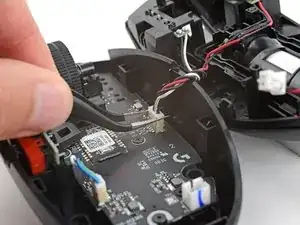
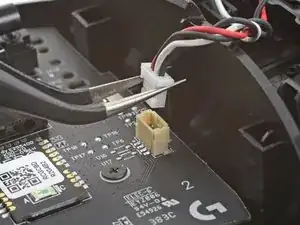
    • Use tweezers to firmly grip the short edges of the top buttons connector on the right edge of the board.

    • Pull the connector straight up and out of its socket.

    • If you're having trouble, rock the connector side-to-side to help loosen it.

    • During reassembly, push down on the short edges of the connector with the flat end of a spudger until it's fully seated in the socket.

  15. i3NTUeHOXZWQpEjT
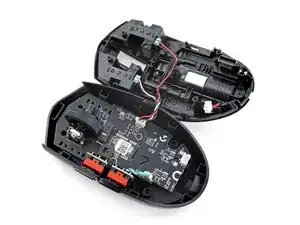
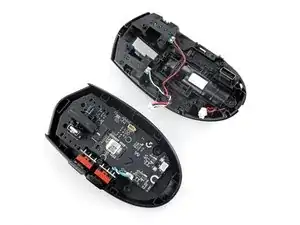
    • The top and bottom shells are now fully separated.

Conclusão

To reassemble your device, follow these instructions in reverse order.

Take your e-waste to an R2 or e-Stewards certified recycler.

Repair didn’t go as planned? Try some basic troubleshooting, or ask our Answers community for help.

Spencer Day

Membro desde: 14/09/22

165254 Reputação

2 comentários

Muito bom, consegui consertar o problema do botão esquerdo e ficou novinho, fiz uma limpeza e Show .

HighTechGG -
Hey, there is a little tab at the back of the mouse on step 10 that seems to be broken in this tutorial, it holds the top shell down and you have to push it backwards to release the top shell.⏎
I struggled a bit because of it, so if you are too don't force it or you might break it too, just push the tab backwards, thx!

Reds Pc -